

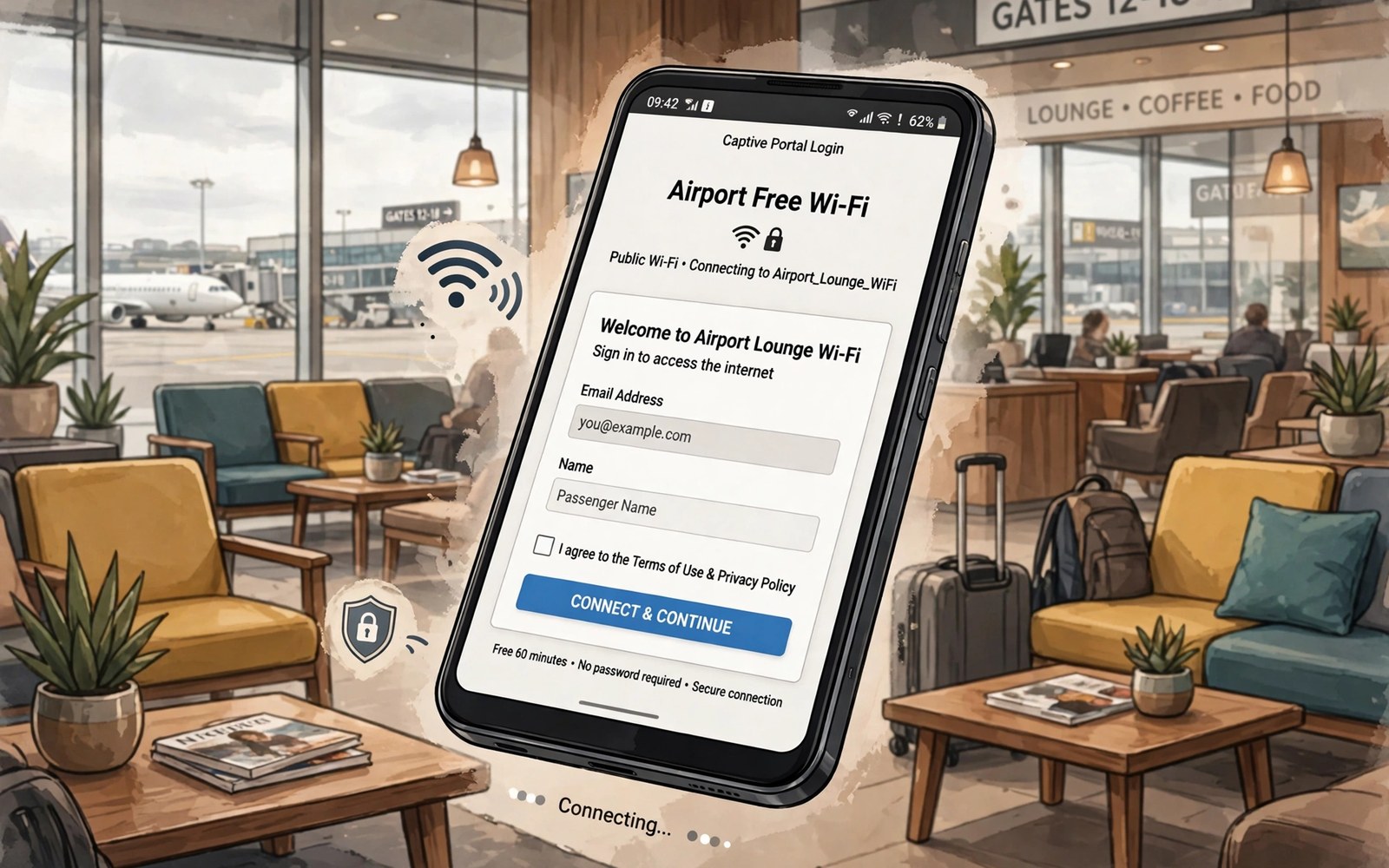
Stop Public Wi-Fi Landing Pages Failing: Direct URL Bypass Hack
You connect to the Wi-Fi in a hotel lobby, the signal bars look strong, and nothing loads. The browser spins, the apps report no connection, and the login page that should have appeared never shows up. I have stood in that exact spot in airports, cafes, and conference halls, holding a phone that claims to be connected while behaving as if it were offline. The fault is rarely your phone and rarely the router. It sits in between, in the captive portal step that is supposed to show you a sign-in page and quietly fails to do so.
This guide walks through the fix that works most often first: a direct plain address that forces the portal to reveal itself, followed by the settings that block portal detection, the recovery steps for a portal that loads but never completes, and the safety habits that keep a public network from following you home. Every step names the real setting or the real address to type, and every step tells you what to check after you try it. The word in the title describes the direct-address technique itself, and the steps below stick to that technique and to the ordinary settings on your phone.
Why Public Wi-Fi Landing Pages Fail on Android
A public network uses a captive portal, which is a gate that intercepts your first web request and redirects it to a login or terms page. Your phone is meant to notice that redirect, show a “Sign in to network” notification, and open a small portal browser to complete the step. Detection fails more often than people expect. The portal may be slow to answer, the DNS lookup may point at a cached address, or your phone may try a secure connection first, and a secure connection cannot be redirected cleanly, so it times out instead of showing the login page.
Android detects a captive portal by requesting a small probe address and checking what comes back. On most Android phones that probe is a generate_204 request to a Google connectivity check address. If the probe returns a 204 response with no content, the network is open. If it returns a redirect, Android knows a portal is in the way and raises the sign-in prompt. If the probe fails, times out, or is answered by a cached page, Android may conclude the network has no internet and quietly give up. A virtual private network that starts too early, a custom Private DNS setting, or an ad blocker can each break that probe in a different way, which is why the same network works on one phone and fails on the next.
Hotels, airports, cafes, and conference venues all run portals differently. A hotel portal may ask for a room number and a surname. An airport portal may ask you to accept terms and then give you thirty minutes free. A cafe portal may ask for an email address or a code printed on a receipt. The underlying mechanism is the same in each case, and the direct plain-address step below works on all of them, because it gives the portal the one kind of request it can intercept reliably: a plain, unencrypted web request.
What happens when you join a captive portal network
- Your phone connects to the access point and receives an address through DHCP, usually with a gateway and a DNS server supplied by the venue.
- Android sends a connectivity probe and watches whether the response is a clean 204, a redirect, or a timeout.
- A redirect triggers the “Sign in to network” notification and opens the captive portal browser, which is a small system browser, not your full browser.
- You complete the login or accept the terms, the portal records your device, and the network opens for normal browsing.
- The session lasts for a set time, often a few hours or until the next morning, and then the portal asks you to sign in again.
Signs that the portal step failed rather than the network
When the portal step fails, the phone shows full Wi-Fi bars and the settings page shows Connected, yet every app reports no internet. A browser may show a timeout error instead of a login page, or it may show a cached page from earlier. Mobile data works fine when you switch it on, which proves the phone and the apps are healthy. That combination, connected with no internet and working mobile data, points at the portal, not at your phone, and it means you should not reset your network settings yet. A reset clears saved networks for no benefit when a portal is the cause.
Force the Captive Portal Page with a Direct Plain Address
The single most reliable fix is to open a browser and type a plain, non-secure web address. A plain request can be intercepted and redirected by the portal, which is exactly what you want. A secure request resists interception by design, so the portal cannot redirect it cleanly and the browser waits until it times out. That difference is the whole technique. Type the address by hand, do not tap a search suggestion, and do not start from a bookmark, because a bookmark may point at a secure version of the site.
- Step 1: open your browser, tap the address bar, and type neverssl.com, then press Enter. This site exists to serve plain pages, and it is the address I try first on any failing portal.
- Step 2: wait five to ten seconds for the redirect to complete, and watch for the venue login page or the Android “Sign in to network” notification.
- Step 3: if neverssl.com loads as a normal page with no redirect, try a second plain address, example.com, in a new tab, and wait again.
- Step 4: if that also loads normally, try a third plain address, http://captive.apple.com, which many portals intercept even when the first two slip through.
- Step 5: once the login page appears, complete it inside the page that opened, accept the terms or enter the code, and wait for a clear success message before you close anything.
- Step 6: after the success message, open a fresh tab and load a plain page again to confirm the network is truly open, then switch to your normal browsing.
Why a plain address works when a secure site does not
A plain HTTP request travels without encryption, so the portal can answer it with a redirect to its own login page. A secure HTTPS request starts with a handshake that the portal cannot fake without breaking the security of the connection, so the browser waits for a server that never answers and eventually gives up. That is not a flaw in the portal or in your browser. It is the security of HTTPS doing its job, and it is why every portal guide starts with the same advice: use a plain address first, and save secure sites for after the login succeeds.
What to check after each plain-address attempt
After each attempt, check three things before you try the next address. First, did the page change at all, or did it show the same cached content as before? A cached page hides the portal, so close the tab and open a new one between tries. Second, did the “Sign in to network” notification appear in the notification shade? If it did, tap it instead of continuing in the full browser, because the system portal browser handles redirects better. Third, did the address bar show a redirect to a venue domain? A redirect to a hotel or airport domain means the portal is working and the login page is on its way, so give it a few more seconds.
Clear a cached page that hides the portal
A cached page is a common reason the plain-address step appears to fail. Open the browser menu, open a new incognito or private tab, and type the plain address there, because a private tab skips the cache and most extensions. If the portal appears in the private tab, the fault was the cache, not the network. Close the private tab after login and return to a normal tab for browsing. If the portal still does not appear in a private tab, the fault lies elsewhere, and the next sections cover the usual causes.
Use the Android Sign-In Prompt and Captive Portal Browser
Android often shows a notification that says “Sign in to network” within a few seconds of joining a portal network. Tap that notification instead of opening a browser by hand. The notification opens the captive portal browser, a small system component, usually the com.android.captiveportallogin app, which handles portal redirects with fewer blocks than a full browser. It has no extensions, no ad blocker, and no cached login state to get in the way. Complete the login or accept the terms inside that prompt, and close it only after you see a success message.
If the notification appeared and then disappeared, it may have timed out while you were looking at something else. Reconnect to the Wi-Fi to bring it back: open Settings, then Network and internet, then Internet, tap the network, tap Disconnect, and tap it again to reconnect. A fresh connection restarts portal detection on most phones, and the notification usually returns within ten seconds. Do not forget the network yet. Forgetting is a later step, for a portal that worked yesterday and fails today, and it clears the saved session along with the password.
Reconnect cleanly when the prompt never appears
- Step 1: open Settings, then Network and internet, then Internet, and confirm the venue network shows Connected.
- Step 2: tap the network name, tap Disconnect, wait five seconds, then tap the network again to reconnect.
- Step 3: pull down the notification shade and watch for the “Sign in to network” notification for ten seconds.
- Step 4: if the notification appears, tap it and complete the login inside the portal browser that opens.
- Step 5: if it does not appear, open a browser and type neverssl.com, as described in the previous section.
When the portal browser itself shows a blank page
A blank page in the portal browser usually means the portal page needs JavaScript or a script that the small browser is struggling with. Wait ten seconds first, because some portals load slowly on a busy network. Then try the same login in your full browser with a plain address. If the full browser shows the form and the portal browser does not, finish the login in the full browser and confirm internet works afterwards. The venue does not care which browser completed the login, only that your device is recorded as signed in.
Fix VPN, Private DNS and Browser Settings That Block Portal Detection
Three settings break portal detection more than any others: a VPN, Private DNS, and an aggressive ad blocker. Each of them is useful after login, and each of them gets in the way during login, so the fix is to turn them off for the login step and turn them back on afterwards. I treat this as a short checklist I run before I blame the venue network, because it takes less than a minute and it solves the problem in a large share of the cases I see.
Disable the VPN before you try to open a portal page. A VPN tunnels traffic past the portal, so the portal never sees the request it needs to intercept, and detection never triggers. Open the VPN app or go to Settings, then Network and internet, then VPN, and disconnect. Turn the VPN back on after you confirm internet works, because a public network is untrusted and a VPN encrypts your traffic for the rest of the session. A VPN that starts automatically on Wi-Fi can trap you in a loop where the portal never appears, so check the auto-connect setting if the problem repeats at every venue.
Private DNS can also block portal detection on some phones. Open Settings, then Network and internet, then Private DNS, and check the mode. Set it to Automatic or Off for the portal login step, then restore your preferred setting after login if you use a custom DNS provider. A custom DNS server may resolve plain addresses without hitting the portal, which sounds helpful but breaks portal detection entirely. The Private DNS setting is the one people overlook most often, because it sits in a menu they rarely open and it stays set long after they forget they changed it.
Browser and ad blocker settings to check
- Disable ad blockers and content blockers for the portal step, because a blocker can stop portal scripts and break the login form, then restore the blocker after login.
- Allow JavaScript for the portal page during login, because some portals fail when a browser blocks scripts, and restore stricter settings afterwards.
- Turn off any data saver or lite mode in the browser for the login step, because it can route requests through a proxy that the portal cannot intercept.
- Close other tabs that are trying to load secure sites, because their timeouts can confuse the picture while you test the portal.
Check the clock, the date and the Wi-Fi band
Check the time and date on your phone if a portal shows a security error. A wrong clock can break secure portal pages, because certificates are checked against the current time. Open Settings, then System, then Date and time, and turn on “Set time automatically” and “Set time zone automatically”. Restart the browser after fixing the clock. Also check which Wi-Fi band you joined: some venues run a 2.4 GHz network and a 5 GHz network under similar names, and the portal may only be configured on one of them. If the 5 GHz network shows no portal, forget it and try the 2.4 GHz network, or ask staff which band guests should use.
Advanced check: the captive portal probe settings
On a phone you own, you can check the portal detection settings with the Android Debug Bridge. The command adb shell settings get global captive_portal_mode returns the mode: 0 means detection is off, 1 means it is on. The command adb shell settings get global captive_portal_https_url shows the probe address the phone uses. These are diagnostic reads, not changes to make casually, and they are most useful when a phone that used to show portals has stopped showing them after an update or a settings change. If the mode reads 0, that explains the missing prompt, and the fix is to set it back to 1.
When the Portal Page Loads but Never Completes
A portal page that loads slowly may only need a second attempt. Fill the form once and wait for the full submit response, which can take ten seconds on a busy venue network. Do not tap submit twice in a row. A double submit can create a duplicate session that confuses the portal, and the second session can invalidate the first. Wait for a clear success or error message before you retry, and note the exact message if one appears, because a code helps staff diagnose the fault far faster than a report that the Wi-Fi does not work.
Some portals need a room number, a surname, or a voucher code. Enter the code exactly as printed, including any dashes, and check for a trailing space, because a code with a trailing space will fail and the error message rarely says why. Copy the code by hand rather than trusting autocomplete, which can add a space or change a character. Ask staff for a fresh code if the printed code fails twice. A fresh code rules out a used or expired voucher, and staff can check whether the code was already redeemed.
Try a different browser and a private window
Try the portal in a private browser window if a normal window fails. A private window skips cached data and extensions, and it can reveal whether a cache or an extension blocks the portal. If the portal works in a private window, the fault is in the normal window, and clearing the cache or disabling an extension fixes it. Try a different browser as well: a lightweight browser may handle the portal better than a heavy browser with many extensions. Close the private window after login and use a normal window for browsing.
Enterprise networks use a different login path
A public portal trick will not fix an enterprise login fault, because enterprise networks use certificates, identity settings, and authentication methods that a plain address cannot trigger. If the network asks for a username, a domain, or a certificate, you are on an enterprise network, not a public portal. The guide to connecting to enterprise Wi-Fi safely explains certificates and identity settings for work networks, and it is the right guide for that network type. Using the right guide for the network in front of you saves the time a portal trick would waste.
Recover from Portal Errors, Expired Sessions and Voucher Problems
Portal sessions expire. A session may drop overnight even if the device stays connected, and the phone will show Connected with no internet in the morning. Reopen a plain address in the browser to renew the session. A renewed session restores internet without a full forget step, and it is the first thing to try when a network that worked yesterday fails today. Note the expiry time if the portal shows one, because knowing the session lasts four hours, or until midnight, tells you when to expect the next renewal.
A portal error page often gives a code or a short message. Note the exact message before you close the page, and show it to staff if you ask for help. A code that mentions a voucher points at the voucher. A code that mentions a session points at an expired or duplicate session. A code that mentions the browser points at a script or cache problem. That one detail turns a vague complaint into a diagnosis staff can act on, and it often gets you a fresh code or a moved access point within minutes.
- Step 1: forget the network by opening Settings, then Network and internet, then Internet, tapping the network, and choosing Forget.
- Step 2: reconnect to the network from the list, wait ten seconds, and watch for the sign-in notification.
- Step 3: open neverssl.com in a new tab and complete the portal login from scratch.
- Step 4: if the login still fails, ask staff whether the venue needs a specific app for Wi-Fi access, because some hotels use an app instead of a browser portal.
- Step 5: if staff confirm no app is needed, try a second device to learn whether the fault follows your phone or the venue network.
Handle portal login on a second device
A portal login on one device does not always open other devices. Each device must complete its own portal session on many networks, because the portal records a device address, not a person. Connect a laptop after the phone and open a plain address there too. A laptop that shows no portal page may need a fresh Wi-Fi reconnect. Forget and rejoin on the laptop if the portal session looks stuck. Some venues limit the number of devices per voucher, so ask staff about device limits before you buy a second voucher. A voucher that works on a phone may fail on a laptop if the limit is one device, and a clear question about limits saves a second purchase.
Quick network checks that separate the causes
adb shell cmd wifi status
ping -c 3 1.1.1.1
curl -I http://example.com
These network checks use standard connectivity commands and are offered as a learning example for a public Wi-Fi session. A ping without DNS separates a DNS fault from a total connectivity fault: if the ping to 1.1.1.1 succeeds but names do not resolve, DNS is the problem. A plain web request with curl is the step that can summon a captive portal page, and its headers show whether the response is a redirect to a portal or a normal page. A direct plain-address request is the diagnostic that matters most, because it is the one request a portal is built to intercept.
Stay Safe on Public Wi-Fi After You Get Online
Public Wi-Fi is shared with strangers, so treat it as untrusted even after login. Avoid banking and sensitive account changes on a public network when possible, and use mobile data for highly sensitive tasks. Use a VPN after login for general browsing, because a VPN encrypts traffic after the portal step is done. Keep the VPN on for the rest of the session, and check that it reconnects if the portal session renews and briefly drops the connection.
Turn off automatic file sharing and nearby sharing on public Wi-Fi. A shared folder can appear to other devices on the same network, and Nearby Share can advertise your device to people nearby. Check sharing settings before you join a busy public network, disable sharing for the session, and restore it at home. This habit protects photos and documents from casual browsing, and it costs nothing to keep.
Forget the public network when you leave the venue. A saved public network can auto-join later in a different place with the same name, and an attacker can mimic a common network name to trap phones that auto-join. Forgetting the network stops that risk, and it also forces a fresh portal login next time, which is safer. Sharing a home network uses a different method from a public portal: the guide to sharing Wi-Fi via QR code shows fast sharing for trusted guests, and a QR code suits a home network where trust is high, while a portal suits a public venue where access must be controlled.
Five safety habits for every public session
- Turn the VPN back on the moment the portal login succeeds, and leave it on until you disconnect.
- Keep file sharing and Nearby Share off while you are on a network you do not control.
- Do not enter banking passwords or change account recovery settings on a public network.
- Forget the network when you leave, so the phone never auto-joins a copy of it later.
- Check that the portal page matches the venue before you type any personal detail into it.
Frequently Asked Questions About Public Wi-Fi Landing Pages
Is the plain address trick safe?
Yes, for triggering a portal page. The plain request only asks the portal to show its login page, and it carries no personal detail. Enter credentials only on a portal page you trust and that matches the venue, and avoid entering sensitive account passwords on an unfamiliar portal page. If the page asks for a password you do not recognise, ask staff whether that page is theirs before you type anything.
Why does the sign-in notification disappear?
The notification can time out if you ignore it for a while, or it can be dismissed by a swipe. Reconnect to Wi-Fi to bring it back, because a fresh connection restarts detection. Open a plain address in a browser if the notification still does not appear, and check that your VPN and Private DNS are off for the login step, because either can suppress the notification.
Can I use a portal network for work?
You can for general browsing with a VPN after login, and for email and documents that do not carry highly sensitive data. Avoid sensitive work systems on a public portal network, and use mobile data for highly sensitive tasks when possible. A VPN adds protection but it cannot make a public network fully trusted, so match the task to the network: light work on public Wi-Fi, sensitive work on mobile data or a network you control.
Why does the portal work on my phone but not on my laptop?
Each device runs its own portal detection and its own session, so a phone and a laptop can behave differently on the same network. The laptop may have a VPN running, a different DNS setting, or a browser that starts with secure sites, and any of those can hide the portal. Run the same steps on the laptop: turn the VPN off, open a plain address in a new tab, and forget and rejoin the network if the portal still does not appear.
Does forgetting the network delete anything important?
Forgetting a network only removes the saved network name and its password from your phone. It does not delete files, accounts, or browsing data. You will need to enter the Wi-Fi password again if the network has one, and you will need to complete the portal login again, but nothing else changes. That is why forgetting is a safe diagnostic step rather than a last resort.
Your Next Public Wi-Fi Session: A Short Checklist
The next time a public network shows connected with no internet, run the steps in order: open neverssl.com in a new tab, tap the sign-in notification if it appears, turn the VPN and custom Private DNS off for the login step, and complete the portal page that opens. If the page loads but never completes, check the clock, enter codes exactly as printed, and try a private window. If it still fails, forget the network, reconnect, and ask staff whether an app is needed or a fresh code is required.
Keep this checklist in mind and the landing page stops being a mystery. The portal is a gate with a simple rule: it can only show itself when it sees a plain request, so give it one, and give it a clean browser with no VPN in the way. If home speed is the issue instead of a public portal, revisit doubling Wi-Fi speed on Android for a faster home setup. Your concrete next step is to open a plain address in your browser the next time a public network shows no internet, and to note which step fixed it, so the following venue takes seconds instead of minutes.

