

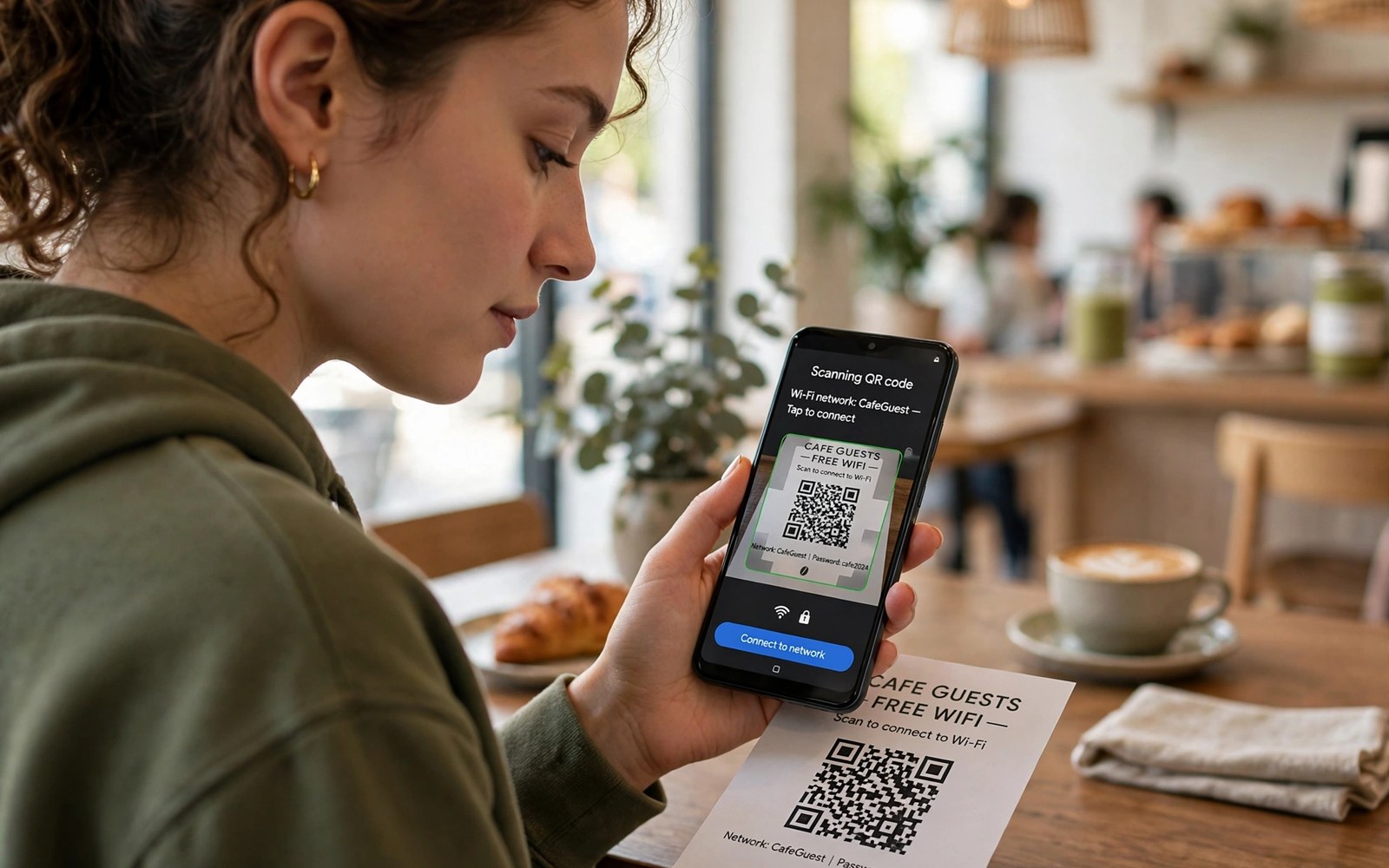
Sharing a Wi-Fi password by reading it aloud is slow and error prone. One wrong character can waste minutes while a guest keeps retrying. A QR code solves the problem in seconds because a phone camera can read the network details directly. Android has a built in way to create that code from a saved network. You do not need a separate app for most modern phones.
A QR code for Wi-Fi carries the network name and the password and the security type. The guest phone reads those details and joins without typing. This method also avoids spelling a long password over a noisy room. It works well for friends and family and for a new device you set up yourself. It is one of the fastest sharing methods on Android today.
Create the QR code from a saved network
Open Settings and tap Network and Internet and then Internet or Wi-Fi. Tap the network you are connected to or a saved network. Look for a Share button or a QR code icon on the network details screen. Your phone may ask for your lock screen PIN or fingerprint before it shows the code. That check protects the password from anyone who picks up your unlocked phone.
The code appears as a square pattern on screen. Hold the guest phone camera over the code or use its Wi-Fi QR scanner. Some phones need the guest to open Wi-Fi settings and tap the QR scan icon. The guest phone should offer to join the network after a successful scan. Tap Join or Connect on the guest phone and wait for the Wi-Fi icon to appear.
Test the code with your own second device if you have one. A quick test proves the code works before guests arrive. It also reveals a common fault where the code shows the wrong network name. Check that the network name in the scan prompt matches your home network. Delete and recreate the code if the name looks wrong.
Share safely without exposing your password
A QR code hides the password from human eyes but it does not make the password secret to a scanner. Any phone that scans the code can join the network. Share the code only with people you trust to use your home network. Do not post a photo of the code on social media. A public photo lets strangers join if they are near your router.
Guest networks offer a safer option for visitors. Many routers let you create a separate guest network with its own password. Share the guest QR code instead of your main network code. Guests get internet access without access to your shared folders or printers. Turn the guest network off when visitors leave if you rarely need it.
Change the password if you suspect the code leaked to the wrong person. A leaked code stays valid until the password changes. Update the password on the router and then create a fresh QR code. Reconnect your own devices with the new details. This reset is worth the effort when a code was photographed or shared beyond your control.
Sharing from a phone hotspot follows a similar pattern. The guide to turning your phone into a dual-band hotspot shows how to share a mobile connection cleanly. A hotspot QR code can help guests join without typing a long hotspot password. Keep hotspot sharing short and watch data use while guests are connected.
Fix QR codes that will not scan
Bright glare on a screen can stop a camera from reading the code. Tilt the sharing phone slightly to reduce reflections. Increase screen brightness on the sharing phone for a clearer pattern. Clean the guest phone camera lens if the image looks blurry. A dirty lens is a common cause of failed scans in bright rooms.
Distance also matters for scanning. Hold the guest phone about fifteen to twenty centimetres from the code at first. Move closer slowly if the camera cannot lock on. Hold both phones steady for a few seconds. A shaky hand can make a good code look unreadable. Try the built in Wi-Fi scanner if the main camera app does not offer a join prompt.
Some older phones lack a Wi-Fi QR scanner in settings. A generic QR scanner app can still read the code on many of those phones. Check the scanner result before you trust it. The result should show a Wi-Fi join prompt and not a plain text password page. If the scanner only shows text then use that text to join by hand as a fallback.
adb shell cmd wifi list-networks
adb shell dumpsys wifi | grep -i -m 3 "SSID"
The lines above use standard Android Wi-Fi diagnostics and are shared as a learning example for checking your own device. A network list can confirm which saved networks your phone knows. Diagnostic output that mentions a network name should never be posted publicly when it contains a password.
Use QR sharing for a new phone setup
A new phone setup is a perfect time to use QR sharing. You can join Wi-Fi before you restore apps and accounts. The QR code avoids typing a long password on a fresh keyboard. It also avoids errors from autocorrect changing a password character. Scan the code from the old phone and the new phone joins in seconds. This method works even when the old phone has a cracked screen if the code still displays clearly.
Family setup becomes easier with QR codes too. A parent can share Wi-Fi with a child device without reading the password aloud. The child device joins without learning the password by heart. This separation helps when you want to control access later. Change the password when a device should lose access. A QR code does not grant permanent access beyond the password itself.
Small offices can use QR codes for meeting rooms. A printed code in a meeting room lets guests join fast. Replace the printed code when the network password changes. A stale printed code wastes more time than typing because guests assume it works. Check printed codes after every password change. A fresh print avoids confusion at the start of a meeting.
Security habits still matter for printed codes. Place a printed code where only guests in the room can see it. Avoid placing it near a window where a passerby could photograph it. Use a guest network for printed codes when possible. A guest network limits what a scanned device can reach. This limit protects shared drives and printers on the main network.
Accessibility is another benefit of QR sharing. Guests with vision problems may struggle to type a long password. A scan removes that barrier in most cases. Guests with motor difficulties also benefit from a single scan. Offer to hold the phone steady for a guest who needs help. A small act of help makes sharing smoother for everyone.
Handle special network types with QR codes
Some networks use enterprise security or a captive portal after joining. A standard QR code joins the Wi-Fi layer but it does not complete portal login. Guests may still see a login page after scanning. Tell guests to open a browser if a portal page does not appear automatically. A portal login needs a room code or an email address in many hotels. The QR code saves typing but it does not replace portal steps.
Hidden networks add another complication. A hidden network name does not broadcast to nearby phones. A QR code can still carry a hidden network name in many cases. The guest phone may need to allow hidden network joining in Wi-Fi settings. Check the guest phone settings if a scan offers no join prompt for a hidden network. Joining by hand with the exact name remains a fallback for hidden networks.
Password complexity affects QR reliability too. Very long passwords with special symbols can confuse a weak scanner. A standard Android scanner handles most symbols well. A generic scanner may misread a symbol and join with a wrong password. Test the code on the guest device type before a large event. A test on one device of each type catches scanner differences early.
Refresh a QR code after a router change
A router change can alter the network name or security type without warning. An old QR code may then join a network that no longer exists. Create a fresh code after any router replacement. Test the fresh code with a second device before guests rely on it. A fresh code avoids the confusion of a scan that looks successful but joins nothing.
Common mistakes
One mistake is sharing a code for the wrong band or the wrong network name. Homes with split bands often have similar names for each band. Check the exact name before you show the code. Another mistake is leaving the code on screen after a guest joins. Lock the phone once the guest is connected.
Another mistake is using a screenshot of the code as a permanent sharing method. A screenshot can spread through chats and backups beyond your control. Create the code fresh each time you need it. Delete old screenshots that contain a live network code.
People also forget that a QR code does not fix a weak signal. A guest can scan perfectly and still get slow internet in a far room. Check signal strength in the guest area before you blame the code. Move the router or add a better access point if guests always struggle in one room.
Frequently asked questions
Does the guest see my Wi-Fi password after scanning?
Most Android phones join directly without showing the password in plain text. Some phones may show the password in saved network details later. Treat any shared code as shared access even if the password stays hidden at first. Change the password if trust changes.
Can I share Wi-Fi with an iPhone using an Android QR code?
Yes in most cases. The iPhone camera can read a standard Wi-Fi QR code and offer to join. The exact prompt depends on the iPhone software version. If the prompt fails then join by hand with the password as a fallback.
Why does my phone ask for a PIN before showing the code?
The PIN check stops a stranger from reading your network details from an unlocked phone. It is a security feature and not a fault. Use your normal lock screen method to pass the check. Keep that lock method active for all sharing.
Conclusion
Open your connected network details and tap Share to create a QR code in seconds. Let the guest scan it with a camera or Wi-Fi scanner and confirm the join prompt. Use a guest network for visitors when your router supports it. Your concrete next step is to create a QR code now and test it with a second device before your next guest arrives. For safe access at work or school read connecting to enterprise Wi-Fi safely and for faster home speed revisit doubling Wi-Fi speed on Android.

