

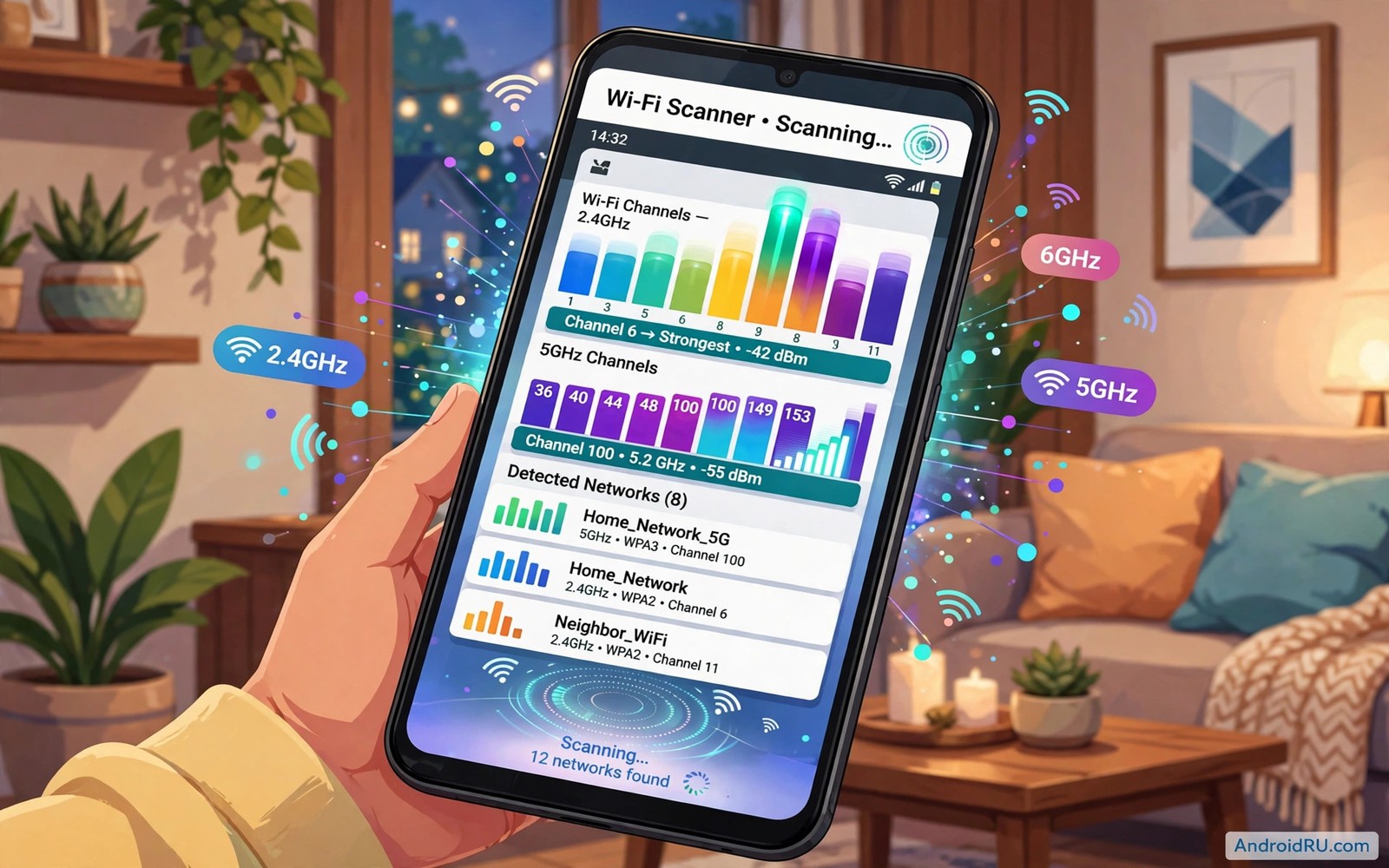
A slow Wi-Fi network is not always a slow internet plan. Your router may share a channel with ten neighbours and all of them fight for the same airtime. That fight causes lag and drops even when your speed test looks fine at midnight. An Android phone can scan the air around you and show which channels are crowded. A five minute scan can lead to a faster and calmer home network.
Wi-Fi channels are like lanes on a busy road. A crowded lane slows every driver in it. A free lane lets traffic flow even if the road itself is the same. Your router usually picks a channel when it starts and then stays there for weeks. Neighbours add new routers and the old choice can become crowded without warning. A fresh scan gives you current facts instead of an old guess.
You do not need a laptop or a paid tool for this job. A free scanner app on Android reads the networks near your phone. It shows signal strength and channel use in a simple graph. You can walk from room to room and watch the picture change. That walk tells you more than a single test from one chair.
Install A Scanner And Run A First Scan
Install a trusted Wi-Fi scanner app from your usual app store. Open the app and grant location permission because Android ties Wi-Fi scanning to location access. Stand near your router for the first scan. Look for the channel graph and find the tall bars that show strong nearby networks. Note the channels with the tallest bars and the channels with almost no bars.
Walk slowly to the room where Wi-Fi feels slowest. Run the scan again in that room. The picture may differ because walls and distance change which neighbours matter most. Note the best channel for that room as well as the best channel near the router. Your final choice should work well in both places. A channel that is free near the router but crowded in your office will not fix the real problem.
Read The 2.4 GHz And 5 GHz Results Differently
The 2.4 GHz band has only three channels that do not overlap in most regions. Those channels are 1 and 6 and 11. Pick one of those three even if another channel looks free on a simple list. A channel such as 3 overlaps its neighbours and it can cause more harm than a busy clean channel. Choose the cleanest of 1 and 6 and 11 for the best result.
The 5 GHz band has many more channels and wider options. Crowding matters less there but it still matters in flats and offices. Look for a channel with low use and a strong signal from your own router. Avoid channels that your router marks as radar channels if your router warns about them. A radar channel can force a sudden switch and drop your connection. The guide to forcing Android to connect to 5 GHz Wi-Fi helps when a phone keeps picking the crowded 2.4 GHz band.
Change The Channel On Your Router
Open your router admin page from a browser on your phone or a computer. The address is often printed on a sticker under the router. Log in with the admin password from that sticker or from your setup notes. Find the wireless settings page and look for a channel option for each band. Change the channel to your scanned choice and save the settings.
Wait one minute for the router to restart its wireless radio. Reconnect your phone and run the scanner again. Confirm that your network now sits on the new channel. Test a video call or a large download in the room that felt slow before. If speed improves then keep the new channel for a week. If speed stays flat then scan again at a busy evening hour because crowding changes with time of day.
Scan At Different Times Of Day
A morning scan can miss the evening crowd. Neighbours stream video after work and their routers fill channels that looked free at noon. Scan once in the morning and once in the evening for a fair picture. Compare the two scans and pick a channel that stays calm in both. A channel that is free only at noon will disappoint you at night.
Repeat the scan after a new neighbour moves in or after you add a new access point. A mesh system can also change the picture because each node uses airtime. Place mesh nodes with care and scan near each node. A node placed too close to a neighbour router can create a new crowded zone. Small moves of a node can change the result more than a new channel choice.
Fix Problems After A Channel Change
Some older devices may struggle on a new 5 GHz channel. If a smart speaker or a camera drops off after the change then check its supported channels. Move that device to the 2.4 GHz band if it cannot use the new channel. Keep a note of the old channel so you can return fast if a device fails. A channel change should help the whole home and not break one device.
If speed drops after the change then check for a hidden neighbour on the same channel. Run a scan at the exact time when speed drops. A neighbour router may wake at night for updates and crowd your channel. Try the second best channel from your scan. Keep testing one channel at a time so you know which change helped.
band_2_4 = channel_1_6_or_11
band_5 = least_used_channel
scan_times = morning_and_evening
rescan_after_changes = true
The snippet above is an original example written for this guide. It shows generic settings that you can adapt to your own device. It does not copy code from any outside source.
Treat the example above as a short plan for your scan and not as router code. Your router menu will use its own labels for these choices. Match each line to the matching menu field. Save a screenshot of the old settings before you change anything.
Map Dead Zones Room By Room
Start your map at the router and walk slowly toward the farthest room. Run a scan in each doorway and note the strongest neighbours in that spot. A doorway scan shows how signal changes as you cross a wall. Walls with metal or dense brick change the picture more than thin walls. A room map turns a vague slow feeling into a set of clear facts.
Mark each room with the best channel and the worst neighbour. A bedroom may suffer from a neighbour router on one side of the building. A kitchen may suffer from a microwave that leaks interference during cooking. A home office may suffer from a mesh node placed too close to a wall. Room facts let you fix the room that matters instead of changing the whole network blindly.
Test a video call in each marked room after a channel change. A call reveals stutter that a speed test can miss. Note which rooms improve and which rooms stay slow. A room that stays slow after a channel change may need a better router position. A room that improves confirms that channel crowding was the real cause. Room tests keep the work focused on real use.
Share the room map with anyone else who manages the home network. A shared map stops a second person from undoing a good channel choice. Update the map when furniture or routers move. A moved router changes the map more than a new neighbour often does. A living map is a tool that keeps paying back.
Use 5 GHz Smartly In Small Homes
Small homes can benefit most from 5 GHz because distance is short. A short distance lets 5 GHz deliver high speed without range problems. Check whether your main devices support 5 GHz before you force it. Older smart devices may support only 2.4 GHz and they need that band to stay on. Keep both bands active and let each device use its best band.
Place the router centrally in a small home for the best 5 GHz coverage. A central router reaches every room with a stronger signal. A router in a corner wastes half its signal outside the home. A central spot also reduces the need for a mesh node. One well placed router can beat two poorly placed nodes.
Test 5 GHz in the farthest room before you rely on it for work calls. If the farthest room drops on 5 GHz then keep that room on 2.4 GHz. A mixed band home is normal and it is not a failure. The goal is steady speed in each room and not a single band everywhere. Guidance on forcing Android to connect to 5 GHz Wi-Fi helps when a phone clings to a weak 2.4 GHz link.
Revisit band choice after you add new devices. A new camera or speaker may need 2.4 GHz range. A new laptop may benefit from 5 GHz speed. A home network grows with its devices and band choices should grow with it. A yearly band review takes minutes and it prevents slow decline.
Fix Wi-Fi For Video Calls Specifically
Video calls suffer from jitter more than from low peak speed. A channel that tests fast can still drop call audio. Test a call on the new channel for ten minutes. Note audio drops and video freezes separately. Audio drops point to jitter while video freezes point to bandwidth.
Move closer to the router for an important call if the channel change alone does not help. Distance amplifies channel crowding effects. A closer position gives the call a stronger signal margin. That margin can rescue a call on a crowded channel. Position and channel work together for calls.
Close other devices that stream video during an important call. A second stream on the same network competes for airtime. A paused stream frees airtime for the call. A call that improves after pausing a stream had a bandwidth competition problem. Competition problems need household rules as well as channel fixes.
Test the call app on mobile data as a control. A call that works on mobile data but fails on Wi-Fi points to the Wi-Fi link. A call that fails on both links points to the app or the other caller connection. Control tests separate Wi-Fi faults from app faults. A common Wi-Fi fault is a connected but dead link and fixes for Wi-Fi connected but no internet access covers that case.
Keep a call test log for your main meeting times. Evening calls face more neighbour traffic than morning calls. A log reveals whether evening problems are channel problems or congestion problems. Channel problems improve with a new channel. Congestion problems need a different time or a wired link.
If home speed still disappoints after a channel change then doubling your Wi-Fi speed on Android with a simple setting offers a quick phone side fix to try next.
Common Mistakes
The first mistake is picking any channel that looks free on the 2.4 GHz band. Channels outside 1 and 6 and 11 overlap and they hurt nearby networks. The second mistake is scanning only once from one spot. A single scan misses time changes and room changes. The third mistake is changing the channel and the router position and the password at the same time. Change one thing at a time so the result stays clear.
Another mistake is trusting a speed test alone to judge a channel. A speed test can look fine while a video call still stutters. Test the real task that failed before such as a call or a game. A further mistake is forgetting to save the router settings after a change. A router that loses power may return to auto channel if the change was never saved.
Frequently Asked Questions
How often should I scan for a better channel?
Scan when Wi-Fi feels slow and scan once every few months as a habit. Scan again after a neighbour moves in or after you add a new router. A quick evening scan takes only a few minutes. Regular scans catch crowding before it becomes a daily frustration.
Does a free channel guarantee faster internet?
No a free channel removes local wireless crowding but it cannot fix a slow internet plan. It can still help a lot when crowding was the real limit. Test your plan speed with a wired device if you can. Compare that result with your wireless result after the channel change.
Can my Android phone change the router channel itself?
No the phone can only scan and show the results. You must change the channel in the router admin page. Some router apps let you change it from a phone app. The change still happens on the router and not on the phone itself.
Conclusion
Run a scanner app today in the room where Wi-Fi feels worst. Note the cleanest channel for each band and change the router to that channel. Test a real video call after the change and keep the new setting for a week. If the evening crowd returns then scan again and try the second best channel. That simple loop will keep your home Wi-Fi calmer than any guesswork.

