

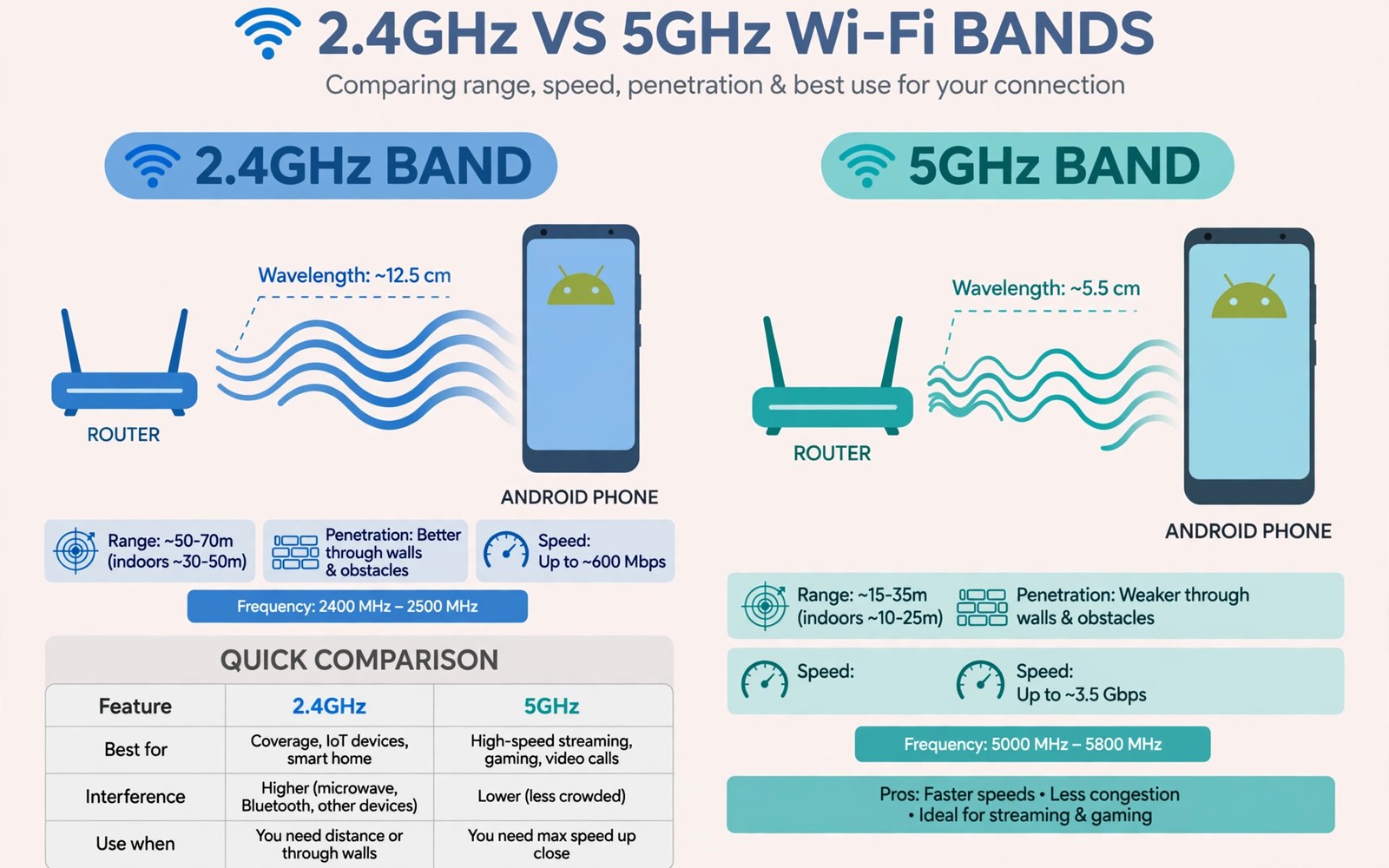
Android often picks a 2.4 GHz network even when a faster 5 GHz network is available. The slower band appears first because it travels farther. Your phone may cling to it long after you move near the router. Forcing a 5 GHz connection can unlock faster speed in rooms near the router. The trick is to force it only where the fast signal stays strong.
The two bands serve different roles in a home. The slower band covers far rooms and passes through walls better. The faster band delivers higher speed at short range with less congestion. A phone that stays on the slower band wastes the faster band entirely. A deliberate band choice matches the band to the room you use most.
Split network names to control the band
The most reliable method is to split the router network names by band. Log in to your router admin page from a browser. Find wireless settings and give the 5 GHz network a distinct name. Save the change and reconnect your phone to the new 5 GHz name. Your phone will now choose that band on purpose.
Keep the slower band name for far rooms and older devices. Smart home devices often work better on the slower band. A split setup lets each device pick the band that suits it. Do not delete the slower band entirely. A home without the slower band can lose coverage in far corners.
Some routers offer band steering instead of split names. Band steering tries to push capable devices to the faster band. It works well on some routers and poorly on others. A split name gives you direct control when steering fails. Use steering first if you prefer one network name. Switch to split names if your phone keeps landing on the slow band.
Use Android settings to prefer the faster band
Open Wi-Fi settings and tap the connected network to see band details. Some Android phones show a frequency preference in advanced Wi-Fi settings. Look for Wi-Fi preferences or advanced options. Choose 5 GHz preferred when the option exists. The exact menu varies by brand so search settings for band or frequency if needed.
Forget the slower band network after you connect to the faster band. A forgotten network cannot pull your phone back. This step works well when both bands share one name but your phone still picks the slow band. Forgetting is reversible because you can rejoin later. Use it for a test period before you commit to a router change.
Test speed in each main room after forcing the faster band. A room near the router should show a clear gain. A far room may show a loss if the fast signal is weak there. Keep the forced band only in rooms where it wins. Return to automatic choice in far rooms where the slower band is more stable.
Home speed gains from band choice work best with a clean channel. The guide to doubling Wi-Fi speed on Android covers channel and placement steps that pair with band forcing. A fast band on a busy channel can still feel slow. Combine band choice with a quiet channel for the best result.
Fix a phone that keeps falling back to the slow band
A phone may fall back when the fast signal drops below a threshold. That threshold protects against a weak fast link. Move the router closer to your main room if fallback happens often. A small router move can keep the fast signal above the threshold. Test fallback behaviour after the move for a few days.
Check for a Wi-Fi power saving mode that prefers the slower band. Some power modes favour range over speed. Disable aggressive Wi-Fi power saving during a test. Compare fallback behaviour with the mode off and on. Keep the mode off only if battery impact stays acceptable.
Restart the phone after a band change if it still shows the old band. A restart clears a cached network choice. Reconnect to the faster band after restart. Check the band in network details right after reconnecting. A fresh connection proves the setting took effect.
adb shell cmd wifi status
adb shell dumpsys wifi | grep -i -m 5 "frequency"
This snippet uses standard Android Wi-Fi diagnostics and is shared as a learning example for confirming your band. Status output shows the current wireless state after a change. Frequency hints help you prove that the phone really moved to the faster band.
When forcing 5 GHz hurts performance
Forcing the fast band in a far room can cause drops and retries. A weak fast link may deliver less real speed than a stable slow link. Video calls suffer most from a flapping link. Switch back to automatic choice in far rooms. A stable link beats a fast link that keeps breaking.
Older phones may lack strong 5 GHz antennas. A forced band on an older phone can show little gain. Test with realistic use rather than a single speed test. Browse and stream for an evening on the forced band. Keep the setting only if daily use feels smoother.
Interference on the fast band can also limit gains. Neighbour routers on the same channel can crowd the fast band. A Wi-Fi analyser can reveal a busy channel. Move to a quieter channel before you judge the band itself. A quiet channel often rescues a band that looked slow.
Phones that auto join slow networks need a separate fix. The guide to stopping auto connection to slow Wi-Fi shows how to deprioritise a bad network. Pair that fix with band forcing for a phone that drifts to weak networks. A phone that picks strong networks sooner feels faster all day.
Use a mesh system with band control
A mesh system can complicate band forcing because nodes steer devices automatically. Check mesh app settings for band steering or band preference. Some mesh apps let you bind a device to a band. Bind your main phone to the fast band node near your room. A binding keeps the phone from drifting to a slow node.
Place mesh nodes so the fast band stays strong in main rooms. A node too far from the main router will offer a weak fast band. Test speed at each node after placement. Move a node closer to the main router if its fast band tests poorly. A mesh works best when each node has a strong backhaul link.
Guest devices on a mesh may still pick the slow band. That choice is fine for guests who only browse. Do not force every guest device to the fast band. A guest on a stable slow band uses less mesh capacity. Keep fast band capacity for devices that need speed.
Check router firmware for band options
Router firmware updates can add or remove band controls. Check the wireless settings page after an update. A band steering option may appear or disappear. Note the setting before an update so you can restore it. A firmware change should not silently undo your band plan.
Some internet provider routers hide band settings behind an advanced page. Search the router help for band or wireless settings. A provider app may offer band controls that the web page hides. Use the app when the web page lacks the option. Keep a note of where the setting lives for future changes.
Third party firmware can offer finer band control on some routers. Research compatibility before installing third party firmware. A wrong firmware can brick a router. A stock firmware split name method is safer for most users. Use third party firmware only if you understand the recovery steps.
Keep a band log for troubleshooting
A band log helps you spot patterns over weeks. Note the band and speed in each main room once a week. A log reveals whether a room slowly got worse. A slow decline may point to new neighbour routers or new furniture. A sudden change may point to a router update. A log turns vague complaints into clear evidence.
Share the log with household members who use the same network. A shared log helps everyone pick the right band per room. It also stops repeated arguments about which band is better. Evidence from real rooms beats opinions about headline speeds.
Check band details after any new device joins the home network. A new device can trigger band steering to move your phone. A quick check after a new device arrives catches a silent band change. Reconnect to the fast band if the phone moved without reason.
Note the band name and room results that worked best so you can restore the fast band after a router restart. A short band note avoids repeating speed tests in every room.
Common mistakes
One mistake is forcing the fast band everywhere including far rooms. A forced band with a weak signal performs worse than a stable slow band. Another mistake is deleting the slower band from the router. Far rooms and older devices need that band.
Another mistake is judging the band by one speed test beside the router. A beside router test always favours the fast band. Test in the rooms where you actually use the phone. Daily use in real rooms decides whether forcing helps.
People also forget to check the band after a router restart. A restart can return the router to auto band steering. Check network details after a restart. Reconnect to the faster band if the phone fell back.
Frequently asked questions
Will forcing 5 GHz drain battery faster?
It can use slightly more power at the edge of range because the radio works harder. Near the router the difference is small. A stable fast link can even save power by finishing downloads sooner. Test battery for a day before you worry.
Does every Android phone offer a band preference?
No. Many phones lack a direct band preference setting. Split network names work on almost every phone because the choice happens at connection time. Use split names when no preference setting exists.
Can I force 5 GHz on a single name network?
Not reliably on most phones. A single name network leaves the choice to the phone and router. Split names give you control. Ask your router maker for band steering options if you must keep one name.
Conclusion
Split network names and connect to the faster band in rooms near the router. Test speed in real rooms and keep the forced band only where it wins. Check the band after router restarts and updates. Your concrete next step is to rename your 5 GHz network today and connect your phone to it for one evening. For broader home speed work revisit doubling Wi-Fi speed on Android and for hotspot sharing see turning your phone into a dual-band hotspot.

