

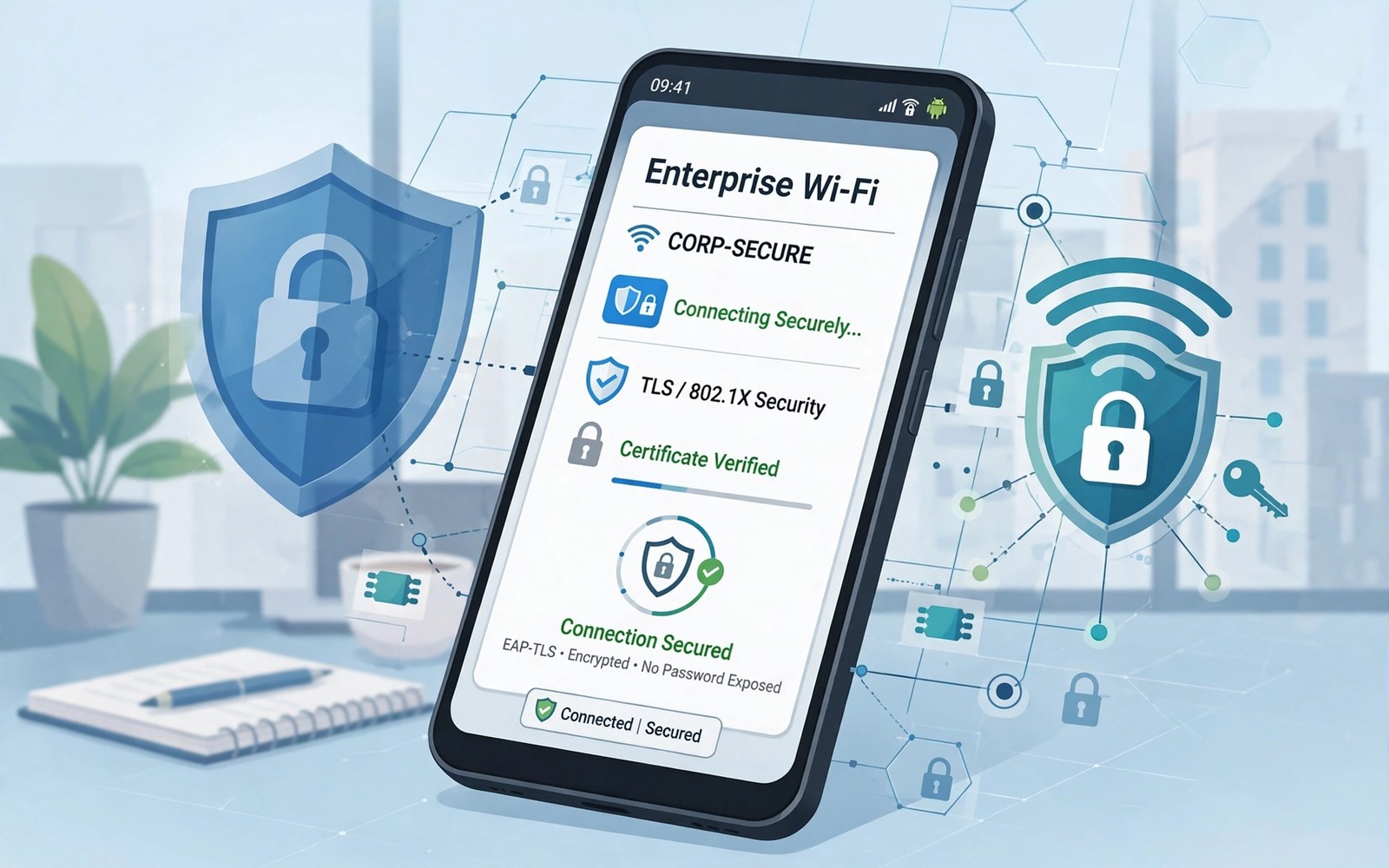
Enterprise Wi-Fi differs from home Wi-Fi in important ways. It often uses a username and password instead of a single shared password. It may require a certificate to prove the network identity. It can also use a separate security type that home routers rarely use. Connecting safely means checking those details before you join.
A wrong enterprise connection can expose credentials to a fake network. A fake network can mimic a real office name. A phone that joins without checking a certificate can send credentials to the wrong place. Safe enterprise setup checks identity first and then connects. That order protects your work account.
Get the correct enterprise details
Ask IT for the exact security type and authentication method. Common types include PEAP and TLS and TTLS. Each type needs different settings on Android. Note the username format that IT expects. Some networks need a domain prefix before the username. A wrong format can fail even with a correct password.
Ask IT whether a certificate is required. A certificate may come from IT as a file to install. Install a certificate only from IT directly. Do not install a certificate from an unknown email or link. A malicious certificate can intercept secure traffic.
Ask IT for the correct network name and any hidden network details. An enterprise network may hide its name from scans. Enter a hidden name exactly as IT spells it. A single character error can join the wrong network or fail entirely.
Connect with the right security settings
Open Wi-Fi settings and tap Add Network or the enterprise network name. Choose the security type that IT specified. Enter the identity and password exactly. Set the CA certificate option as IT instructs. A system certificate choice is common for PEAP networks.
Check the domain suffix match when your phone offers it. A domain match ensures the server certificate belongs to the expected domain. Enter the domain that IT provides. A missing domain match can allow a fake server to pass. A correct domain match is a key safety check.
Tap Connect and wait for the Wi-Fi icon. A successful connection shows internet access on the enterprise network. Test an internal work site after connecting. A work site test proves the enterprise link works beyond basic internet. Report a failure to IT with the exact error message.
Fix enterprise connections that fail
Check the username format first when a connection fails. A missing domain prefix is a common cause. Try the format that IT gave you exactly. Check for a trailing space in the password field. A trailing space can fail authentication silently.
Check the certificate setting next. A wrong CA certificate choice can fail even with correct credentials. Try the system certificate option when IT allows it. Install the IT certificate again if it expired. An expired certificate blocks TLS enterprise networks entirely.
Forget the network and re-enter details fresh if a saved profile keeps failing. A saved profile can hold an old password or an old certificate. A fresh entry clears stale details. Enter details carefully on the second try. A fresh profile often fixes a fault that edits cannot.
Public portal networks use a different login method. The guide to fixing public Wi-Fi landing pages covers portal tricks for cafes and hotels. Enterprise login needs certificates and identity checks instead. Use the portal guide only for public networks.
Keep enterprise access safe on your phone
Lock the phone with a strong PIN or biometric method. An unlocked phone can expose enterprise access to anyone who picks it up. A strong lock protects work data on the device. Enable device encryption if your phone offers it. Encryption protects data if the phone is lost.
Do not share enterprise credentials with colleagues. Each user should have a personal account on an enterprise network. A shared account hides who accessed the network. Personal accounts also allow IT to revoke access for one person. Use your own credentials only.
Forget the enterprise network when you leave a job or a site. A saved enterprise profile can auto join later. A stale profile can also hold an old certificate. Remove the profile and any installed work certificate when access ends. A clean removal protects both you and the organisation.
adb shell cmd wifi list-networks
adb shell dumpsys wifi | grep -i -m 5 "enterprise"
This snippet is based on standard Android Wi-Fi diagnostics and is shared as a learning example for enterprise network checks. A network list can confirm saved enterprise profiles. Enterprise hints in diagnostic output vary by phone model.
Handle certificates carefully
Certificates prove identity for both network and device. A network certificate proves the server is genuine. A device certificate proves your phone is authorised. Treat both types as sensitive credentials. Store a device certificate only on a phone that you control.
Check certificate expiry dates before a trip to a work site. An expired certificate can block access at the worst time. Renew a certificate through IT before it expires. A renewal takes minutes when planned. An expiry at a site can waste a whole workday.
Remove a work certificate when you no longer need it. An old certificate can be abused if the phone is lost. A removed certificate cannot be used by a finder. Ask IT for a removal procedure if you are unsure. A clean removal is part of safe offboarding.
Use enterprise Wi-Fi for work tasks
Enterprise Wi-Fi often gives faster internal access than mobile data. Internal sites and printers may work only on the enterprise network. Connect to enterprise Wi-Fi for internal work tasks. Use mobile data for personal tasks when policy allows. A clear separation keeps work and personal traffic distinct.
Check work policy for personal device use on enterprise Wi-Fi. Some organisations require device management for access. Others allow personal devices with limited access. Follow the policy that IT sets for your site. A policy breach can lead to revoked access.
Report suspicious enterprise network names to IT. A fake network with a similar name can trap phones that auto join. A report helps IT warn other users. Do not join a suspicious network to test it. A test join can expose credentials.
Home sharing uses a simpler method than enterprise access. The guide to sharing Wi-Fi via QR code covers trusted home sharing. Enterprise access needs identity and certificates instead of a simple QR code. Use the right method for each network type.
Connect a second device to enterprise Wi-Fi
A tablet may need enterprise access in addition to a phone. Enter the same identity details on the tablet. Install the same certificate if IT requires one. Test an internal site on the tablet after connecting. A tablet that fails while a phone succeeds may hold an old profile. Forget and re-enter details on the failing device.
A laptop uses a different enterprise setup path from Android. Laptop settings may name the same security type differently. Ask IT for laptop specific instructions when needed. Do not copy Android settings blindly to a laptop. A laptop profile needs its own correct fields.
Guest enterprise access differs from staff access. A guest network may use a portal instead of certificates. Ask IT which network suits a visitor. A visitor on a staff network can create a policy problem. Direct visitors to the guest network from the start.
Troubleshoot enterprise Wi-Fi after a password change
A password change breaks a saved enterprise profile at once. Update the password in Wi-Fi settings after any work password change. A stale password causes repeated authentication failures. Some phones lock an account after too many failed attempts. Update the password promptly to avoid a lockout.
Check whether a password change also affects a device certificate. A certificate tied to an old password may need renewal. Ask IT if a password change requires a new certificate. A renewed certificate restores access cleanly. A stale certificate can fail even with a new password.
Prepare for enterprise Wi-Fi on a new phone
A new phone needs a fresh enterprise setup from scratch. Transferring settings from an old phone may carry an old certificate. Install a fresh certificate from IT on the new phone. Enter identity details fresh rather than restoring a stale profile. A fresh setup avoids a fault that follows a restore.
Test enterprise access on the new phone before a work trip. A test at the office reveals setup faults early. A test at home cannot prove enterprise access. Visit the office or use a test network that IT provides. Early testing prevents a failed login at a client site.
Common mistakes
One mistake is joining an enterprise network with default certificate settings. Default settings can accept a fake server. Another mistake is sharing enterprise credentials with a colleague. Personal accounts protect both users.
Another mistake is ignoring certificate expiry until access fails. Renew before expiry. People also forget to remove an enterprise profile after leaving a site. A stale profile can auto join later.
Frequently asked questions
Why does enterprise Wi-Fi ask for a username?
Enterprise networks identify each user individually. A username lets IT control access per person. A shared password cannot do that. Personal usernames also allow IT to revoke one user without changing a shared password.
Is enterprise Wi-Fi safer than home Wi-Fi?
It can be safer when certificates and identity checks are correct. It can be riskier when settings are wrong. A correct enterprise setup checks server identity. A wrong setup can expose credentials to a fake network.
Can I use enterprise Wi-Fi on a personal phone?
Yes when IT allows personal devices. Follow IT policy for device management and certificates. A personal phone may get limited access compared with a work phone. Check policy before you connect.
Conclusion
Get the exact security type and certificate details from IT before you connect. Enter identity and domain match carefully and test an internal site after joining. Remove the profile and certificate when access ends. Your concrete next step is to ask IT for the security type and certificate details today and then connect with those exact settings. For faster home Wi-Fi revisit doubling Wi-Fi speed on Android next.

