

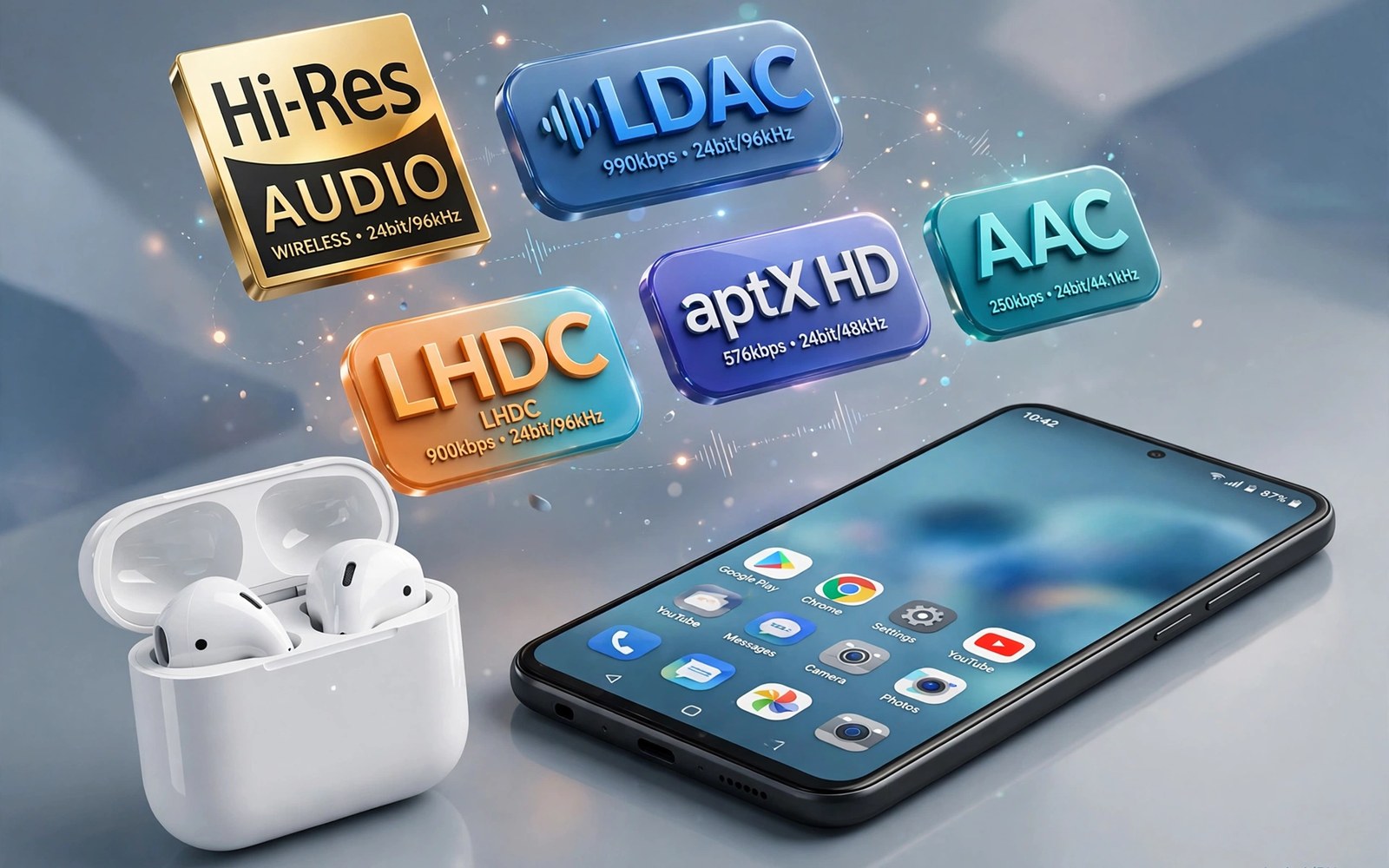
Bluetooth codecs decide how music is compressed before it reaches your earbuds. A better codec can reveal detail that a basic codec hides. A poor codec can make expensive earbuds sound ordinary. Android lets you switch codecs when both phone and earbuds support a better one. The switch takes a minute once Developer Options are visible.
LDAC offers high resolution audio at higher bitrates. aptX offers a balance of quality and latency for many earbuds. aptX Adaptive adjusts quality based on link conditions. SBC is the basic codec that every Bluetooth audio device supports. AAC works well with some earbuds but quality varies by device. The best codec is the best one both devices share.
Enable Developer Options and find codec settings
Open Settings and tap About Phone. Tap the build number seven times until Developer Options unlock. Return to System settings and open Developer Options. Scroll to the networking section and find Bluetooth Audio Codec. Tap it to see the codecs your phone supports. The list may show options that your earbuds do not support.
Connect your earbuds before you change the codec. A disconnected earbud shows the full phone list but not the usable list. Connect the earbuds and reopen the codec setting. The active codec should reflect the current connection. Change the codec while earbuds stay connected for a clean test.
Test music after each codec change with a familiar track. Use a track with clear vocals and instruments you know well. Listen for detail in quiet passages and for harshness in loud passages. A codec change should be audible on good earbuds. A codec change may sound identical on basic earbuds. Keep the codec that sounds best to you.
Pick the right codec for your earbuds
Choose LDAC when both phone and earbuds support it and you want high resolution sound. LDAC needs a strong link to hold high bitrates. Move closer to the phone if LDAC stutters. Lower the LDAC quality setting in Developer Options if stutter persists. A stable lower LDAC rate beats a stuttering high rate.
Choose aptX or aptX Adaptive when your earbuds support that family. aptX often gives a good balance for music and calls. aptX Adaptive can adjust when the link weakens. Test both options if your phone lists them. Keep the one that stays stable during a walk.
Choose AAC only when your earbuds are tuned for it. AAC quality depends heavily on the earbud implementation. Some earbuds sound excellent with AAC. Others sound flat with AAC despite a good phone. Test AAC against SBC on your own earbuds. A basic codec that sounds stable can beat a fancy codec that sounds uneven.
Video sync needs a separate check after a music codec choice. The guide to fixing Bluetooth audio delay for videos explains latency trade offs. A codec that sounds great for music may lag for video. Test dialogue video after you pick a music codec. Keep a codec that balances music and video for daily use.
Fix codecs that fall back or stutter
A codec fallback happens when the link cannot hold the chosen rate. Distance and interference cause most fallbacks. Move the phone closer and test again. Remove other Bluetooth devices that stay connected. A cleaner link holds a higher codec longer.
Re-pair the earbuds if the codec setting keeps reverting. Delete the pairing and pair again from scratch. A fresh pairing renegotiates codec support cleanly. Check the codec after re-pairing before you test music. A stale pairing can hide a codec that both devices support.
Update earbud firmware through the maker app. Firmware updates can add codec support or fix codec bugs. Check the maker app after a phone update too. A phone update can change codec handling in subtle ways. A matching firmware update often restores the best codec.
adb shell dumpsys bluetooth_manager | grep -i -m 5 "codec"
adb shell settings get global bluetooth_a2dp_codec_priority
The diagnostic lines here are based on standard Android Bluetooth tooling and are offered as a learning example for codec testing. Manager output can hint at the active codec during music playback. A priority value read is model dependent and a missing value is not a fault by itself.
Balance quality and battery
High resolution codecs use more processing and more radio time. Battery life on earbuds may drop slightly at high rates. A lower LDAC rate can extend listening time with little audible loss. Test battery over a full day rather than one hour. A codec that sounds slightly better but dies early may not suit travel.
Phone battery also matters during long listening sessions. A high codec with a weak link forces retransmissions. Retransmissions use extra power on both sides. A stable mid rate codec can save battery in a busy area. Choose stability over headline bitrate when you move through crowded places.
Sample rate and bits per sample settings sit near the codec setting. Leave them at default unless you know the earbud limits. Higher values can improve detail but they can also cause stutter. Test one change at a time. Return to default if sound gets worse.
Disconnects need a different fix from codec choice. The guide to fixing earbuds that keep disconnecting covers pairing and interference steps. A codec change cannot fix a link that drops entirely. Fix drops first and then fine tune codec quality.
Test codecs with different music styles
Different music styles reveal different codec strengths. Acoustic music reveals detail in quiet passages. Electronic music reveals bass control and timing. Classical music reveals dynamic range from soft to loud. Test each style with the same codec before you judge it. A codec that suits one style may suit another less well.
Podcasts and audiobooks need clarity more than musical detail. A codec that sounds warm for music may sound muffled for speech. Test a podcast episode after a music test. Speech clarity matters for long listening sessions. A codec that keeps speech crisp will feel better for daily podcasts.
Calls and voice messages use a separate path from music. A music codec change may not affect call clarity. Test a short call after a codec change to confirm. A call that sounds worse after a music change may point to a different profile issue. Keep music and call tests separate in your notes.
Handle codec changes across multiple earbuds
Codec settings can differ per paired device on some phones. A codec that works for one earbud pair may not suit another pair. Check the codec after switching earbuds. A phone may remember a codec per device or it may use one global setting. Note the best codec for each earbud pair you own.
Switching earbuds during a day can reset the codec unexpectedly. Check the active codec after each switch for a week. A pattern will emerge for your devices. A quick check prevents a day of poor sound from a silent fallback. A note of per device codecs saves repeated testing.
Shared earbuds add another complication. A family member may change the codec on a shared phone. Check the codec before an important listening session. A shared device needs a quick codec check as part of the routine. A two second check avoids a disappointing first track.
Use a reference track for codec comparisons
A reference track gives codec tests a stable baseline. Pick one track you know from live listening and from wired headphones. Use that track for every codec comparison. A familiar track reveals small codec differences fast. An unfamiliar track hides differences behind novelty.
Listen at the same volume for each codec test. Volume changes can fake a quality change. A louder codec can sound better even when detail is identical. Keep volume fixed and judge detail and clarity only. A fixed volume test is the only fair codec comparison.
Keep earbuds charged during codec tests. A low battery earbud may limit codec quality to save power. A charged earbud gives a fair codec comparison. Test codecs only with earbuds above half charge for consistent results.
Note the codec that sounded best on each earbud pair so you can restore it fast after a phone update. A short codec note avoids repeating music tests for every pair you own.
Listen to one full track on the chosen codec before you call the test done. A full track reveals stutter that a short clip can hide completely.
Common mistakes
One mistake is picking a codec that the earbuds do not support. The phone will fall back silently to a basic codec. Test sound after the change to confirm it took effect. Another mistake is judging a codec with a low quality music file. A poor source file hides codec differences entirely.
Another mistake is changing codec and sample rate together. Two changes hide which one caused a change in sound. Change the codec first and test. Change sample rate only after codec choice is settled.
People also forget to reconnect earbuds after a codec change. Some phones apply the codec only on a fresh connection. Disconnect and reconnect once after changing the codec. Check the active codec after reconnecting.
Frequently asked questions
Will a better codec make cheap earbuds sound expensive?
No. A codec cannot fix poor drivers or poor tuning. A better codec helps good earbuds reach their potential. Cheap earbuds may sound identical across codecs. Spend on earbuds first if sound quality is the main goal.
Why does my codec setting reset after a restart?
Some phones reset Developer Options codecs on reboot or after an update. Check the codec after a restart. Reapply your choice if it reset. A note of your best codec makes reapplying fast.
Does codec choice affect calls?
Calls often use a different Bluetooth profile from music. Codec choice for music may not change call quality. Test calls separately after a music codec change. Call quality depends more on the hands free profile and the microphone.
Conclusion
Enable Developer Options and connect your earbuds before you change codecs. Pick the best codec both devices share and test with familiar music. Check video sync and stability after the music test. Your concrete next step is to open Bluetooth codec settings now and try one better codec with a familiar track today. If video lags after the change read fixing Bluetooth audio delay for videos for latency fixes. As a related next step, explore boosting Bluetooth signal range to prevent sound drops to extend what you set up here.

