

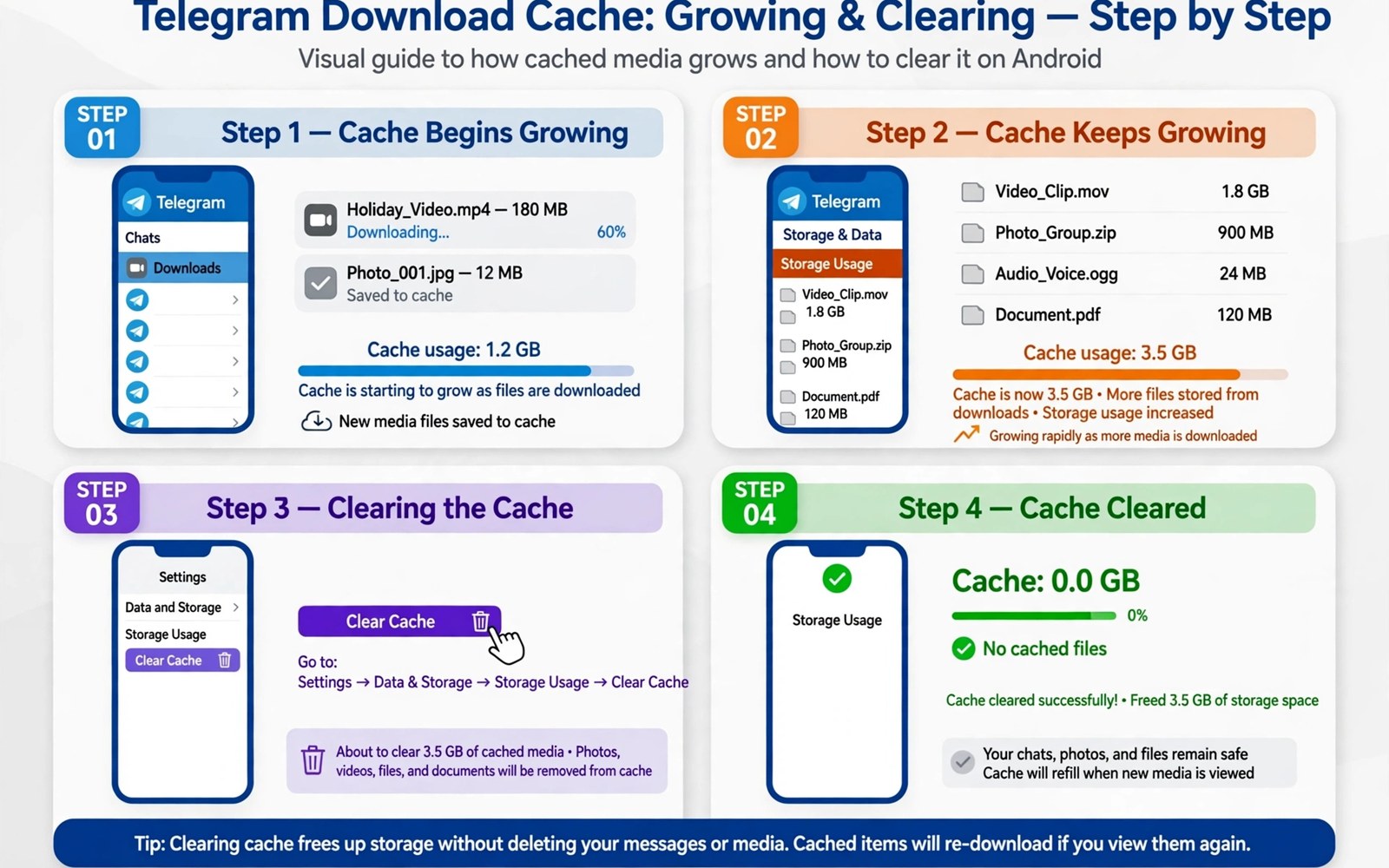
Telegram feels light because chats load instantly. Behind that speed sits a download cache that grows with every video and photo that you view. Group chats add to the pile even when you only scroll past a file. A phone that felt roomy can fill up in weeks of active groups. The cache is the hidden cost of that instant access.
Cache files are copies rather than originals in most cases. The chat server still holds the file when you need it again. Clearing the cache therefore usually removes local copies without deleting the chat itself. That distinction matters because many owners fear that clearing cache will erase conversations. Chats and contacts and settings remain when you clear only cached media. Owners who face similar app bloat may also check rules that limit apps caching gigabytes of data for a wider fix.
Start by checking how much space Telegram uses in Settings. Separate the app size from user data and cache. A huge cache number points to media that you can clear safely. A huge user data number needs a closer look because it may include downloaded files that you saved deliberately. That separation guides a safe cleanup.
Clear cache inside Telegram first
Open Telegram settings and open Data and Storage and open Storage Usage. That screen shows cache size by chat type and by media type. It also shows how long Telegram keeps media on the device. Clear the cache for the largest categories first. Videos usually give the biggest gain because a few group videos can outweigh thousands of photos.
Set a keep media limit after the first clear. A limit such as three months tells Telegram to drop older cached media automatically. A shorter limit suits phones with little free space. A longer limit suits owners who revisit old group media often. The same limit habit helps when you clean the downloads folder automatically every week with age rules.
Save important files before you clear
Browse the largest chats before you clear their cache. Save photos and documents that you need offline to a named folder outside Telegram. A saved file stays on the phone even after cache clearing. A file that you only viewed in chat may need a fresh download later. Saving first turns a cleanup into a safe task rather than a gamble.
Check saved messages and favourite chats for files that you use often. Those chats often hold tickets and receipts and work files. Move those files to a documents folder with a clear name. A clear name makes the file findable without opening Telegram. After the move you can clear the cache with confidence.
Estimate cache growth with a short script
days = 30
per_day = 150
total = days * per_day
print("estimated cache MB", total)
print("review" if total > 2000 else "normal")
The snippet above follows a standard pattern for estimating cache growth from a daily average. It only prints an estimate and it changes no file. You can adapt the daily average for your own chat habits.
An estimate helps you set a realistic keep media limit. A heavy group user may need a short limit. A light user may keep a longer limit without pressure. Compare the estimate with the real cache size after a month. Adjust the limit when the real number grows faster than the estimate.
Tune auto download by chat type
Auto download settings can differ by chat type and that difference is powerful. Private chats from close contacts often deserve automatic media download. Large public groups often deserve manual download only. A channel with frequent videos may deserve Wi-Fi only download. Tuning by chat type balances convenience with storage control. A single global setting cannot match that balance.
Open data settings and review auto download for mobile data and for Wi-Fi separately. Allow photos on mobile data when you need instant viewing. Allow videos only on Wi-Fi to avoid data and storage surprises. Set a file size limit for mobile downloads when the app offers one. A size limit stops a huge video from downloading over mobile data by accident.
Review auto download after joining a new large group. A new group can change your storage pattern overnight. Set that group to manual download until you know its media volume. A manual setting lets you choose which files deserve local storage. A group that proves valuable can be switched to automatic later with a size limit.
Export chats that matter before a big clear
Some chats hold files that you need even when the chat itself is not important. A work group may hold a contract that you signed. A family group may hold a photo that exists nowhere else. Export those files to a dedicated folder before a big cache clear. An export creates a local copy that cache clearing cannot touch. A dedicated folder also makes the file findable without searching chat history.
Use the export feature inside the chat when the app provides one. An export may include media and text in a single package. Check the exported package on a computer to confirm that media opened correctly. A package that opens correctly is a safe backup. A package that misses media needs a manual save of the missing files.
Label exported files with the chat name and the date. A label such as Family Photos March helps you find the export later. A cryptic export name hides the file in a folder full of downloads. A clear label turns an export into a useful archive rather than into another pile.
Advanced Telegram storage for power users
Power users join many channels and groups that each add to cache. A power user cache can grow far faster than a casual user cache. A power user therefore needs stricter limits than a casual user. A one month keep media limit may suit a power user better than a three month limit. A shorter limit keeps cache manageable without constant manual clearing. A limit matched to usage intensity is the key insight.
Use folders inside Telegram to separate work groups from social groups. A work folder helps you find important chats quickly. A social folder helps you mute noisy groups without losing them. Folder separation also helps cache decisions because work folders deserve longer retention. Social folders can use shorter retention without harm. Organisation inside the app complements storage settings outside it.
Archive chats that you no longer follow actively. An archived chat still exists but it no longer clutters the main list. An archived chat also receives less attention and therefore less cache growth. Archiving is reversible when a chat becomes active again. A regular archive pass keeps the main list focused on current conversations. A focused list is easier to manage in every way.
Download important media to a dedicated folder immediately when it arrives. A dedicated folder protects media from cache clearing and from chat deletion. A media file that lives in a dedicated folder is independent of Telegram storage rules. Independence is valuable for contracts and tickets and family photos. A save habit at arrival time beats a rescue habit after a clear.
Review Telegram storage quarterly in addition to monthly cache checks. A quarterly review catches slow growth that monthly checks miss. A quarterly review also reveals chats that grew unexpectedly. A chat that grows unexpectedly may have changed its media habits. A quarterly pattern check keeps long term storage under control.
A practical Telegram checklist for group admins
Group admins face Telegram storage pressure from many members at once. An admin checklist starts with a media policy for the group. A policy that asks members to avoid huge video forwards reduces cache for everyone. A policy is not a rule that you enforce harshly. A gentle reminder about file sizes helps members share more thoughtfully. Thoughtful sharing benefits every member storage.
Pin important files in the group so members can find them without scrolling through media history. A pinned file stays accessible without downloading every past file. A pinned message with a document link is easier to find than a file buried in history. Pinning also reduces repeated downloads of the same file. A pinned file habit saves storage across the whole group.
Clean group cache after a large event such as a celebration or a campaign. A large event can add gigabytes of media in a single day. A post event cache clear restores space quickly. Save event highlights to a dedicated folder before the clear. A highlight folder preserves the best moments without preserving every duplicate.
Review group auto download settings after adding new members. New members may share media at a higher volume than existing members. A volume change can alter cache growth overnight. A settings review after a membership change keeps cache under control. A proactive review beats a reactive cleanup after storage fills.
Common mistakes
One common mistake is clearing all Telegram data instead of only cache. A data clear removes login state and local settings. A second mistake is clearing cache without saving important files first. A third mistake is disabling auto download completely and then missing urgent media. A balanced auto download setting beats an extreme switch.
Another mistake is clearing cache once and then joining many large groups again without a limit. Cache returns quickly when auto download stays unlimited. Set the keep media limit and set auto download limits for groups. Those two limits together keep the cache in check.
Frequently asked questions
Will clearing cache delete my chats?
Clearing cache removes local media copies but it does not delete chats. Messages and chat lists remain after a cache clear. Media can be downloaded again from the chat when needed. Save important files offline before you clear a large chat.
Why does Telegram cache grow so fast?
Telegram caches media that you view so scrolling feels instant. Group chats with many videos grow the cache fastest. Auto download adds files even when you only glance at them. A keep media limit slows that growth automatically.
Should I turn off auto download completely?
A full switch off can make chats feel slow and can hide urgent media. Limit auto download by file size and by network type instead. Allow small photos on mobile data and allow larger files on Wi-Fi only. That balance keeps chats useful without filling storage.
Conclusion
Telegram cache grows because instant media has a storage cost. Clearing cache inside the app protects chats while freeing real space. Saving important files first removes the main risk. A keep media limit and auto download limits keep the cache from returning.
Your concrete next step is to open Telegram storage usage today and clear video cache for your largest group. Then set a three month keep media limit. Readers who want a broader cleanup can follow methods to clear the vague Other storage category quickly after this app pass.

