

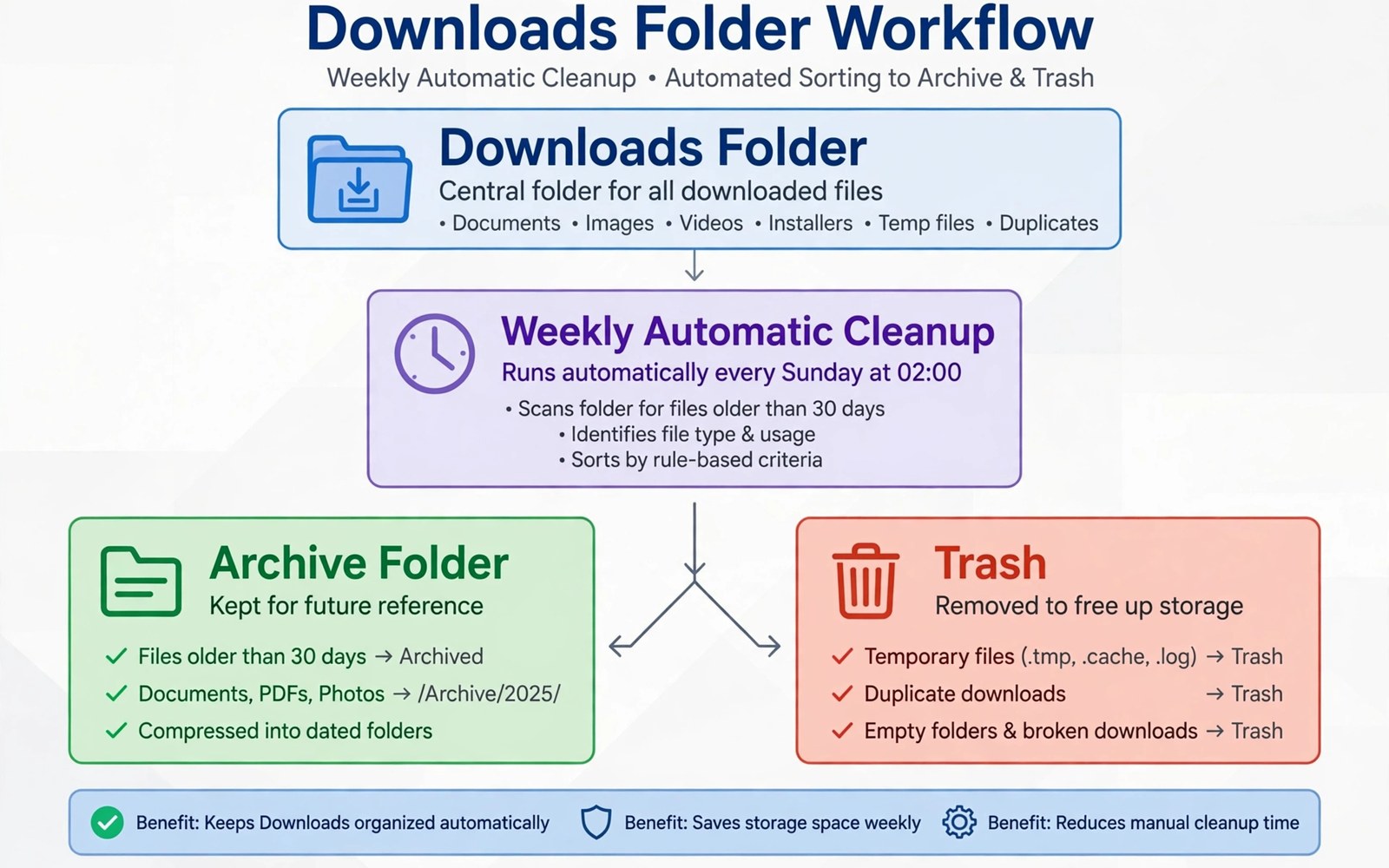
The downloads folder is where good intentions go to pile up. Installers and PDFs and images and zipped folders land there and then stay long after you need them. A quick scroll often reveals files from months ago that you forgot completely. Those files eat storage and they make finding a fresh download harder. A weekly routine stops the pile from forming in the first place.
Automatic cleanup does not mean blind deletion. A good rule keeps recent files and protects files that you marked as important. It moves old documents to an archive folder and it removes installers after a set number of days. It also asks before it touches a file type that you have not reviewed. That balance keeps the folder useful without turning cleanup into a risk. Owners who also fight app bloat may like rules that limit apps caching gigabytes of data as a parallel habit.
Start by sorting the current downloads folder by size and by date. Large files give the biggest immediate gain. Old files give the clearest deletion signal. Move anything that you still need into a named folder outside downloads. A named folder such as Work Receipts or Travel Tickets makes the file findable later. Files that remain after that sorting pass are the right candidates for automation.
Build a weekly rule that protects important files
Create three destinations before you automate anything. Use an archive folder for documents that you may need later. Use a media folder for images and videos that deserve a longer life. Use a trash review folder for files that will be deleted after a short delay. A delay gives you a second chance to rescue a file that a rule caught by mistake. The delay also makes the automation feel safe rather than ruthless.
Write the rule in plain language first. Keep files from the last seven days untouched. Move documents older than thirty days to the archive folder. Delete installers older than fourteen days after they sit in the review folder for a week. Exclude files with names that contain tax or contract or ticket or receipt. A written rule is easier to test and easier to explain to yourself later. The same planning habit helps when you organise thousands of phone files in a short session without losing track of key items.
Automate with a trusted tool or a scheduled task
Choose an automation app that works with folder access rather than broad device control. Grant access only to the downloads folder and to the archive folders that you created. Test the rule on a small set of test files first. Create dummy files with old dates and watch where the tool moves them. A test run reveals a wrong destination before real files are involved.
Schedule the task for a quiet time each week such as Sunday evening. A weekly schedule keeps each run small and predictable. Review the trash review folder after the first three runs. Shorten or lengthen the delay based on how often you rescue a file. Automation should reduce your workload rather than create a new weekly rescue chore.
Preview old downloads with a short script
import os
import time
base = "/sdcard/Download"
now = time.time()
for name in os.listdir(base):
    path = os.path.join(base, name)
    age = (now - os.path.getmtime(path)) // 86400
    print(name, int(age), "days")
The snippet above follows a standard pattern for listing download files with their age in days. It only prints names and ages and it deletes nothing. You can adapt the base folder and the age threshold for your own test folder.
Run the preview on a computer copy of your downloads folder when you want extra safety. The age list shows which files a weekly rule would move or delete. Use that list to add exclusions for files that look old but still matter. A preview run turns a vague rule into a concrete list that you can approve.
Sort downloads by purpose before automation runs
Downloads serve different purposes and a single rule cannot treat them all alike. A boarding pass needs to survive until a trip ends. An installer needs to survive only until the app works. A research PDF may need to survive for months. Sorting by purpose before automation gives each file the right lifespan. A purpose sort also reveals which files deserve a dedicated folder outside downloads.
Create purpose folders with names that match your real life. A travel folder holds tickets and hotel confirmations. A work folder holds contracts and invoices. A study folder holds course material and reference PDFs. Move files into those folders as soon as you download them when possible. A file that starts in the right folder never needs an automation rule to rescue it.
Review the remaining downloads after a purpose sort. The files that remain are usually installers and temporary files and forgotten images. Those remaining files are the perfect candidates for age based automation. A purpose sort therefore makes automation safer because the important files already left the folder. Automation then handles only the low value remainder.
Handle installers and archives with care
Installers deserve a short lifespan because the installed app replaces them. Keep an installer for a week after installation to cover a reinstall need. Delete the installer after that week unless you need an offline copy for another device. An offline copy belongs in an archive folder with a clear version name. A version name prevents confusion when a newer installer arrives later.
Archives need a different rule because an archive may hold the only copy of a project. Open an archive and list its contents before you decide its fate. Move a valuable archive to a project folder with a descriptive name. Delete a redundant archive only after you confirm that its contents exist elsewhere. An archive that you cannot open should be treated as a broken file rather than as a valuable backup.
Watch for duplicate downloads that share a name with a number in parentheses. A browser often adds a number when you download the same file twice. Compare the two files by size and by date before you delete one. Keep the newer complete file and delete the older partial file. A size check catches a partial download that looks complete from its name alone.
Advanced automation for shared downloads
Shared downloads need extra care because a file downloaded for one person may matter to another. A family tablet may download files for several household members. A work phone may download files for a team project. An automation rule that deletes old files could erase a file that a colleague still needs. A shared device therefore needs a longer delay before deletion. A longer delay gives every user a chance to rescue a file.
Create a shared archive folder that every user can recognise. A name such as Shared Archive tells every user where important downloads move. An automation rule that moves files to Shared Archive is safer than a rule that deletes them. A move preserves the file while clearing the downloads folder. A shared archive also creates a single place to search when a file goes missing.
Use file name patterns to protect shared files automatically. A file name that contains a project code or a client name can be excluded from deletion. An exclusion based on a name pattern works across many files without manual tagging. Test the pattern with dummy files before you trust it with real work. A pattern test reveals whether the automation recognises the pattern correctly.
Schedule automation for a time when no user is actively downloading. A midnight run may conflict with a late night download. A Sunday evening run may conflict with weekend work. Choose a quiet weekday morning when downloads are unlikely. A quiet schedule reduces the chance that automation catches a file that is still in use. A quiet schedule also makes results easier to review.
Notify users after an automation run when the device is shared. A short message listing moved files helps every user find their work. A message also gives users a chance to report a mistaken move quickly. A mistaken move reported quickly can be undone before the trash delay expires. Communication turns automation from a hidden process into a shared habit.
A practical downloads checklist for travellers
Travellers download tickets and maps and guides that must survive until a trip ends. A traveller checklist protects those files from a weekly automation rule. Move every travel file to a travel folder on the day that you download it. A travel folder outside downloads is immune to a downloads cleanup rule. A folder move at download time is faster than a rescue after automation moves a ticket.
Check travel files before departure by opening each ticket and each booking confirmation. An opened ticket proves that the file is complete and readable. A ticket that fails to open at home can be redownloaded before travel. A ticket that fails abroad may be impossible to replace quickly. A pre departure open check is a small habit with a large payoff.
Archive travel files after a trip rather than deleting them immediately. A hotel receipt may be needed for an expense claim weeks later. A boarding pass may be needed to prove travel for a refund. An archive folder with a trip name preserves those files without cluttering downloads. An archive that is easy to search serves future needs without present clutter.
Delete travel installers and temporary maps after archiving the important files. A temporary map for a city that you visited once does not need permanent storage. An installer for a travel app that you already installed does not need to stay. A post trip delete of low value files restores downloads to a clean state for the next trip.
Common mistakes
One common mistake is deleting every file older than a week without an archive step. Old files often include tickets and forms that you still need. A second mistake is automating the whole storage area instead of only downloads. A third mistake is forgetting the trash review folder and letting files vanish instantly. Each mistake removes the safety delay that makes automation trustworthy.
Another mistake is setting the schedule and then never checking the results. A rule can drift when you change how you use downloads. Check the archive folder monthly and check the review folder after each of the first few runs. Small checks keep the rule aligned with your real needs.
Frequently asked questions
Will automatic cleanup delete a file I just downloaded?
A sound rule protects recent files for at least seven days. It should also protect files that you moved to a named folder outside downloads. Test the rule with dummy files before you trust it with real work. Keep the trash delay on for the first month.
What should I do with installers after installing an app?
Installers are safe to delete once the app works correctly on your phone. Keep an installer only when you need an offline copy for another device. Move a needed installer to an archive folder with a clear name. Delete the rest after a short review delay.
How do I keep tickets safe during cleanup?
Move tickets to a dedicated folder as soon as you download them. Add ticket and receipt and booking words to the exclusion list. Check the archive folder before a trip to confirm the file opens. A dedicated folder beats any exclusion rule on its own.
Conclusion
Weekly downloads cleanup works when protection comes before deletion. Archive folders and a trash delay and clear age rules turn automation into a helpful habit. A test run with dummy files proves the rule before it touches real documents. Small weekly runs keep the folder lean without drama.
Your concrete next step is to create an archive folder today and move ten important downloads out of the downloads folder. Then set a weekly task that moves documents older than thirty days into that archive. Readers who want a broader tidy can follow ways to shrink large photos and videos without losing quality as the next space saving step.

