

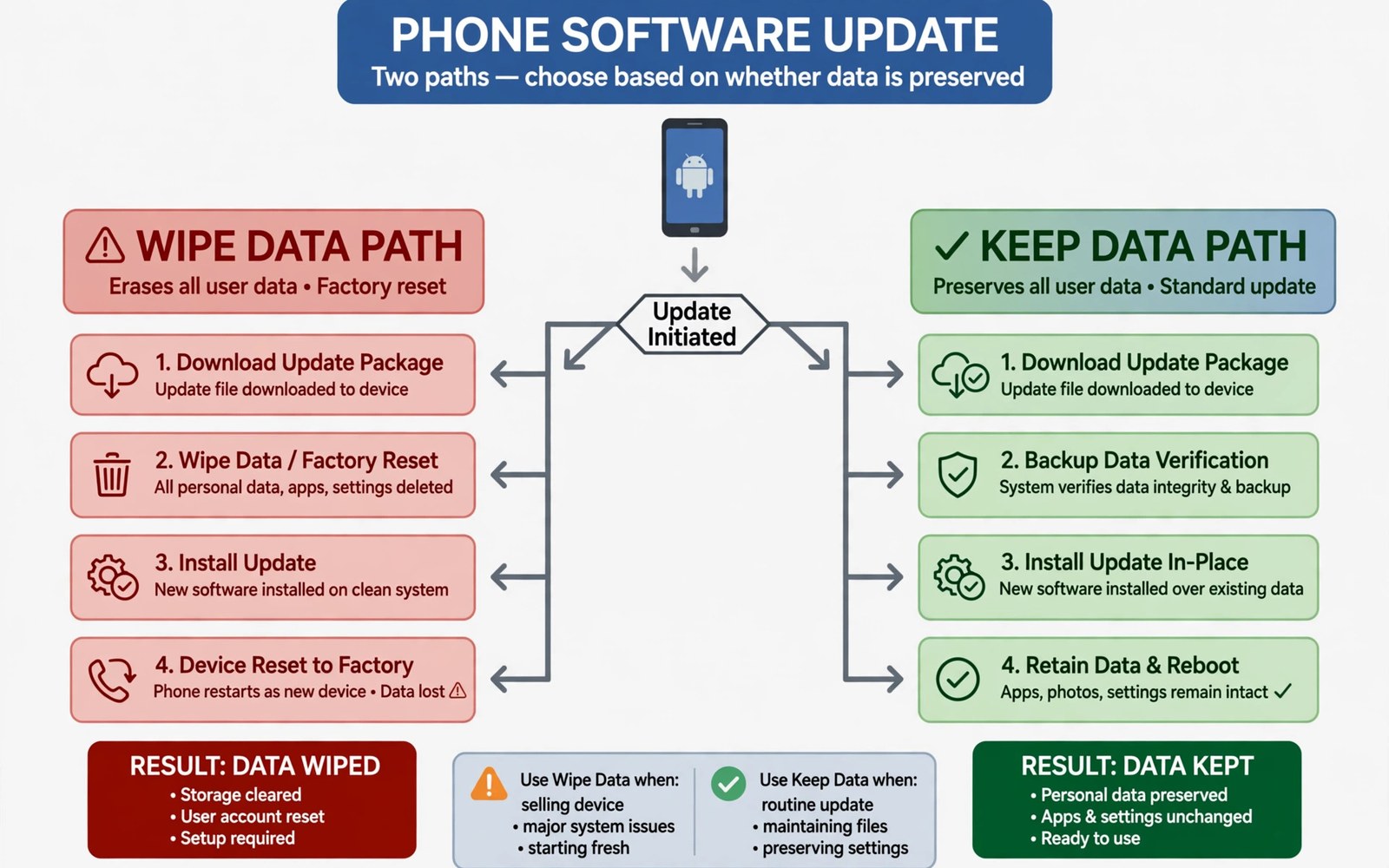
A clean flash wipes user data before installing a new system. A dirty flash installs the new system over the old one without wiping data. Both methods have a place in ROM maintenance. The wrong choice at the wrong time causes bugs that look mysterious. This article explains when each method fits.
A clean flash gives the new system a fresh start. No old settings or old app data carry over. That fresh start removes conflicts from earlier versions. The cost is setup time. You restore apps and accounts after the flash. A dirty flash saves that time but it keeps old data that may conflict.
ROM makers often state the recommended method for each release. Small updates usually allow a dirty flash. Major version jumps often require a clean flash. Read the release notes for every update. The notes override any general rule in this article. Your device thread may add a warning for your model.
Back up before either method. A dirty flash can still fail and force a clean flash. A backup turns that failure into an inconvenience. Test the backup before you start. A backup you never tested is only a hope and not a plan.
When you are ready to go further, read about how vendor partition files affect ROM installs and compare it with the plan you made for your own phone.
What A Clean Flash Really Does
A clean flash erases the data partition and installs the system fresh. It also clears app caches and old settings. The phone boots like a new device. You sign in again and restore your apps. The result is predictable because no old state survives.
Clean flashing also removes leftover files from removed apps. Those leftovers can cause crashes after a major update. A fresh data partition avoids that whole class of bugs. The trade-off is time. Restoring a large app set can take an hour or more. Plan that time before you start.
What A Dirty Flash Keeps
A dirty flash keeps your apps and your settings and your files. It replaces the system files while leaving user data in place. The phone boots back to your familiar home screen. Your accounts stay signed in. The update feels quick and painless when it works.
Dirty flashing works best when the old and new systems are close cousins. A monthly update within the same Android version is a good example. The system changes are small and the old data still fits. A dirty flash across a major version jump is riskier. Old settings may refer to features that no longer exist.
- Clean flash wipes data for a fresh start
- Dirty flash keeps apps settings and files
- Small same version updates suit dirty flashing
- Major version jumps suit clean flashing
- Back up before either method every time
When A Clean Flash Is The Right Call
Choose a clean flash for a new Android version. Choose it when you switch to a different ROM project. Choose it when the release notes demand it. Choose it after persistent crashes that survive a dirty flash. Choose it when you change GApps package size. Each case involves a large state change.
A clean flash also helps when you sell or hand down a phone. It removes your personal data from the device. It gives the next owner a fresh start. Do not rely on a dirty flash for privacy. Only a full wipe protects personal data in that situation.
When you are ready to go further, read about fixing Status 7 errors during ZIP installation and compare it with the plan you made for your own phone.
When A Dirty Flash Is Safe Enough
Choose a dirty flash for small security updates within the same version. Choose it for a weekly build from the same project. Choose it when the notes explicitly allow it. Keep a backup ready even in these safe cases. A safe case can still fail if the download is corrupt.
After a dirty flash, test the phone for a day before you judge it. Check calls and messages and camera use. Check battery drain and app crashes. If a problem appears, note which app or feature fails. That note guides the fix and tells you whether a clean flash is needed.
Prepare For Either Method
Back up photos and files and app data before you flash. Note your current build version and date. Download the new build for your exact codename. Verify the file if the project gives a checksum. Charge the phone and keep the cable steady during the flash.
In recovery, follow the wipe menu for the method you chose. A clean flash wipes data and cache as the guide directs. A dirty flash wipes only cache in most guides. Do not wipe system partitions unless the guide tells you to. Extra wipes can remove files the new system expects to find.
Recover From A Bad Dirty Flash
If the phone bootloops after a dirty flash, boot to recovery. Try wiping cache first. If that fails, consider a clean flash as the next step. Restore your backup after the clean flash. Do not repeat the same dirty flash and hope for a different result.
If apps crash after a dirty flash, clear the cache for the affected app first. Reinstall the app if cache clearing fails. System-wide crashes point to a deeper conflict. In that case a clean flash is usually faster than chasing each crash. Your backup makes that decision easy.
When you are ready to go further, read about how custom ROMs handle VoLTE and fingerprint hardware and compare it with the plan you made for your own phone.
Build A Personal Update Rule
Write a simple rule for your own phone. Small updates get a dirty flash with a backup. Major updates get a clean flash with a full restore. Switching projects always gets a clean flash. A written rule removes guesswork at update time. It also helps you explain your choice to others who use the same phone.
Review your rule after each major Android version. Projects change their advice over time. A method that worked last year may not suit a new partition layout. Stay flexible and follow current release notes. Good habits beat rigid rules when the platform changes.
Real Examples: When Each Method Saved Or Harmed A Phone
A user updated a monthly security build with a dirty flash. The phone booted normally. Apps stayed signed in. The update took ten minutes. That success fits the dirty flash case. The old and new systems differed only slightly. Old data still matched the new system. No conflict appeared. Small updates reward the quick method.
Another user dirty flashed across a major Android version. The phone booted but settings crashed daily. Notifications behaved oddly. A clean flash fixed every issue. Old settings had referenced features that no longer existed. The clean flash removed those stale settings. The lesson is simple. Major jumps deserve fresh data. Time saved by a dirty flash became time lost to crashes.
A third user clean flashed for a tiny update and lost an evening to restore. The update would have worked dirty. The user learned to read release notes first. Release notes state the recommended method for each build. Following them avoids both extremes. Use the method the release calls for. Do not apply a personal rule blindly.
Backup Strategies That Match Each Method
A dirty flash still needs a backup. Copy photos and files before updating. Export app data where the app allows it. A dirty flash backup can be lighter than a clean flash backup. You do not need a full app restore plan. You need a safety net if the update fails. Keep that net current before every update. An old backup helps less than a fresh one.
A clean flash needs a fuller backup plan. List every app you will restore. Note login methods for each important account. Save two factor backup codes in a safe place. A clean flash without those codes can lock you out of accounts. Prepare codes before wiping. That preparation takes minutes and prevents days of account recovery.
Test your backup restore after a clean flash once. Restore a photo folder and a contact file. Confirm they open correctly. If a backup file fails, you learn it while the old system is gone. That timing is painful. Test backups before wiping whenever possible. A tested backup turns a clean flash into a routine task.
Dirty Flash Hygiene: Keep Old Data Healthy
Old data stays healthy when you maintain it between updates. Clear app caches monthly. Remove apps you no longer use. A lean data set dirty flashes more cleanly. Bloated data carries more stale settings into the new system. Stale settings cause the crashes users blame on dirty flashing. Regular cleanup improves dirty flash success. It also speeds the phone daily. Treat data hygiene as update preparation.
Check storage health before a dirty flash. A nearly full data partition complicates updates. The updater needs working room for temporary files. Free several gigabytes before updating. Delete large downloads and old videos. Move photos to a computer if needed. Free space gives the updater room to work safely. A cramped update fails in confusing ways. Space is cheap insurance.
After a dirty flash, clear caches for apps that misbehave. Do not clear all app data at once. Targeted cache clearing fixes most post update glitches. Reinstall a single app if cache clearing fails. System wide problems still point to a clean flash. Targeted fixes respect your setup. They also teach you which app caused the trouble.
Clean Flash Restore: Rebuild Smarter Each Time
A clean flash is a chance to rebuild smarter. Do not restore every app blindly. Review your app list before restoring. Drop apps you have not opened in months. A smaller app set boots faster and updates cleaner. It also reduces battery drain. Each clean flash can slim your digital life. Use that opportunity deliberately. A lean phone feels new longer.
Restore accounts in priority order. Start with your main mail and messaging accounts. Add work accounts next. Add entertainment accounts last. Priority restore gets you usable quickly. It also isolates a problematic account restore. If a problem appears late, you know which group caused it. Order turns restore chaos into a controlled process. Control matters after a wipe.
Document your restore choices for the next clean flash. Note which apps you dropped and why. Note which settings you changed from defaults. That document speeds the next rebuild. It also prevents re-adding apps you deliberately removed. Good restore notes compound. Each clean flash gets faster and calmer. Experience becomes a written system.
adb reboot recovery
adb sideload update.zip
adb shell rm -rf /data/cache
adb reboot system
The steps above follow the approach described in the official developer documentation for this platform and in the update notes that ship with each release.

