

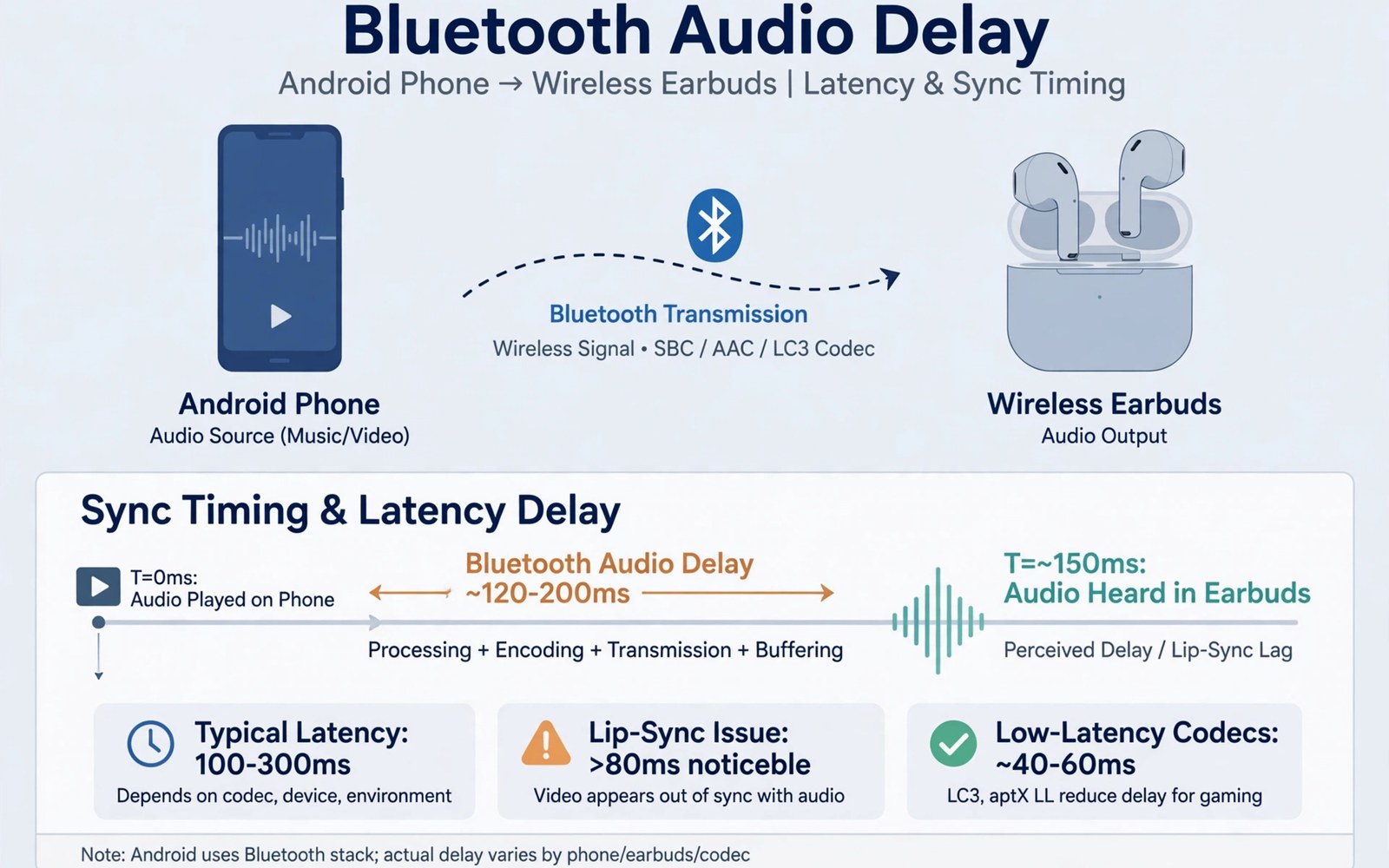
Bluetooth audio delay ruins video because lips move before sound arrives. A small delay feels like a bad dub. A large delay makes dialogue hard to follow. The fault often comes from the codec or the app rather than a broken earbud. You can reduce the delay with a few targeted checks before you replace hardware.
Bluetooth sends audio in packets and the receiving device must decode them. Different codecs need different amounts of time to encode and decode. Video apps can compensate by delaying video to match audio. Some apps do this well and others do it poorly. A codec with low latency helps most when an app offers no sync control.
Confirm the delay and find its source
Play a video with clear lip movement and watch for a mismatch. Try the same video with wired earphones or the phone speaker. If wired sound stays in sync then Bluetooth is the source. If wired sound also lags then the video file or app is the source. This simple test stops you from chasing a Bluetooth fault that does not exist.
Test a second video app next. A delay that appears in only one app points to that app. A delay in every app points to the codec or the earbud. Test a second pair of earbuds if you can borrow one. A delay that follows the earbud points to hardware or firmware. A delay that follows the phone points to settings.
Check the distance between phone and earbuds during tests. A phone in a pocket behind your body can weaken the signal. A weak signal causes retransmissions that add delay. Hold the phone in front of you for one test. A sharp improvement means placement and interference matter more than codec choice.
Choose a lower latency codec
Open Developer Options on Android to see Bluetooth audio codec choices. Enable Developer Options by tapping the build number seven times in About Phone. Look for Bluetooth Audio Codec under Developer Options. The list shows codecs your phone and earbuds both support. Choose a low latency option only if both devices support it. A codec that one side lacks will fall back to a basic codec anyway.
Keep the sample rate and bits per sample at default values unless you know the earbud limits. Higher values can improve sound but they can also add load. Test video sync after each codec change. Return to the default codec if sync gets worse. A stable basic codec beats an unstable advanced codec for video.
Codec choice interacts with other Bluetooth fixes. The guide to switching Bluetooth codecs for better sound explains each codec trade off in detail. Use it to pick a codec for music and then test that same codec for video. A codec that sounds great for music may still lag for video. Pick the codec that balances both uses for your daily routine.
Reduce interference and app delay
Wi-Fi and Bluetooth share spectrum on many phones. A busy Wi-Fi download can crowd Bluetooth audio. Pause large downloads during a video test. Move away from a crowded router area if delay spikes near it. Turn off unused Bluetooth devices that stay connected in the background. Each extra link adds work for the phone radio.
Some video apps include an audio delay or sync adjustment. Search the app settings for audio sync or delay. Shift audio earlier in small steps until lips match sound. Save the setting for that app only. A global fix is better when every app lags but an app fix helps when only one app lags.
Restart the Bluetooth stack by turning Bluetooth off and on again. Re-pair the earbuds if the delay started after an update. A fresh pairing clears a stale codec negotiation. Update earbud firmware through the maker app when an update is available. Firmware updates often fix latency bugs that settings cannot fix.
adb shell dumpsys bluetooth_manager | grep -i -m 5 "codec"
adb shell settings get global bluetooth_a2dp_codec_priority
This snippet is based on standard Android Bluetooth diagnostics and is provided as a learning example for your own earbuds. Manager output can hint at the codec in use during a video test. A priority read differs by phone model so a missing value does not prove a fault.
Test latency with a simple real world routine
A repeatable test routine beats a single impression. Pick one dialogue scene that you know well. Play it with the same earbuds and the same phone volume each time. Watch the mouth of the speaker and listen for the first word of each sentence. Note whether sound arrives early or late. A consistent offset points to a codec or app setting. A random offset points to interference or a weak link.
Change only one variable between tests. Change the codec and keep distance and app the same. Change the app and keep codec and distance the same. Change distance and keep codec and app the same. This discipline reveals the true cause fast. Random changes waste time and they can hide a simple fix.
Record results in a short note on your phone. Write the codec and the app and the delay impression for each test. A note lets you return to the best setting after an update resets it. Updates can reset Developer Options on some phones. A note restores your best setup in minutes. It also helps support staff if you later ask for help.
Game audio needs a different test. Games react to sound cues in real time. A small video delay may feel huge in a game. Test with a game that has clear sound effects for actions. Tap an action and listen for the matching sound. A laggy codec will show up fast in this test. Use a low latency codec for games even if music sounds slightly less rich.
Calls over Bluetooth add another timing layer. A call delay feels different from a video delay. Test a call with a friend and ask if your voice sounds delayed to them. A two way delay can make conversation feel awkward. Switch to the phone speaker for important calls if Bluetooth delay persists. A clear call matters more than hands free convenience in that moment.
Check earbud firmware and phone updates together
Earbud firmware and phone software evolve together. A phone update can change Bluetooth behaviour in a subtle way. An earbud firmware update can fix a matching bug. Check both update sources after a delay appears suddenly. A delay that starts after an update often points to a new mismatch. Roll back a setting rather than blaming the earbud at once.
Maker apps for earbuds often hide firmware updates under device settings. Open the maker app and check for a firmware version and an update button. Install updates with earbuds charged and nearby. Test video sync right after the update with the same scene. A firmware fix can change latency without any codec change. Note the firmware version that works best for future reference.
Phone updates can also reset Developer Options on some brands. Check the codec setting after a major phone update. A reset codec can reintroduce a delay that you fixed months ago. Restore your noted codec and test again. A quick check after updates prevents a long troubleshooting session later.
Separate video delay from game delay in your notes
Video delay and game delay behave differently even on the same earbuds. Video apps can shift video to match audio and hide some latency. Games cannot shift real time action in the same way. A codec that passes a video test may still feel slow in a game. Record video results and game results separately in your notes. A separate record helps you pick a codec for each use instead of a single compromise that satisfies neither.
Streaming music adds a third case with its own tolerance. Music has no visual sync to judge. A codec that lags slightly may sound perfect for music. Do not judge a music codec by a video test alone. Test music for dropouts and clarity rather than timing. A codec choice that balances all three uses will feel best across a full day.
Keep a short log of the codec that works best for video and the codec that works best for music. A log lets you switch back fast after an update resets Developer Options. It also stops you from repeating tests that you already completed.
Common mistakes
One mistake is buying new earbuds before testing codec and app settings. Many delays vanish with a codec change or a fresh pairing. Another mistake is enabling every Developer Option at once. Extra changes can break audio in new ways. Change one codec setting at a time and test video sync after each change.
Another mistake is testing only music when the complaint is video delay. Music has no lip sync problem so it hides latency well. Always test with dialogue video after a codec change. A music test alone can make a laggy codec look perfect.
People also forget to check battery saver modes. Aggressive power saving can throttle Bluetooth processing on some phones. Test with battery saver off for one video. If sync improves then add the video app to the unrestricted list. Keep power saving for idle time rather than for video playback.
Frequently asked questions
Can Bluetooth ever match wired sync perfectly?
It can come close with a low latency codec and a good app. Perfect sync depends on the earbud and the app working together. Most users stop noticing a small delay below a certain threshold. Aim for a delay you cannot notice in normal dialogue rather than a zero number.
Why does delay change between apps?
Apps handle audio and video timing in different ways. Some apps delay video to match Bluetooth audio. Others send audio and video without compensation. The codec stays the same but the app timing changes the result. Test each app you use most and adjust that app when needed.
Will a newer phone fix Bluetooth delay?
A newer phone may support better codecs and faster processing. It will not fix a laggy earbud or a poor app. Test the earbud with another phone before you upgrade. A phone upgrade helps most when your current phone lacks a low latency codec entirely.
Conclusion
Confirm Bluetooth as the source with a wired test and a second app. Pick a low latency codec that both phone and earbuds support. Reduce interference and re-pair the earbuds if delay persists. Your concrete next step is to play a dialogue video now and note the delay and then change one codec setting and test the same video again. If earbuds keep dropping as well read fixing earbuds that keep disconnecting and for weak mobile links see fixing weak 5G signal.

