

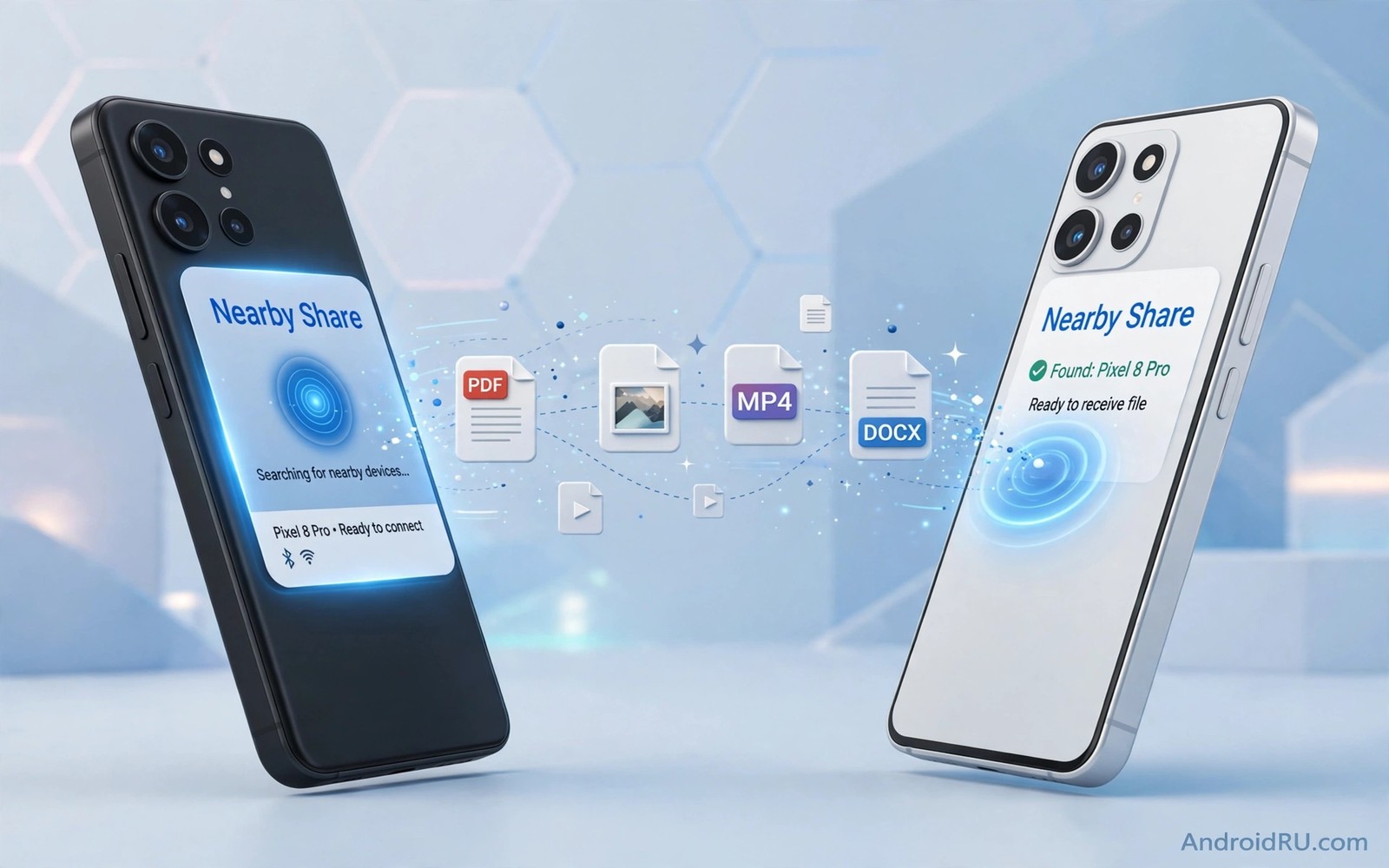
Nearby Share should make sending a file as easy as tapping a name. When discovery fails the other phone simply never appears. When connection fails the phone appears but the transfer stops before it starts. Both failures frustrate people because the feature looks simple on the surface. The cause usually sits in a visibility setting or a radio setting that one phone hides.
Nearby Share uses Bluetooth to discover nearby devices and Wi-Fi to move the file fast. A fault in either radio can break the whole transfer. A visibility setting can hide a phone even when both radios work. A battery setting can pause the service at the worst moment. This guide gives seven fixes in the order that solves the most cases first. Each fix includes a test so that you know when to stop.
Start with both phones side by side and with both screens awake. A sleeping phone can miss discovery entirely. A phone in a pocket can miss it too because the radio signal weakens. A fair test uses two awake phones on a table. That simple setup removes the most common false failure before you change any setting.
Fix one: set visibility to everyone or contacts
Open Nearby Share settings on the receiving phone and check device visibility. A setting of hidden or no one will block discovery completely. Set visibility to everyone for a test with a stranger device. Set visibility to contacts for a test with a saved contact. A test with everyone visibility proves whether visibility was the cause. You can tighten the setting again after the test passes.
Check the sender visibility as well if the receiver still does not appear. Both phones need compatible visibility for some transfers. A sender set to hidden can also fail to see receivers in some builds. A pair of phones both set to everyone gives the cleanest test. Tighten the settings after a successful transfer if you prefer contacts only.
Keep the receiving screen awake during discovery. A screen that sleeps can pause the discovery service. A screen that stays awake for the test removes that variable. A successful transfer with an awake screen proves that sleep was the cause. A failed transfer with an awake screen points to a radio or permission cause.
Fix two: restart Bluetooth and Wi-Fi on both phones
Turn Bluetooth off and on again on both phones. Turn Wi-Fi off and on again as well. A stale radio state can block discovery even when the icons look normal. A fresh radio start clears that state. Test discovery again after both radios restart. A quick radio restart solves many discovery failures at once.
Restart both phones if a radio restart does not help. A phone restart clears a stuck Nearby Share service. A service that survives a radio restart may still fail until a full restart. Test discovery after both phones restart and stay awake. A full restart is a simple step that many people skip in favour of complex settings.
Move the phones closer together for the test. A distance of less than a metre gives the strongest discovery signal. A test across a large room can fail even with correct settings. A close test proves whether distance was the cause. Move farther apart only after a close transfer succeeds.
Fix three: check location and nearby permissions
Nearby Share needs location permission on many Android versions because Bluetooth discovery can reveal location clues. Open app permissions for the sharing service or for Google Play services depending on your phone. Grant location permission while using the app or all the time if the service requests it. A denied location permission can block discovery silently.
Turn on location services on both phones for the test. A location switch off can block discovery even with permission granted. A test with location on proves whether the switch was the cause. You can review the permission again after the transfer if you prefer a tighter setting. A temporary on for a test is a reasonable compromise.
Check that the sharing service is not blocked by a work profile or a parental control. A managed phone can restrict nearby sharing by policy. A personal phone rarely has that restriction. A managed device needs an administrator change rather than a user setting change. Ask the administrator if a work phone blocks the feature by policy.
Fix four: clear the sharing service cache
Open Settings and find the sharing service or Google Play services in the app list. Clear the cache for that service. A corrupted cache can block discovery or connection without any visible error. A cache clear does not delete your files or contacts. It only removes temporary service data. Test discovery after the cache clear.
Do not clear all data for the service as a first step. A data clear can remove settings and it can require a fresh setup. A cache clear is gentler and it often fixes the same fault. Use a data clear only after a cache clear and a restart both fail. A patient sequence avoids a needless setup loss.
Update Google Play services if an update is available. A sharing feature can fail on an old service version. An update can fix a discovery bug that no setting can work around. Check for updates in the Play Store or in system settings depending on your phone. Restart the phone after the update and test again.
Fix five: test a small file first
Send a small photo first rather than a large video. A small file tests discovery and connection without a long transfer time. A large file can fail for size or time reasons that look like a connection fault. A small success proves that the core feature works. A large failure after a small success points to a transfer stability cause.
Test with a different file type if a photo succeeds but a video fails. A video file may need a different transfer path. A document test can also help. A pattern across file types points to a format or size limit. A pattern of all files failing points to a discovery or connection cause. That distinction guides the next fix.
Keep both phones awake during a large transfer. A screen sleep during a large file can pause the transfer. A paused transfer can time out and look like a connection failure. A successful large transfer with awake screens proves that sleep was the cause. A failed large transfer with awake screens needs a radio or interference check. Wi-Fi Direct can serve as an alternative path and the guide to using Wi-Fi Direct to send large files shows a direct transfer method for big files.
Use this ordered test routine
Work through the fixes in order and test discovery after each fix. Use the same two phones and the same small file for every test. A consistent test file removes file size as a variable. A consistent pair of phones removes device differences as a variable.
Step one: set visibility to everyone on receiver
Step two: restart Bluetooth and Wi-Fi on both phones
Step three: check location permission and switch
Step four: clear sharing service cache and update
Step five: send small photo with screens awake
This routine is an original example written for this guide. It uses only standard sharing and permission screens. It does not require any extra app. The routine works because it fixes the test file and the test phones. A changing test cannot prove a fix. A fixed test can.
Reduce interference during a transfer
Move away from a busy router and a microwave oven for a test. Both can flood the same band that discovery uses. A quiet room gives a fair test. A crowded office with many Bluetooth devices can also crowd discovery. A test in a quiet room proves whether interference was the cause.
Turn off Bluetooth on nearby devices that you are not using. A tablet and a laptop and a watch can add discovery traffic. A clean radio environment helps the two test phones find each other. A successful transfer in a quiet room points to interference rather than to a broken feature. A failed transfer in a quiet room points to a setting or service cause.
Keep the phones away from metal objects during a test. A metal case or a metal table can weaken the discovery signal. A plastic table and a case free phone give a fair test. A case that blocks discovery will also block other Bluetooth features. Bluetooth audio problems share some causes and the guide to fixing Bluetooth audio delay covers radio competition in more detail.
Check for a system or brand specific bug
Search the phone model and the Android version for known sharing bugs only after the ordered fixes fail. A brand specific bug can affect one model while other models work fine. A system update may already fix that bug. Check for a system update before you conclude that the feature is broken. An update is a simple fix for a known bug.
Test Nearby Share with a third phone if one is available. A third phone can reveal whether one phone or both phones cause the fault. A sender that fails with two receivers is likely at fault. A receiver that fails with two senders is likely at fault. That comparison narrows the search to one device. A single device fault needs a deeper check on that phone alone. Repeated disconnects on audio devices have a similar pattern and the steps for earbuds that keep disconnecting show how to isolate a single device fault.
Common mistakes
A common mistake is to test discovery with a sleeping receiver. A sleeping phone can miss discovery entirely. Another mistake is to change five settings at once. A batch hides the winning fix and it can create a new fault. Change one setting and test discovery again.
Do not factory reset a phone at the first discovery failure. A reset wipes data and it rarely fixes a visibility or permission fault. Do not ignore the location permission either. A denied permission can block discovery silently while every other setting looks correct. Check permission before you reset anything.
Frequently Asked Questions
Why does my phone appear but the transfer fails?
Discovery uses Bluetooth while the file transfer uses Wi-Fi. A phone can discover over Bluetooth and still fail the Wi-Fi transfer. Check Wi-Fi on both phones and test a small file with awake screens. A small success proves the core path works.
Can Nearby Share work without internet?
Yes because the transfer uses a direct local link rather than the internet. A phone can share files without mobile data or a router connection. A local link still needs Bluetooth and Wi-Fi radios on for discovery and transfer.
Should visibility stay on everyone?
No for daily use because everyone visibility lets strangers see your device. Use everyone only for a test or a transfer with a stranger. Return to contacts visibility after the transfer for normal privacy.
Conclusion
Today place both phones awake on a table less than a metre apart. Set receiver visibility to everyone and restart Bluetooth and Wi-Fi on both phones. Send a small photo and note whether discovery or transfer fails. If discovery fails then check location permission next. If transfer fails then test a small file with awake screens in a quiet room. That ordered test will find the cause without a factory reset.
Keep a note of the winning fix for the next transfer. A note about visibility or permission saves a repeat search later. A short note turns a frustrating failure into a quick routine for future sharing.

