

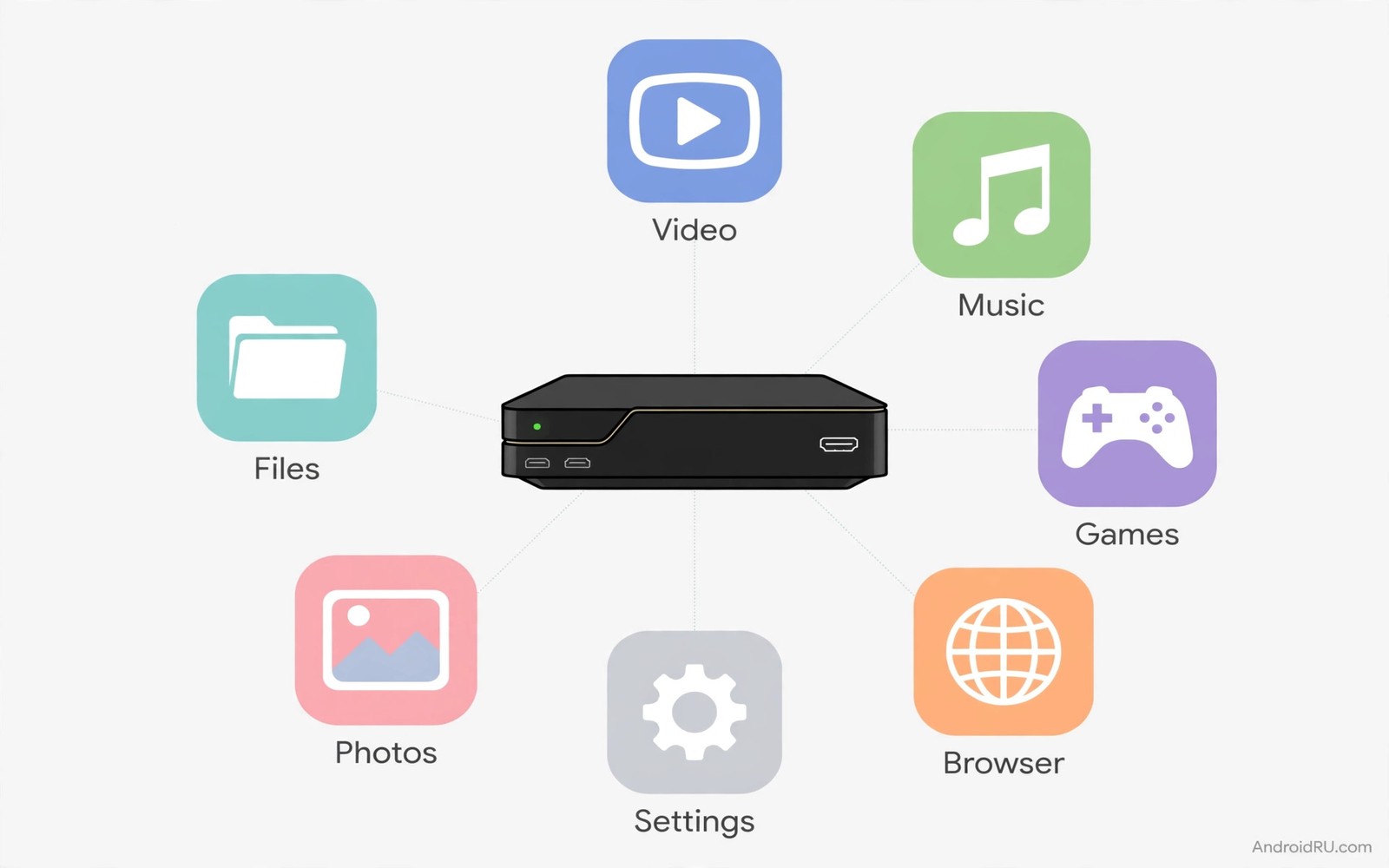
A fresh Android TV box offers promise and a mostly empty home screen. The store lists thousands of apps but only a handful earn daily use. Installing the right seven apps first saves hours of browsing and it prevents a cluttered screen from day one. The essentials cover watching and managing files and controlling the box and keeping it healthy. Everything else can wait until a real need appears.
Start with apps you will open every day rather than apps that look impressive in a list. A streaming app you love beats a showcase app you open once. A file manager you trust beats a fancy launcher you fight daily. Build the core first and let the rest grow naturally. The home screen guide in how to customize the Google TV home screen helps you arrange these essentials once they install.
Streaming apps for daily viewing
Install your two most used streaming services first. Those services define most television evenings. Sign in once and let the apps remember your profiles. A signed in app opens straight to your shows without login friction. That friction free start matters because a television should feel instant after a long day.
Add one free streaming app for discovery and casual viewing. Free services offer movies and shows without another subscription. They suit evenings when you want something light without commitment. A free app also gives guests something to watch without sharing your paid accounts. Keep free apps to one or two so the home screen stays focused.
Check playback quality in each streaming app after install. Open a show and confirm it plays in the expected resolution. A streaming app set to data saver mode looks soft on a large television. A quick quality check after install prevents weeks of blurry viewing that nobody mentions.
A file manager you can trust
A good television file manager opens USB drives and network folders and downloads. It lets you install transferred apps and play local videos. Without a file manager a television box feels closed and limited. With one the box becomes a flexible media hub. Choose a manager with large tiles and full remote navigation.
Test the file manager with a USB drive before you rely on it. Plug in a drive with a movie and a photo and an APK file. Confirm the manager shows all three types clearly. A manager that hides APK files or media files will frustrate you later. A manager that shows everything clearly earns its home screen tile.
Keep the file manager updated because storage handling improves often. An outdated manager may fail on new drive formats or large files. Updates also fix security issues in network sharing. A trusted manager deserves the same update attention as a streaming app.
Tools for control and maintenance
Install a remote control app on your phone as a backup remote. A phone remote saves evenings when the physical remote hides in cushions or runs out of battery. It also offers a keyboard for searches that torture remote users. A phone remote turns typing a show title from a minute long chore into a ten second task.
Add a system cleaner or storage manager that shows real usage. A storage tool reveals which apps hog space and which cache folders grow fastest. Use it monthly rather than daily. Monthly checks keep the box healthy without obsessive cleaning that deletes useful cache. A healthy box starts apps faster and updates without storage warnings.
Install a speed test app for network troubleshooting. A speed test settles arguments about whether the network or the app causes buffering. Run it when a show stutters and note the result. A slow result points to the network. A fast result points to the app or server. That distinction saves hours of wrong fixes.
One app for music and ambience
A music app turns the television into a living room speaker system. Playlists fill dinner parties and background music fills work sessions. Television speakers or a soundbar play music better than a phone speaker across a room. A music app on the box gives the whole room sound without moving a speaker.
Choose a music service you already use on the phone. Shared playlists and liked songs carry over at once. A new music service forces you to rebuild taste from scratch. Familiarity beats novelty for background music because you want songs you already love.
Set a screensaver or visual mode for music playback. A blank television during music feels broken. A calm visual or album art display looks intentional. Some music apps offer built in visuals that suit a living room. Enable them for gatherings and disable them for focused listening.
adb shell pm list packages -3
adb shell cmd package install-existing com.example.filemanager
The snippet above was written for this article to show how advanced users list third party packages and restore a system package through a computer connection. It lists user installed packages and it shows the restore command shape for a package. Use it only for diagnosis on a device you own. The normal install path stays inside the television store.
Keep the box updated and tidy
System updates bring security fixes and performance improvements to a television box. Install updates promptly but check the home screen after each one. Updates sometimes restore hidden apps or reset launcher defaults. A quick post update check keeps your tidy setup intact. That check takes two minutes and it prevents slow clutter accumulation.
App updates deserve attention too. Streaming apps update often with new features and interface changes. An update may move a setting you rely on. Explore the app briefly after a major update to find moved settings. A short exploration prevents confusion during the next viewing session. It also reveals useful new features early.
Storage tidiness needs a monthly routine. Open storage settings once a month and note total free space. Remove apps unused for a month and clear large caches. Monthly tidiness prevents the storage full warning that interrupts updates. A box with free space updates smoothly and starts apps faster.
Keep a list of installed apps and their purpose. A list helps you remember why an obscure tool app exists. It also helps a family member understand the box without asking you. A simple note on the phone serves as that list. Update the list when you install or remove an app. That habit keeps the box understandable for everyone.
Share the television setup with family
A television setup understood by one person frustrates everyone else when that person is away. Write a short guide for the household covering apps and remotes and basic fixes. A guide lets family members solve simple problems alone. It also prevents repeated questions about the same app. A shared guide makes the setup truly household owned.
Teach family members how to switch inputs and launch core apps. Those two skills cover most daily television use. A person who can switch inputs and open a streaming app rarely needs help. Teaching takes ten minutes and it saves hours of support calls later. Patience during teaching pays off quickly.
Keep the guide updated after major changes. A guide that describes an old layout misleads more than no guide at all. Update it when you add a launcher or a new streaming service. A current guide stays trusted. A stale guide gets ignored.
Test apps after every system update
System updates can break app compatibility in subtle ways. A streaming app may lose login after an update. A file manager may lose drive access after an update. Test core apps briefly after each system update. A brief test catches breakage early while fixes remain fresh in mind. Early detection prevents a broken app from ruining a planned viewing night.
Keep app login details in a secure password manager for post update recovery. An update that logs you out needs credentials immediately. A password manager provides them without hunting through notes. Secure credential storage makes update recovery painless. It also protects accounts from weak reused passwords.
Keep a recovery note for the box
A recovery note lists the box model and account details location and core app list and network settings. A note helps you rebuild the box after a factory reset without hunting for details. Store the note securely and separately from the television itself. A recovery note turns a dreaded reset into a straightforward rebuild. It also helps a family member recover the box when you are away. Update the note after major changes so it stays accurate. An accurate note is a gift to your future self during a stressful reset day.
Common mistakes
The biggest mistake is installing twenty apps on day one. A crowded box feels slow and confusing from the start. Install seven essentials and live with them for two weeks. Add new apps only when a real need appears. Restraint builds a better television than abundance.
Another mistake is installing duplicate apps that do the same job. Two file managers and three cleaners compete and confuse. Pick one good tool per job and uninstall the rest. One tool done well beats three tools done partially.
A third mistake is skipping sign in and setup for core apps. An unsigned streaming app shows generic content and it cannot resume your shows. Spend ten minutes signing in properly on day one. That time pays off every evening after.
Frequently asked questions
How many apps should a TV box hold?
Hold as many as you actually use weekly. Most households thrive with ten to fifteen apps total. More apps slow the home screen and complicate updates without adding real value.
Do I need antivirus on Android TV?
A television that installs only store apps needs little extra protection. Careful sideloading habits matter more than an antivirus app. Install apps from trusted sources and keep the system updated.
Can I move apps to USB storage?
Many boxes support moving apps to adopted storage. Check storage settings for the option on your device. Moving large apps frees internal space for system updates and new installs.
Conclusion
Seven essentials give a new Android TV box a strong start. Streaming apps and a file manager and control tools and a music app cover daily life. Your concrete next step is to install those seven categories tonight and sign into your two main streaming services and test the file manager with a USB drive. Live with only those apps for two weeks and note any missing job. The storage expansion guide in how to expand storage on an Android TV box and the launcher guide in custom launchers that make Android TV look clean and ad free will help you grow the setup wisely after the core feels solid.

