

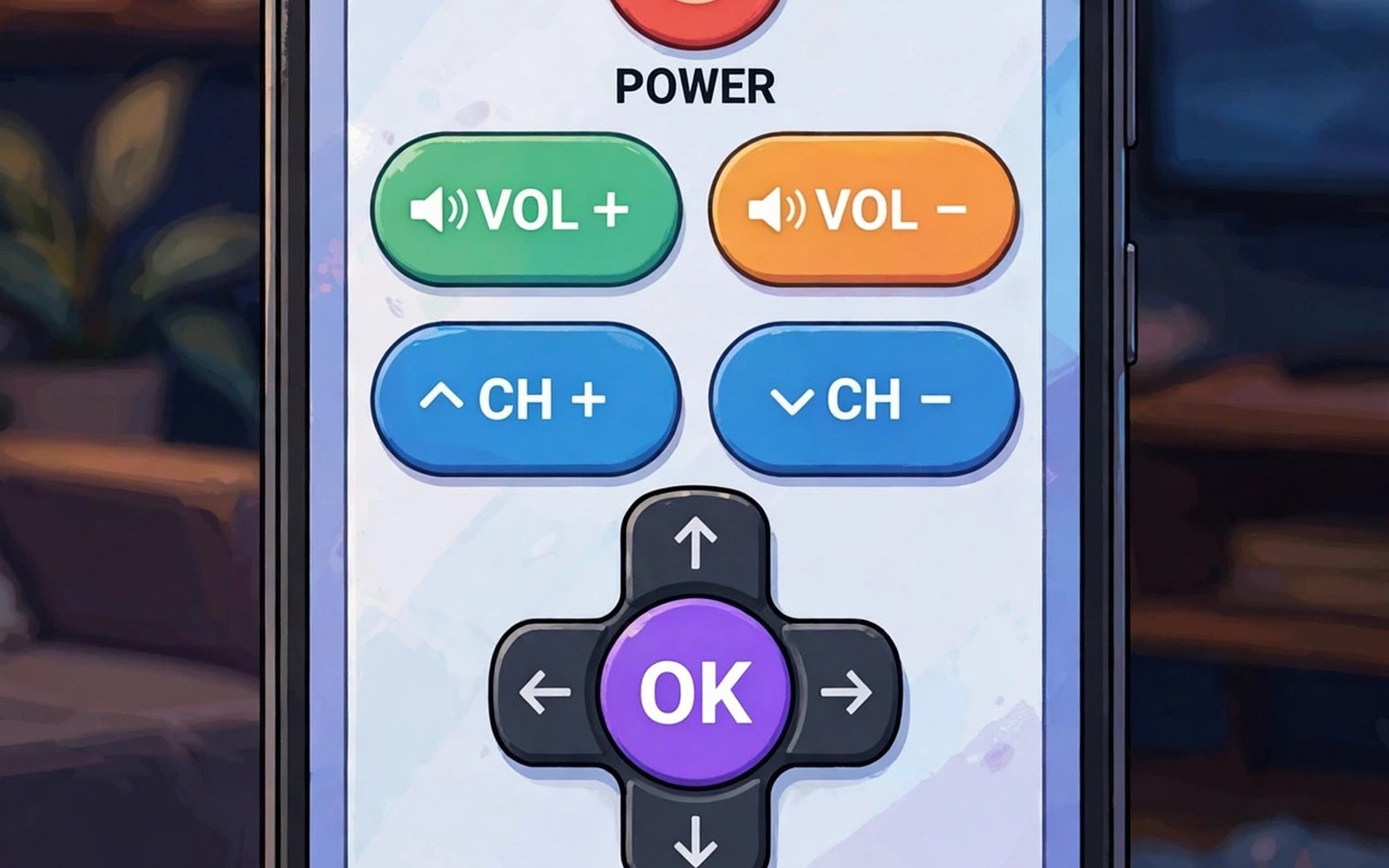
A lost TV remote can ruin an evening. A phone in your pocket can replace it in minutes. Google TV offers a phone remote feature that connects over your home network. The phone screen shows a directional pad and playback controls and a keyboard. This guide explains how to use an Android phone as a wireless remote for Google TV and how to fix common connection problems.
Phone remotes work best when the phone and the TV share the same network. The TV and the phone discover each other through that network. If the phone is on mobile data then discovery will fail. If the TV is on a guest network then the phone may not see it. Check that both devices use the same Wi-Fi network name before troubleshooting further. That single check solves many connection failures.
A phone remote also solves typing problems on a TV. Searching for a show with a TV remote is slow because each letter requires many button presses. A phone keyboard types quickly and accurately. Voice input on the phone can be even faster for a show title. A phone remote turns a frustrating search into a quick task. That benefit alone makes the feature worth setting up even when the physical remote is working.
Set Up The Phone Remote
Open the Google TV app or the remote feature in the Google Home app depending on your phone version. The app will scan for nearby TVs on the same network. Select your TV from the list. A code may appear on the TV screen. Enter that code on the phone to confirm the pairing. That code prevents a neighbour device from controlling your TV by accident. Do not share the code with anyone outside your household.
Grant the necessary permissions for the remote app to discover devices on the local network. Modern Android requires a nearby devices permission for local discovery. Without that permission the app cannot see the TV even on the same network. Check the app permission screen if the TV does not appear in the list. Enable the nearby devices permission and scan again. A permission denial is a common cause of a blank TV list.
Test the basic controls after pairing. Try the directional pad and the select button and the back button. Try volume control and playback pause and play. If a control does not work then check whether the TV needs a software update. An outdated TV system may support only a subset of remote features. Update the TV system and test again. A single update often adds full remote support.
Use The Touchpad Keyboard And Voice Controls
The phone remote offers a touchpad mode in addition to a directional pad mode. A touchpad lets you swipe to move a cursor on the TV screen. That mode helps with apps that expect a mouse pointer. It is less precise than a real mouse but it is useful for occasional navigation. Switch between pad modes based on the app that you are using. A media app works well with a directional pad. A browser app works better with a touchpad.
The keyboard appears automatically when a text field is focused on the TV. Type on the phone and the text appears on the TV. That synchronisation feels instant on a good network. If typing lags then check network congestion. A large download on the same network can delay remote commands. Pause heavy downloads during a search session for a smoother experience. The keyboard also supports copy and paste from the phone in some versions. That feature helps when entering a long password or a complex search phrase.
Voice control through the phone microphone can search for content hands free. Hold the microphone button and speak the show title clearly. The TV should show search results for that title. Voice search works best in a quiet room. Background television sound can confuse the recogniser. Speak close to the phone microphone and pause after the title. If voice fails then fall back to typing rather than repeating the same phrase louder.
Fix Connection Drops And Lag
Connection drops often come from network changes. A phone that switches between Wi-Fi bands may lose the TV connection briefly. A TV that enters a deep sleep mode may stop responding to remote commands. Wake the TV with its physical remote first and then reconnect with the phone. If drops happen frequently then assign a static IP address to the TV on your router. A stable address reduces discovery failures after a router restart.
Lag can come from a weak Wi-Fi signal at the TV location. A TV behind a large cabinet or far from the router may have a weak signal. Move the router closer or add a Wi-Fi extender near the TV room. Test the signal strength in the TV network settings. A weak signal affects streaming quality as well as remote responsiveness. Improving the signal helps both problems at once.
App conflicts can also cause remote failures. A VPN on the phone may route local traffic through a remote server and break discovery. Disable the VPN temporarily when using the phone remote. A firewall app on the phone may block local discovery traffic as well. Check the firewall rules for the remote app if discovery fails consistently. Allow local network access for the remote app while keeping other protections in place.
Code That Checks Local Network Discovery
The code below shows a command pattern for checking whether a TV is reachable on the local network from a computer. It is useful when a phone cannot discover the TV. Adapt the address to your own TV. Use it only on a network that you own.
ping -c 4 192.168.1.50
nmap -p 5555 192.168.1.50
arp -a | grep 192.168.1.50
The snippet above is an original example written for this guide. It shows a generic network check pattern that you can adapt to your own home network. It does not copy code from any outside source.
Adapt the snippet by replacing the example address with the address shown in your TV network settings. A successful ping proves basic network reachability. A failed ping points to a network or power issue rather than a remote app issue. Fix the network first and then return to the phone remote setup. That order saves time compared with reinstalling the remote app repeatedly.
Use The Phone Remote Every Day
Make the phone remote part of your daily TV routine by placing its shortcut on the phone home screen. A shortcut that is buried in an app drawer will be forgotten when the physical remote is handy. A home screen shortcut makes the phone remote a one tap option. Teach other household members how to open it as well. A feature that only one person knows does not help when that person is away.
Use the phone remote for private listening in some setups. Some phone remote apps can route TV audio to phone headphones through a private listening feature. That feature depends on the TV and app version. If it is available then it is useful for late night viewing without disturbing others. Test it with a short show before relying on it for a full film. Audio delay can vary with network conditions.
Keep the physical remote as a backup even after the phone remote works well. A phone with a dead battery cannot control the TV. A physical remote works without a charged phone. Store the physical remote in a consistent place so it is easy to find when needed. A phone remote is a convenient replacement and not a complete substitute for a dedicated remote in every situation.
Common Mistakes
One common mistake is to pair the phone remote while the phone is on mobile data. Discovery requires the same local network. Turn off mobile data temporarily or confirm the Wi-Fi connection before pairing. That check prevents a confusing failure where the app scans forever without finding the TV. A simple network check at the start saves a long troubleshooting session.
Another mistake is to deny the nearby devices permission and then blame the app. Modern Android protects local discovery with that permission. The app cannot see the TV without it. Check permissions when the TV list is empty. Grant the permission and scan again. That fix is faster than reinstalling the app. Readers who explore hidden Android TV settings you must enable will see a similar lesson about permissions that are easy to overlook.
A third mistake is to use the phone remote on a guest network that isolates devices. Guest networks often block device to device communication for security. A phone on a guest network cannot discover a TV on the main network. Move both devices to the same main network for remote use. If a guest network is the only option then check its isolation settings in the router. The same network discipline helps when connecting a mouse and keyboard to a TV because input devices also depend on a clear connection path.
A further mistake is to leave the phone remote app running in the background for days without reconnecting. A stale connection may show controls that no longer respond. Close and reopen the remote app to refresh the connection. That refresh takes seconds and it restores responsiveness. A fresh connection is better than repeated taps on a dead remote screen.
Frequently Asked Questions
Can I use any Android phone as a Google TV remote?
Most modern Android phones support the Google TV remote feature through the official app. The phone and the TV must share the same network. An older phone with an outdated app version may lack some features. Update the app and the TV system for the best compatibility.
Why does the TV not appear in the phone app?
The most common causes are different networks and missing nearby devices permission. Check that both devices use the same Wi-Fi network name. Check the app permission for nearby devices. Restart the TV and the phone app if the TV still does not appear. A restart clears a stale discovery state.
Does the phone remote work without Wi-Fi?
The standard phone remote needs a local network connection. Some phones offer an infrared blaster that can control a TV without Wi-Fi. That method depends on phone hardware that many modern phones lack. Check your phone specifications if you need an offline remote option. For most users the Wi-Fi remote is the practical choice.
Conclusion
Start today by opening the Google TV remote app on your phone while your TV is on the same Wi-Fi network. Pair the phone with the code on the TV screen and test the directional pad and keyboard with a search. If the TV does not appear then check the network name and the nearby devices permission first. That single setup will give you a backup remote and a faster way to search. It will also prepare you to cast content by studying casting a smartphone screen to a TV without a router because both features depend on a clear local connection.

