

How to Cast Smartphone Screen to TV Without Wi-Fi Router Connection
Picture a hotel room after a long travel day. The TV on the wall is large and bright, your phone holds the photos from the trip, and the hotel Wi-Fi asks for a room number, a fee, and a prayer. Or picture a cabin with no internet at all, a classroom where the TV is not on the office network, or a living room where the router died an hour before film night. In all of those places the usual casting advice fails, because the usual advice assumes a router sits in the middle. It does not have to.
Your phone and your TV can talk to each other directly. The phone’s Wi-Fi radio can build a peer-to-peer link to the TV, the phone can run a small hotspot that the TV joins, or a cable can carry the picture with no wireless link at all. None of these methods needs a router, and for photos and videos already on your phone, none of them needs the internet either. I have used all three in hotel rooms, meeting rooms, and a cabin with no signal, and each one has a place. The trick is knowing which method fits your TV, your phone, and the thing you want to watch.
This guide walks through each method with numbered steps you can follow, the exact menu names on Samsung, Xiaomi, and Pixel phones, and the checks that tell you whether each step worked. Read the short “how it works” section first, because one distinction, Wi-Fi radio versus a Wi-Fi router, explains almost every confusion people have about router-free casting.
How Casting Without a Router Actually Works
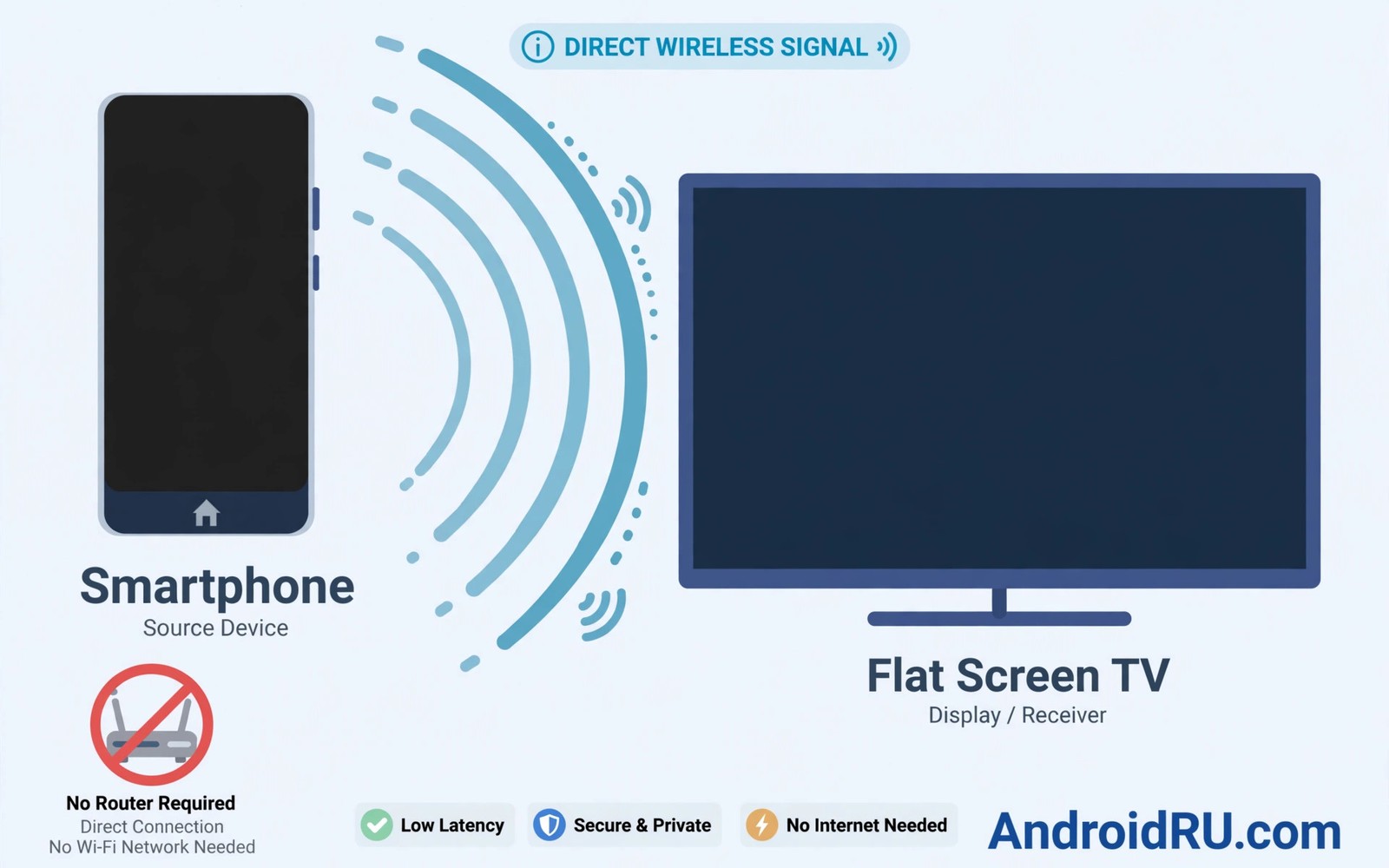
Casting usually relies on a home Wi-Fi router. The phone and the TV both join the router’s network, find each other on it, and share the screen through it. When there is no router, that path fails. Direct casting replaces the router with a direct link. One device acts as the source and the other acts as the display, and the connection runs between the two of them only. The stream stays local, which is why it works in a hotel room, a cabin, or a meeting room with no network at all.
The confusion comes from the word Wi-Fi. Wi-Fi is a radio technology, and a router is only one way to use it. A direct link uses the same radio hardware in your phone, but no router and no internet connection are involved. That is why a method can honestly be called “without Wi-Fi” in everyday speech and still use the Wi-Fi radio under the surface. A cable avoids the radio entirely. Keep that distinction in mind and the rest of this guide falls into place.
What Wi-Fi Direct does differently from home Wi-Fi
Wi-Fi Direct is the peer-to-peer standard behind most router-free mirroring. One device, usually the TV, advertises itself as a display. The other device, your phone, finds it, and the two agree on a direct channel. There is no access point in the middle to boost the signal, so distance matters more than it does at home: a direct link weakens quickly past a few metres, and a thick wall between phone and TV hurts more than it would with a router nearby. Keep the phone close to the TV, in clear view of the set, and the stream stays stable. Miracast, the screen mirroring standard on most Android phones and many TVs, is built on Wi-Fi Direct, which is why the two names appear together so often.
Miracast vs Chromecast vs hotspot casting — which one fits your evening
Miracast mirrors everything on your phone screen to the TV, including apps, photos, and slides. Chromecast, by contrast, usually needs the phone and the TV on the same router network, because the TV fetches the video itself; without a router, Chromecast is the wrong tool unless the TV joins your phone hotspot. Hotspot casting sits in between: the phone creates a small local network, the TV joins it, and apps cast to the TV the normal way. The table below compares the three methods at a glance.
| Method | Needs a router | Needs internet | Best for | Watch out for |
|---|---|---|---|---|
| Miracast screen mirroring | No | No, for local media | Photos, slides, any app screen | Short range, TV must support Miracast |
| Phone hotspot casting | No | No, for local media | Video apps with a cast button | Battery drain, mobile data if you stream online |
| USB-C to HDMI cable | No | No | Films, presentations, gaming | Phone must support video output |
| Chromecast without a router | Only via hotspot | Yes, for online video | Streaming apps when data is available | Needs the TV on the phone hotspot first |
Start with Miracast when you want to mirror the whole screen. Start with the hotspot when you want to cast from a video app with a cast button. Start with the cable when you want the most reliable picture for a film or a presentation. That order saves time, because it tries the simplest method for each job first.
Cast With Miracast: Screen Mirroring Without Wi-Fi Step by Step
Miracast is the most common direct casting standard, and it is supported by many Android phones and many TVs. It mirrors your whole phone screen, so it works for photos, slides, games, and apps that have no cast button at all. Follow the steps below in order, and check the result after each one before moving on. The order matters: the TV must be listening before the phone scans for it.
Step-by-step Miracast setup from your phone
- Wake the TV fully and switch it to its screen mirroring screen. On Samsung TVs this is called Screen Mirroring or Smart View, on LG it is Screen Share, on Sony it is Screen mirroring under Inputs, and on many other sets it is Wireless Display or Miracast in the Network menu. Leave that screen open.
- On your phone, swipe down twice from the top of the screen to open the full Quick Settings panel. Look for a tile named Screen Cast, Smart View, or Cast. If the tile is missing, tap the pencil or edit icon and add it from the hidden tiles.
- Tap the Cast tile. On stock Android, if no device appears, tap the three-dot menu in the Cast screen and turn on Enable wireless display. This toggle is off by default on many phones, and it is the single most common reason a TV never appears.
- Wait for the scan to finish, then tap your TV name in the list. The name usually matches the model on the TV back panel, such as Samsung Q60 or LG webOS TV.
- Watch the TV. Most sets show a prompt asking whether to allow the connection. Accept it with the TV remote within a few seconds, or the request times out and you must scan again.
- Check the TV picture. Your phone screen should appear within a few seconds, usually filling the TV. If the picture is small with black bars, turn the phone sideways; most TVs mirror in landscape.
- Play a short local video with clear dialogue, and check that the sound comes from the TV speakers. If sound stays on the phone, open the phone volume panel, tap the audio output icon, and select the TV.
- Turn on Do Not Disturb before a presentation, because mirroring shows everything on your phone, including message notifications.
Open the TV mirroring screen before you scan from the phone
A TV that is in a power-saving mode may not advertise its mirroring service at all. Wake the TV fully, open the mirroring screen, and leave it open while the phone scans. This one habit fixes more failed discoveries than any other step in this guide, and it costs nothing.
Accept the prompt on the TV within a few seconds
The connection prompt on the TV expires quickly. Keep the TV remote in your hand while you tap the TV name on your phone, and accept the prompt the moment it appears. If you miss it, the phone will show a failed connection, and the fix is simply to scan again and accept faster.
What to check after each Miracast step
After step one, the TV should show a waiting screen with its own device name. After step four, the TV name should appear in the phone list; if it does not, go back and check that the TV mirroring screen is still open. After step five, the TV should show your phone screen, even if the picture is small. After step seven, sound should come from the TV. Keep the phone within three or four metres of the TV for the whole session, and close background apps that sync or download, because a direct link has no router to absorb that extra traffic. Screen mirroring over a direct link is more sensitive to distance than casting at home, so a small move closer often fixes a stutter that looks like a software bug.
Use a Phone Hotspot to Cast to TV Without a Router
A phone hotspot creates a small Wi-Fi network that the TV can join, and once both devices share that network, the normal cast button in your video apps works again. This method is the right pick when you want to cast from an app such as YouTube or a local media player, rather than mirroring the whole screen. It also works for Chromecast built-in TVs, which need a shared network and cannot use Miracast. The hotspot does not need mobile data to work for local media in most cases, but you should test that on your phone before a presentation, because behaviour varies by maker.
Set up the hotspot as a local network
- On your phone, open Settings, then Network and internet, then Hotspot and tethering, then Wi-Fi hotspot. Set a network name you will recognise, such as Phone-Cast, and set a strong password. Never run an open hotspot in a public place.
- Turn the Wi-Fi hotspot on. The phone now broadcasts a small network with no router involved.
- On the TV, open Settings, then Network or General, then Wi-Fi, and pick your phone hotspot name from the list. Enter the password with the TV remote or the TV keyboard.
- Check the TV shows Connected next to the hotspot name. If it shows a connection error, check the password first, then check that the hotspot is still on.
- On the phone, open a video app and play a local video. Tap the Cast icon in the player and pick the TV from the list. The video should start on the TV while the phone acts as a remote.
- Keep the phone plugged into a charger. A phone acting as a hotspot and casting at the same time uses significant power, and a low battery phone may drop the hotspot to save itself.
Turn mobile data off if you only want local media
Open Settings, then Network and internet, then SIMs or Mobile network, and turn off Mobile data before you start casting local files. This stops the phone from quietly using mobile data for background sync while the hotspot is on. Test this setting once at home, because a few phone models tie the hotspot to mobile data and will warn you when you turn data off.
Plug the phone into a charger before a long film
Hotspot casting is the most power-hungry method in this guide, because the phone runs its Wi-Fi radio, the hotspot, and the video player at once. A charger removes the risk of the cast ending halfway through a film. Keep the cable long enough to reach your seat, so you can still pause and control playback from the phone.
What casts well over a hotspot — and what eats your data
Local media stored on the phone casts well through a hotspot: photos, home videos, and films you saved for offline viewing. Streaming from an internet video app through a hotspot will use mobile data, and a full-length film can use several gigabytes, so check your data allowance before you press play. That distinction matters for cost, and it is the reason this guide keeps separating local media from online streaming. Mobile hotspot casting is at its best when the content already lives on the phone, because then the whole session costs nothing and needs no signal at all.
USB-C to HDMI: Cast Your Phone Screen to TV With a Cable
A wired connection is the most reliable fallback in this guide. It needs no network at all, it gives a stable high-quality picture with no wireless interference, and it works in places where every wireless method has failed. Many Android phones support video output through a USB-C to HDMI adapter, and the setup takes about a minute once you own the right adapter.
Check your phone supports video output first
Not every phone supports video over USB-C, so check before you buy the adapter. Look for DisplayPort Alternate Mode in the phone specifications, or check the maker support page for your exact model. Samsung Galaxy S and Note phones, most recent OnePlus and Sony phones, and many Motorola models support it. Some Pixel phones gained video output with newer Android versions, so check your model and your Android version together. An adapter that does not match the phone standard will not work even if the plug fits, and a correct adapter costs far less than the frustration of a wrong purchase.
- Connect the USB-C to HDMI adapter to the phone charging port.
- Connect an HDMI cable from the adapter to a free HDMI port on the TV, and note the port number, such as HDMI 2.
- Switch the TV to that HDMI input with the TV remote, using the Source or Input button.
- Check the phone screen. Most phones show a prompt asking whether to allow the accessory; accept it, and the phone screen should appear on the TV immediately.
- Turn the phone sideways for films and presentations, and check that sound comes from the TV speakers.
Charge while you cast with a powered adapter
Buy an adapter with a power input port, usually a second USB-C port marked PD or Charging. Connect your charger to that port and the phone charges while it outputs video, which makes long sessions easy. Without that feature the phone battery drains during a wired session, exactly as it does with hotspot casting. A powered USB-C to HDMI adapter belongs in any travel kit for presentations and hotel use, next to the HDMI cable itself. If the TV is old and its smart features have stopped working, the same thinking applies: read how Android TV boxes revive old screens before you buy a new set, because a small box or a cable often fixes an old screen for far less money.
Cast From Android to TV Without Wi-Fi on Samsung, Xiaomi and Pixel
The menu names change by maker, and using the wrong name is the reason many people give up after one try. Below are the exact paths on the three most common Android families. If your phone is from another maker, look for the same words, Cast, Screen Cast, Smart View, or Wireless Display, in Settings or in the Quick Settings tiles.
Samsung phones: Smart View
Swipe down twice from the top of the screen to open the full Quick Settings panel, then tap Smart View. The phone scans for nearby TVs and wireless displays. Tap your TV name, accept the prompt on the TV, and the screen appears. On Samsung phones the Smart View tile is the fastest route, and it also offers a setting to keep the phone screen on during mirroring. Once the picture is on the TV, you can control playback and volume from the phone, and for a Google TV set the same phone can double as a controller — see using a phone as a wireless remote for Google TV for that setup. Samsung’s Smart View also works from Settings, then Connected devices, then Smart View, if you prefer menus to tiles.
Xiaomi and Redmi phones: Cast
Open Settings, then Connection and sharing, then Cast. Turn on Cast, and if the TV does not appear, open the three-dot menu and enable Wireless display, which is off by default on many Xiaomi phones. Pick the TV name from the list and accept the prompt on the TV. Xiaomi phones also offer a Cast tile in Quick Settings, which opens the same screen. Keep the phone close to the TV during the scan, because Xiaomi’s scan can be slow to find a TV that is still waking from standby.
Pixel and stock Android phones: Cast in Settings
Open Settings, then Connected devices, then Connection preferences, then Cast. Tap the three-dot menu and turn on Enable wireless display. Your TV should appear in the list within a few seconds. Tap it, accept the prompt on the TV, and the screen mirrors. Pixel phones also expose the same screen through the Screen Cast tile in Quick Settings. Stock Android is the simplest case in this guide: the menu names match the Android documentation, and there is no extra maker layer to translate.
Fix a TV That Does Not Appear in the Cast List
A missing TV is the most common failure in router-free casting, and it almost always has a boring cause. Work through the checks below in order, and test after each one, instead of restarting both devices three times and hoping. Restarting is the last step, not the first.
The TV is missing from the list
First, check that the TV mirroring screen is open and the TV is fully awake, not in standby. Second, check that Enable wireless display is on, on stock Android and Xiaomi phones, because it is off by default. Third, move the phone within two metres of the TV and scan again, because a direct link is weak at distance. Fourth, turn off any VPN on the phone, because a VPN can block device discovery. Fifth, check that the TV actually supports the method you are using: an older TV may support Miracast but not Chromecast, or the reverse. If the TV still does not appear, restart the TV, then the phone, then scan again. If it still fails, switch methods: try the hotspot route, or the cable, rather than fighting the same discovery screen.
The picture stutters, freezes or drops
Move the phone closer to the TV and remove obstacles between them. Close background apps on the phone, especially anything syncing or downloading, and turn on Do Not Disturb so a notification does not interrupt the stream. Lower the quality if your casting app offers a setting: a stable standard-definition stream beats a stuttering high-definition one for a presentation, and for a film night a brief quality drop is better than a frozen frame. The same rules apply when streaming PC games to a smart TV at 60FPS, because a mirrored screen is only as smooth as the link carrying it, and games punish a weak link faster than a film does. If the picture still drops, switch to the cable method, which removes wireless interference from the problem entirely.
Quality, Audio and Privacy Settings for Router-Free Casting
Getting the picture on the TV is only half the job. The other half is making it watchable: the right resolution, sound from the right speakers, and nothing private leaking onto a big screen in a room full of people. Set these three things before a long session, not during it.
Pick the right quality for a direct link
Start at a moderate quality and raise it only while the stream stays stable. A direct link has less spare capacity than a router link, so a high resolution that works at home can stutter in a hotel room. Most casting apps offer a quality setting in the player or in the cast screen. For slides and photos, resolution matters less than stability, because a frozen slide is worse than a slightly soft one. For films, try the higher setting, watch for a minute, and drop back down if the picture stutters. Close background apps first, because a cloud sync running during the film competes for the same radio.
Make sure sound comes from the TV speakers
Audio may play through the phone speakers instead of the TV speakers in some mirroring modes, and the fix is quick once you know where to look. Play a short video with clear dialogue, then open the phone volume panel and tap the audio output icon, which looks like a small speaker or a cast symbol. Select the TV as the output. If the TV still stays silent, check the TV volume and its audio input setting, then restart the mirroring session. A fresh session often fixes an audio routing problem that a settings change alone does not, and the restart takes less than a minute.
Protect your privacy while the screen is mirrored
Mirroring shows everything on your phone screen, including notifications, message previews, and the apps you open by accident. Before a presentation or a family film night, turn on Do Not Disturb, close private apps, and sign out of nothing you need, just hide it from the home screen for the session. A private message that arrives during a presentation will appear on the TV, and that is easy to forget in the excitement of a successful connection. The same care applies in a hotel room, where a neighbour’s curious glance is the least of it: an open hotspot with no password lets nearby devices find your TV, so set a strong hotspot password even for a short session and turn the hotspot off when the film ends.
Frequently Asked Questions About Casting Without a Wi-Fi Router
Can I cast without any Wi-Fi at all?
Yes, with a cable. A USB-C to HDMI connection needs no Wi-Fi radio, no router, and no internet, and it works on any TV with an HDMI port as long as your phone supports video output. Wireless direct methods use the Wi-Fi radio hardware, but they do not need a router or an internet connection. That distinction is the key to this whole guide: no router is not the same as no wireless signal, and a cable removes the question entirely.
Why does my TV not appear in the cast list?
The TV may not support the casting method your phone is using, or its mirroring screen may not be open. Check the TV mirroring menu and enable it, keep the phone close to the TV, and check that Enable wireless display is on in the phone Cast settings. Restart both devices and scan again. Turn off any VPN on the phone, because it can block discovery. If the TV still does not appear, try the hotspot method or the cable method instead of repeating the same failed scan.
Does direct casting use mobile data?
Local mirroring of photos and videos stored on the phone does not need mobile data, and Miracast uses none at all. Casting a video from an internet streaming app will use data, either through the hotspot or through the phone connection, and a long film can use several gigabytes. Turn mobile data off for local casting if you want to avoid charges, and test that setting before a long session, because behaviour varies by phone model. A few models tie the hotspot to mobile data and will warn you when data is off.
Can I cast Netflix or YouTube without a router?
You can, with limits. YouTube and Netflix can cast through your phone hotspot, because the TV joins the hotspot network and the app streams over mobile data, so check your data allowance first. You can also mirror the app screen with Miracast, which works without a router, but some streaming apps limit mirroring quality or block it for protected content. A cable avoids both problems for films you already own: plug in, press play, and the picture is stable. For a hotel film night, a film saved on the phone plus a cable is the most reliable combination in this guide.
Your First Router-Free Cast Tonight
Start tonight, at home, while the router still works. Open the screen mirroring option on your phone, check whether your TV appears in the list, and test mirroring with a short local video while keeping the phone close to the TV. If it appears, you now know the method works, and the next hotel room or cabin is a solved problem. If it does not appear, try the hotspot method next, then the cable, and note which one worked for your exact phone and TV. Write the working method and the menu path in a note on your phone, and pack the USB-C to HDMI adapter in your travel bag. The next time a room has a big TV and no router, you will not be the person staring at a small screen. You will be the person who already knows the fix.

