

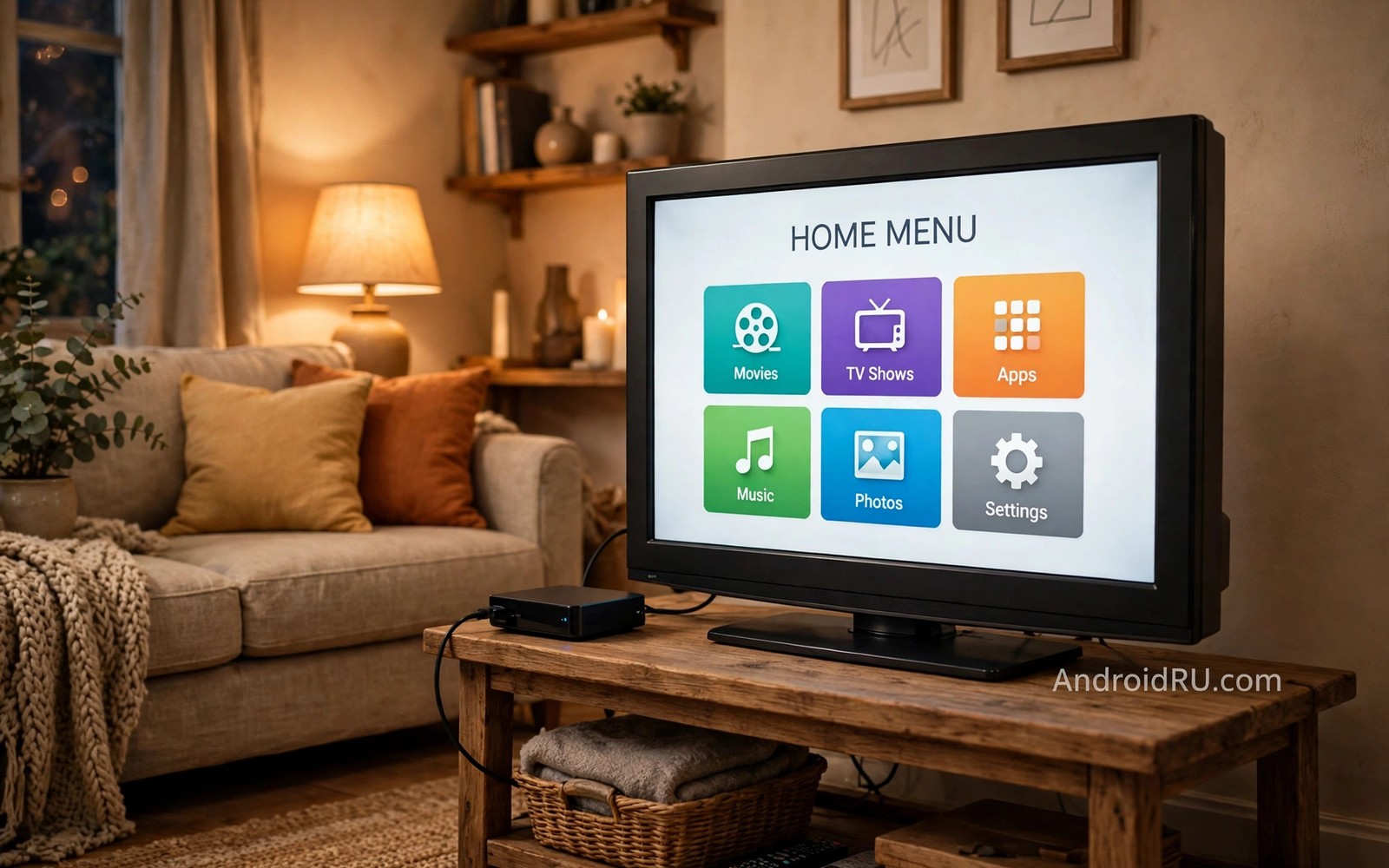
A television that still shows a clear picture does not need to be replaced just because its smart features feel slow. The screen itself may last many more years. The smart software inside an old TV ages faster than the panel. An Android TV box adds modern software to that old screen through a simple HDMI connection. This guide explains how Android TV boxes revive old screens and how to choose and set up one well.
Old smart TVs suffer from outdated apps and slow processors. A streaming service may drop support for an old TV app version. The TV maker may stop updating the system software after a few years. The result is a TV that cannot run a current streaming app even though the display works perfectly. An external box bypasses the old smart system entirely. The TV becomes a simple display for the box. That change extends the useful life of the screen by years.
Cost is a strong reason to choose a box over a new TV. A good Android TV box costs a fraction of a new television. It also avoids the waste of discarding a working panel. A new TV purchase also brings a new setup process and a new remote to learn. A box setup is usually faster because the TV itself does not change. Keep the old TV remote for power and volume and use the box remote for apps. That split works well in most households.
Choose A Box That Matches Your Old TV
Check the HDMI inputs on your old TV before buying a box. Most boxes use HDMI and most TVs from the past decade have at least one HDMI port. An older TV with only analogue inputs needs an adapter as well. Check the HDMI version if you want high dynamic range or high frame rate video. A box that supports a feature your TV lacks will not magically add that feature to the screen. Match the box capabilities to the panel capabilities for realistic expectations.
Processor and memory determine how smooth the box feels. A box with a weak processor will feel as slow as the old TV it replaces. Look for a recent processor and at least two gigabytes of memory for basic streaming. Four gigabytes gives more headroom for multitasking and for future app updates. Storage matters less if you stream most content. A box with expandable storage is useful if you plan to install many apps or download offline content.
Remote and voice control affect daily use more than specifications suggest. A remote with a microphone allows voice search for shows and apps. That feature helps users who find typing on a TV keyboard tedious. A remote with shortcut buttons for popular services saves navigation steps. Check whether the box remote can control TV power and volume through HDMI CEC or infrared learning. A single remote for power and apps is much more convenient than juggling two remotes.
Set Up The Box For Best Picture And Sound
Connect the box to the HDMI input that supports the best video format on your TV. Some TVs have one HDMI port with enhanced features and other ports with basic features. The manual or the on screen input label often shows which port is enhanced. Use a good quality HDMI cable. A damaged or very old cable can cause flicker or a blank screen at higher resolutions. A new cable is inexpensive and it removes a common setup frustration.
Set the box output resolution to match the TV native resolution. A full high definition TV should receive a full high definition signal. A four thousand pixel TV should receive a matching signal when the box and the content support it. Forcing a higher resolution than the TV supports can cause a blank screen. If the screen goes blank after a resolution change then wait for the automatic revert or use the box recovery method. Test the setting with a familiar show and check for smooth motion and sharp text.
Sound setup depends on your audio system. A TV speaker setup needs the box to output stereo or a simple surround format that the TV can decode. A soundbar or receiver setup may need a digital audio format such as Dolby Digital. Check the audio output menu on the box and match it to your audio device. A mismatch can cause silence or distorted sound. Test dialogue clarity after changing the format. Clear dialogue matters more than an impressive surround label.
Move Your Apps And Accounts To The Box
Sign in to your streaming services on the box one by one. Use a phone or computer to approve sign in when the service offers a code method. That method avoids typing a long password with a TV remote. Install only the apps that you actually use. A box cluttered with unused apps feels slower and harder to navigate. Pin the most used apps to the top of the home screen for fast access by every household member.
Transfer personal settings such as subtitle preferences and profile selections. Many streaming services store profiles in the cloud. Signing in should restore those profiles automatically. Check each profile after sign in to confirm that watch history and recommendations carried over. If a profile looks empty then sign out and sign in again before assuming data is lost. A second sign in often fixes a sync delay after a fresh install.
Keep the old TV smart system disconnected from the network if you no longer use it. That step prevents the old system from competing for bandwidth with updates. It also avoids confusion when a household member opens the old system by mistake. Set the TV to start on the HDMI input for the box. That setting makes the box the default experience when the TV turns on. The old smart menu then becomes a hidden fallback rather than a daily obstacle.
Code That Checks Box Output Settings
The code below shows a command pattern for checking display and audio settings on an Android TV box from a computer on the same network. Use it only on a box that you own. Adapt the address to your own box.
adb connect 192.168.1.51:5555
adb shell dumpsys display | grep -i "mBaseDisplayInfo" | head -n 5
adb shell settings get global hdmi_control_enabled
adb disconnect
The snippet above is an original example written for this guide. It shows a generic box settings check pattern that you can adapt to your own device. It does not copy code from any outside source.
Adapt the snippet by replacing the example address with the address shown in your box network settings. Turn debugging off after you finish checking settings. A box left in debugging mode on a shared network can be accessed by other devices. A short check session is safer than a permanent debugging connection.
When A Box Is Not Enough
A box cannot fix a failing panel. Dead pixels and backlight failure and severe colour banding are hardware problems. A box also cannot add a higher native resolution to an old panel. A full high definition panel will not become a four thousand pixel panel with a new box. If the picture itself is degraded then a new TV may be the right choice. Judge the panel separately from the smart software. A clear bright panel with slow software is a perfect box candidate. A dim panel with dead pixels is not.
A box also cannot fix a broken HDMI port. If all HDMI ports on the TV are damaged then an adapter may help in some cases. An analogue converter can feed an old TV from a box HDMI output. That solution adds cost and complexity and it may reduce picture quality. Compare the converter cost with the cost of a replacement TV before choosing that path. In many cases a basic new TV becomes the better value when the old TV needs both a box and a converter.
Consider power use as well. An old TV plus a box uses slightly more standby power than a single modern TV in some cases. That difference is usually small compared with the cost of a new TV. It is still worth checking standby settings on both devices. Enable energy saving standby on the box when it is not in use. That setting keeps the total power use reasonable while preserving the convenience of a fast start.
Common Mistakes
One common mistake is to buy the cheapest box without checking its processor and memory. A very cheap box may feel slow from day one. That slow experience defeats the purpose of reviving the TV. Spend a little more for a box with a recent processor and enough memory. Read reviews that mention long term smoothness rather than only launch speed. A box that stays smooth after months of use is worth the extra cost.
Another mistake is to keep using the old TV smart apps alongside the box. Two smart systems create confusion about where to watch a show. Household members may open the wrong system and find an outdated app. Commit to the box as the main system and hide the old system. That clarity helps every user in the house. Readers who explore hidden Android TV settings you must enable will see a similar benefit from a single clear setup rather than two competing setups.
A third mistake is to ignore HDMI CEC settings. CEC allows the box remote to control TV power and volume and input switching. Without CEC a user must juggle two remotes for basic tasks. Enable CEC on both the TV and the box and test power and volume control. If CEC causes unwanted input switching then adjust the CEC options rather than disabling it entirely. A tuned CEC setup is far more convenient than no CEC at all. The same attention to control helps when casting a smartphone screen to a TV without a router because control and connection must work together.
A further mistake is to place the box where it overheats. A box hidden in a closed cabinet without airflow can throttle and stutter during long viewing sessions. Place the box where air can circulate and keep it away from direct heat sources. A cool box maintains performance and lasts longer. That simple placement choice prevents many performance complaints.
Frequently Asked Questions
Will an Android TV box work with any old TV?
It works with any TV that has a compatible HDMI input in most cases. Older TVs without HDMI need an adapter. The box cannot improve the native resolution of the panel. It can only deliver modern apps and a faster interface to the screen that you already own.
Do I need a new remote for the box?
Most boxes include a remote in the package. That remote usually controls apps and voice search. Check whether it can also control TV power and volume through CEC or infrared learning. A box remote that handles basic TV functions reduces the need to keep two remotes handy.
Is a box better than a streaming stick?
A box often offers more processing power and more ports than a stick. A stick is more portable and easier to hide behind a TV. For a main living room TV a box usually gives a smoother long term experience. For a secondary TV or for travel a stick may be more convenient. Choose based on the room and on how heavily the TV will be used.
Conclusion
Start today by checking the HDMI inputs and the native resolution of your old TV. Then choose a box with a recent processor and enough memory for smooth streaming. Connect it to the best HDMI port and set it as the default input. Sign in to your main streaming apps and hide the old smart system. That single upgrade will make an old screen feel new without the cost of a replacement. It will also prepare you to explore sideloading any Android app onto a smart TV for apps that the box store does not offer.

