

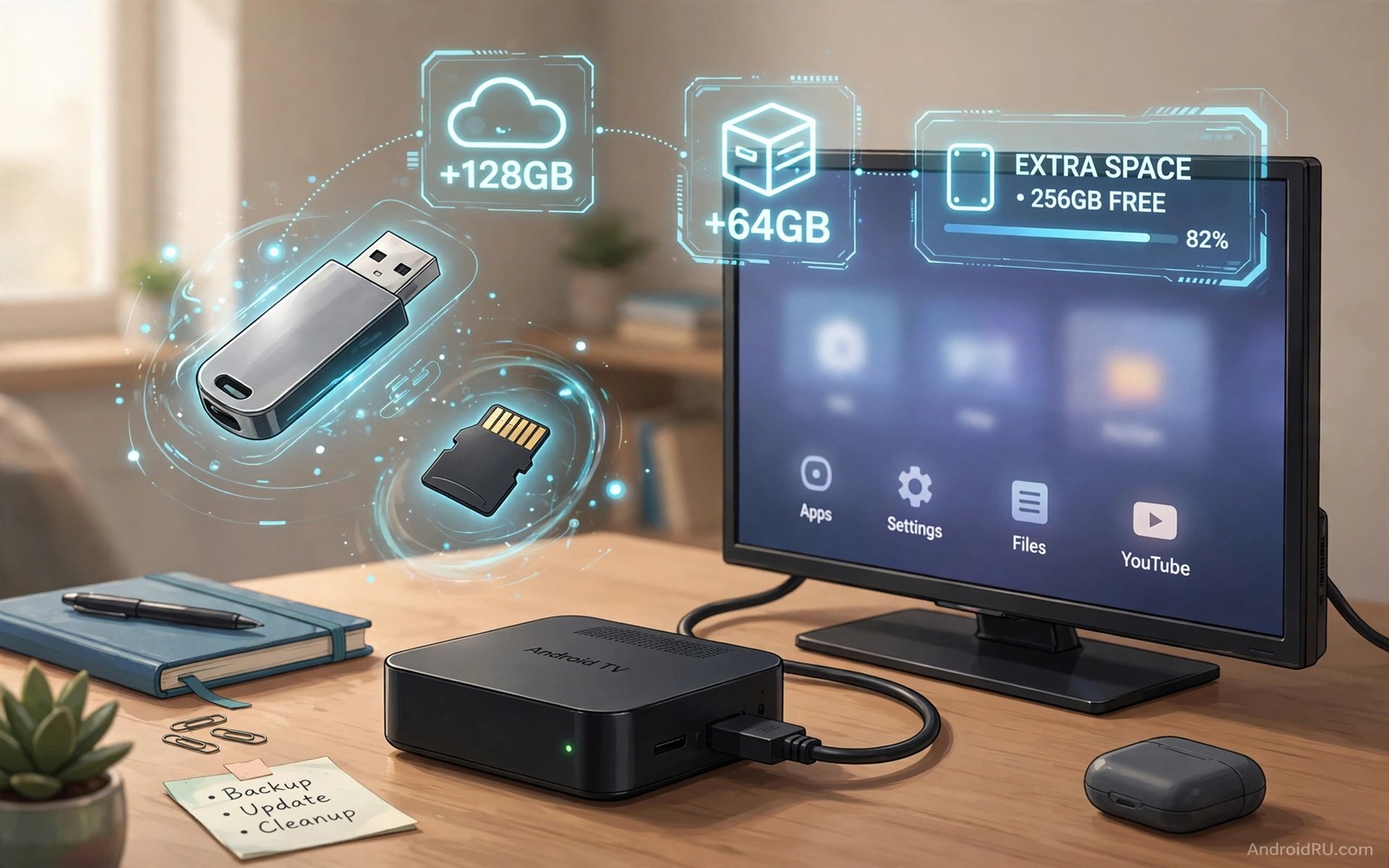
Android TV boxes often ship with far less usable storage than the box advertises. The system takes a large share for itself and preinstalled apps take another share and cache files take the rest. The result is a familiar warning that storage is almost full even when you installed only a handful of apps. Expanding storage is not a luxury upgrade on these boxes. It is the fix that lets updates install and lets apps open without constant cleanup.
Start by checking what actually fills the box before you buy anything. Open settings and open storage and look at the breakdown for apps and cache and system files. Cache often holds several gigabytes on a box that streams daily. Clearing cache can buy time but it never solves a box that truly lacks space. If apps alone fill most of the drive then you need more storage and not another cleanup round. The storage guide for essential Android TV box apps also helps you spot which tools deserve space and which ones you can remove.
Check your box before you buy storage
Not every Android TV box supports every storage type. Some boxes support USB drives well and some boxes support microSD cards well and some boxes support both. Check the ports on the box itself and check the storage section in settings for an option to format external storage. A USB port that only charges a remote cannot expand storage. A port that accepts a flash drive can.
Speed matters more than size for a television box. A slow drive can make apps stutter when they load data and it can make the home screen feel laggy. A USB 3 drive on a USB 3 port gives the best result when the box supports it. A USB 2 drive still works for media files and for lighter apps. Use the faster drive for apps and use the slower drive for movies and photos if you own both.
Capacity needs a realistic plan too. A 64 gigabyte drive suits most living room boxes because apps and cache stay modest in size. A 128 gigabyte drive suits boxes that store downloaded movies or large games. Buying a huge drive for a box that only streams video wastes money that could go toward a better remote or a faster network adapter.
Use a USB drive for media and files
The simplest expansion path is a USB drive used as removable storage. Plug the drive in and format it through the television prompt if needed and then move movies and photos and downloads onto it. Media files play well from removable storage because playback reads files in order and it does not need instant random access. This path keeps the internal drive free for apps and system updates.
Keep the drive plugged into the same port after setup. Moving it between ports can change how apps see the files. Label the drive with tape if you own several drives so you do not swap the wrong one. A stable setup avoids the missing file errors that appear when a drive changes port.
File format choice affects large movies. A drive formatted as exFAT handles files larger than four gigabytes without splitting them. A drive formatted as FAT32 cannot store a single file that large. If your movies stop copying at four gigabytes then the format is the cause and not the television. Back up the drive first and then reformat it to exFAT through a computer.
Adopted storage for apps
Adopted storage lets Android TV treat an external drive as part of internal storage. Apps can then install onto that drive and the system manages the space as one pool. This option suits boxes where apps fill the internal drive and where media storage alone cannot help. The trade off is that the drive becomes tied to that one box. You cannot unplug it and read it on a computer without reformatting it.
Choose a fast and reliable drive for adopted storage. A cheap drive can fail early and a failed adopted drive can break apps that live on it. Buy a drive from a known brand and test it for a week before you move important apps onto it. Keep the drive plugged in at all times because unplugging adopted storage can make apps disappear until the drive returns.
Move apps in small batches rather than all at once. Open settings and open apps and move one large app and then test it. If the app opens quickly and plays normally then move the next app. Batch moves make it easy to spot a drive problem early. Moving everything at once hides which app caused a failure.
Free space without new hardware
Before you spend money try a focused cleanup that targets real waste. Uninstall apps you have not opened in a month and clear cache for streaming apps and delete old downloads from the downloads folder. Each step frees a different kind of space. Uninstalls free permanent space and cache clearing frees temporary space and download cleanup frees files you already watched.
Disable apps you cannot uninstall when the box allows it. Disabled apps stop updating and they stop using background resources. They still occupy some space but they stop growing. That control matters on a box with only a few gigabytes free. Re-enable an app only when you actually need it again.
Turn off automatic downloads for apps you rarely use. Some apps download extra content in the background and that content quietly fills storage. A manual download habit keeps control in your hands. You download a show when you plan to watch it and you delete it when you finish it.
adb shell sm list-disks
adb shell sm list-volumes all
The snippet above was written for this article to show how advanced users inspect storage disks and volumes through a computer connection. It lists attached disks and it lists volumes that Android TV can see. Use it only to diagnose a drive that the television does not show. The normal setup path stays inside the storage settings menu on the television itself.
Pick the right drive format and speed
Drive speed ratings confuse many buyers because packaging emphasises capacity over speed. A television box reads apps in small random chunks rather than in one long stream. Random read speed therefore matters more than headline sequential speed for adopted storage. A drive with strong random performance keeps apps responsive. A drive with weak random performance makes apps hesitate even when capacity looks generous.
Check the box port speed before you buy a premium drive. A USB 3 drive on a USB 2 port cannot exceed USB 2 speed. The premium price buys no benefit in that pairing. A mid range drive on a USB 2 port performs just as well. Spend the saved money on a second drive for media instead. Matching drive to port gives the best value for every box.
Test a new drive with a real app before you adopt it fully. Install one large app on the drive and open it several times across a day. Note load times and note any stutters during use. A drive that passes a day of real use will serve for months. A drive that stutters on day one will only frustrate you more over time. Return a weak drive early while return windows stay open.
Label drives clearly when you own more than one. A media drive and an adopted app drive look identical from the outside. A small label prevents swapping them by accident. Swapping an adopted drive out can hide apps until it returns. A label turns a confusing problem into an obvious fix.
Monitor drive health over time
USB drives wear out gradually and a television box gives few warnings before failure. Watch for apps that suddenly load slowly or files that disappear from the library. Those symptoms often signal a failing drive rather than a failing box. Replace a suspect drive early and copy files before it fails completely. Early replacement protects both apps and media.
Keep a spare drive ready for adopted storage boxes. A spare drive lets you migrate apps quickly when the main drive weakens. Migration takes time but it beats rebuilding a whole app library from scratch. A spare drive costs little compared with the frustration of a sudden failure. Store it in the same drawer as the remote batteries.
Check drive temperature during long playback sessions. A drive that runs very hot in a closed cabinet ages faster. Move the drive to better airflow when it feels hot to touch. A cooler drive lasts longer and performs more consistently. Simple airflow care extends drive life noticeably.
Back up the box before major changes
Adopting storage or reformatting a drive changes the box deeply. Back up app settings and game saves before any major storage change. A backup lets you recover quickly when a drive fails or a format goes wrong. Without a backup a storage change becomes a gamble with your whole setup. With a backup it becomes a routine task you can undo.
Store backups on a separate drive from the one you are changing. A backup on the same drive disappears when that drive formats. Separation is the whole point of a backup. A second small drive or a cloud folder works well for box backups. Test restoring one small item from the backup to prove it actually works.
Common mistakes
The biggest mistake is buying the cheapest drive available for adopted storage. A slow drive makes every app on it feel slow and a failing drive can take several apps down with it. Spend a little more on a reliable drive and the box will feel better for years.
Another mistake is removing a USB drive while the box is running. Always eject the drive from settings first when it holds media. Pulling it out during playback can corrupt a file that was being written. The eject step takes seconds and it protects the whole library.
A third mistake is filling the expanded drive to the very last megabyte. Android TV needs free space for updates and for cache and for temporary files. Keep at least ten percent of the drive free. A full drive behaves like a small drive and it brings back the same warnings you tried to escape.
Frequently asked questions
Can I use a USB drive and a microSD card at the same time?
Yes when the box has both slots. Use one drive for media and use the other drive for adopted app storage if the box supports it. Keep track of which drive holds which content so you do not remove the wrong one.
Will adopted storage erase my USB drive?
Yes. Adopting a drive formats it and erases everything on it. Back up photos and movies from the drive before you start. Use a fresh drive for adopted storage when possible.
Why does my box still warn about storage after expansion?
The warning may refer to internal storage specifically. Some system updates need internal space even when adopted storage has room. Free internal space by moving large apps and by clearing cache and the warning should clear.
Conclusion
Expanding Android TV box storage works best when you match the method to the problem. Use removable storage for media and use adopted storage for apps and keep free space in reserve. Your concrete next step is to check the storage breakdown tonight and note how much space apps use. If apps dominate then buy a fast USB drive and adopt it this weekend. If media dominates then move your movie folder to a USB drive tonight and leave internal storage for apps. The storage habits in how to sideload apps onto a smart TV and how Android TV boxes revive old screens pair well with a larger drive because a box with room can hold more useful tools.

