

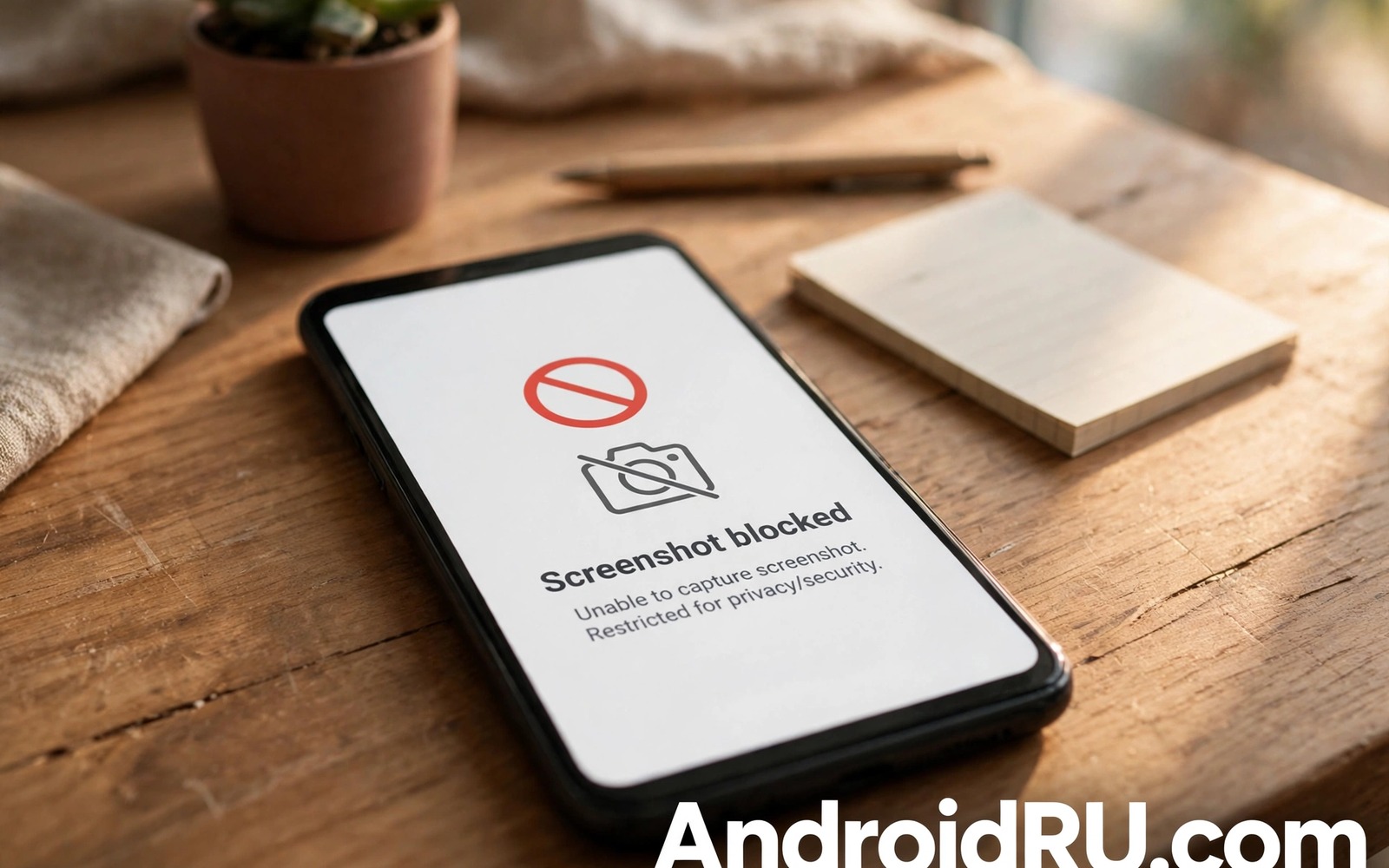
Secure apps such as banking and messaging tools sometimes allow screen capture even when they should not. A screenshot can expose account balances and private chats in a single image. A screen recording can capture a whole session including codes and passwords as you type them. Blocking capture in those apps adds a layer of protection that a lock screen alone cannot provide.
Android offers a flag that developers can set to prevent screenshots and recordings for a specific window. When that flag is active the system shows a blank screen in captures instead of the app content. Many secure apps already use this flag for sensitive screens. Some apps leave it off for convenience or for support reasons. Users can also take steps to reduce capture risk even when an app does not set the flag itself.
This guide explains how capture blocking works and how to check it on your phone. It shows what developers do and what users can do. It also shows how to handle situations where an app legitimately needs to allow capture for support or for accessibility.
Understand the secure window flag
Android provides a window flag that marks a screen as secure. When a secure window is active the system blocks screenshots and it blocks screen recordings from capturing that window. A recording app will show black for the secure window while other windows continue normally. That selective blocking protects sensitive content without breaking recording for the whole phone.
Developers set this flag on login screens and payment screens and private chat screens in well designed secure apps. The flag does not encrypt data and it does not stop a person from photographing the screen with another device. It stops casual digital capture which is the most common leak path. Physical photography remains a separate risk that requires physical privacy.
Users cannot force this flag on an app that does not set it but they can tighten other access with stopping apps from getting camera permission and securing sensors to reduce what a captured screen can reveal alongside sensor data. You can however test whether an app uses it by trying a screenshot on a sensitive screen. If the screenshot comes out blank or shows a warning then the flag is active. If the screenshot shows full content then the app does not protect that screen. That test gives you useful information for choosing between similar apps.
Test capture protection in your apps
Open a banking app and navigate to a balance screen and try to take a screenshot. Note whether the result is blank or complete. Repeat the test on a payment confirmation screen and on a settings screen that shows account details. Different screens in the same app may have different protection levels. A login screen may be protected while a balance screen is not.
Test screen recording in the same way if you use recording tools for tutorials. Start a recording and then switch to a secure app and check the recorded video afterwards. A protected window should appear black in the recording. An unprotected window will appear normally and that result tells you to avoid recording while that app is open.
Record your findings in a simple note for the apps you use most. That note helps you remember which apps protect sensitive screens and which do not. It also helps you decide whether to switch to an alternative app with stronger protection. A note takes minutes to create and it prevents repeated testing later.
Reduce capture risk when an app allows it
Avoid taking screenshots of sensitive screens yourself unless you truly need a record. A screenshot saved to your gallery can sync to cloud backups and can be seen by other apps with gallery permission. If you must capture a confirmation then crop out account numbers and delete the image after you no longer need it. Empty the trash after deletion so that the image does not linger.
Turn off screen recording tools before you open a secure app. A recording that started for a tutorial can accidentally capture a banking session when you switch apps. Close recording apps fully rather than leaving them paused in the background. A paused recorder can resume unexpectedly and capture the next screen you open.
Use a separate user profile or a work profile for highly sensitive apps when your phone supports it. A profile separation limits which apps can access screenshots and recordings from another profile. That separation is not perfect but it adds a boundary that casual capture tools cannot cross easily. It also keeps sensitive notifications out of the main profile screen.
Handle support and accessibility needs
Some users need screen capture for support calls or for accessibility tools that read the screen aloud. Blocking capture entirely can break those tools on sensitive screens. In that case use a trusted support session with a known agent rather than a general recording tool. End the session as soon as the support task finishes and check that no recording remains running.
Accessibility services that read screen content need special care on secure screens. A service with broad access can bypass the visual protection of a secure flag in some cases. Review accessibility services regularly and keep only those that you deliberately installed for a real need. Remove services that belong to apps you no longer use.
If an app blocks capture but you need a record for a dispute then use the app built in export or statement feature instead of a screenshot. A statement download provides an official record without exposing the screen to capture tools. That official record is also more credible in a dispute than a screenshot that could be edited. Choose the built in feature whenever it exists.
adb shell dumpsys window | grep secure
# Check secure window flags on your own device
# Note which windows report a secure flag
# Then test screenshot behaviour on those screens
The commands above are an original example written for this guide to help you inspect secure windows on your own phone. They search window system output for secure flag information so that you can confirm which screens claim protection. Use them only on a device that you own and compare the result with an actual screenshot test for accuracy.
Privacy screen filters provide a physical complement to digital capture blocking in crowded places. A filter narrows the viewing angle so that a neighbour cannot read a balance or a private message over your shoulder. It does not stop a determined camera directly behind you but it raises the effort required for casual snooping. Pair a filter with low brightness for the best everyday effect.
Common mistakes
One common mistake is assuming that a blank screenshot means that the whole app is protected. Protection applies per window and a different screen in the same app may remain unprotected. Another mistake is sharing a screenshot of a secure screen that a different device photographed. A photo of a screen bypasses digital capture blocks completely.
People also make the mistake of leaving a screen recording running while they switch to a banking app for a quick check. That quick check becomes part of a long recording that may be shared later for a tutorial. Always stop recordings before opening sensitive apps. A habit of stopping first prevents accidental exposure.
Another error is trusting a third party screen lock app to block captures when the secure app itself does not. A third party lock cannot add a secure flag to another app window reliably. Rely on the secure app own protection and on your own capture habits instead. That realistic approach also aligns with passcode protecting any Android photo album so that captured images stay private when they do exist.
FAQ
Can I block screenshots for any app I choose?
Android does not provide a user setting to force a secure flag on another app. The flag belongs to the app developer who sets it per window. You can influence the choice by contacting the developer and requesting secure flag support for sensitive screens. You can also switch to an alternative app that already provides that protection.
Device administrator tools and some enterprise profiles can enforce capture restrictions more broadly. Those tools suit work phones managed by an employer. For personal phones the practical options are choosing protective apps and controlling your own capture habits. Those two steps cover most real world risks.
Does blocking screenshots stop someone photographing my screen?
No digital flag can stop a physical camera pointed at your screen. Capture blocking stops software screenshots and recordings only. Physical photography requires physical privacy such as a privacy screen filter and awareness of surroundings. A privacy filter narrows the viewing angle so that a nearby person cannot easily read or photograph the screen.
Use a privacy filter in public places when you open sensitive apps. Combine it with low screen brightness and a quick lock habit. Those physical measures complement digital capture blocking. Together they cover both the software and the physical capture paths.
Why do some banking apps allow screenshots?
Some banking apps allow screenshots on non sensitive screens such as a home screen with no balances. Others allow them everywhere because support teams use screenshots to diagnose problems. That trade off between support convenience and security varies by developer. An app that allows screenshots everywhere is not necessarily unsafe but it places more responsibility on you to avoid capturing sensitive data.
Check the app settings for a screenshot or privacy option that you can turn on yourself. Some apps offer a user toggle for capture protection even when the default is off. Enable that toggle when it exists and test the result. That toggle plus careful habits gives you strong protection and it pairs well with locking down financial banking apps with a biometrics layer for a layered defence.
Conclusion
Screen capture blocking protects sensitive app content from casual digital leaks. The secure window flag works per screen and it requires developer support. Users can test protection and can reduce risk through careful capture habits and profile separation. Physical photography remains a separate risk that needs physical privacy measures.
Your concrete next step is to test screenshot protection on your banking app tonight. Open a balance screen and try a screenshot and note whether it comes out blank. If it shows full content then avoid capturing that screen and consider an alternative app with stronger protection.

