

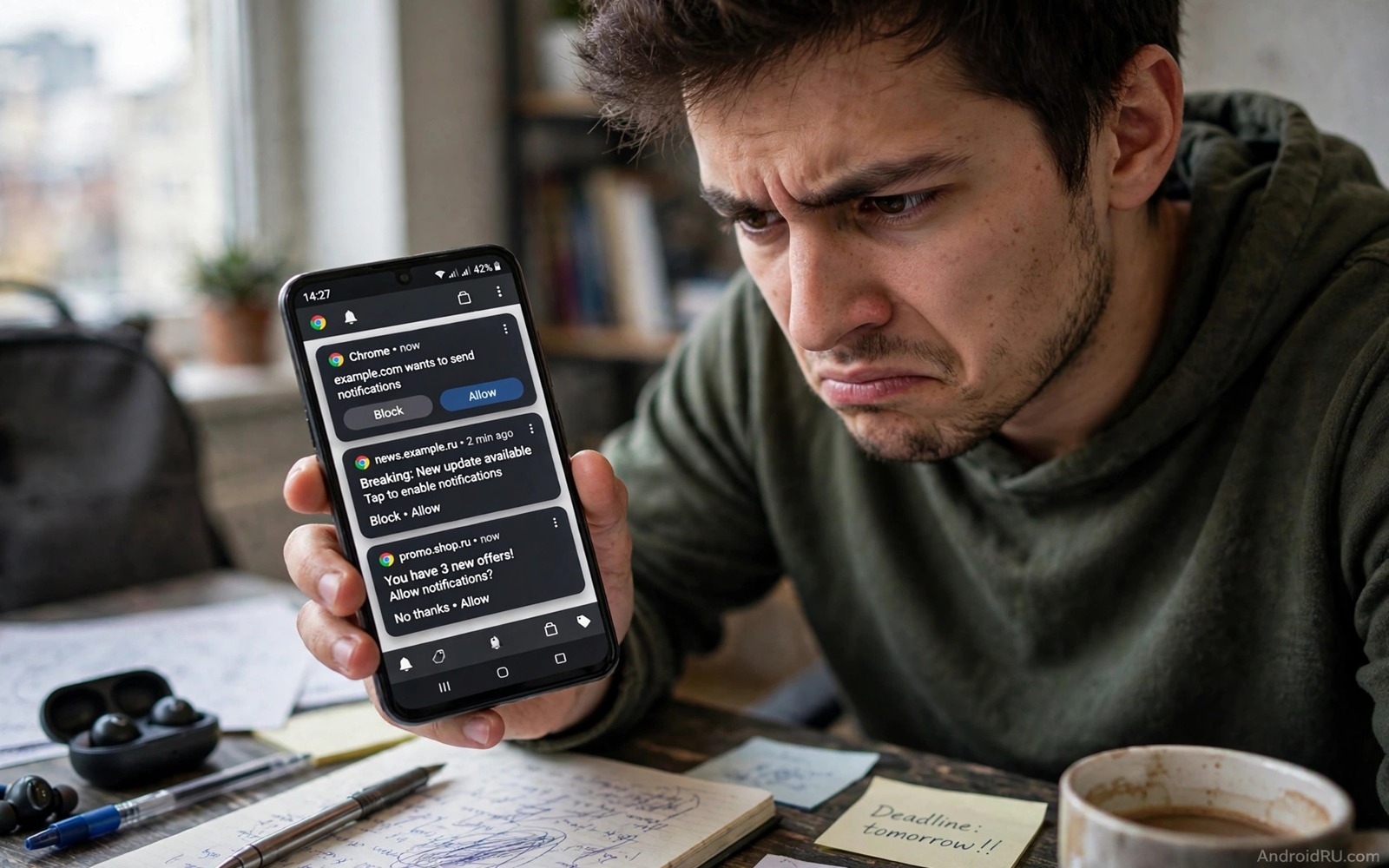
Browser notification spam starts with a single allow tap on a site you visited once. That site can then send popups at any hour even when the browser is closed. The messages often pretend to be system warnings or prize alerts. They are designed to make you tap through fear or curiosity. The good news is that you can stop them permanently without installing anything new.
Many people blame their phone or their browser for the spam. The real cause is a notification permission granted to a specific site. That permission lives in browser settings and it survives browser restarts. Clearing history does not remove it. You must find the site in the notification list and revoke it directly.
This guide shows how to stop browser notification spam on Android for the main browsers. It covers finding the offending site and blocking future prompts. It also shows how to handle sites that keep returning through different domains.
Find the site that sends the spam
When a spam notification appears do not tap it. Instead long press it or open its notification details to see which site sent it. Android usually shows the site name alongside the message. That name is the key to stopping the spam because blocking the browser entirely is unnecessary. You need to block only that site.
Open your browser settings and go to site settings and then notifications. That list shows every site with notification permission and whether it is allowed or blocked. Look for unfamiliar domains and for sites that you do not remember visiting. A legitimate news site may appear there by choice. A random domain with a strange name almost certainly gained permission through a deceptive popup.
Tap the offending site and change its permission to block. That change stops future notifications from that domain immediately. Repeat the process for every suspicious entry in the list. A thorough pass through the whole list takes only a few minutes and it often reveals several spam sources at once.
Block notification prompts by default
Change the browser default so that sites must ask in a less intrusive way or cannot ask at all. In Chrome open site settings and notifications and turn off the option that lets sites ask to send notifications. That setting prevents new sites from showing the allow popup that starts the spam cycle. Existing allowed sites remain until you block them individually.
In other browsers look for a similar notifications setting under privacy or site permissions. The wording differs but the effect is the same. A default block means that a site cannot trick you into allowing notifications during a hurried visit. You can still allow a trusted site manually through its settings page when you truly want its alerts.
Also disable notification prompts inside the Android system settings for the browser if you want a stronger block. That system level control can silence browser notifications entirely during work hours or at night. Use it as a temporary measure while you clean the site list. A system block should not replace site level cleanup because the permissions remain waiting underneath.
Clean up after deceptive sites
Deceptive sites often change more than notification settings. Check your browser homepage and search engine and startup pages for changes you did not make. A spam site may have set itself as the homepage through a misleading prompt. Restore those settings to your preferred choices and remove any unknown search engine from the list.
Clear site data for the offending domains through the browser site settings page. That step removes cookies and stored data that the site may use to recognise you on a return visit. It does not delete your bookmarks or your saved passwords. Site data cleanup is safe and it helps break the tracking loop that spam sites depend on.
Check installed apps if spam continues after browser cleanup. Some spam arrives from an app that mimics browser notifications rather than from the browser itself. Open notification settings in Android and look for apps with notification permission that you do not recognise. Revoke notification access for any app that you cannot identify. That check often reveals a hidden adware app behind persistent popups.
Stop future spam at the source
Be sceptical of any site that asks for notification permission before showing content. A legitimate site rarely needs notifications to display an article or a video. If a site blocks content until you allow notifications then leave the site immediately. That behaviour is a strong signal of a spam operation.
Avoid tapping allow on popups that appear over a video player or a download button. Those popups often disguise a notification prompt as a play button or a captcha. Read the prompt text carefully before tapping anything. A real video play button does not ask for notification permission first.
Keep your browser updated because updates improve popup blocking and permission controls and because revoking dangerous permissions from unused apps removes other routes that spam apps exploit. An outdated browser may allow deceptive prompts that a newer version would block. Automatic updates for the browser are worth keeping on even if you manage other apps manually. Browser security directly affects how much spam reaches your screen.
adb shell pm list packages | grep browser
# List browser packages on your own device
# Confirm that only browsers you trust are installed
# Remove any unknown browser that sends spam notifications
The commands above are an original example written for this guide to help you spot an unfamiliar browser on your own device. They list browser related packages so that you can compare the result with the browsers you deliberately installed. An unknown browser may be the real source of notifications that you blamed on your main browser.
Browser profiles offer a useful separation between work browsing and casual browsing when notification spam keeps returning. Create a second profile for casual sites that tend to request notifications aggressively. Keep your main profile clean for work and for trusted news sources only. That separation limits spam to a profile you can reset without losing important bookmarks.
Notification history in Android settings can help you identify a spam source after you dismiss its messages. Open notification history and look for recent entries from browsers and from unknown apps. That history often shows the site name even after the popup itself vanished. Use that record to block the correct site rather than guessing from memory.
Common mistakes
One common mistake is tapping a spam notification to dismiss it which can open a malicious site. Use the notification settings path instead of tapping the message itself. Another mistake is clearing browsing history and expecting spam to stop. History and notification permission are separate settings and clearing one does not affect the other.
People also make the mistake of installing a random notification blocker app that requests broad permissions. Many of those apps are adware themselves and they worsen the problem. Browser settings already provide the tools you need without extra software. Avoid adding a new app to fix a permission problem that settings can solve.
Another error is blocking notifications at the system level but leaving the site permissions in place. That approach hides the symptom while the permission remains ready to return when the system block changes. Clean the site list properly and then use system controls only as a supplement. That thorough approach also helps when you learn how to block all spyware and adware from Android without root for related adware problems.
FAQ
Will blocking a site stop all its popups?
Blocking notification permission stops that site from sending notifications through the browser. It does not stop the site from showing popups when you visit it directly in a tab. Those in page popups are controlled by popup blocking settings rather than by notification settings. Enable popup blocking in the browser for that additional layer.
If a site keeps opening new tabs on its own then check for an installed app or a malicious extension behind the behaviour. A site alone should not open tabs when you are not browsing it. Persistent tab opening after cleanup suggests a deeper adware problem that needs an app review.
Can I keep notifications from sites I trust?
Yes. The notification list lets you allow trusted sites individually while blocking everything else. Allow a news site or a mail service that you deliberately chose and block all unfamiliar domains. That selective approach keeps useful alerts without opening the door to spam. Review the allowed list every few months to catch sites that changed behaviour.
A trusted site can turn into a spam source if it changes ownership or ad partners. Watch for a sudden increase in message frequency from a previously quiet site. A trusted site that starts sending prize alerts has likely changed hands or been compromised. Block it promptly and investigate before allowing it again.
Why do spam sites keep coming back under new names?
Spam operators register many similar domains and rotate them when one gets blocked. Blocking one domain therefore stops that domain only. A default block on notification prompts is the stronger defence because it stops new domains from gaining permission in the first place. That default setting breaks the rotation cycle at its root.
Combine a default block with regular site list reviews to stay ahead of rotation. Each review takes minutes and it catches new domains before they accumulate. That habit also supports auto filtering suspicious SMS phishing scams because spam operators use several channels at once.
Conclusion
Browser notification spam is a permission problem with a permission solution. A site gained access through a deceptive prompt and it keeps that access until you revoke it. Finding the site and blocking it and changing the default prompt setting together stop the cycle permanently. No extra app or paid tool is required.
Your concrete next step is to open your browser notification settings tonight and block every unfamiliar site in the list. Then turn off the default that lets new sites ask for notifications. That ten minute cleanup will silence the spam that has been interrupting your day.

