

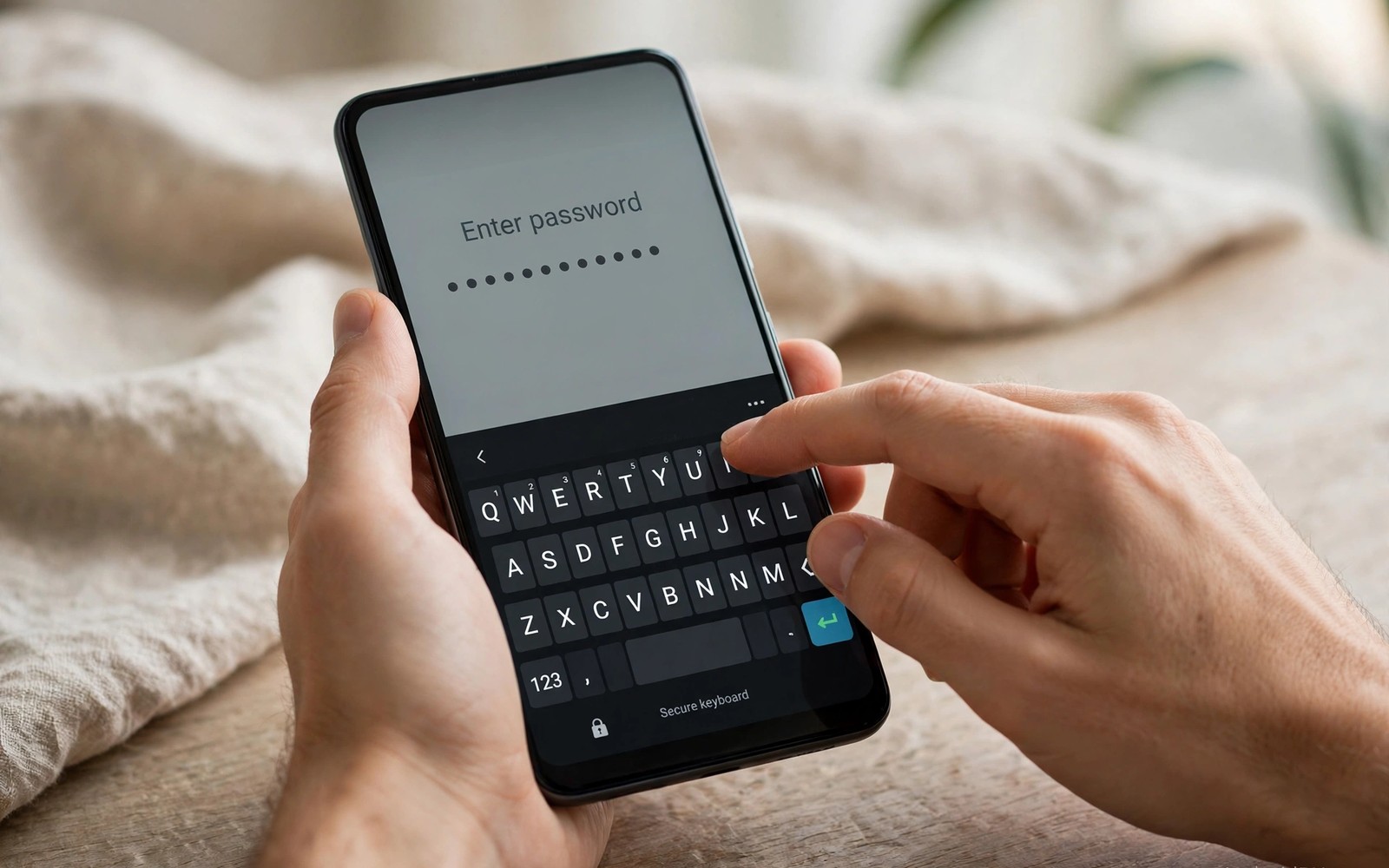
How to Block Keyloggers from Intercepting Password Inputs
A keylogger records every keystroke you type and sends that record to an attacker. Passwords, card numbers, and private messages all pass through the keyboard, so a keylogger targets the most sensitive data on a phone. Blocking that capture starts with controlling which keyboard and which accessibility tools can watch your typing.
Most phone keyloggers hide inside a third-party keyboard or inside an app that abuses accessibility access. A keyboard sees every character by design, so a malicious keyboard is a complete keylogger. Accessibility services can also read screen content and input events when granted broad permission. The good news is that both entry points are visible in your settings, and both can be audited in about ten minutes.
This guide shows how to audit keyboards and accessibility services, how to harden password entry, and how to spot the warning signs of capture. You will learn the safe keyboard routine, the habits that keep passwords out of reach, and the checks to run after every new install and system update. A careful setup makes keylogging far harder to hide.
How Keyloggers Work on Android
A keylogger on Android rarely looks like a virus. It usually arrives as something useful: a themed keyboard, a free utility, or an app that asks for accessibility access to enable a convenience feature. Once installed and granted permission, it sits between your fingers and the app you are typing into, copying every character.
There are two main capture channels. The first is the keyboard itself, which sees every keystroke by design. The second is an accessibility service, which can read screen content and observe input events for users who need assistance. A malicious app that tricks you into granting accessibility access gains a powerful window into everything you type and see.
Keyloggers must also send what they capture to be useful to an attacker. That means they need network access and background activity. That need is your best detection clue: a keyboard or a helper app that sends data while the phone idles is worth investigating.
Why passwords are the prime target
Passwords are the most valuable thing a keylogger can steal, because one password often opens an email account, and an email account can reset almost everything else. Card numbers, private messages, and two-factor codes are valuable too, but passwords are the key to the rest. That is why this guide focuses on protecting password entry above all else.
How a keylogger usually gets in
The most common route is a third-party keyboard installed from outside the Play Store, or bundled with another app. The second most common route is an app that requests accessibility access during setup for a feature you will never use. Both routes depend on the owner saying yes without a second thought, so the defence is mostly about attention rather than expert skill.
The role of sideloaded apps
A keylogger often arrives inside a tampered app package. Readers who want to verify downloads before install will benefit from SHA256 verification for APK files because a hash check catches altered packages before they gain keyboard or accessibility access. Verification and keyboard audits together close two entry points.
Audit Every Keyboard on the Phone
Open Settings, then System, then Keyboard, to see every keyboard installed on the phone. A phone should show only keyboards you recognise and actively chose. Remove any keyboard that appeared after an app install or that you never remember adding.
Set a trusted default keyboard from a reputable developer and disable the others when possible. A default keyboard handles all typing across apps, so its reputation matters more than its theme options. Avoid keyboards that ask for full network access without a clear reason.
Test the keyboard after a change by typing in a notes app and checking for odd behaviour. A keyboard that opens a browser or shows unexpected popups deserves removal. A clean keyboard simply types and offers predictions without extra network activity.
What a trustworthy keyboard looks like
A trustworthy keyboard comes from a known developer, has a clear privacy policy, and works fully without network access if you switch off cloud features. A stock keyboard from a reputable phone maker is designed to process typing locally for predictions, and it should not send raw keystrokes to a server. Keep the stock keyboard updated and avoid replacing it with an unknown alternative.
The biggest mistake is installing a keyboard because it looks attractive without checking its developer. A themed keyboard can hide data collection behind pretty colours and animations. Reputation and permissions matter far more than appearance.
A quick code check for input methods
A quick command can list input methods on a phone with debugging enabled. Connect the phone and run the commands below once to see keyboards and input services, then compare the list with the keyboards shown in Settings.
adb shell ime list
adb shell settings get secure default_input_method
The snippet above was written for this article to show a safe read-only way to review input methods. It alters no keyboard setting while it lists input methods. You can use the output to spot a keyboard that Settings did not make obvious. Remove any input method you do not recognise through the normal app settings.
Keyboard settings worth checking monthly
Check keyboard network permissions once a month, because an update can grant network access to a keyboard. A keyboard that suddenly gains network access deserves scrutiny. Revoke network access when the keyboard purpose does not require it. A network check after updates keeps typing private.
Review Accessibility Services with Suspicion
Accessibility services can read screen content and can observe input for users who need assistance. That power makes them attractive to malware that tricks owners into granting access. Open Settings, then Accessibility, and review every service listed there.
Keep only services that belong to tools you use daily and that you understand. A screen reader or a switch control has a clear purpose and a known developer. A flashlight or a wallpaper app has no legitimate need for accessibility access.
Turn off any service that you cannot explain and test the phone after the change. Most phones work normally without extra accessibility services. When an app stops working after you revoke access, you can reconsider that app with fresh suspicion.
How to judge whether a service is safe
A safe service belongs to a tool you chose for a clear accessibility need and comes from a reputable developer. Check the service description and the developer name in Settings. When the purpose is unclear, turn the service off and test the phone. A service that belongs to an app you do not use should never stay enabled.
The setup-time trap to avoid
Another mistake is granting accessibility access to every app that requests it during setup. Many apps request the permission for convenience features that you will never use. Deny the request first and grant it later only when a feature you need stops working. That habit alone blocks most accessibility-based keyloggers.
What to do when an app stops working after revoking access
First, check whether you actually use the feature that stopped. If you do not, leave the access off. If you do, read the app’s description again and decide whether the trade is worth it. A flashlight that demands accessibility access is not worth it. A screen reader that needs it is.
Harden Password Entry Itself
Even with a clean keyboard and clean accessibility settings, the way you type passwords matters. The goal is to type passwords as rarely as possible, and to keep them out of the keyboard buffer and the clipboard.
Use a password manager with autofill
Use a password manager with autofill so you rarely type passwords by hand. Autofill inserts credentials directly into the login field without passing through the keyboard buffer in the same way. That method reduces the data a keylogger can capture during login.
Autofill reduces typed exposure, yet it does not protect against a malicious accessibility service that reads screen content. Combine autofill with accessibility audits for stronger protection. No single method alone stops every capture technique, but the combination covers the two main channels.
Avoid typing banking passwords while a new keyboard or a new accessibility service is active. Wait until you have audited both areas before you log into sensitive accounts. A short delay costs little and it protects the accounts that matter most.
Protect clipboard content from capture
A clipboard can hold a copied password for hours after you paste it. A malicious app with clipboard access can read that content without typing capture. Clear the clipboard after you paste a sensitive value to shorten the exposure window.
Use a password manager autofill instead of copying passwords through the clipboard. Autofill avoids the clipboard entirely for most login fields. That avoidance removes a capture channel that many owners overlook.
Check clipboard access settings for apps that request broad background access. An app that reads the clipboard in the background deserves scrutiny. Revoke clipboard access when the app purpose does not require it.
Separate vaults for separate profiles
Keep banking passwords only inside the banking profile password manager. A single vault for all profiles defeats the isolation benefit. Separate vaults keep a compromise in one profile from spreading to banking.
Watch for Signs of Capture
A keylogger may cause typing lag, duplicate characters, or unexpected clipboard changes. Those symptoms also occur with a tired phone, yet a sudden change after a new install deserves attention. Note the date of the change and compare it with recent installs.
Check battery usage for a keyboard or an accessibility tool that runs constantly in the background. A keyboard should use little battery when you are not typing. Constant background activity from a keyboard suggests data collection rather than simple typing support.
Review network usage for unknown apps that send data while the phone idles. A keylogger must transmit captured text to be useful to an attacker. An app with high background data and no clear purpose should be investigated and removed when doubt remains.
Typing behaviour that should worry you
Delete a new app at the first sign of odd typing behaviour. Typing lag or duplicate characters after an install deserve immediate removal. A quick deletion beats a long investigation when a password is at stake. Also watch for predictions that suddenly change character, because a changed prediction behaviour can signal a different keyboard or a new data sharing setting.
Battery and network clues worth checking weekly
Open battery settings once a week and look at the top users. A keyboard near the top when you barely typed is a red flag. Open data usage the same way and look for an app with high background data and no clear purpose. Those two screens together catch most keyloggers before they do real damage.
When to assume the worst and act
If you find a keyboard you do not recognise and your passwords feel exposed, change the most important passwords from a different device, then remove the keyboard. Change email first, then banking, then everything else that shares the email for recovery. Acting fast matters more than understanding exactly what happened.
Use a Separate Profile for Banking
A separate profile for banking apps isolates sensitive logins from games and social apps. A keylogger in a social app profile cannot easily reach a banking profile. That isolation adds a strong barrier without extra hardware.
Keep banking passwords only inside the banking profile password manager. A single vault for all profiles defeats the isolation benefit. Separate vaults keep a compromise in one profile from spreading to banking.
Pause the banking profile when you finish a transaction. A paused profile stops its apps and hides its data from the main view. That pause also stops background capture tools inside the profile.
How to set up a banking profile in practice
On Android, a work profile or a second user profile can serve as the banking space. Install only banking and finance apps there, plus a password manager, and nothing else. Do not install games, social apps, or keyboards in that profile. The emptier the profile, the smaller the attack surface.
What isolation can and cannot do
Isolation stops a keylogger in one profile from reaching another, but it does not stop a keylogger that lives in the main profile from capturing the passwords you type there. Keep the main profile clean too, with the audits in this guide, and use the banking profile as a second wall rather than the only wall.
Audit New Apps and System Updates
Your phone changes over time, and each change can reopen a door you closed. Two moments deserve a fresh audit: after every new install, and after every system update.
Audit new apps before first login
A new app bundle can include a keyboard or a service that starts capturing at install time. Audit keyboards and accessibility services after every new install before you log into sensitive accounts. A five minute audit prevents a rushed login from exposing a password.
Test a new app with a dummy account first when the app purpose is unclear. A dummy account reveals behaviour without risking a real password. A test account also shows whether the app requests odd permissions during setup.
People also type passwords into a phone immediately after installing a new app bundle. A bundle can include a keyboard or a service that starts capturing at once. Audit keyboards and accessibility services before you log into banking or email on a changed phone.
Check keyboards after a system update
A system update can reset the default keyboard to a stock option without notice. Check the default keyboard after an update to confirm your trusted keyboard remains active. A reset keyboard may lack the privacy features you chose originally. A quick check prevents weeks of typing on an unintended keyboard.
An update can also restore a keyboard that you previously disabled. Open keyboard settings after an update and disable any keyboard that reappeared. A reappeared keyboard can still capture typing when selected by accident. Removal restores the clean keyboard list you built earlier.
Test typing in a notes app after an update to confirm predictions and autocorrect behave as before. A changed prediction behaviour can signal a different keyboard or a new data sharing setting. A notes test reveals the change before you type a password. That early test protects sensitive logins.
Build the audit into a monthly routine
Readers who want a broader routine will benefit from seven daily security habits for smartphone owners because keyboard audits fit naturally into a monthly routine. A five minute check once a month, plus a check after every install and update, is enough to keep the two main capture channels closed.
Common Mistakes to Avoid
Most keylogger infections come from ordinary mistakes, not from sophisticated attacks. Here are the ones I see most often, and how to avoid each of them.
Installing a keyboard for its looks
The biggest mistake is installing a keyboard because it looks attractive without checking its developer. A themed keyboard can hide data collection behind pretty colours and animations. Reputation and permissions matter far more than appearance.
Granting accessibility access during setup
Another mistake is granting accessibility access to every app that requests it during setup. Many apps request the permission for convenience features that you will never use. Deny the request first and grant it later only when a feature you need stops working.
Typing passwords right after installing something new
People also type passwords into a phone immediately after installing a new app bundle. A bundle can include a keyboard or a service that starts capturing at once. Audit keyboards and accessibility services before you log into banking or email on a changed phone.
Copying passwords through the clipboard
Copying a password and pasting it feels safe, but the clipboard can hold that password for hours. Use autofill instead, and clear the clipboard after you paste a sensitive value. That one habit removes a capture channel that many owners overlook.
How to Block Keyloggers FAQ
Can a stock keyboard log my keystrokes?
A stock keyboard from a reputable phone maker is designed to process typing locally for predictions. It should not send raw keystrokes to a server. Keep the stock keyboard updated and avoid replacing it with an unknown alternative.
Does autofill fully protect passwords from keyloggers?
Autofill reduces typed exposure yet it does not protect against a malicious accessibility service that reads screen content. Combine autofill with accessibility audits for stronger protection. No single method alone stops every capture technique.
How do I know an accessibility service is safe?
A safe service belongs to a tool you chose for a clear accessibility need and comes from a reputable developer. Check the service description and the developer name in Settings. When the purpose is unclear turn the service off and test the phone.
What should I do if I think a keylogger is already installed?
Remove any keyboard or app you do not recognise, turn off suspicious accessibility services, and change your most important passwords from a different device, starting with email and banking. Then check battery and data usage for anything still behaving oddly. Acting fast matters more than understanding exactly what happened.
Are password managers safe to use on Android?
Yes, a reputable password manager with autofill is one of the best defences against keyloggers, because it keeps passwords out of the keyboard buffer and the clipboard. Choose a well-known manager, keep it updated, and protect it with a strong master password plus a second factor where available.
Conclusion
Keyloggers rely on a keyboard or an accessibility service that the owner granted without a second thought. Auditing those two areas, using autofill, and watching for capture signs together make keylogging hard to sustain. The defence is mostly about attention rather than expert skill.
Your concrete next step is to open Keyboard settings today and remove any keyboard you do not recognise. Then open Accessibility and turn off any service you cannot explain. Those two checks take ten minutes, and they close the two main doors a keylogger uses.
Readers who want a wider safety plan will benefit from seven daily security habits and from privacy apps for security conscious owners as follow up reading. Make the keyboard audit a monthly habit, and your passwords will stay where they belong: with you.

