

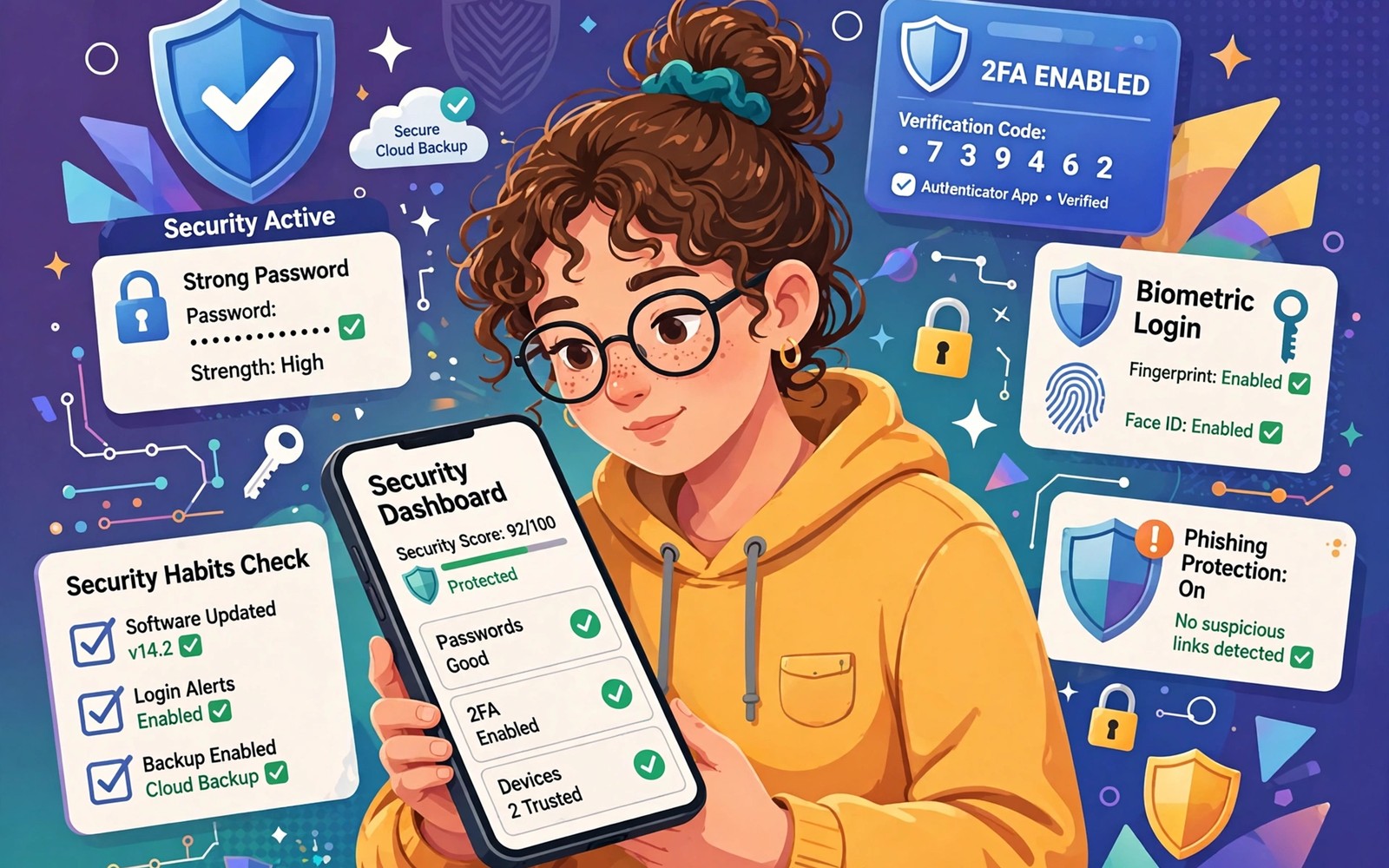
Security habits matter more than security apps because habits decide what happens every day on your phone. A strong app cannot protect a phone when the owner reuses one password across every account. Small repeated choices build a shield that grows stronger with time and with practice.
The seven habits in this guide take only a few minutes each yet they cover the main ways phones get compromised. You will lock the screen well and review permissions and update software and think before you tap a link. Each habit stands alone yet together they form a routine that is hard for an attacker to break.
Start with the habit that feels easiest so you gain momentum early. A routine that starts with a quick win is far more likely to survive the first week. Add one new habit each few days until the whole set feels like a normal part of phone ownership.
Use a unique password for every important account
Password reuse turns one leak into a master key for your email and your bank and your social accounts. A password manager removes the memory burden by generating a long random password for each site. You only need to remember one strong master password for the manager itself.
Turn on two factor authentication for email and banking and cloud storage first. A second factor stops most automated attacks even when a password leaks. An authenticator app works better than a text code because a text code can be intercepted on a compromised network.
Change a password right away when a service tells you about a breach. Do not wait for a convenient moment because attackers test leaked passwords within hours. A quick change in a password manager takes less than a minute and it closes the window fast.
Lock the screen with a strong method
A short four digit PIN is the weakest screen lock that still feels convenient. A longer PIN or a strong password makes guessing far harder and it protects the phone when it is lost or stolen. Biometrics can help for daily unlocking yet the fallback PIN still needs to be strong.
Set the screen to lock quickly after you stop using the phone. A phone left unlocked on a table invites a curious stranger to open messages and photos. A short timeout plus a strong lock gives you privacy without much extra effort.
Hide sensitive notifications on the lock screen so messages do not leak through previews. Open notification settings and turn off detailed previews for messaging and banking apps. A locked phone should show that a message arrived without showing what the message says.
Review app permissions every month
Apps ask for permissions when they are installed and many owners grant access without reading the request. A flashlight app does not need your contacts and a game does not need your location at all times. A monthly review catches permissions that no longer match how you use an app.
Open Privacy settings and open Permission manager to see location and camera and microphone access in one place. Change any permission set to Allow all the time into Allow only while using the app. That single change stops background tracking for most apps without breaking their main features.
Remove apps you no longer use because an unused app can still hold permissions and receive updates. An app you forgot may later change its behaviour through an update that you never notice. A smaller app list is easier to review and easier to trust over time.
Update the system and apps without delay
Updates often fix security flaws that attackers already know about and already exploit. Delaying an update leaves a known hole open on a phone that connects to the internet every day. Turn on automatic updates for the system when your phone offers that option.
Update apps from the official store only and avoid installing apps from unknown sources. A store review is not perfect yet it removes many malicious apps before they reach your phone. If an app asks you to install an update from a web link then treat that request as a warning sign.
Readers who install apps outside the store should learn how to verify an APK file with a SHA256 hash before they trust any downloaded package. A hash check compares the file you received with the file the developer published. That comparison catches tampered files before they gain permission to run.
Think before you tap links and attachments
Phishing messages now look like bank alerts and delivery notices and account warnings. A message that creates urgency wants you to act before you think. Pause and open the official app directly instead of tapping a link inside a message.
Check the sender address and the link target when a message feels suspicious. A bank will not ask you to confirm a password through a link in a text message. When doubt remains you can contact the company through a number you already trust.
Attachments from unknown senders deserve the same caution as links. A document or an installer can hide code that runs when you open it. Delete the message when the sender is unknown and the attachment was unexpected.
A small code check for outdated packages
A quick command can list packages on a phone with debugging enabled and help you spot apps you forgot. Connect the phone and run the command below once to see installed package names. Review the list for apps you no longer recognise or no longer use.
adb shell pm list packages
adb shell dumpsys package
The snippet above was written for this article to show a safe read only way to review installed packages. It leaves every installed app and file untouched by the review. You can compare the list with the apps shown in your drawer to spot hidden or forgotten packages. Remove anything you do not trust through the normal uninstall screen.
Build a weekly security check into your calendar
A calendar reminder turns security from a vague intention into a concrete appointment. Set a ten minute weekly slot for permission checks and update checks. A short slot feels easy to keep and it prevents security tasks from piling up for months.
Use the weekly slot to review one area in depth rather than rushing through everything. One week can cover permissions and the next week can cover app updates. A rotating focus keeps each review thorough without making the slot feel long.
Keep a simple log of what you changed during each weekly check. A log entry such as a revoked permission helps you remember why an app behaves differently later. A log also shows progress over months when the habit feels invisible.
Protect accounts with recovery options
Recovery options decide whether you can regain an account after a password loss. Add a recovery email and a recovery phone number that only you control. A recovery option that belongs to an old email you no longer use can lock you out permanently.
Store backup codes for two factor authentication in a password manager or on paper in a safe place. Backup codes rescue an account when you lose the authenticator device. Without backup codes a lost phone can mean a lost account for weeks.
Test one recovery option each quarter by following the recovery flow up to the final confirmation step. A test that stops before confirmation still proves the option works. A recovery option you never test may fail when you need it most.
Teach the habit to people who share your phone
Family members who use your phone can undo good habits by granting permissions carelessly. Show them how to decline a permission request that looks unrelated to the app purpose. A short lesson prevents a well meaning tap from opening a security hole.
Explain why public Wi-Fi needs caution before a family trip. A family member who understands the risk will wait for a trusted network for banking. Understanding beats a rule that feels arbitrary and gets ignored.
Agree on a simple rule for installing new apps on a shared phone. A rule such as asking before installing a new game keeps the app list small. A small app list is easier for everyone to review and trust.
Turn security checks into a family routine
A family routine works when every member knows one simple security task. Assign a task such as checking for system updates to one person and permission reviews to another. Shared tasks feel lighter than a single owner carrying the whole routine. A family that shares security work also learns together and spots problems faster.
Hold a short monthly security talk at home to discuss a new scam or a new setting. A five minute talk about a phishing message seen that month teaches everyone the warning signs. A talk that uses real examples feels more useful than abstract advice. Keep the talk short so it does not feel like a lecture.
Create a shared note with trusted contact numbers for banks and service providers. A shared note lets any family member verify a suspicious message quickly. Verification through a trusted number stops a phishing call from succeeding. Update the note when a bank changes its contact details.
Reward good security behaviour in a light way such as praise for reporting a suspicious message. Praise encourages reporting rather than hiding a mistake. A family member who reports a clicked link early gives everyone a chance to act fast. Early reporting limits damage far more than silent embarrassment.
Common mistakes
The biggest mistake is treating security as a one time setup instead of a routine. A phone that was secure last year can become risky after new apps and new permissions pile up. A short monthly review keeps the routine alive and catches drift before it becomes a problem.
Another mistake is trusting public Wi-Fi for banking and email without protection. A shared network can expose traffic to other users on the same hotspot. Wait for a trusted network for sensitive tasks or use a reputable virtual private network when you must connect away from home.
People also share their unlocked phone with friends for a quick photo or a quick call. A borrowed phone can open messages and accounts in seconds even when the borrower means no harm. Use a guest mode or lock sensitive apps when you hand your phone to another person.
Frequently asked questions
How often should I review app permissions?
A monthly review works well for most owners because it catches changes from updates without becoming a burden. Set a reminder for the first day of each month and spend five minutes in Permission manager. A short regular check beats a long rare audit.
Is a password manager safe to use on a phone?
A reputable password manager encrypts your vault with a master password that only you know. That design means a leak of the vault file does not expose your passwords without the master key. Choose a manager with a strong reputation and enable its own two factor protection.
Do I need antivirus software on Android?
Android includes built in scanning for apps from the official store and that protection covers most everyday risks. Good habits matter more than an extra scanner for most owners. An extra security app can help when you often install files from outside the store.
Conclusion
Seven habits form a routine that protects your phone without demanding expert knowledge. Unique passwords and a strong lock and permission reviews and prompt updates together close the most common attack paths. The routine works because it is simple enough to repeat every day.
Your concrete next step is to open Permission manager today and change one app from Allow all the time to Allow only while using the app. Repeat that check tomorrow for a second app. Readers who want to hide sensitive tools will also like how to hide secure apps from the launcher and readers who want a full lockdown plan will benefit from a complete mobile privacy blueprint for Android as follow up reading.

