

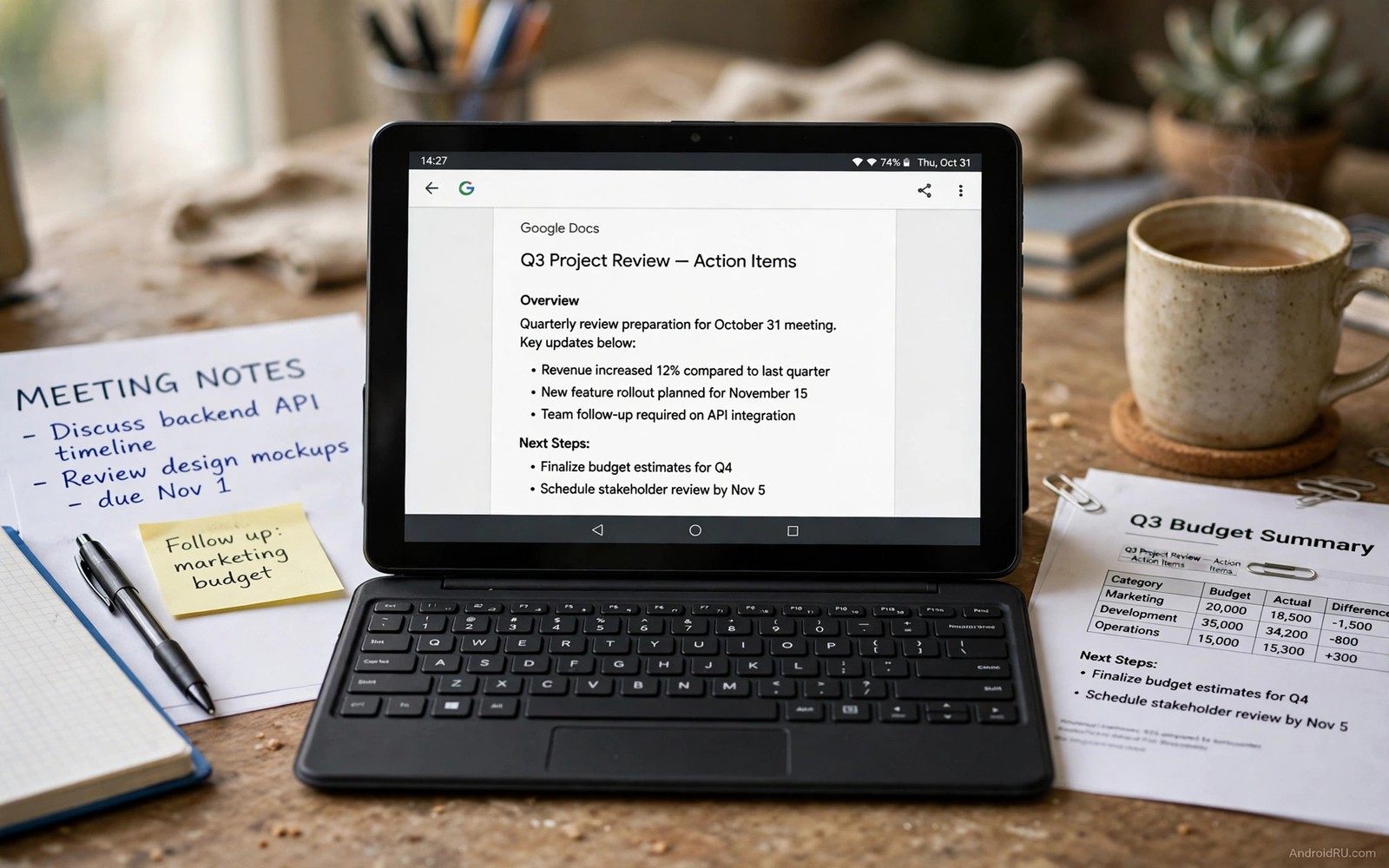
A tablet sits between a phone and a laptop in size and in promise. With the right apps it can handle documents and meetings and light editing without a full computer. Without the right apps it becomes a large video screen that gathers dust. This guide shows five app types that turn a tablet into a practical workstation for everyday work.
Start with the work you actually do away from a desk. Reading documents and answering messages and joining meetings probably cover most of it. Writing notes and editing a spreadsheet may follow. Heavy video editing and complex coding may stay on a laptop. A tablet workstation should excel at the first group before it chases the second group.
Screen size changes how apps should behave. A phone app stretched to tablet size wastes space and hides controls. A tablet aware app uses two panes for lists and details. It also supports a keyboard and a mouse without awkward workarounds. Test each app in landscape mode with a keyboard attached before you call it a workstation tool. A portrait only app rarely earns a workstation place.
A keyboard and a stand transform a tablet more than any single app. A physical keyboard makes long writing comfortable. A stand holds the screen at eye level for meetings. A mouse or a stylus adds precision for editing and drawing. Buy those accessories only after you know which apps you will use daily. Hardware without a workflow becomes another drawer item.
Five app types for a tablet workstation
First comes a document suite for reading and editing office files. It should handle text documents and spreadsheets and presentations without converting formats badly. It should also work offline for a flight or a weak signal day. Test it with a real work document that contains tables and images. A suite that breaks formatting on a real file fails the workstation test even if it looks clean on a sample.
Second comes a notes app with handwriting or typing support for meetings. It should capture fast notes and organise them by project. It should also export notes in a format a laptop can open. A notes app that locks notes inside a tablet only format creates a second silo. Export freedom keeps the tablet as part of a larger workflow rather than a separate island.
Third comes a video meeting app with a stable tablet layout. It should show participants and shared content side by side. It should also handle a headset microphone without echo. Test it on a real call with a colleague before an important meeting. A meeting app that drops audio on a tablet will embarrass you at the worst moment.
Fourth comes a file manager with cloud and local folders in one view. It should move files between tablet and computer without a cable hunt. It should also handle large attachments without a silent failure. A manager that shows sync status clearly prevents a version conflict. That clarity matters when the same file exists on tablet and laptop at once.
Fifth comes a browser with desktop mode for web tools that need a full page. Many web apps offer more features in desktop mode than in a mobile view. A tablet browser should switch modes per site and remember the choice. Test desktop mode on the web tools you use for work. A browser that forces mobile mode on every site limits the tablet to a phone experience on a bigger screen.
Building a tablet workflow that lasts
Set up a home screen with work apps on the first page and entertainment on the second. That separation helps focus during work hours. Use split screen for a document beside a notes app during meetings. Use a floating window for a calculator or a chat during editing. Those window habits turn a large screen into a real multitasking space rather than a single app viewer.
adb shell wm sizeThis short command was added to show display size on a connected device. It shows a simple command that prints the display size on a connected device. You can use the output to check screen dimensions before you judge a tablet layout problem.
Lightweight choices matter on a tablet too because a workstation should stay fast under several open apps. A heavy suite can slow split screen work on a mid range tablet. That is why a look at lightweight apps under 10MB helps when you pick tablet tools. Choose light rivals where they handle the job and keep heavy tools only where they earn their size.
A tablet morning routine that actually works
Start the tablet morning with a calendar and messages check in split screen. A calendar beside messages shows the day ahead while you answer overnight notes. That split view uses the large screen for a real purpose rather than a single stretched app. Keep the morning routine to fifteen minutes so the tablet feels like a tool rather than a distraction. A short focused routine sets the tone for the whole workday.
Move next to document review with a notes app beside the document. Read a report on one side and capture action items on the other side without switching apps. That side by side habit mirrors a desk with paper and a notebook. It also prevents the context loss that comes from constant app switching. A tablet earns its workstation label when two apps work together smoothly.
End the morning with a meeting check that tests audio and video before the first call. Open the meeting app and check microphone level and camera framing in a test call. A five minute test prevents a ten minute troubleshooting delay during a real meeting. That habit feels tedious until it saves you from an embarrassing first call failure. Preparation is the unglamorous part of a professional tablet workflow.
Accessories that earn their place
A keyboard earns its place only after typing tests prove it faster than on screen typing for long documents. Test the keyboard with a real report rather than a short message. A keyboard that feels good for a paragraph may feel cramped for ten pages. Comfort over a long document matters more than portability alone. Buy a keyboard that survives a full work morning without fatigue.
A stylus earns its place for handwriting and annotation rather than as a mouse replacement. Annotating a PDF with a stylus feels natural in a way finger drawing never does. Test annotation on a real document with highlights and margin notes. A stylus that lags or drops strokes will frustrate annotation work quickly. Precision matters more than pressure levels for everyday document work.
Lightweight apps keep a tablet workstation fast when several apps run in split screen. A heavy suite can stutter when a document and a meeting app share the screen. That is why lightweight apps under 10MB helps you choose tablet tools that stay responsive. Keep heavy tools only where they earn their size with a feature you use daily.
Tablet for reading and research
Reading on a tablet benefits from a large screen that shows a full page without constant zooming. A reader app that respects margins and font choices makes long articles comfortable. Test a reader with a long research paper rather than a short blog post. A reader that handles footnotes and tables well earns a research place. A reader that breaks tables will frustrate any serious reading session.
Research needs annotation tools that let you highlight and comment without leaving the document. A stylus or a precise touch highlight helps mark key passages for later review. Export highlights as a summary document that a laptop can open. That export turns tablet reading into a research asset rather than a passive activity. A reader without export traps highlights on one device.
Note taking beside reading completes the research workflow on a tablet. A notes app in split screen beside the reader lets you capture thoughts while they are fresh. That split screen habit mirrors a desk with a book and a notebook. That is why productivity note apps that work well helps you choose a notes app that works well in split screen. Test notes and reader together in landscape before you call the tablet a research tool.
A broad toolkit helps tablet work because a workstation needs more than documents alone. That is why must-have Android apps provides useful companions for a tablet that must handle notes and files and media.
Tablet battery during work
Tablet battery life during work depends on screen brightness and split screen use more than on any single app. A bright screen in split screen mode drains battery faster than a single app at moderate brightness. Lower brightness slightly during document work and raise it only for video calls. That small habit can add an hour to a work morning. Battery awareness turns a tablet from a morning tool into an all day workstation.
Background apps on a tablet also drain battery during meetings and reading sessions. Close entertainment apps before a long work session rather than leaving them suspended. Suspended apps still wake for notifications and updates throughout the day. A clean app switcher at the start of work keeps the tablet focused. That discipline costs seconds and saves battery across a whole day.
Common mistakes
The biggest mistake is buying a tablet workstation setup before testing the workflow. A keyboard and a dock and a stylus cost real money. Test the five app types with on screen typing first. Buy accessories only after the workflow proves useful for two weeks. Hardware should follow a proven habit rather than lead it.
Another mistake is treating a tablet as a laptop replacement for every task. A tablet excels at reading and notes and meetings and light editing. It struggles with heavy multitasking and specialised desktop software. Keep a laptop for those heavy tasks and let the tablet own the mobile work it does best. That division keeps both devices useful.
Frequently asked questions
Can a tablet replace a laptop for office work?
It can for documents and meetings and email and light spreadsheets. It struggles with heavy data work and specialised desktop tools. Judge by your actual tasks rather than by a general replacement claim.
Do I need a special tablet version of each app?
Not always. Many phone apps scale well enough for simple tasks. Choose a tablet aware version for documents and notes and meetings where layout matters most. Keep a phone version for simple utilities that need only one pane.
How do I keep files in sync between tablet and laptop?
Use a file manager with a clear sync status and a single source folder. Check sync before you edit a file on a second device. A clear sync habit prevents conflicting copies more reliably than any automatic tool alone.
Conclusion
Install a document suite and a notes app on your tablet today and test them in landscape with split screen. Add a meeting app and a file manager next week only after the first two pass real work tests. Keep the tablet workstation only if it handles a full work morning without reaching for a laptop.

