

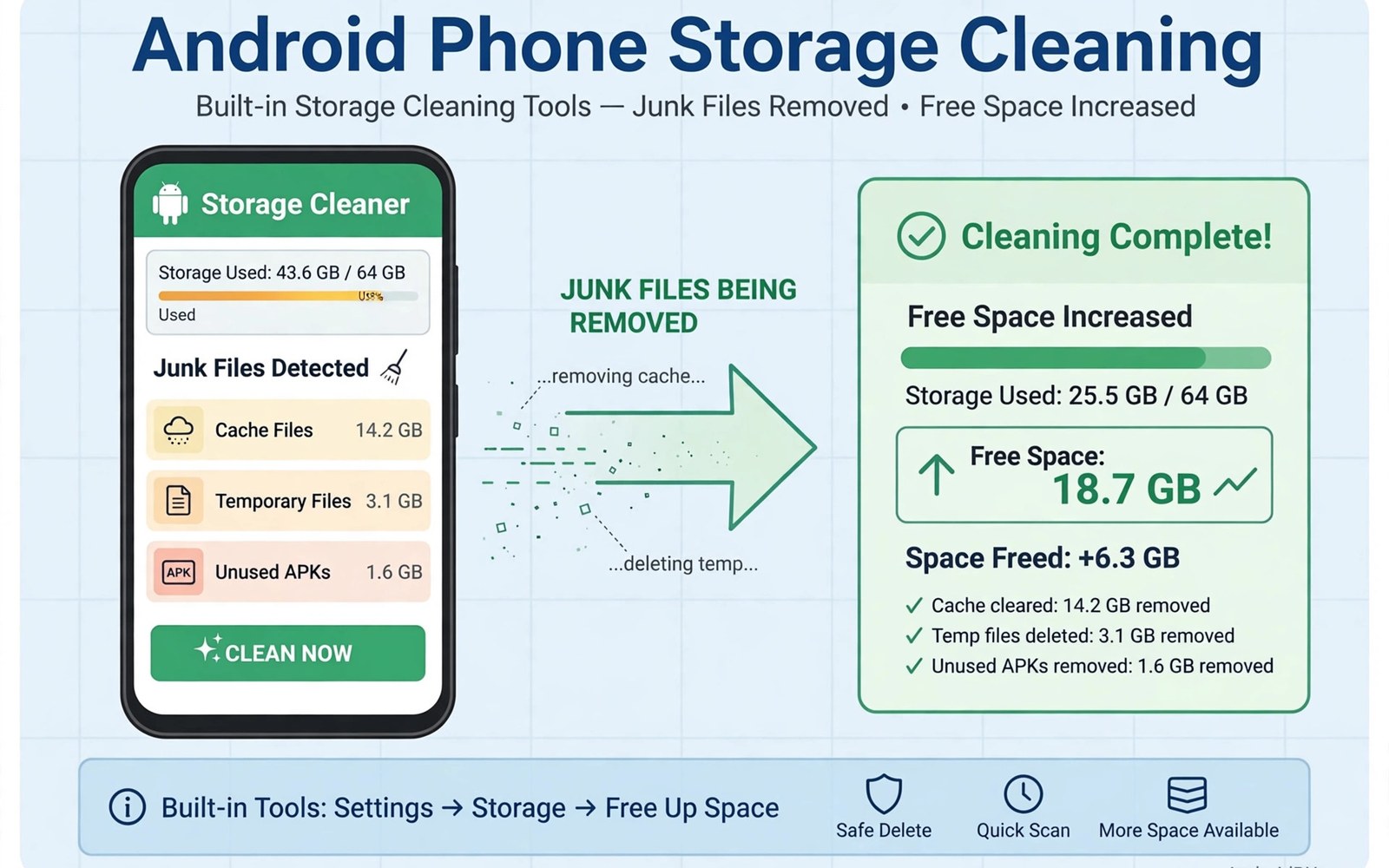
Your phone warns you that storage is almost full. A search result promises a cleaner app that will free ten gigabytes with one tap. You install it and it shows a scary red gauge and a big boost button. What it actually does is show ads and ask for permissions it never needed.
Fake cleaner apps thrive on panic. They invent problems and then sell you the fix. They claim your RAM is dirty and your battery is sick and your phone is infected. Android does not work that way. Your phone already has the real tools to manage storage and memory built in. You only need to learn where they live.
This guide shows you the native solution from start to finish. You will free space safely and you will spot the tricks that fake cleaners use. You will also build a short routine that keeps storage healthy without any extra app. Your phone will feel faster because you removed real clutter and not because an app played an animation.
Why fake cleaner apps hurt more than they help
A fake cleaner often asks for accessibility access or device admin rights at install time. Those powers let it watch your screen or stop you from uninstalling it. A storage tool has no honest need for that level of control. When an app demands deep access for a simple job you should delete it at once.
RAM boosting is the oldest trick in this category. Android manages memory on its own and it keeps apps ready in RAM on purpose. Killing those apps forces the phone to reload them from scratch which uses more battery. A booster that clears RAM every hour makes your phone slower while claiming to speed it up. The animation looks impressive and the result is worse.
Many cleaners also run constant background scans that drain battery all day. They watch files and processes so they can report fresh junk every hour. That watchfulness costs power and it heats the phone. A native cleanup runs only when you ask it to run. It finishes and it stops and your battery stays yours.
Ads and data collection round out the harm. Free cleaners earn money by showing full screen ads and by selling usage data. Some even push other junk apps through notifications. You installed a tool to clean your phone and you received a new source of clutter instead. Deleting the cleaner is often the biggest cleanup of all.
Free space with the built-in storage tool
Open Settings and tap Storage to see the honest picture. Android shows how much space apps and images and videos and system files each use. This breakdown tells you where the real weight sits. A cleaner app hides this detail behind a single scary number. The system view gives you facts you can act on.
Tap the cleanup suggestion that your phone offers on that screen. Most Android versions suggest removing screenshots and large files and unused downloads. Review each suggestion before you accept it. The tool may flag a video you still want so a quick review protects your memories. Accept the rest and watch gigabytes return in seconds.
Next open the Files app and sort by size. Large videos and old installers usually sit at the top of the list. Delete installers for apps you already installed because you can download them again any time. Move precious videos to cloud backup or to a computer before you delete them from the phone. Size sorting turns a vague storage problem into a short clear list.
Check the Downloads folder with the same ruthless eye. Old PDFs and memes and installer files pile up there for months. Delete anything you have not opened in ninety days. If you hesitate over a file then move it to a folder named Archive for one month. If you never open it there then delete it without guilt.
Control cache and app data the safe way
Cache is temporary data that apps store to load faster. A social app cache can grow past one gigabyte after months of scrolling. Clearing cache is safe because the app rebuilds it as you use it again. Clearing app data is different because it logs you out and deletes your settings. Never confuse the two buttons.
Clear cache for your biggest apps one at a time from App info. Open Settings and then Apps and then pick an app and tap Storage and cache. The cache button shows the exact size so you can judge the gain. Social and browser apps usually give the biggest wins. Games may rebuild a large cache fast so clear them only when space is tight.
Unused apps deserve a harder look than their cache does. An app you have not opened in six months still receives updates and still holds data. Android can auto archive unused apps on newer versions which keeps your data while freeing the install size. Turn that option on in the store settings. It reclaims space without forcing you to decide today.
Photos and videos need their own routine because they grow every week. Turn on cloud backup for full resolution or for storage saver quality depending on your plan. After backup confirms you can free device copies from the gallery app. Keep a local copy of only your favourite shots. The rest live safely in backup and your phone breathes again.
Keep memory and battery healthy without boosters
Android pauses background apps on its own when memory runs low. You do not need a booster to do this job. What you can do is stop apps from abusing background access in the first place. Open battery settings and restrict background use for apps that drain power without benefit. Social apps and shopping apps are the usual suspects.
Restart your phone once a week as a simple reset. A restart clears temporary states and ends stuck processes that no cleaner can reach safely. It takes two minutes and it often fixes sluggish behaviour better than any booster. Make it a Sunday habit and your phone will feel fresher on Monday morning.
Watch the battery usage screen instead of trusting a booster gauge. It shows which apps actually used power in the last day. A real problem app stands out clearly in that list. Restrict it or replace it with a lighter alternative. Data beats decoration and the system screen gives you data.
A tidy toolkit supports this native approach well. For example clipboard managers that keep copied text forever solve a real daily problem without fake optimisation claims. Judge every tool by the same test. Does it do one clear job with honest permissions or does it promise miracles with scary gauges.
adb shell pm trim-caches 1073741824
adb shell dumpsys diskstats | head -30
The code block above is an original example written for this article. It shows diagnostic commands that trim caches and report disk statistics from a computer with developer tools. The commands illustrate what native cache control looks like without any third party cleaner. They are a learning aid for advanced users and not a daily routine for most people.
A monthly storage audit keeps the native tools effective without turning cleanup into a chore. Pick the first Sunday of each month and open the storage screen for five minutes. Delete downloads you no longer need and check the largest apps for cache growth. Move photos from the last month into backup if they already synced. Five minutes monthly prevents the sudden full storage warning that used to send you searching for a cleaner app.
Teach family members the same routine when they ask why their phones feel slow. Show them the storage screen and the cache button and the auto archive option. Most people never saw those screens because a cleaner app hid them behind a scary gauge. Once they see the real numbers they stop fearing storage and start managing it. That confidence spreads faster than any app recommendation.
Old chat media hides a surprising amount of storage on many phones. Years of shared videos in group chats accumulate silently in app folders. Open the storage view inside your messaging app and review media by size. Delete forwarded videos you already watched and keep only personal photos. A ten minute chat cleanup often frees more space than any cache clearing session.
Common mistakes
The first mistake is trusting a cleaner because it shows a big red warning. Scary gauges are marketing and not measurement. Open the system storage screen and trust its breakdown instead. Real numbers beat red graphics every time.
The second mistake is clearing app data when you meant to clear cache. Data clearing logs you out and deletes settings and offline content. Read the button label twice before you tap. Cache is safe to clear and data is a reset.
The third mistake is deleting photos before backup finishes. A gallery free space prompt should only run after backup shows a complete status. Check the backup screen and wait for the confirmation. Deleted originals without backup are gone for good.
The fourth mistake is installing a second cleaner to remove the first one. One junk app cannot clean another junk app. Delete both from the app list and use the native tools. Your phone needs fewer tools and not a cleaner for its cleaners.
Frequently asked questions
Do I ever need a cleaner app on Android?
No. The built in storage and Files tools cover cache and large files and unused apps. A cleaner adds ads and background drain without adding a real capability. If storage stays tight after native cleanup then you need more storage or fewer large videos.
Will clearing cache delete my photos or chats?
Clearing cache does not delete your photos or your chat history. It removes temporary files that apps rebuild as needed. Your account data and your media stay untouched. Only the clear data button resets an app to a fresh state.
Why does storage fill up again so fast?
Videos and social caches grow daily on an active phone. A weekly check of the storage screen catches growth early. Turn on auto archive for unused apps and back up photos regularly. Small weekly habits beat rare heroic cleanups.
Conclusion
Fake cleaners sell fear and deliver ads. Android already gives you storage breakdowns and cache control and auto archive and a smart Files app. Use those tools with a weekly routine and your phone stays fast without risk. The native solution is quieter and safer and it actually works.
Your concrete next step is to delete any cleaner app on your phone today and open Settings then Storage. Accept the system cleanup suggestions after a quick review and clear cache for your two largest social apps. Repeat that check every Sunday for a month and watch the warnings disappear. If you want more honest tools then look at 20 free apps that will upgrade your smartphone experience today and how to extract APK files from installed apps in 5 seconds for safe ways to manage what you install.

