

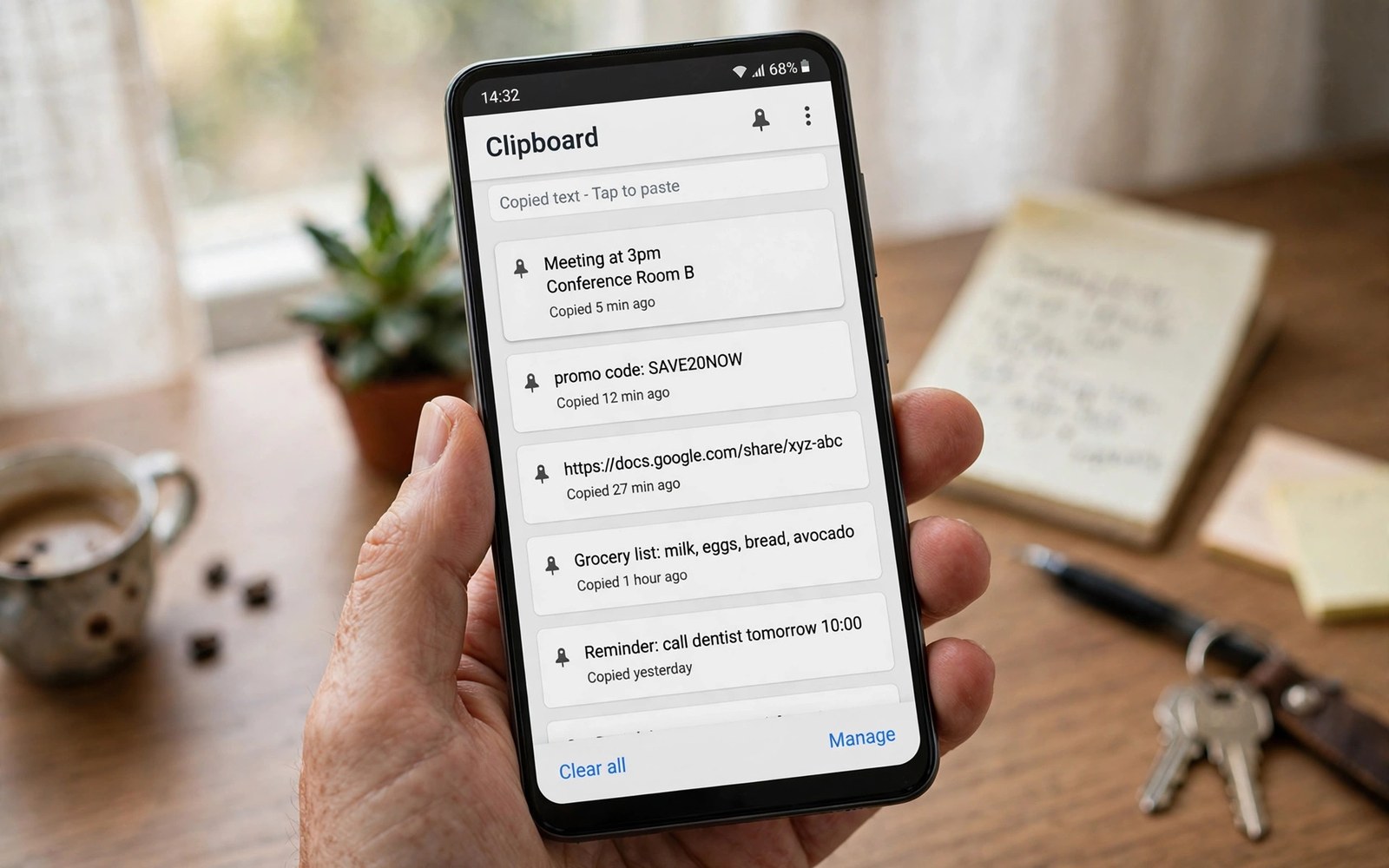
You copy a tracking number in the morning. You copy a Wi-Fi password at lunch. By evening both are gone because Android replaced them with the last thing you copied. A clipboard manager fixes this quiet loss by keeping a history of everything you copy. It turns a single slot into a searchable library.
The difference shows up in small moments that add up fast. You paste an address you copied three days ago without asking the sender to resend it. You reuse a long promo code without retyping it from a blurry screenshot. You recover a paragraph you accidentally overwrote while editing a message. Each rescue takes seconds and each one feels like a small superpower.
This guide compares five strong approaches to clipboard history on Android. You will learn what pinning and search and auto cleanup really do. You will also learn how to protect sensitive clips like passwords. By the end you will have a setup that keeps what matters and forgets what should not linger.
How clipboard history changes daily work
Android keeps only the most recent copied item by default. That design is simple but it punishes anyone who copies more than one thing in a row. A manager watches the clipboard and stores each new item as a separate entry. You open the history and you tap the entry you need. The old single slot problem disappears at once.
Search turns a long history into a useful tool. You type two words from a tracking number note and the entry appears. Without search you would scroll through weeks of clips to find one address. Good managers index the text as you copy so search feels instant. This matters most for people who copy addresses and order numbers every day.
Pinning protects the clips you reuse for months. Your home address and your work email and your bank branch code can stay pinned at the top. Pinned items survive automatic cleanup rules that delete ordinary clips after thirty days. Think of pins as the favourites shelf in a library that otherwise rotates its stock.
Categories add another layer for heavy users. Some managers let you sort clips into lists like Work and Shopping and Travel. A clip lands in a list with one tap from the history view. Sorting takes a few seconds at copy time and saves minutes at paste time. Start with two lists and add more only when you feel the need.
Five managers compared by real strengths
The first type is the keyboard built manager. Gboard keeps a clipboard section inside the keyboard itself. You tap the clipboard icon and you see recent clips ready to paste. This option needs no extra app and it feels natural because the history lives where you type. Its history limit is modest and older clips expire sooner than many users expect.
The second type is the dedicated history app with a floating bubble. It shows a small icon you can tap from any screen to open recent clips. This design suits people who paste across many apps all day. The bubble can annoy some users so a good app lets you hide it or move it. Test the bubble for a day before you judge it.
The third type is the privacy first manager that stores everything on the device only. It never uploads your clips to a server. It may skip cloud sync entirely in exchange for that guarantee. Users who copy passwords or medical notes often prefer this trade. Check the privacy policy and the network permissions before you trust any claim.
The fourth type is the sync manager that shares clips across your phone and your computer. You copy on the phone and you paste on the laptop without sending yourself a message. This feels magical for desk workers. It also raises the stakes for security so you should protect the account with a strong password and two factor sign in.
The fifth type is the power user manager with rules and automation. It can clean phone numbers or strip tracking parameters from links as you copy. It can auto delete clips from banking apps after one minute. These rules sound advanced but they solve real daily annoyances. Start with one rule and add more only when the first one proves its worth.
Set up history without leaking secrets
Passwords deserve special handling in any clipboard system. A password copied to the clipboard can sit in history long after you pasted it. Good managers let you exclude password apps from history entirely. Turn that exclusion on first before you copy anything sensitive. A history that never records a password is safer than a history you must remember to clean.
Auto cleanup is your second line of defense. Set ordinary clips to delete after fourteen or thirty days. Keep pins exempt from cleanup so your favourites survive. This balance gives you a useful history without a permanent record of every code you ever copied. Review the cleanup setting once a month to confirm it still matches your habits.
Notifications can leak clips too when a manager shows the copied text on the lock screen. Turn off clipboard notifications or hide sensitive content on the lock screen in system settings. A small privacy check now prevents an awkward moment later when someone glances at your phone. Privacy is a habit built from small settings like this one.
Backups need the same care as the history itself. A cloud backup of your clips is convenient but it extends the life of sensitive text. If you enable backup then encrypt it and protect the account behind it. If you skip backup then export your pins manually once a month. Either path works as long as you choose it on purpose.
Build a copy workflow that saves minutes daily
Start each project by pinning the three items you will reuse most. A project address and a reference number and a standard reply cover most of the pasting. With those pinned you stop hunting through history for the same three clips. The rest of the history handles the surprises that come up during the day.
Use the share menu to send clips straight into the manager when you find something worth keeping. A long article quote or a recipe ingredient list can go to a named list at once. This beats copying it and hoping you remember to file it later. Filing at the moment of discovery is the habit that makes the whole system work.
Pair the manager with a reliable way to keep tools you trust. Knowing how to extract APK files from installed apps in 5 seconds lets you keep a copy of a favourite manager before an update changes its behaviour. Updates sometimes remove features or add ads. A backup copy gives you a way back to the version you liked.
Teach your fingers the fastest paste path for your keyboard. On most keyboards you long press the text field and then tap the clipboard icon. Some keyboards let you swipe to open history even faster. Practice the gesture ten times and it becomes muscle memory. Speed here is not about showing off. It is about removing friction from a task you repeat dozens of times a day.
adb shell cmd clipboard --help
adb shell dumpsys clipboard | head -40
The code block above is an original example written for this article. It shows diagnostic commands that inspect clipboard service state from a computer with developer tools. The output helps advanced users confirm which app currently manages clipboard access. It is a learning aid for troubleshooting and not a tool for reading another person clipboard content.
Travel planning shows the value of a long clipboard history better than any other task. You copy a hotel confirmation in one app and a flight time in another and a rental address in a third. Hours later you need all three while standing in an airport queue. A manager hands them back in seconds without a frantic search through messages. That calm moment is the real payoff of the whole system.
Clipboard history also rescues work lost to an app crash. You compose a long reply and the app closes before you send it. The text you copied along the way still sits in history. Paste it back and you lose a minute instead of an hour. That safety net alone justifies a manager for anyone who writes on a phone.
Common mistakes
The first mistake is keeping every clip forever with no cleanup rule. A history of ten thousand clips becomes slow and hard to search. Set a thirty day cleanup rule and pin only what you truly reuse. A curated history beats a giant one every time.
The second mistake is copying passwords with history recording turned on. A password in history can outlive the login it served. Exclude password and banking apps from recording before you copy a secret. This single setting prevents the most common clipboard privacy failure.
The third mistake is running two clipboard managers at once. Two apps watching the same clipboard can duplicate entries or fight over paste actions. Pick one manager and delete the other. A single source of truth keeps history clean and predictable.
The fourth mistake is ignoring the keyboard manager you already have. Many users install a new app without checking the clipboard section in their keyboard. Try the built in history for a week first. You may find it covers your needs without another icon on your home screen.
Frequently asked questions
Does a clipboard manager drain my battery?
A well built manager uses almost no battery because it only wakes when you copy something. Heavy managers with floating bubbles and constant sync use more power. If battery drops after install then check the app battery usage screen and switch to a lighter option.
Can a manager save copied images too?
Some managers save images and some save text only. Image history uses more storage and it needs a larger limit setting. If you copy screenshots often then pick a manager that states image support clearly and set a storage cap.
Is clipboard history safe on a shared phone?
History on a shared phone is visible to anyone who opens the manager. Use a manager with a lock option or keep history off on a shared device. Better still use separate user profiles so each person has a private clipboard space.
Conclusion
A clipboard manager turns lost text into found text. Pick the type that fits your work and set cleanup and exclusions before you build a long history. Pin the few clips you reuse and let search handle the rest. The result is a quiet tool that saves you minutes every day without demanding attention.
Your concrete next step is to open your keyboard clipboard section today and check whether it already keeps history. If it does then pin your home address and one work item and set a thirty day cleanup rule. If it falls short then install one dedicated manager and test it for a week. For a wider upgrade path you can browse 20 free apps that will upgrade your smartphone experience today and the secret app that downloads any online video in 1-click as two more everyday tools worth a look.

