

You love an app version that just works. Then an update changes the layout and removes a feature you relied on. If you had extracted the APK beforehand you could reinstall the good version in seconds. Without that backup you are stuck waiting for a fix that may never come.
Extracting an APK means copying the install file of an app that already lives on your phone. Android keeps that file on the device but it hides it from the normal file view. A small extractor tool reveals it and saves a copy to a folder you control. The whole job takes about five seconds once you know the steps.
This guide shows the fastest no root methods first. You will learn how to use an extractor app and how to use a file manager. You will also learn what split APKs mean and why some apps need extra files. Finally you will learn the safety rules that keep backups useful instead of risky.
Use an extractor app for the fastest result
Install a well reviewed APK extractor from your app store. Open it and you will see a list of your installed apps with icons and names. Tap the app you want and the extractor saves its APK at once. Most tools show a confirmation with the file path so you can find the copy fast.
Sort the list by install date or by size when you manage many apps. A recent install sits near the top when sorted by date. A large game sits near the top when sorted by size. Sorting turns a list of two hundred apps into a list you can scan in seconds. Use search when you know the exact app name.
Check the saved file name and add the version number if the extractor omits it. A file named app.apk tells you nothing in six months. A file named notes-app-4-2-1.apk tells you exactly what you hold. Rename at extraction time while the version is still visible in the app info screen.
Move finished extractions to a backup folder outside the extractor default folder. A folder named APK Backups on your storage or on a cloud drive works well. If you uninstall the extractor later you do not want your backups to vanish with it. Separation keeps your archive safe from app cleanup.
Extract with a file manager when you prefer no extra app
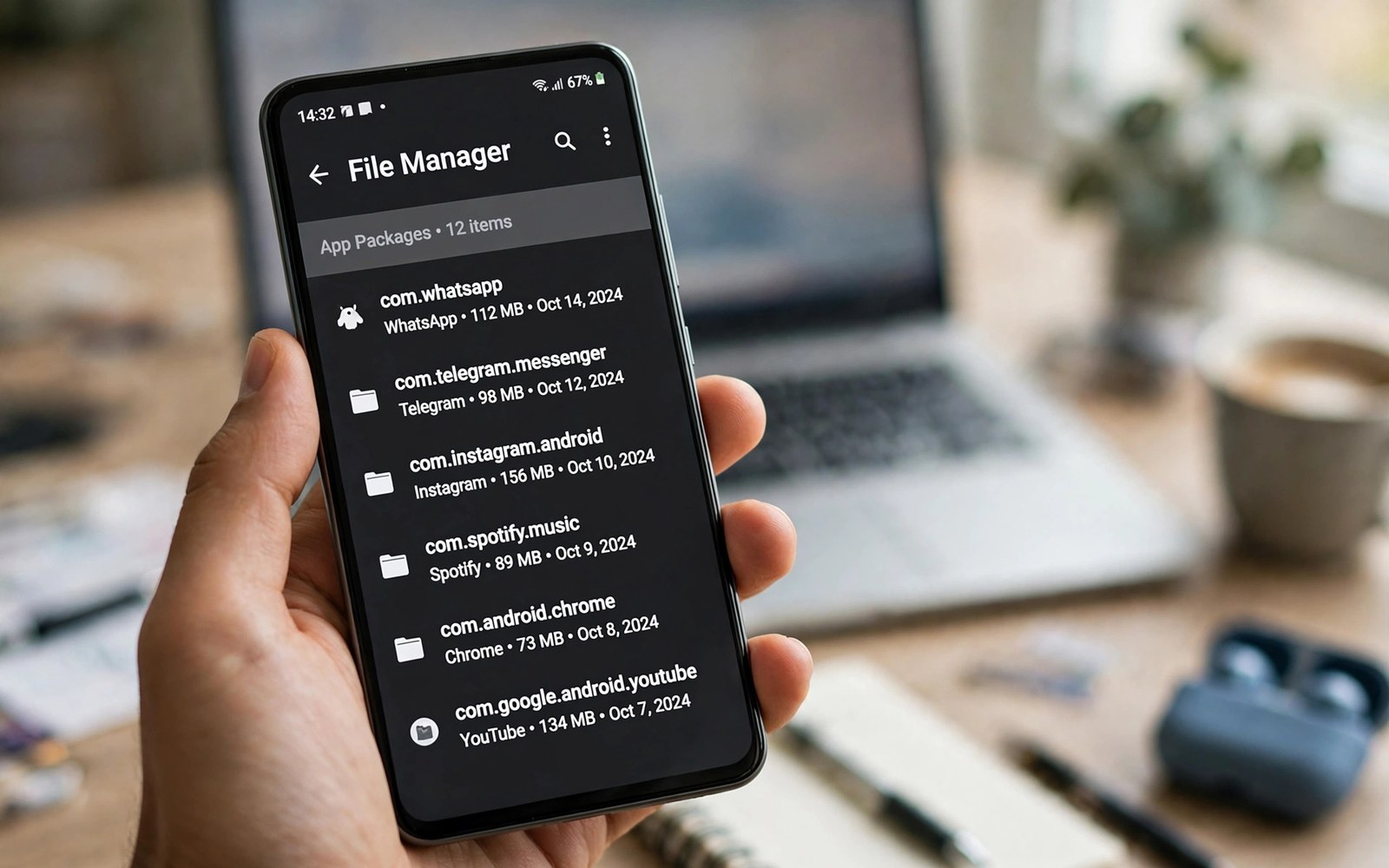
Some file managers include an app backup feature in their app management section. Open the manager and look for Apps or App Manager in the side menu. Tap an app and choose Backup or Extract. The manager saves the APK to its backup folder and shows you the path.
This method suits users who already trust their file manager and want one less app. The steps differ slightly by manager but the idea stays the same. Find the app list and choose the backup action and confirm the destination. Test with a small app first so you learn the flow before you back up a large game.
Verify the saved file before you count it as a backup. Open the folder and check the file size against the installed app size shown in Settings. A tiny file of a few kilobytes for a large app signals a split APK problem. The verification section below explains how to handle that case.
Keep a simple log of what you backed up and why. A note with the app name and the version and the date takes ten seconds to write. When an update breaks something you will know exactly which backup to restore. A backup without a label is a mystery file and mysteries do not help in a hurry.
Understand split APKs before you share a file
Modern apps often install as a bundle of split files instead of one single APK. The base file holds the core code. Config splits hold screen density resources and processor architecture files and language packs. Your phone installs only the splits it needs which saves space but complicates backups.
An extractor that saves only the base APK may produce a file that fails on another device. The base alone lacks the architecture split for a different processor. On the same phone model it often installs fine. On a different model it may crash or refuse to install. Know this limit before you promise a friend a working copy.
Advanced extractors can save all splits together as one bundle file. That bundle installs correctly on more devices because it carries every needed piece. Look for an export option that mentions splits or bundle in its name. A bundle file is larger but it is far more reliable as a true backup.
System apps add another wrinkle because some cannot be extracted without deeper access. A stock system app may show no extract option at all. User installed apps almost always extract cleanly. If a system app refuses then accept the limit and back up its data another way instead of chasing root access you do not need.
Restore and sideload safely
Restoring from your own backup is simple. Open the saved APK in your file manager and confirm the install prompt. Android will warn you that the file comes from outside the store. That warning is normal for any sideloaded file. Check that the app name and icon match your expectation before you accept.
Never install an APK that someone sent you without checking its source. A modified APK can hide malware behind a familiar icon. Your own extractions are safe because you made them from apps you already trusted. A stranger file deserves suspicion even when the icon looks right.
Turn off the install permission for the file manager after you finish restoring. Leaving install permission on for every app widens the door for future abuse. Grant it for the restore and revoke it right after. Good security is a habit of closing doors you no longer need open.
Test the restored app before you delete the newer version data. Open it and check your login and your main screens. If the old version works then keep the APK copy for future trouble. If it fails then you still have the store version path as a fallback. Testing takes a minute and prevents regret.
Backup habits connect naturally across your toolkit. Once you can stop downloading fake cleaner apps and use the native solution for storage you will also trust native file tools more. Clean tools and honest backups reinforce each other. Both keep your phone yours.
adb shell pm path com.example.app
adb pull /data/app/com.example.app-1/base.apk ./backup.apk
The code block above is an original example written for this article. It shows how developer tools can locate an installed app package path and copy the base file to a computer. Replace the example package name with the real package of the app you own. It is a learning aid for advanced users and a complement to the five second app method.
Version history turns a pile of backups into a useful archive. Keep the last two versions of each important app rather than every version ever released. Two versions give you a fallback when the newest breaks and a second fallback when the previous one also fails. Older versions beyond that rarely help and only consume storage. Prune the archive quarterly and keep the log note updated.
App updates sometimes change data formats in ways an old version cannot read. Restoring an old APK may therefore show an empty library until you restore data too. Test restores on a secondary profile or a spare device when the app holds precious data. A test restore reveals format problems while the new version still works. Never gamble your only copy of important data on an untested rollback.
Split APK installers on a computer handle bundle files more reliably than many phone tools. A bundle installer reads every split and installs them as one coherent app. When a phone extractor gives you only a base file the computer installer cannot conjure the missing splits. Know which format you hold before you promise a restore. Format honesty prevents failed installs at awkward moments.
Test extractions on a spare device when you can before relying on them for a critical rollback. A spare phone or a secondary profile reveals install problems without risking your daily driver. Install the extracted file there and open the app and check its main screens. A backup proven on a second device is a backup you can trust under pressure.
Common mistakes
The first mistake is extracting only the base APK of a split app and calling it a full backup. Test the backup by reinstalling it before you need it. A backup you never tested is a hope and not a plan. Testing on the same phone takes a minute.
The second mistake is keeping backups with meaningless names. A folder full of base.apk files helps nobody. Rename each file with app name and version at extraction time. Future you will be grateful for the thirty seconds you spent.
The third mistake is sharing extracted APKs of paid apps with friends. That sharing violates licence terms even when the app is free to download. Keep your extractions for personal restore use. Respect the developers whose work you enjoy.
The fourth mistake is leaving install permission on for every file app after a restore. Revoke the permission once the job is done. A closed door costs nothing and it blocks a whole class of silent install tricks.
Frequently asked questions
Do I need root to extract an APK?
No. User installed apps extract cleanly without root on modern Android. System apps may resist extraction but most apps you installed yourself work fine. Root adds risk and it is unnecessary for a personal backup.
Why is my extracted APK smaller than expected?
The extractor likely saved only the base split of a bundle app. Config splits for architecture and language live as separate files. Use an extractor with bundle export to capture every split. The bundle file will match the installed size far better.
Can I restore an old version over a newer one?
Android usually blocks installing an older version over a newer one. Uninstall the newer version first and then install your backup. Back up the app data separately if the app allows export. That two step path restores the old version cleanly.
Conclusion
Extracting an APK takes five seconds and saves hours when an update goes wrong. Use an extractor app for speed or a file manager you already trust. Handle split APKs honestly and name your backups clearly. Keep extractions for personal restore and revoke install permission when done.
Your concrete next step is to extract the APK of your most important app today and store it in a folder named APK Backups. Rename it with the app name and version and test that the file opens an install prompt. Once that test passes you have a real safety net. Pair the habit with related wins like 5 clipboard manager apps that keep copied text forever and the app that boosts Wi-Fi connection signals by 30 percent to keep your daily toolkit sharp.

