

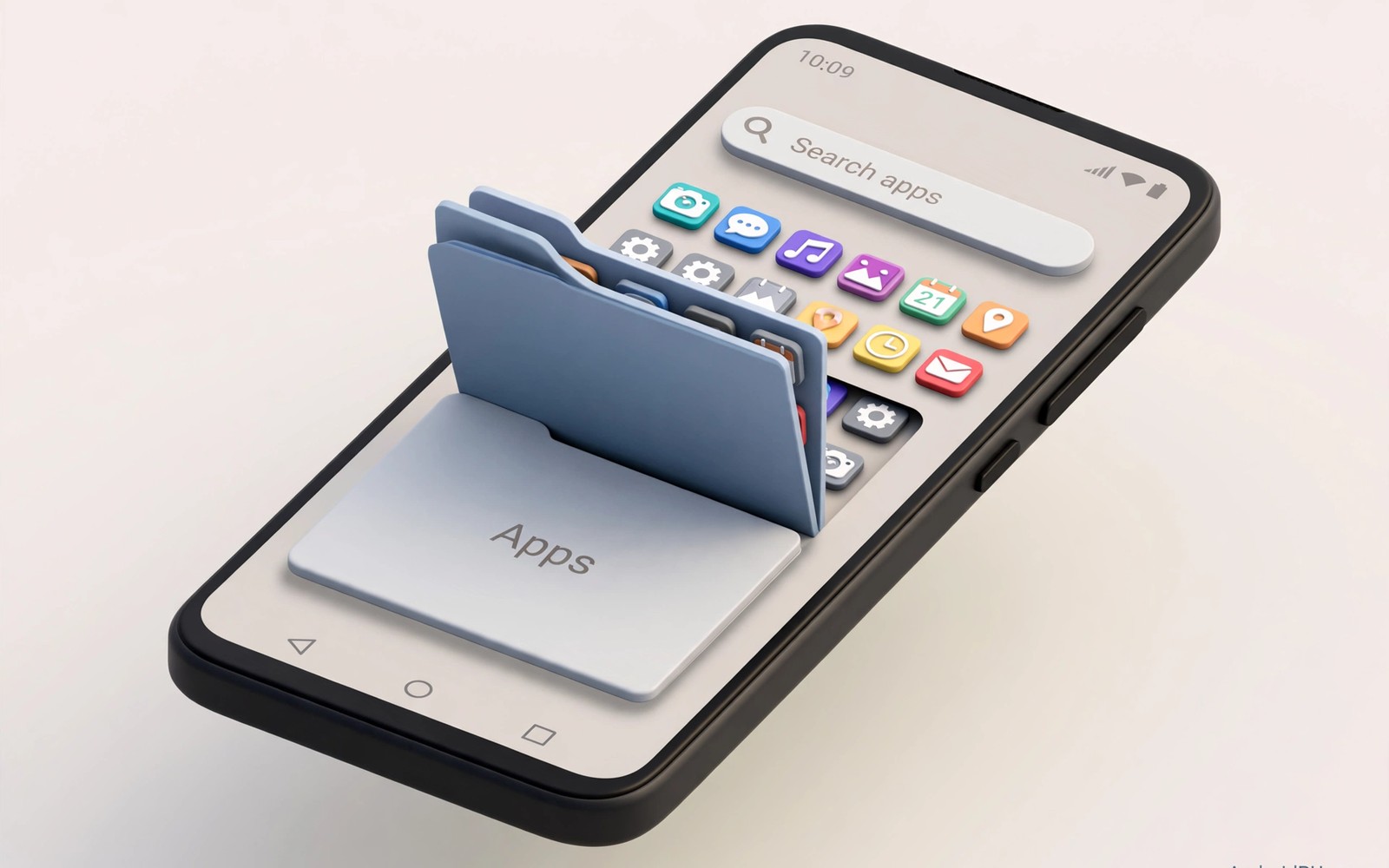
A secure app that sits visibly in the drawer invites curiosity even when it is locked. A friend who borrows your phone may notice a banking app or a vault app and ask about it. Hiding the app removes that first trigger and keeps private tools out of casual view.
Hiding does not replace locking. A hidden app can still be opened through search or through a direct shortcut when someone knows where to look. The goal is to reduce visibility while keeping a strong lock as the real protection.
This guide shows launcher methods and profile methods for hiding apps without root. You will learn how to hide an icon and how to test the result and how to recover a hidden app when you forget the method. A careful hide keeps your drawer clean and your private apps discreet.
Hide apps inside the launcher settings
Many launchers include a hide apps option inside home settings or drawer settings. Open the launcher settings and look for a hidden apps entry. Select the apps you want to hide and confirm the choice to remove them from the main drawer.
Test the drawer right away after you hide an app. Scroll through the full list and search for the app name to see whether search still reveals it. Some launchers hide the icon yet keep the app visible in search results.
Note the unhide method before you rely on the hide feature. Some launchers require a specific gesture or a settings path to restore a hidden app. Write that path down in a safe note so you can recover the app without a factory reset.
Use a separate profile for sensitive apps
A work profile creates a second app space that stays separate from the main drawer. Apps inside the profile appear only when the profile is active. When you pause the profile the apps disappear from view and stop running.
Move banking and vault and private messaging apps into the profile when your phone supports that option. The profile uses its own lock in many setups which adds a second barrier. A paused profile gives stronger hiding than a launcher hide alone.
Test the profile pause by locking the profile and then opening the main drawer. Confirm that the private apps no longer appear in the list or in search. That test proves the profile method works on your phone model.
Control search and recent apps too
A hidden icon means little when search still suggests the app after a few letters. Open launcher search settings and turn off suggestions for hidden apps when the option exists. A clean search result keeps the hide effective.
Recent apps can also reveal a hidden app when you open the overview screen. Close private apps from recents before you hand the phone to another person. A closed recent entry removes the thumbnail that could expose the app.
Readers who want a private storage space will also benefit from how to set up an encrypted private folder profile because hidden apps and hidden files together create a discreet phone. An app that does not appear and a file that does not appear give a stranger far less to explore.
Keep a recovery path for hidden apps
A hidden app that you cannot find is a problem rather than a privacy win. Keep a list of hidden apps in a password manager note or in a private document. That list lets you restore access without guessing which apps you hid months earlier.
Test recovery once by unhiding one app and hiding it again. That practice proves the method works and it refreshes your memory of the steps. A recovery path you never test may fail when you need it most.
Avoid hiding system apps that the phone needs for daily operation. A hidden dialer or a hidden settings app can confuse troubleshooting later. Hide only personal apps that you chose to install and that you can reinstall if needed.
A small code check for installed packages
A quick command can list installed packages on a phone with debugging enabled. Connect the phone and run the command below once to see every package including apps hidden from the drawer. The list proves that hiding changes visibility rather than removing the app.
adb shell pm list packages
adb shell dumpsys package
The snippet above was written for this article to show a safe read only way to review installed packages including hidden apps. It leaves hidden apps installed and unchanged during the list. You can use the list to recover the exact package name of a hidden app. That name helps you open the app info screen directly when the launcher hides its icon.
Hide apps on a shared family phone
A shared family phone needs clear rules about which apps stay visible to children. Hide banking and work apps so a child cannot open them by accident during play. A hidden app prevents accidental purchases and accidental messages.
Create a separate user profile for a child when the phone supports multiple users. A child profile shows only approved apps and hides adult tools completely. That separation is stronger than launcher hiding alone.
Test the child profile by handing the phone to a child for a short supervised session. Watch which apps appear and which shortcuts remain visible. A supervised test reveals widgets or search results that still expose a hidden app.
Manage hidden apps after a launcher update
A launcher update can reset hidden app settings and restore icons to the drawer. Check the hidden apps list after every launcher update. A quick check prevents a private app from reappearing without notice.
Note the hidden apps list in a private note before you update the launcher. A note lets you restore the hide list quickly when an update clears it. A note also helps you remember which apps you hid months earlier.
Test search after a launcher update because search behaviour can change with a new version. A search result that reveals a hidden app defeats the hide. Adjust search settings again when an update changes them.
Combine hiding with notification control
A hidden app can still reveal itself through a notification preview on the lock screen. Turn off detailed notifications for hidden apps in notification settings. A generic notification hides content while still alerting you to a new message.
Silence hidden apps during shared use by enabling Do Not Disturb for those apps only when possible. A silenced app will not interrupt a shared session with a preview. That silence keeps a private app discreet even when it receives data.
Review notification history after a shared session to see what appeared on screen. A history review reveals a preview that slipped through during the session. Adjust settings for any app that leaked content. Readers who want private storage will also like how to set up an encrypted private folder profile because hidden apps and hidden files together create discretion.
Hide apps from lock screen shortcuts
Lock screen shortcuts can reveal a hidden app even when the drawer hides it. A shortcut on the lock screen lets anyone open an app without unlocking the phone fully. Review lock screen shortcuts and remove any that point to a secure app. A clean lock screen keeps hidden apps truly hidden.
Widgets on the lock screen can also show data from a hidden app. A calendar widget or a message widget may display content from an app you hid. Remove lock screen widgets that pull data from secure apps. A widget free lock screen reduces accidental exposure.
Test the lock screen after you hide an app by locking the phone and swiping through shortcuts. A test from the lock screen reveals shortcuts that the drawer test missed. That outside view is the view a stranger would see first. A lock screen test completes the hiding routine.
Disable lock screen notifications for hidden apps to prevent previews from appearing. A notification preview can show a message snippet from a hidden messaging app. A generic notification without content keeps the app discreet. Notification control is the final layer of hiding.
Review hidden apps after a phone repair
A phone repair can reset launcher settings and restore hidden apps to the drawer without notice. Check the hidden apps list after any repair or screen replacement. A repair technician may also test the phone with a different launcher that shows all apps. Restore your hiding choices after you collect the phone and test the drawer again. A post repair check keeps private apps discreet after service.
Common mistakes
The biggest mistake is believing that hiding equals locking. A hidden app without a lock can be opened through search or through a shared link. Always set a lock inside the app or inside the profile in addition to hiding the icon.
Another mistake is hiding so many apps that the phone becomes hard to use. A drawer with missing tools slows you down and tempts you to disable the hide feature entirely. Hide only the few apps that truly need discretion.
People also forget that widgets and shortcuts can reveal a hidden app. A widget on the home screen may show data from an app that no longer appears in the drawer. Remove widgets and shortcuts for hidden apps to complete the hide.
Frequently asked questions
Does hiding an app uninstall it?
No. Hiding only removes the icon from the drawer while the app stays installed and functional. You can unhide the app through launcher settings at any time. A hidden app still receives updates unless you pause its profile.
Can someone find a hidden app through Settings?
Yes. Settings shows all installed apps regardless of launcher hiding. Hiding reduces casual visibility rather than providing strong security. Combine hiding with a profile lock or an app lock for real protection.
Will hidden apps still send notifications?
Notifications depend on the app and on the profile state. A paused work profile usually stops notifications until the profile resumes. A launcher hidden app may still send notifications unless you silence them in notification settings.
Conclusion
Hiding secure apps from the drawer reduces casual curiosity and keeps private tools discreet. Launcher hiding and profile separation together cover most everyday situations. A strong lock remains essential because hiding alone cannot stop a determined person.
Your concrete next step is to open your launcher settings today and hide one secure app. Test the drawer and search to confirm the hide works on your phone. Readers who want a full lockdown will benefit from a complete mobile privacy blueprint for Android and from how to turn off Google Ad ID tracking as follow up reading.

