

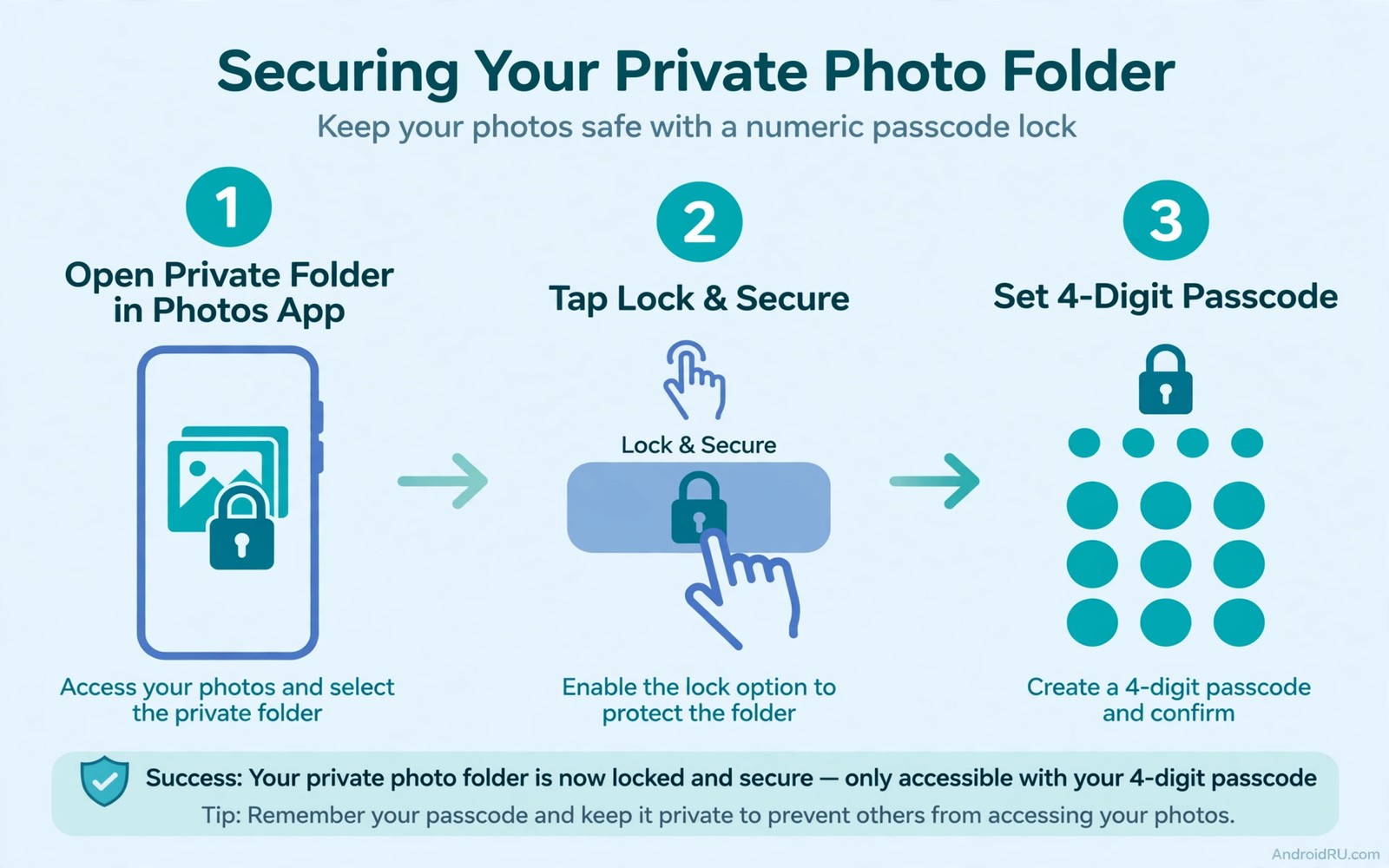
Photos carry more personal detail than any other file type on a phone. A single album can reveal family and travel and home and work in a few swipes. A phone handed to a friend for one photo can expose a whole album in seconds. A passcode layer stops that casual exposure and it adds a barrier against a thief who gains brief access.
This guide covers three protection paths. The locked folder inside the photos app hides selected images behind the phone lock. A secure folder creates a separate encrypted space for sensitive files. An app lock adds a passcode to a gallery app itself. Each path suits a different need and each one works without risky third party vault apps.
Start by deciding which photos need protection. Family portraits may need only a locked folder. Identity documents and sensitive work images may need a secure folder with stronger isolation. A clear split keeps daily photos easy to reach while sensitive photos stay behind an extra barrier. Protect the sensitive set first.
Use the locked folder inside the photos app
Open the photos app and find the locked folder option in the library or utilities section. The exact location varies by app version yet the concept stays the same. Move selected photos into the locked folder and confirm that they disappear from the main library and from search results. The locked folder opens only after the phone lock or biometric check.
Test the locked folder before you rely on it. Lock the phone and unlock it again and open the photos app. Confirm that locked items stay hidden from the main grid. Confirm that a shared album does not expose a locked item through a thumbnail. A test with a harmless photo proves the behaviour without risking a sensitive image.
Remember that locked folder items do not appear in cloud backups in the same way as normal photos on some devices. Check the backup setting for the locked folder before you move irreplaceable images. Keep a separate secure backup of important photos outside the phone when the locked folder excludes them from cloud backup.
Use a secure folder for stronger isolation
A secure folder creates a separate profile on the phone with its own apps and files. Open Settings and search for secure folder where available on your device. Set a separate PIN or biometric lock for the secure folder. Move sensitive photos and documents into that space and keep the secure folder hidden from the app drawer when possible.
The secure folder isolates files from the main profile. An app in the main profile cannot read files inside the secure folder without your action. That isolation suits identity documents and work files and private media. The trade off is extra steps to move files in and out of the secure space.
Do not store the secure folder PIN in a note on the same phone. A PIN stored beside the protected files defeats the protection. Memorise the PIN or store it in a trusted password manager on a separate device. A forgotten secure folder PIN can lock you out of your own files so choose a PIN that you can recall reliably.
Add an app lock as a third layer
An app lock asks for a passcode before a gallery app opens. Some phones offer this feature in settings under app lock or privacy. Enable it for the gallery app and for any file manager that can browse photos. A lock on the gallery alone leaves a gap when a file manager can open the same images.
Choose a passcode that differs from the phone lock PIN. A single PIN for every layer fails once that PIN is seen. A separate gallery passcode forces an attacker to guess twice. Avoid obvious codes based on birth years or simple sequences. A random four digit code that you memorise is stronger than a pattern that a friend could guess.
Test the app lock with a friend handing test. Hand the unlocked phone to a trusted person and ask them to open the gallery. The passcode prompt should appear before any photo loads. If photos load without a prompt then check the app lock list again because the gallery app may have two entries or a duplicate icon. For wider device safety read the five signs that show a phone has been hacked and check for threats that could bypass a simple lock.
A simple photo protection checklist
The checklist below gives a repeatable routine for protecting a new album. Work through it in order and test each layer after you set it. A layer that you have not tested is only a hope rather than a protection. Test with a harmless photo first and then move sensitive photos into the protected space.
1. Move sensitive photos into the locked folder
2. Move identity documents into the secure folder
3. Enable app lock for gallery and file manager apps
4. Use a gallery passcode different from the phone PIN
5. Test locked folder and app lock with a harmless photo
6. Check cloud backup settings for locked items
This checklist follows the standard controls built into Android and it uses only the menus that ship with the system and the photos app. No extra tool is required to complete the six steps. The order matters because folder protection comes first and app lock closes the remaining path through other apps.
Protect new photos as soon as you take them
Photo protection fails when it happens weeks after the photo was taken. A sensitive photo that sits in the main library for a month can be seen by anyone who borrows the phone during that month. Move sensitive photos into a locked folder on the same day that you take them. That same day habit closes the window between capture and protection. A daily end of day review of new photos takes two minutes and it catches sensitive images before they linger in the main grid.
Test the locked folder after each move with a quick lock and unlock cycle. Lock the phone and open the photos app and confirm that the moved photo stays hidden from the main library. That quick test proves the move worked and it builds confidence in the routine. A move that you assume worked without a test can fail silently when the app version changes its locked folder behaviour. A thirty second test after each move is cheap insurance for irreplaceable private images.
Plan a backup routine for protected photos that respects the same privacy level. A locked folder that excludes cloud backup needs a separate secure backup path. Copy important protected photos to an encrypted drive at home once a month. That home backup protects against phone loss without sending sensitive images to a cloud account with weaker protection. A backup that you test by restoring one photo proves that the routine works before a real loss occurs.
Handle shared photos and screenshots carefully
A protected album does not protect a photo that you share through a chat app. A shared photo leaves the protected space and enters a chat history that the recipient can save and forward. Share sensitive photos only when necessary and delete the shared copy from the chat after the recipient confirms receipt. That deletion does not recall a copy that the recipient already saved yet it reduces the chance of later exposure through your own chat history. A shared photo should be treated as public once it leaves your phone.
Screenshots can bypass photo protection as well. A screenshot of a locked folder photo creates a new unprotected copy in the main library. Avoid screenshots of sensitive photos and check the screenshot folder regularly for accidental copies. A screenshot folder review takes a minute and it catches copies that a locked folder move would otherwise miss. That review is especially important after you show a protected photo to someone on your own phone.
Organise photos so protection stays simple
Photo protection becomes hard when the library grows into thousands of unsorted images. Organise photos into albums by event and date so sensitive albums are easy to identify. An album named by a trip or a family event is easier to protect than a mixed library where sensitive and public photos sit side by side. That organisation takes time at first yet it makes every future protection step faster. A well organised library also makes backup and sharing decisions clearer because each album has a known privacy level.
Delete duplicate and blurry photos regularly to reduce the protected set. A library with fewer images is easier to review and easier to back up securely. A duplicate sensitive photo in two albums doubles the protection work and doubles the exposure risk. A monthly delete session for duplicates and failures keeps the library lean. That lean library also loads faster and uses less storage, which helps the phone perform better overall.
Review album sharing links regularly for albums that you shared in the past. A sharing link created for a single event can stay active for months after the event ends. An active link allows anyone with the link to view the album without a new invitation. Disable sharing links after each event and create a new link only for the next event. That link discipline closes a common photo exposure path that locked folders alone cannot fix.
Common mistakes
One mistake is hiding photos in a folder with an obvious name. A folder named private or hidden invites curiosity. A locked folder avoids that problem because it removes items from the main library entirely. Avoid manual hidden folders that rely on a dot prefix alone because file managers can reveal them easily.
Another mistake is using a third party vault app from an unknown developer. A vault app holds your most sensitive files and it may upload them without clear consent. Built in locked folders and secure folders keep files under system control. Choose built in tools before any unknown vault app.
A third mistake is forgetting to lock the phone itself. A gallery passcode helps yet a phone without a lock screen leaves every other app open. Set a strong phone lock first and then add gallery layers on top. For account level protection read how to catch anyone secretly trying to unlock your phone and add its alerts after the photo layers are set.
Frequently asked questions
Do locked photos still appear in search?
No and locked folder items are removed from the main library and from search results on supported apps. Test the behaviour on your device with a harmless photo. A secure folder offers even stronger isolation from search.
Can I recover locked photos if I forget the PIN?
Recovery depends on the tool that you used. A locked folder tied to the phone lock can be opened with biometrics or the phone PIN. A secure folder with a separate forgotten PIN may block recovery. Keep a secure backup of irreplaceable photos.
Is an app lock enough on its own?
No and an app lock covers only the apps that you lock. A file manager or a cloud app may still show the same photos. Combine app lock with a locked folder or a secure folder for full coverage.
Conclusion
Photo protection works best as layers. A locked folder hides daily sensitive photos. A secure folder isolates documents and highly private media. An app lock blocks casual browsing through gallery and file apps. Together they stop the common scenario of a phone handed to another person for a moment.
Your concrete next step is to move five sensitive photos into the locked folder today and test that they disappear from the main library. Then enable app lock for the gallery app. For sensor safety read how to secure camera and sensor permissions and review which apps can capture new photos in the first place.

