

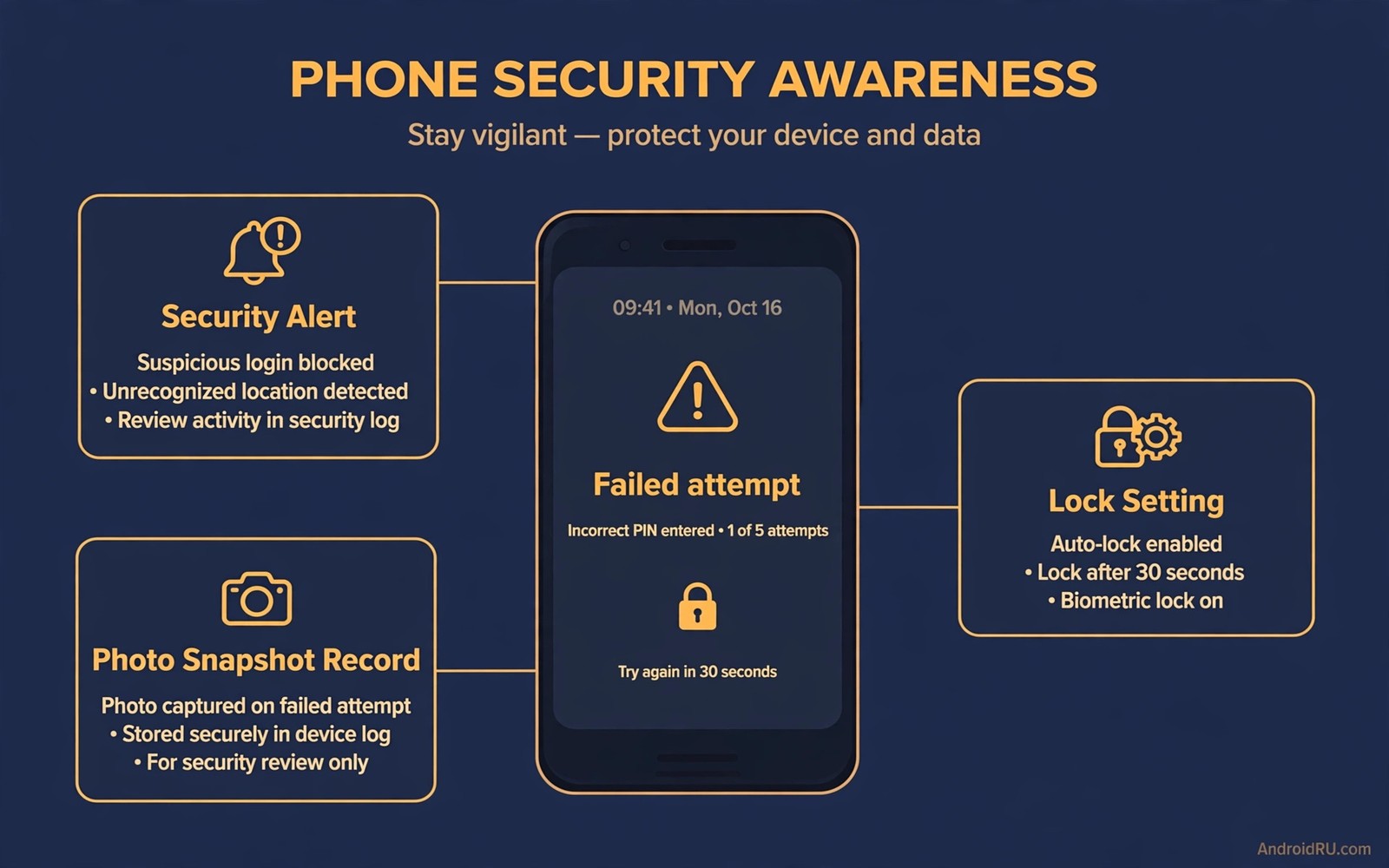
A phone left on a desk or in a bag can attract a curious hand. A failed unlock attempt leaves little trace on a default phone. The owner returns to a locked phone with no clue that someone tried to open it. Intruder alerts change that story by recording failed attempts with a photo and a time stamp.
This guide shows how to catch unlock attempts without turning the phone into a surveillance tool for others. It covers built in lock settings and trusted intruder apps and the habits that make alerts reliable. It also covers the limits of intruder photos and the privacy care that they require.
Start by strengthening the lock itself before you add alerts. A weak PIN that a friend guesses on the first try will never trigger an alert. A strong PIN or password forces several failed attempts and those attempts trigger the alert system. Alerts work best on top of a lock that resists casual guessing.
Use built in lock and attempt settings
Open Settings and then open Security and then open Screen lock. Choose a strong PIN or password that avoids birth years and simple sequences. A six digit random PIN is a good baseline. Enable the option to lock the phone after a number of failed attempts where available on your device.
Some phones offer a lockout timer that grows after each failed attempt. That timer slows a guessing attack and it gives the owner time to notice. A phone that locks for thirty seconds after five failures is far harder to guess than a phone that allows unlimited instant retries. Check lockout settings in the same security menu.
Biometric unlock adds convenience yet it can also be used by a sleeping owner in rare cases. A fingerprint can be pressed against a finger without consent. Face unlock can be attempted while the owner looks away. Use a strong PIN as the primary lock and treat biometrics as a convenience layer that still requires the PIN after a restart.
Add intruder alerts with care
Some phones include an intruder alert feature in security settings. That feature takes a front camera photo after several failed unlock attempts. Check your device security menu for an intruder or failed attempt option before you install any third party app. A built in feature keeps photos under system control.
When no built in feature exists a trusted third party intruder app can fill the gap. Choose an app from a known developer with a clear privacy policy. Check its permissions carefully because an intruder app needs camera and device admin access to work. An intruder app from an unknown developer can itself become a privacy risk.
Test the intruder alert with your own failed attempts. Enter a wrong PIN several times on purpose and check whether a photo and a time stamp appear. A test proves that the alert works before a real attempt occurs. A feature that you have not tested is only a hope rather than a protection. For photo safety read the secret way to passcode protect any photo album and protect intruder photos with the same care as private images.
Read the evidence after an attempt
Open the intruder log after a suspected attempt and note the time and the photo. A photo of a known person confirms the attempt yet it does not prove intent. A photo of a stranger in a public place may be a random curious hand. Use the evidence to change the PIN and to improve physical habits rather than to confront someone without context.
Change the PIN at once after a confirmed attempt. A person who tried once may have seen part of the PIN during an earlier entry. A new PIN removes the value of any partial observation. Change the PIN from a private place where no one can watch the entry.
Review the lock history for patterns. Repeated attempts at the same time of day may point to a specific setting such as a shared workspace or a school desk. A pattern helps you change the physical habit that created the opportunity. Leaving the phone face down in a private drawer beats any alert system.
A simple intruder checklist
The checklist below gives a repeatable routine for unlock attempt detection. Work through it in order and test the alert after setup. A test with your own failed attempts proves the system before a real incident. Review the log weekly during a period of concern.
1. Set a six digit random PIN as screen lock
2. Enable lockout timer after failed attempts
3. Enable built in intruder alert where available
4. Test intruder alert with deliberate failed attempts
5. Change PIN at once after a confirmed attempt
6. Review intruder log weekly during concern periods
This checklist follows the standard controls built into Android and it uses only the menus that ship with the system plus a trusted intruder option where needed. No extra tool is required for the core steps. The order matters because a strong lock comes first and log review closes the list.
Strengthen physical habits alongside intruder alerts
Intruder alerts work best when physical habits reduce the opportunity for attempts. Keep the phone in a pocket or a bag rather than on a shared desk during meetings. A phone left face up on a desk invites a curious hand during a break. A phone kept in a pocket removes that invitation entirely. That simple habit does more than any alert system because it prevents attempts rather than recording them. Alerts should be a backup for moments when physical habits fail rather than a replacement for those habits.
Use a privacy screen protector in shared workspaces to reduce shoulder surfing during PIN entry. A privacy screen narrows the viewing angle so a person beside you cannot read the PIN from the side. A screen protector does not replace a strong PIN yet it adds a physical layer that software cannot provide. That layer is especially useful in crowded trains and open offices where strangers sit close to the phone. A privacy screen costs little and it protects every PIN entry for the life of the phone.
Change the PIN after any situation where someone may have seen it entered. A colleague who stood nearby during a PIN entry may have glimpsed part of the code even without intent. A friend who watched a PIN entry during a shared photo moment may remember the pattern later. A PIN change after such an exposure costs a minute and it removes the value of a partial observation. That proactive change beats waiting for a failed attempt alert to confirm that someone tried to use the observed PIN.
Review intruder logs together with physical habits after a confirmed attempt. A log that shows attempts every weekday morning may point to a shared desk that needs a new habit. A log that shows attempts only during travel may point to a bag that needs a lock. That pattern analysis turns a photo and a time stamp into a habit change that prevents future attempts. A habit change based on log patterns is more durable than a PIN change alone because it removes the opportunity rather than just the credential.
Use lock alerts as part of a wider phone safety plan
Lock alerts work best as part of a wider phone safety plan that includes encryption and permission reviews and safe backups. An intruder alert that captures a photo is useful yet it does not protect data if the lock itself is weak. A strong PIN protects data even when no alert fires. Encryption protects data even when the phone is lost entirely. Permission reviews protect data from apps that a thief might open after unlock. That wider plan covers every path to data rather than only the unlock attempt path.
Test the wider plan with a simulated theft scenario once a year. Pretend that the phone is stolen and try to locate it and lock it remotely from another device. A successful remote lock test proves that device finder settings work. A failed test reveals a setting gap while the phone is still in your hands. That annual simulation takes thirty minutes yet it provides confidence that a real theft will trigger the right remote actions. A plan tested yearly is far more reliable than a plan assumed to work.
Update the wider plan when you change phones or accounts. A new phone may offer different intruder alert options or different remote lock features. A new account may change device finder behaviour. Review lock and remote settings after every device change. That change triggered review prevents a new phone from inheriting weaker settings from an old setup. A plan that updates with each change stays current across years of device upgrades.
Common mistakes
One mistake is relying on intruder photos alone. A photo taken in low light may be blurry and unusable. A photo taken by a front camera may miss a person standing to the side. Use photos as one clue alongside time stamps and PIN changes rather than as perfect proof.
Another mistake is installing an intruder app with broad permissions from an unknown developer. That app can capture photos and location and send them to a remote server. Choose a built in feature first and a known developer second. Read the privacy policy before you grant camera and admin access.
A third mistake is confronting a person based on a single blurry photo. A photo can misidentify a person and a confrontation can damage a relationship. Use the evidence to strengthen the lock and to change physical habits first. If you need encryption safety read how to encrypt your entire file system with a master PIN and add its layers after the intruder setup.
Frequently asked questions
Can I see who tried to unlock my phone?
Yes when an intruder alert feature captures a front camera photo after failed attempts. Built in features vary by device. A trusted third party app can add the feature where the system lacks it. Test the feature before you rely on it.
Will intruder alerts drain battery?
No and intruder alerts run only after failed attempts. Normal use triggers no extra camera work. Battery impact is negligible for most users. A test with a few failed attempts will not measurably change daily battery life.
Is an intruder photo legal to keep?
Laws vary by region and by context. A photo taken by your own device after a failed unlock on your own phone is usually treated as personal security evidence. Check local rules before you share such a photo publicly. Keep intruder photos private by default.
Conclusion
Catching unlock attempts starts with a strong lock that forces failures. Intruder alerts then record those failures with a photo and a time stamp. PIN changes and log reviews turn that record into stronger protection. Physical habits close the loop by reducing the opportunity for attempts.
Your concrete next step is to set a six digit random PIN today and test the intruder alert with deliberate failed attempts. Then review the log after a week. For permission safety read which dangerous permissions to revoke from unused apps and review grants after the lock setup.

