

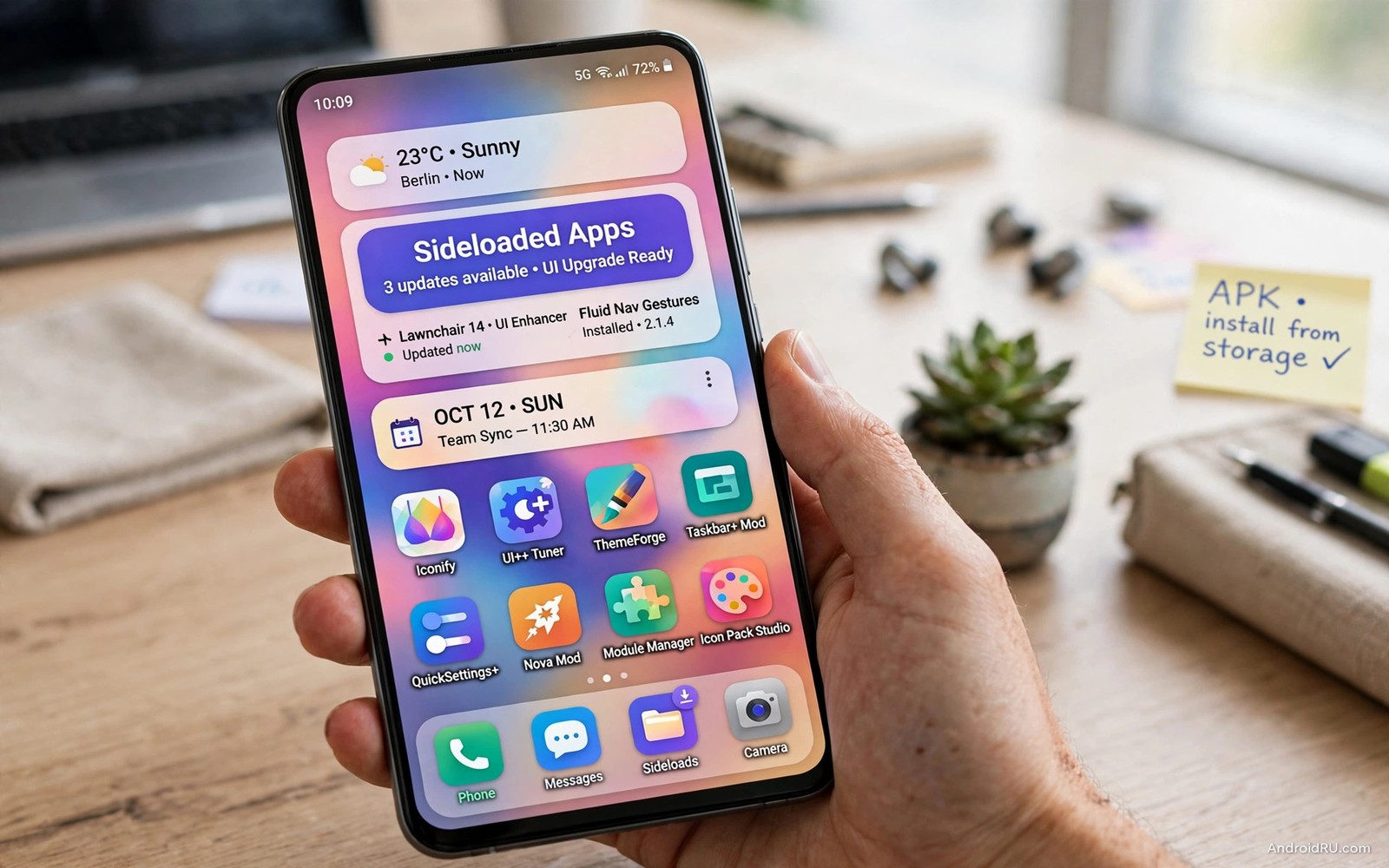
Sideloaded apps can transform Android interface far beyond what the official store allows. Custom launchers and icon packs and gesture tools and widget engines all change how the phone looks and feels. The official store limits some of these tools because they interact deeply with system screens. Sideloading opens access to tools that push those limits further. Used carefully those tools give a phone a fresh identity without buying new hardware.
Interface upgrades work best when they solve a real friction rather than adding decoration for its own sake. A better launcher can speed up app finding. A gesture tool can replace awkward button reaches. A widget engine can surface calendar and tasks without opening apps. Decoration alone fades quickly. Functional upgrades remain useful after the novelty wears off. Judge each sideloaded UI app by daily time saved rather than by first impression.
Safety matters more for UI apps than for many other categories because they run constantly and they see your home screen activity. A launcher with broad permissions can observe app usage patterns. A widget tool with network access can send usage data. Choose UI tools from transparent developers and review permissions before install. A thoughtful approach to sideloading safely is essential before any interface tool takes over your home screen.
Start with a launcher that fits your habits
A launcher controls the home screen and app drawer and gestures. Changing launchers changes the whole phone experience at once. Test a new launcher for a week before you customise it heavily. That week reveals whether its app search and folder behaviour suit your habits. Heavy customisation before testing wastes time when the core behaviour does not fit.
Look for launchers with fast search and flexible grids and gesture support. Fast search matters more than icon themes for daily speed. A launcher that finds any app in two keystrokes beats a pretty launcher with slow search. Grid flexibility lets you fit more useful apps on one screen without clutter. Gestures replace taps for common actions such as opening search or locking the screen.
Back up your launcher layout before major changes. Most good launchers offer layout export. Export before you try a new icon pack or a new grid. A backup lets you return to a working layout in seconds when an experiment fails. Without a backup a failed experiment means rebuilding the home screen from scratch.
Use icon packs and themes with restraint
Icon packs change app appearance consistently across the home screen. A good pack covers most of your installed apps with matching icons. A poor pack leaves many apps with default icons that clash with the theme. Check pack coverage for your core apps before purchase or install. Coverage matters more than the beauty of a few showcase icons.
Themes that change system colours can improve readability as well as appearance. A high contrast theme helps in bright sunlight. A dark theme reduces glare at night. Choose themes for readability first and style second. A beautiful theme that makes text hard to read will annoy you within days.
Change one visual element at a time. Change icons first and live with them for a few days. Then change wallpaper and widgets. Staged changes let you judge each element separately. Changing everything at once makes it hard to know which element caused a problem or a delight.
Add widgets that surface real information
Widgets earn home screen space only when they show information you check often. Calendar widgets and task widgets and weather widgets qualify for many users. News widgets and social widgets often become noise that you ignore. Audit widgets monthly and remove any widget you have not glanced at in a week. Empty widget space is better than ignored widget clutter.
Widget engines let you build custom widgets with specific data and actions. A custom widget can combine calendar and tasks and music controls in one panel. Building it takes time but the result fits your routine exactly. Start with a simple widget and add complexity only when the simple version proves useful daily.
Watch battery impact from widgets that refresh frequently. A weather widget updating every few minutes uses more power than one updating hourly. Set refresh intervals to match how often you actually check the data. Hourly weather is enough for most users. Minute level updates suit only users who depend on rapid changes.
Gestures and edge tools for one handed use
Large phones are hard to use with one hand. Gesture tools and edge panels bring common actions within thumb reach. A swipe from the edge can open recent apps or toggle flashlight or show notifications. Those shortcuts reduce hand strain and speed up common tasks. They also reduce dependence on hardware buttons that wear over time.
Configure gestures for actions you perform many times daily. Opening search and going home and switching apps are good gesture candidates. Rare actions do not deserve a gesture because you will forget them. A small set of memorable gestures beats a large set of forgotten ones.
Test gestures with a case on the phone. Cases change edge sensitivity and grip. A gesture that works barehanded may trigger accidentally with a thick case. Adjust sensitivity after installing a new case. Gesture tools with sensitivity settings adapt better to case changes than fixed tools.
adb shell pm list packages | grep launcher
adb shell cmd appops get launcher.app SYSTEM_ALERT_WINDOW
adb shell dumpsys package launcher.app | grep version
The code block above uses the standard Android Debug Bridge command pattern to confirm a launcher package and check its overlay permission. It is included so you can confirm the launcher package and check its overlay permission before you set it as default.
Keep accessibility in mind for UI upgrades
Interface upgrades should improve accessibility rather than harm it. Larger touch targets help users with limited dexterity. High contrast text helps users with low vision. Voice shortcuts help users who cannot use gestures easily. Judge UI tools by whether they offer those options. A tool that only offers style without accessibility options is incomplete.
Test UI changes in different lighting conditions. A theme that looks good indoors may wash out in sunlight. A gesture that works while seated may fail while walking. Real world testing across conditions reveals problems that indoor testing hides. Adjust themes and gestures until they work in your actual environments.
Keep a fallback layout for emergencies. A simple launcher layout with large icons for phone and messages and contacts helps when you are stressed or injured. You can switch to that layout quickly when needed. A fallback layout is a practical safety feature rather than a cosmetic extra.
Balance beauty with performance
Heavy live wallpapers and animated icons consume processor and battery. A phone with limited resources may stutter under a heavy UI setup. Test performance after each major UI addition. Open apps and scroll lists and switch tasks while watching for lag. Remove the most recent addition when lag appears. That isolation method finds the culprit quickly.
Prefer static wallpapers and simple animations on older phones. Static visuals still look good when paired with a clean layout and matching icons. Animation adds delight on powerful phones but it costs performance on weaker hardware. Match UI weight to phone capability rather than copying a flagship setup onto a budget device.
Restart the launcher occasionally after heavy customisation. Launchers cache layouts and icons and a restart clears stale cache. A monthly launcher restart is a simple maintenance step that prevents slow buildup. Combine it with a layout backup for a clean maintenance routine.
Document your UI setup for future phones
A documented UI setup transfers easily to a new phone. Write down the launcher name and the icon pack and the widget settings and the gesture assignments in a short note. That note saves hours when you switch devices because you can rebuild the layout from the note rather than from memory. Update the note whenever you change a major element. A setup that lives only in memory disappears with the old phone.
Include backup file locations in the same note. Note where launcher backups live and where widget exports live. That detail matters during a transfer when you search for backup files under pressure. A complete note turns a new phone setup from a weekend project into an afternoon task.
Common mistakes
The most common mistake is installing many UI tools at once and losing track of which tool controls what. Overlapping launchers and gesture tools and widget engines conflict in confusing ways. Change one layer at a time and test it before adding the next layer.
Another mistake is granting broad permissions to a UI tool without reading them. A launcher does not need contacts or messages for its core job. Deny unrelated permissions and watch whether the tool still works. A tool that refuses to work without unrelated data is not worth its appearance.
A third mistake is copying a complex setup from a video without adapting it to your habits. A setup built for another person workflow may slow you down. Use other setups as inspiration rather than as a template to copy exactly. Adapt every element to your own daily tasks.
Frequently asked questions
Will a custom launcher drain my battery?
Most launchers use little battery when configured simply. Heavy widgets and live wallpapers increase use more than the launcher itself. Keep widgets few and refresh intervals long to limit battery impact.
Can I return to the original launcher easily?
Yes you can switch the default launcher back in Settings at any time. Your original layout usually remains intact. Back up the custom layout before switching so you can return to it later if you wish.
Are sideloaded UI apps safe for banking apps?
UI apps that draw over other apps can interfere with banking screens in rare cases. Disable overlay permission for UI tools when using banking apps if you notice interference. Keep banking apps on a clean layout for safety.
Test interface changes with one hand
Many interface upgrades look good on a desk but fail in real one handed use. Test a new launcher or gesture setup while holding the phone with one hand and walking. That test reveals reach problems and accidental triggers that seated testing hides. Adjust gesture zones and icon sizes until one handed use feels comfortable. A setup that works while moving will work well in calmer moments too. Real world testing is the final judge for any interface change.
Conclusion
Sideloaded UI upgrades transform Android when they solve real friction and respect permissions and performance. Start with a launcher that fits your habits and add widgets and gestures one layer at a time. Your concrete next step is to back up your current launcher layout today and test one new launcher for seven days with your real apps. Keep it only when daily tasks feel faster after the test week. Related upgrades include dual account setup tools and open source utility replacements and safe sideloading methods.

