

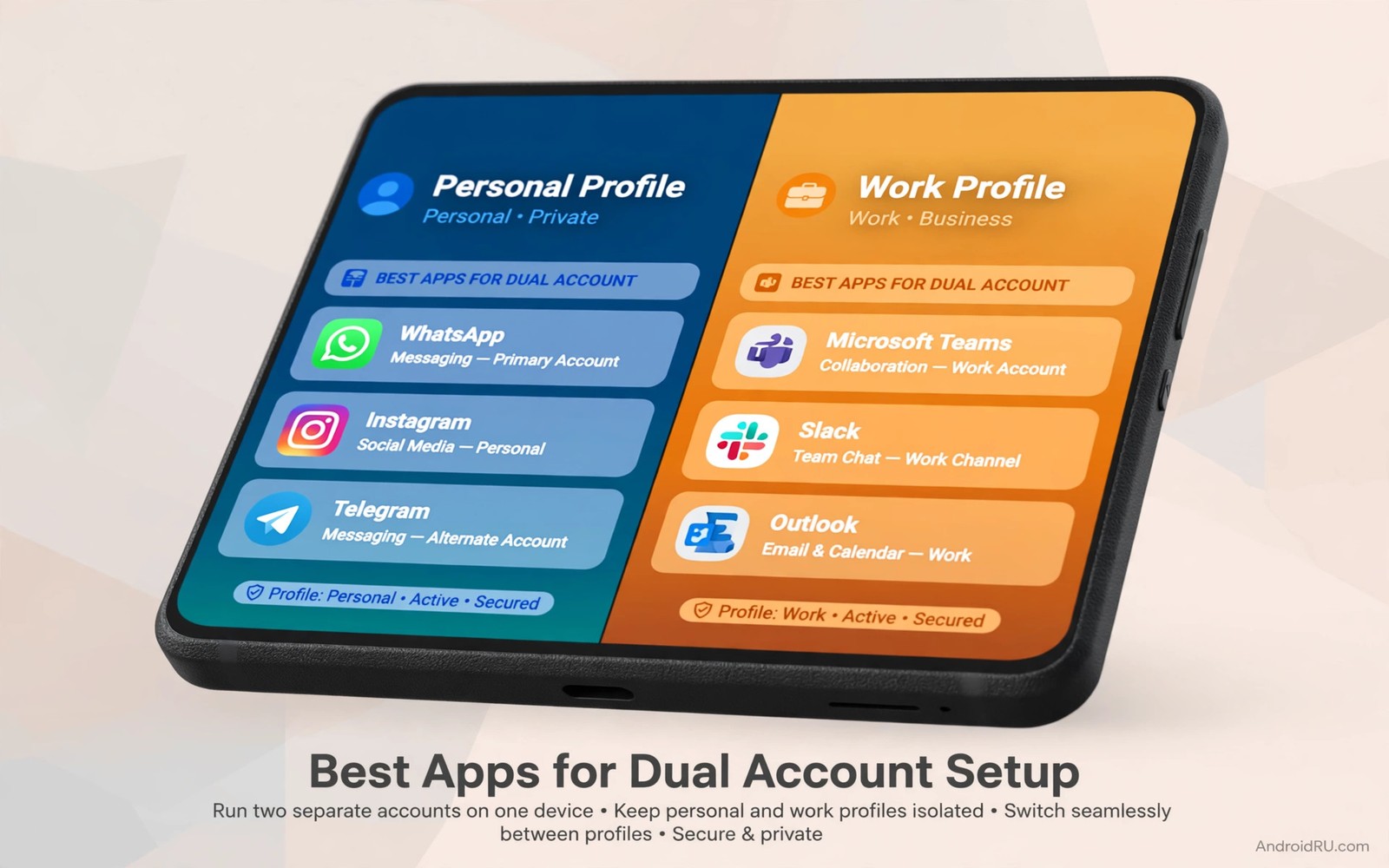
Running two accounts in one app sounds simple until you try it with a bad cloning tool. A poor cloner may copy the app badly or inject ads or break notifications or leak data between accounts. A good dual account tool keeps the two copies separate and stable. The difference matters most for messaging and social apps where a leaked message or a missed notification has real consequences.
Dual accounts serve real needs. Many people keep a work profile and a personal profile in the same messaging app. Small sellers manage a shop account beside a personal account. Families share a tablet with separate accounts for different members. Android work profiles solve some of these needs at system level. Cloners solve the rest when the app itself offers no built in account switch.
Choosing a cloner starts with understanding how cloning works. The tool creates a second copy of the app with its own data folder and its own settings. The operating system treats the copy as a separate app instance. Notifications and storage and permissions apply separately to each copy. A tool that respects that separation is safe to test. A tool that merges data or shows ads over the cloned app is not. Safe cloning also overlaps with sideloading safely because cloners often come from outside the official store.
When dual accounts help and when they hurt
Dual accounts help when the two identities have different purposes and different contacts. Work messages stay in the work copy and personal messages stay in the personal copy. That separation reduces mistakes such as sending a personal photo to a work group. It also lets you silence work notifications after hours without silencing personal messages. Separation is the main benefit and it must be protected.
Dual accounts hurt when the app terms forbid multiple accounts or when the second copy breaks security features. Some banking and payment apps detect clones and refuse to run. Some games treat clones as cheating tools. Check the app rules before cloning a sensitive app. A cloned banking app that fails a security check may lock your account and create more trouble than convenience.
Storage cost is another tradeoff. Two copies mean two data folders and two caches. A large social app cloned once can double its storage use quickly. Check free storage before cloning large apps. A phone already short on space will suffer from clones more than from any other dual account method.
Use built in dual app features first
Many phone brands include a dual app or dual messenger feature in Settings. That system feature clones supported apps without a third party tool. It is usually the safest option because the phone maker maintains it and it integrates with notifications correctly. Check Settings for dual apps or app twin or dual messenger before you install any cloner. The exact name varies by brand but the function is similar.
System dual features support a limited list of apps. Messaging and social apps usually appear on the list. Banking apps and games often do not. That limit reflects security testing by the brand. An app missing from the system list may be missing for a good reason. Do not force it with a third party cloner without understanding why the system excluded it.
Android work profiles offer another built in path. A work profile creates a separate space with its own apps and data. You can install the same app in both profiles and use different accounts. Work profiles suit work and personal separation better than cloners for many users. They also keep data separation at system level rather than relying on a third party tool.
Judge a third party cloner carefully
A trustworthy cloner explains how it isolates data and what permissions it needs. It should need storage and install permission for its core job. It should not need contacts or messages or location. Read the permission list before install and reject cloners that demand unrelated access. A cloner with broad permissions can read data from both copies it manages.
Check whether the cloner injects its own ads or branding into cloned apps. Some free cloners show ads inside the cloned app window or add a watermark to the cloned icon. Ads inside a messaging app are intrusive and they suggest the cloner monetises through the cloned experience. Prefer cloners with a clear paid option or a clean free version without injected ads.
Test notification behaviour early. Clone a low stakes app first and send yourself test messages to both copies. Confirm that notifications arrive for the correct copy and that opening a notification opens the correct account. Notification confusion defeats the purpose of dual accounts. A cloner that mixes notifications should be removed at once.
Set up two accounts step by step
Start by cloning only one app. Open the cloner and choose the app from its supported list. Wait for the clone to finish and check that a second icon appears. Open the clone and sign in with the second account. Do not sign in with your main account in both copies during testing. That mistake merges the identities you wanted to separate.
Label the two copies clearly. Use different profile pictures and different notification sounds when the app allows it. A clear label prevents sending from the wrong account. Many dual account mistakes come from identical icons and identical sounds rather than from technical failures. Visual distinction is a safety feature.
Set notification rules for each copy separately. Silence the work copy after hours and keep the personal copy active. Android lets you set notification channels per app instance when the cloner supports it. Test the rules with real messages during the first week. Adjust sounds and vibration until you can tell copies apart without looking at the screen.
adb shell pm list packages | grep clone
adb shell dumpsys package cloned.app | grep version
adb shell pm list packages --user 10 | grep cloned
The code block above uses the standard Android Debug Bridge command pattern to list cloned packages and check which profile holds a clone. It is included so you can list cloned packages and check which user profile holds the cloned copy.
Keep the two copies truly separate
Do not share files casually between copies when separation matters. A photo shared from the work copy to the personal copy through a shared folder breaks the boundary you created. Use separate folders for work files and personal files. That discipline protects both identities even when the technical separation works perfectly.
Review permissions for each copy separately. The clone may inherit permissions from the original or it may start with none. Open app info for both copies and compare their permission lists. Remove any permission that one copy gained without a clear need. Separate permission review is part of separate account management.
Update both copies through the same trusted source. An update that applies to only one copy can create version differences that confuse notifications or sharing. Check updates for both copies during your weekly routine. Keep versions aligned unless a specific reason requires a difference.
Remove a clone cleanly when you no longer need it
Deleting a clone should remove its data folder as well. Open the cloner and use its delete function rather than deleting only the icon. Some launchers hide the data when you remove an icon. The cloner delete function is more reliable for full removal. Confirm that storage freed up after deletion matches the clone size roughly.
Sign out of the account inside the clone before deletion when possible. Signing out revokes sessions that might otherwise linger on servers. That step matters for messaging apps where an old session can still receive messages. A clean sign out plus deletion closes the account copy fully.
After deletion check that the original app still works normally. A bad cloner removal can damage the original app data in rare cases. Open the original and confirm your account and messages remain intact. If the original fails then reinstall it cleanly and restore from backup rather than trying to repair shared data.
Review clones during a monthly cleanup
Clones accumulate quietly when you create them for short tasks and forget them. Once a month open the cloner and list every clone on the phone. Delete clones for tasks that ended and for accounts you no longer use. That cleanup frees storage and it reduces the number of accounts that could receive a stray notification. A short monthly review keeps dual account setup intentional rather than accidental.
During the same review check that the original apps still update normally. A clone that blocks an original update is a problem worth fixing early. Update the original first and then update the clone through the same source. Aligned versions keep sharing and notifications predictable across both copies.
Common mistakes
The most common mistake is cloning a banking or payment app without checking its rules. Security sensitive apps often detect clones and block access. That block can lock an account at an inconvenient moment. Use built in account switching for sensitive apps instead of cloning.
Another mistake is signing in with the same account in both copies. That duplication wastes storage and creates notification duplicates. It also defeats the separation purpose entirely. Use distinct accounts in each copy or do not clone at all.
A third mistake is choosing a cloner based on a flashy interface rather than on permission behaviour. A pretty cloner with broad permissions is riskier than a plain cloner with narrow permissions. Judge cloners by what they access rather than by how they look.
Frequently asked questions
Will cloned apps receive updates normally?
Cloned apps usually update through the cloner or through the original app update path depending on the tool. Check update behaviour during your first week. Keep both copies updated to avoid version mismatch problems.
Do cloned apps use twice the battery?
Two copies can use more battery when both run in the background. Restrict background use for the copy you use less often. That setting keeps the second account available without draining power all day.
Can I clone any app I want?
No some apps resist cloning for security reasons and some system apps cannot be cloned at all. A cloner that promises to clone every app without limits is overstating its ability. Expect a supported list and respect its limits.
Conclusion
Good dual account setup starts with built in system features and moves to a trusted cloner only when the system cannot help. Keep copies separate in data and notifications and permissions. Your concrete next step is to check Settings today for a built in dual app feature and test it with one messaging app before you install any third party cloner. If the system feature covers your need then you never need a cloner at all. Related guidance includes running apps without Google Play Services and third party stores without Google services and sideloading safety basics.

