

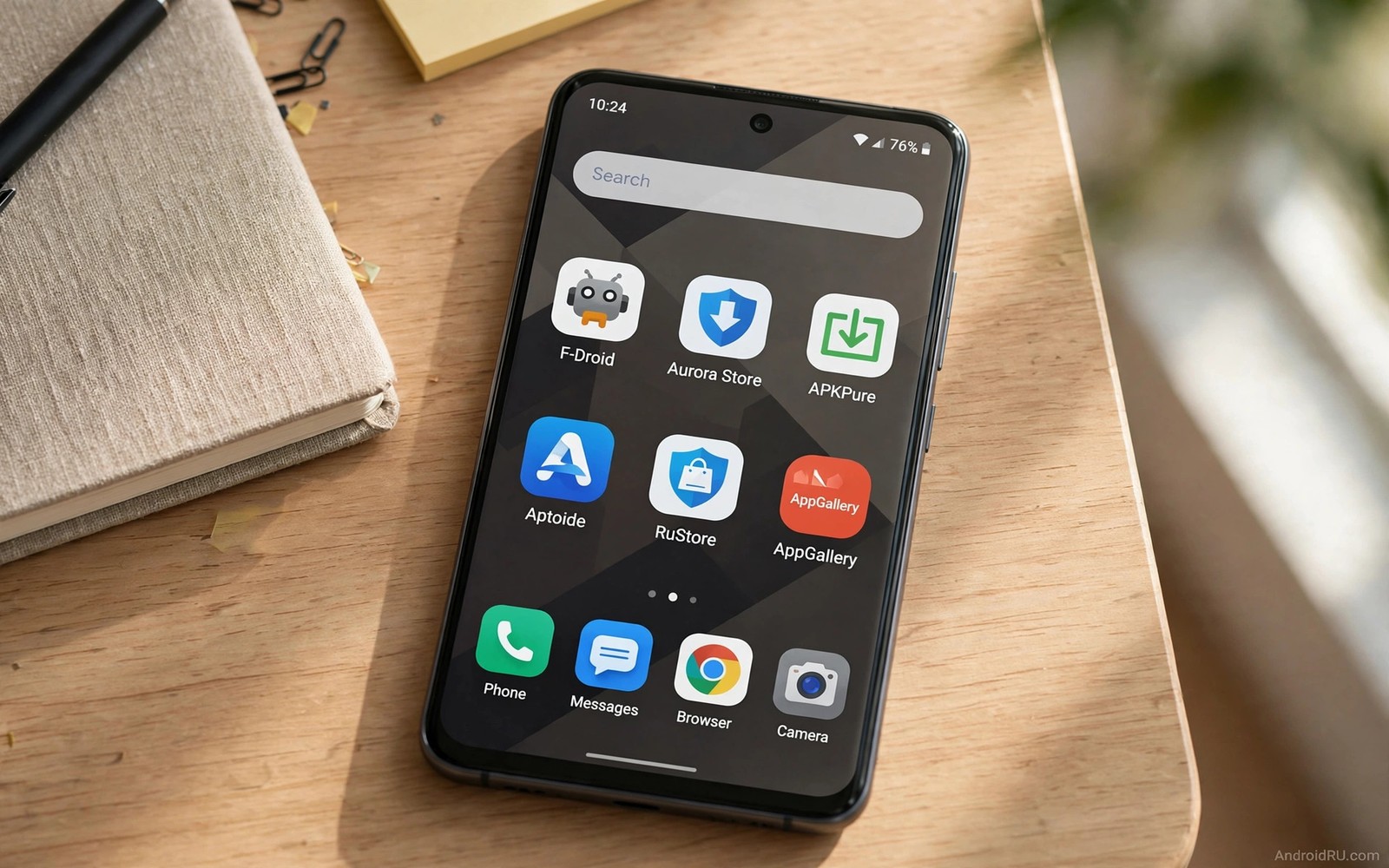
Many Android phones run without Google Play Services by choice or by design. Custom ROM users and privacy users and owners of devices sold without Google apps all face the same question. Where can they get apps safely without the official store framework. Third party stores that work without Google services answer that question when they are chosen carefully.
A store that works without Google services must handle search and download and updates on its own. It cannot rely on Google account login or Google push systems. That independence is a strength for privacy. It also means the store carries full responsibility for review and verification. A weak store in this category leaves users with no safety net at all. The stores in this guide earn their place through public rules and long records.
Do not judge these stores only by catalogue size. A store that mirrors thousands of apps without verification is less useful than a smaller store with strict checks. Focus on how each store proves file integrity and how it handles updates and whether it requires an account. Those three factors decide whether a store suits daily use. You should also understand whether sideloading APKs is safe before you add any new source to a phone without Google services.
What no Google services really means
A phone without Google Play Services lacks the background framework that many apps use for maps and location and push messages and payments. Some apps work fully without it. Others lose features or refuse to open. A third party store can deliver the app file but it cannot supply missing services. Users must accept that some apps will behave differently on such a phone.
MicroG is one way users bridge part of that gap. It provides open replacements for some Google service functions. Not every store requires MicroG and not every app works with it. Check whether an app needs Google services before you blame the store for a failure. The store delivered the file correctly in many cases where the app itself depends on a missing framework.
Account freedom is another benefit of these stores. Many let you browse without signing in. That freedom reduces tracking and it simplifies use on test devices. It also means you must manage updates yourself through the store app. No Google account means no automatic cloud backup of your store choices. Keep your own list of installed apps.
Open source stores lead on independence
Open source stores are natural fits for phones without Google services because they were designed for independence. They build apps from public code and they distribute updates through their own repository system. They do not need a Google account at any step. Their catalogues focus on tools that also avoid Google dependencies where possible.
The main limit is catalogue breadth. Popular commercial apps that depend on Google services may be absent or may work poorly. That limit reflects honesty about the platform rather than a flaw in the store. A store that lists an app it cannot support well would mislead users. Open source stores tend to list what works in their environment.
Use an open source store as your primary source on a degoogled phone. Add other stores only for specific apps that the open source catalogue lacks. That hierarchy keeps your trust model simple. One primary store with strong checks plus a few narrow exceptions is easier to audit than five equal stores.
Mirror stores for official apps
Mirror stores fetch official app packages and deliver them without a Google login. They suit users who need a specific official app on a phone without Google services. The mirror acts as a bridge between the official catalogue and the independent phone. Its value depends entirely on how faithfully it mirrors files.
Strong mirrors publish version codes and signatures and update dates. Weak mirrors publish only a download button. Choose mirrors that let you verify the file against the official release. When verification details are missing you should treat the mirror as untrusted even when downloads work. Working downloads prove availability rather than integrity.
Expect partial function for mirrored apps that need Google services. A messaging app may install but fail to deliver push notifications promptly. A mapping app may open but lack live location features. Test each mirrored app for its core job before you rely on it daily. Keep an alternative ready for apps that fail the core test.
Brand stores on independent devices
Some brand stores work without Google services on their own devices. They provide brand tools and regional apps through the brand account system rather than through Google. On a brand phone without Google services such a store can be a useful second source. It may carry apps tuned for that hardware.
Brand stores vary in review quality. A major brand with a large team usually reviews more thoroughly than a small regional portal. Check whether the store publishes developer verification rules and a removal policy. Those documents reveal more than marketing claims about safety. A store without a public removal policy may leave harmful apps listed longer.
Use brand stores for brand specific needs rather than as a general replacement. A brand store may offer a camera companion or a health tool that no other store carries. For general tools prefer the open source primary store. That split keeps your main apps on the strongest source.
Community stores and beta channels
Community stores collect apps from independent developers who may not publish elsewhere. They are valuable for niche tools and experimental apps. They are also the riskiest category because review may rely on community reports rather than formal checks. Use community stores only for apps you have researched individually.
Beta channels inside community stores need extra caution. Test builds may contain unfinished features and new bugs. Test them on a secondary device when possible. Do not use a beta community app for banking or messaging or file storage until it proves stable. Stability proof takes weeks of normal use rather than a single successful launch.
Read user feedback before installing from a community store. Look for detailed reports rather than star ratings alone. A detailed report about a permission problem is more useful than fifty five star ratings with no text. Community knowledge is the main safety tool in this category.
adb shell pm list packages | grep -i store
adb shell dumpsys package store.app | grep version
adb shell cmd appops get store.app REQUEST_INSTALL_PACKAGES
The code block above uses the standard Android Debug Bridge command pattern to list store packages and confirm install permission for a chosen store. It is included so you can list store packages on the device and confirm install permission for the store you chose.
Set up updates without Google services
Updates without Google services depend on the store app checking its repository regularly. Enable update checks inside each store you use. Set a reminder to open the store weekly when automatic checks are unreliable. Manual weekly checks catch security updates that automatic systems might miss on a custom ROM.
Keeping one source for each app prevents update conflicts on a phone without Google services. Android blocks updates when signatures differ. A mixed source setup creates frequent conflicts that tempt users to force installs. Forcing installs breaks the protection that signatures provide. A clean single source per app avoids that temptation entirely.
Back up app data before major updates. Export settings and copy local files. A failed update on a phone without Google cloud backup can mean data loss with no easy restore. Local backups are your safety net on an independent phone. Store them on a computer or an external drive rather than only on the phone.
Audit your store setup every month
A monthly audit keeps a phone without Google services from drifting into a messy set of sources. List every store app installed on the phone and note when you last used each one. Remove stores that served a single install months ago and that you no longer need. Check install permissions for the remaining stores and revoke permission from any store that you only use occasionally. That routine takes ten minutes and it prevents forgotten permissions from becoming a quiet risk over time.
During the same audit check for app updates that failed silently. Open each remaining store and look for pending updates rather than assuming automatic checks worked. A missed update on a phone without Google services may stay missed for months because no central system reminds you. Monthly manual checks close that gap and they keep security fixes flowing to apps that handle personal data.
Common mistakes
The most common mistake is installing many stores at once on a phone without Google services. Each store adds trust and complexity. A phone that already lacks Google safety nets needs fewer trusted sources rather than more. Pick one primary store and add others only for a clear need.
Another mistake is blaming the store when an app needs Google services. The store cannot create missing services. Research app dependencies before install. That research saves time and prevents repeated installs of apps that cannot work in your environment.
A third mistake is leaving install permission on for every store you test. Test stores one at a time and remove permissions for stores you abandon. Old permissions accumulate silently and weaken the whole setup over months.
Frequently asked questions
Can I run banking apps without Google Play Services?
Some banking apps work without Google services while others check for the framework and refuse to run. Test with your specific bank app on a secondary device first. Do not rely on a banking app that behaves inconsistently for daily money tasks.
Do these stores need a Google account at all?
Most stores in this guide work without a Google account for browsing and installing. Some optional features may ask for an account. You can usually skip those features and use the core store functions without signing in.
Will push notifications work without Google services?
Push notifications may arrive late or not at all for apps that rely on Google push systems. Some apps use their own notification systems and work normally. Test notification delivery for each important app before you depend on it.
Conclusion
Third party stores without Google Play Services work well when you choose a strong primary store and keep sources narrow and verify files carefully. Independence from Google does not mean independence from safety checks. It means you carry those checks yourself. Your concrete next step is to choose one primary store this week and install only three essential apps through it. Test those apps for core function and notifications for seven days before you add more. Helpful next reads include the F-Droid complete guide and the best Play Store alternatives and Aurora Store without Google login.

