

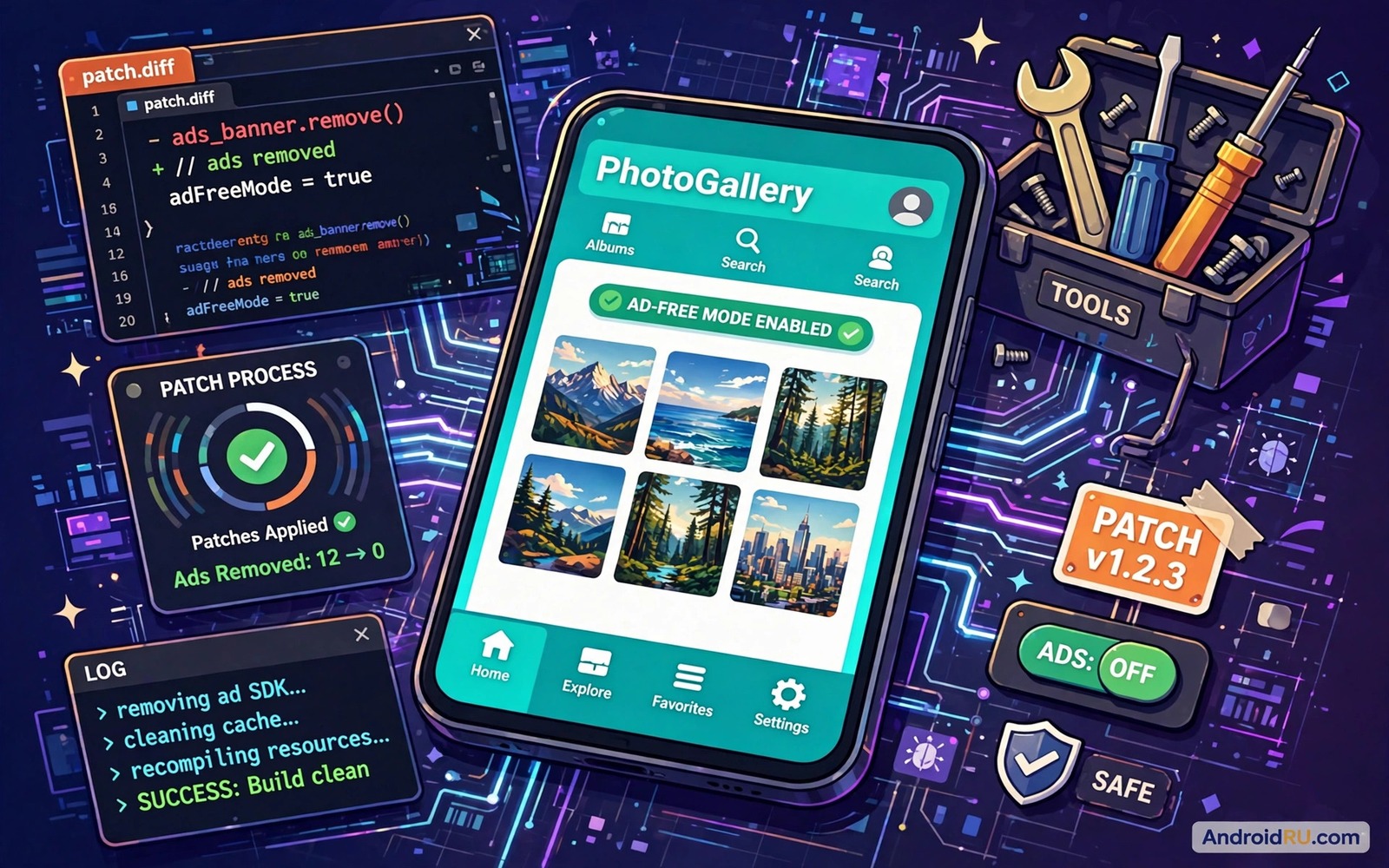
Ads inside a favourite app can ruin a simple task. A video pauses for a banner and a game waits for a forced clip and a reader app covers text with a popup. Many users assume that the only escape is a paid upgrade or a different app. Patching engines offer a third path. They take an installed app and they change the parts that show ads. The result can feel like a cleaner version of the same app. The process also carries real limits and real risks that deserve a clear look before you try it.
A patching engine is not magic and it is not a single tool with one button for every app. It is a framework that applies small changes to an app package. Some patches hide ad views and some block ad network calls and some change a setting inside the app. The success of a patch depends on how the app was built. An app that loads ads from a simple library is easier to patch. An app that checks its own integrity or loads ads from a server is much harder. If you are new to installs outside the store then first learn how to sideload apps safely so your patching work starts from a clean file.
How A Patching Engine Works In Plain Terms
Think of an app as a set of rooms connected by doors. Ads live in certain rooms and the app opens those rooms at set times. A patch can close a door or hide a room or change the sign on the door. The app still runs but the ad room never appears. Some patches work at the level of the app package. The engine rebuilds the app with the ad code removed or disabled. Other patches work at runtime. They intercept ad requests while the app runs and they return an empty result.
Package patches last until the app updates. A new version from the developer can restore the ads and it can also break the patch. Runtime patches need a helper service to stay active. If that helper stops then ads return. Both methods need care with signatures. A rebuilt app has a different signature from the original app. That change can block updates from the store and it can break login features that check the signature. You should expect those tradeoffs before you patch anything important.
What Patching Can And Cannot Fix
Patching works best for banner ads and interstitial ads that come from a common ad library. It can also work for video ads that play before content in some apps. It works less well for ads that are baked into a video stream or a live feed. It also struggles with apps that verify their files on launch. If an app refuses to run after a patch then the app likely has an integrity check. That check is not a bug in your patch. It is a design choice by the developer.
Patching does not make a paid feature free in a safe or honest way. It does not remove server side checks for a subscription. It does not unlock content that lives on a server. Claims that promise full premium access through a simple patch should be treated with doubt. A realistic goal is a cleaner interface for an app you already use. A realistic test is to patch one non critical app and watch how it behaves for a week.
A Careful Test Workflow For One App
Pick an app that does not hold banking data or private work files. A simple reader or a casual game is a good test case. Back up your data for that app if the app offers an export option. Note the current version and note how ads appear today. That baseline helps you judge whether the patch actually helped. Do not patch your main messaging app or your main email app on the first try.
- Choose one low risk app and record its version and its ad behaviour.
- Back up any data that the app lets you export.
- Apply only one patch at a time so you can trace any problem.
- Launch the app and test its main feature before you test extra features.
- Check login and sync and purchases if the app uses them.
- Keep the original installer so you can restore the app quickly.
If the patched app crashes on launch then restore the original at once. Do not stack more patches on a broken build. A crash often means that the patch touched code that the app needs for startup. Restore and try a different patch or accept that the app is not a good patch candidate. Your time is better spent on an app that patches cleanly.
Updates And Signatures After Patching
A patched app will not update through the store in the normal way. The store sees a different signature and it may refuse the update or it may offer the original version again. You need a plan for updates before you patch. One plan is to repeat the patch on each new version. Another plan is to freeze the app at a working version and skip updates for a while. Freezing is simple but it can leave security fixes uninstalled. Repeating the patch takes time but it keeps you closer to the latest fixes.
Keep a simple log for each patched app. Write the app name and the version and the patch you used and the date you applied it. That log saves you from guessing later when an update appears. It also helps you spot a pattern if one patch keeps breaking a certain app. A short log in a notes app is enough. You do not need a complex spreadsheet for a handful of apps.
Check The Result With Simple Tools
After patching open the app and use it the way you normally would. Watch for missing buttons or blank spaces where ads used to sit. A blank space is not a failure by itself. It means that the ad view was hidden but the layout was not resized. Some patch tools offer a layout fix for that issue. Test scrolling and rotation and dark mode if you use them. A patch that works on one screen can break another screen.
The commands below list installed packages and show basic details for one app. They help you confirm which version is installed after a patch. They do not patch anything by themselves. They are checks for your own device.
adb shell pm list packages -f
adb shell dumpsys package com.example.app
adb shell pm path com.example.app
adb shell cmd package list packages
The commands above are original examples written for this guide. They show safe checks you can run on your own device. They do not come from any outside publication.
Test Patched Apps Over A Full Week
A patch can look perfect on day one and fail on day four. Some apps load ads only after a delay or only in a certain section. A week of normal use reveals those patterns better than a five minute test. Use the patched app for its main job each day. Note any blank screens or missing buttons or login prompts. A small note each day is enough to build a fair verdict.
Watch battery use and data use during that week too. A patch that blocks ad calls should not increase data use. A patch that breaks a sync loop can increase battery use instead. Compare the patched app with how it behaved before the patch. If battery drain grows sharply then restore the original app and try a different patch. Your phone should feel calmer after a patch and not more strained.
At the end of the week decide with a simple rule. Keep the patch only if the main feature works and login works and no new crash appeared. If any of those tests failed then the patch is not worth keeping. Restore the original app and use it as normal or look for a cleaner alternative. A failed patch is useful information. It tells you that the app needs a different approach or that it should stay untouched.
Remember that a patch tool itself needs updates. An old patch tool can fail on a new app version in confusing ways. Update the patch tool first when a familiar patch stops working. Check its changelog for support for the app version you use. If the tool no longer supports that app then accept the limit. No tool can patch every app forever.
Another angle is cost. A patch tool is free to try but it costs time on every update. Add up that time before you patch many apps. If you patch ten apps then each update cycle becomes a long chore. You may spend more time maintaining patches than you save by avoiding ads. A paid version of one favourite app can be cheaper in time than patching ten apps badly. Choose your battles and patch only the apps where the ad burden is truly heavy.
Also think about the developer behind the app you patch. A small developer may rely on ad income to keep the app alive. Patching their ads while using the app daily can starve the project you like. If an app is made by a tiny team and you use it every day then consider paying for it or donating if that option exists. A cleaner app today is less useful if the developer quits tomorrow because the income vanished.
Common Mistakes
The biggest mistake is patching every app at once. A bulk patch hides which patch caused a problem. It also makes updates harder to manage. Patch one app and live with it for days before you patch the next one. Another mistake is patching an app that handles money or identity. A broken patch in that kind of app can lock you out at the worst moment. Keep critical apps untouched.
- Patching banking or identity apps that should stay original.
- Applying many patches at once and losing track of the cause.
- Deleting the original installer before the patched app is tested.
- Expecting server side premium features to unlock through a patch.
- Ignoring update gaps after freezing a patched app version.
People also forget that patches can stop working after an app update. They blame the patch tool when the real cause is a new app version. Check the version first when a patch stops working. A fresh patch on the new version may fix the issue. If it does not then the app may have added a stronger integrity check.
Frequently Asked Questions
Will patching an app remove all ads forever?
No. A patch works for a specific version and a specific ad method. Updates can restore ads and new ad methods can bypass an old patch. Treat patching as ongoing maintenance and not as a one time fix.
Is patching safe for my phone?
Patching itself does not infect a phone but a bad patch source can. Use a patch tool from a trusted source and test one low risk app first. Keep backups and keep critical apps original.
Can I still update a patched app from the store?
Usually not in the normal way because the signature changes. You will need to patch the new version again or restore the original app and update it. Plan for that extra step before you patch.
Conclusion
A patching engine can make a favourite app calmer and cleaner. It works best when you treat it as a careful experiment and not as a shortcut to premium features. Patch one low risk app and log the version and test the main features and plan for updates. That discipline keeps the benefit without turning your phone into a puzzle. Your concrete next step is to pick one simple app and record its version and ad behaviour today and then decide if a patch is worth the maintenance. For a safer base for that test read how to verify APK checksum hashes and for a broader store choice explore Play Store alternatives that may offer a cleaner app in the first place.

