

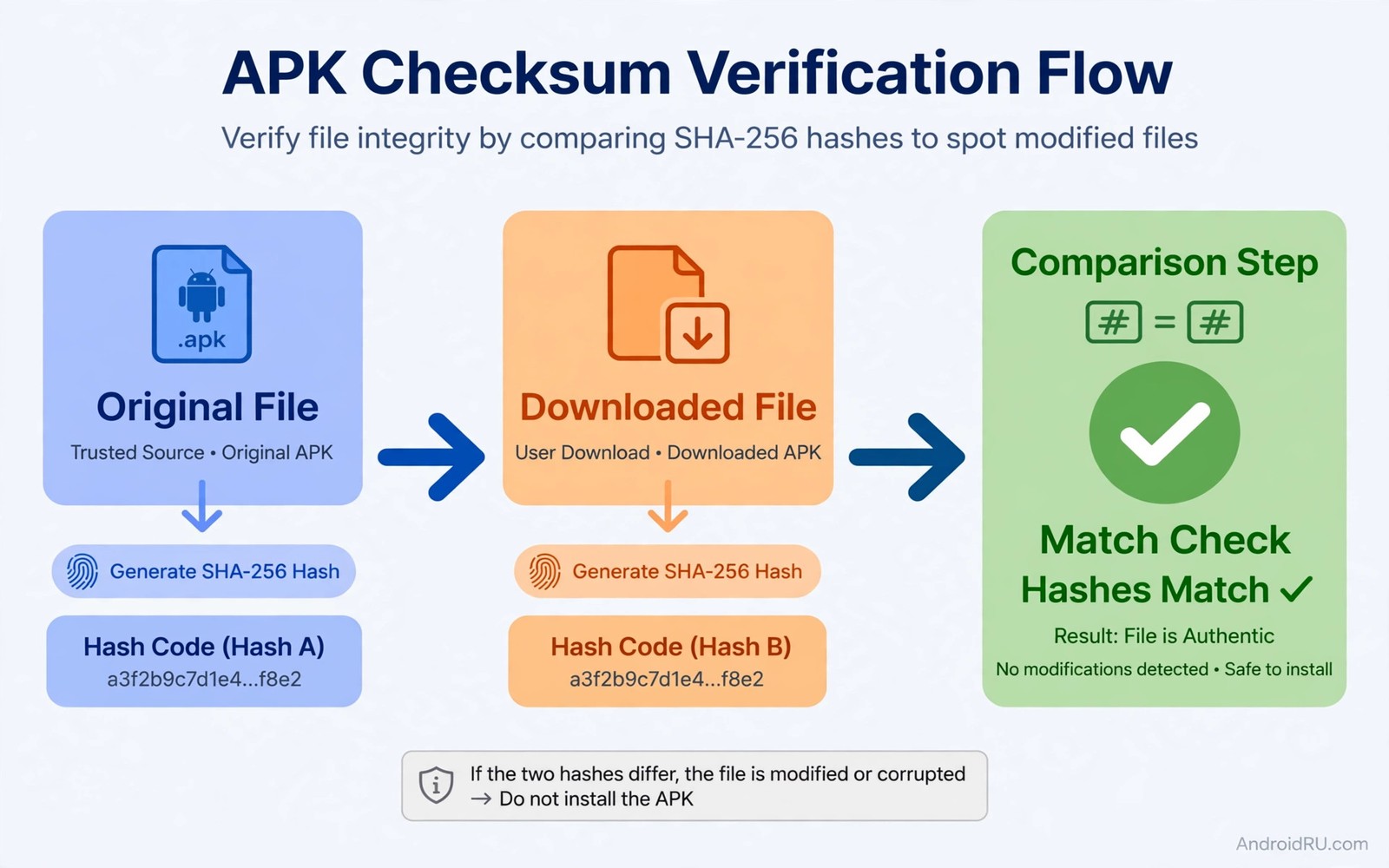
A checksum hash is a fingerprint for a file. Change one byte in the file and the fingerprint changes completely. Developers publish the expected fingerprint so users can prove that the file they downloaded matches the original file. That simple comparison catches modified files and truncated downloads and wrong versions before you install anything.
Modified APK files are a serious threat because they can look identical to genuine apps. The icon matches and the name matches and the first screens match. Hidden code may collect data or show ads or replace payment screens. A hash check is one of the few tools that sees past the surface. It compares the whole file rather than its appearance. That property makes it essential for anyone who sideloads.
Hash verification takes less than a minute once you know the steps. You need the published hash from a trusted source and a hash tool on your phone or computer. You compute the hash of your file and you compare the two values character by character. A full match means the file is identical to the published file. Any mismatch means you must not install it. A careful approach to sideloading safely always includes this check when a published hash exists.
Understand SHA-256 and other hash types
SHA-256 is the most common hash for APK verification today. It produces a 64 character fingerprint in hexadecimal form. Older MD5 and SHA-1 hashes still appear on some pages but they are weaker. Attackers can craft different files that share an MD5 fingerprint with more effort than most users expect. Prefer SHA-256 whenever the developer publishes it. Use MD5 only as a weak extra signal when no stronger hash exists.
Hash length helps you recognise the type at a glance. MD5 fingerprints are 32 characters long. SHA-1 fingerprints are 40 characters long. SHA-256 fingerprints are 64 characters long. A page that shows a short string and calls it a checksum may be showing something else entirely. Count the characters before you trust the value. A mismatched length is a warning that the page may be unreliable.
Hashes prove identity rather than safety in isolation. A hash match proves your file equals the published file. It does not prove the published file itself is safe when the publisher is unknown. Combine hash checks with source checks. A matching hash from a trusted developer is strong evidence. A matching hash from a random mirror proves only that the mirror copied its own published value.
Find a trustworthy published hash
The best published hash comes from the developer official site or official release page. That page should list the version and the file name beside the hash. A hash without a version or file name is hard to use correctly. You might compare the hash of one version against the hash of another version and conclude wrongly that the file is modified.
Community repositories sometimes publish hashes computed from their own builds. Those hashes are useful when the repository build process is transparent. Check whether the repository explains how it computed the hash. A transparent build pipeline gives the hash meaning. An unexplained hash on a random page gives you little more than a string to copy.
Beware of hashes published on the same page as the download when the page itself is untrusted. An attacker who modifies the file can also modify the hash on the same page to match. That is why the hash should ideally come from a separate trusted channel from the file. When both come from the same untrusted page the check adds little protection. Seek a second channel when possible.
Compute the hash on a computer
Computers include hash tools by default on most systems. On Windows you can use a built in command to compute SHA-256 for a file. On Mac and Linux a terminal command does the same job in seconds. Copy the result and compare it with the published value in a text editor where you can see both strings side by side. Side by side comparison reduces the chance of missing a single character difference.
Do not compare hashes by eye alone when you can use a tool to compare them. Paste both values into a text comparison or use a command that checks equality directly. Human eyes miss small differences in long hexadecimal strings. A single changed character means a different file. Automated comparison removes that human weakness from the process.
Keep the hash record with the file when you archive it. Write the hash into the file name or into a small text note beside the file. That record lets you verify the archived file months later without searching for the original page. An archived file without a hash is just a file you once trusted. An archived file with a hash is a file you can trust again.
sha256sum app-release.apk
certutil -hashfile app-release.apk SHA256
shasum -a 256 app-release.apk
The snippet above follows the standard command pattern for system hash tools on Linux and Windows and Mac systems. It is included so you can compute a SHA-256 fingerprint with the tool already present on your computer.
Compute the hash on an Android phone
Android phones do not include a built in hash viewer in most file managers. You can use a trusted hash utility app from a reputable source to compute SHA-256 on the device. Choose a utility with a clear privacy policy and no network permission need. A hash tool should work offline because hashing is a local calculation. Reject any hash tool that demands contacts or location.
Open the hash utility and select the APK file from your downloads folder. Choose SHA-256 as the algorithm and wait for the calculation to finish. Large files may take a few seconds. Copy the result and compare it with the published hash. Do not install the app before this comparison finishes. The whole point of the check is to stop a bad install before it starts.
Some file managers include hash features through plugins or advanced menus. Check your file manager settings before installing a new utility. A built in feature from a file manager you already trust is preferable to a new app from an unknown developer. Fewer trusted tools means a simpler security model overall.
Act correctly on a mismatch
A mismatch means stop. Do not install the file and do not try to repair it. Delete the file and download again from the same trusted source. A second mismatch suggests the source itself is compromised or the published hash belongs to a different version. Investigate the version numbers carefully before a third attempt. Repeated mismatches are a signal rather than bad luck.
Check the file name and version when a mismatch occurs. You may have downloaded a different variant for a different processor or a different language pack. Variant files have different hashes by design. A mismatch between variants is expected rather than suspicious. Confirm that the file name matches the published file name exactly before you conclude the file is modified.
Report a confirmed mismatch to the source when you can. A developer or repository maintainer needs to know when users receive modified files. Your report may protect other users who download the same file. Include the version and the file size and the hash you computed. Those details help the maintainer investigate quickly.
Combine hashes with signature checks
Hashes verify a single file against a published value. Signatures verify that a developer signed the file with a private key. The two checks complement each other. A hash proves the file you hold matches a published fingerprint. A signature proves the file came from the holder of the signing key. Together they give stronger assurance than either check alone.
Android shows signature warnings when an update carries a different signature from the installed app. Treat those warnings as seriously as a hash mismatch. A changed signature means a changed signer. Do not bypass the warning to get a new feature faster. Investigate the signer change through the official developer channel first.
For archived files keep both the hash and the signer information when available. That pair lets you verify identity and origin later. A future reinstall from the archive can then be checked fully without relying on memory. Good records turn a one time check into a repeatable safety system.
Verify hashes for updates as well
Many users verify the first install carefully and then skip verification for updates. That gap is dangerous because updates are a common delivery route for modified files. An attacker who compromises a mirror can replace an update file while leaving the original install untouched. Verify every update file with the same routine you used for the first install. The habit costs a minute per update and it protects the trust you built at install time.
Keep a hash note for each app version you install. When an update arrives compare its new published hash with the file you downloaded before you approve the update. If the developer did not publish a hash for the update then download the update only from the developer official channel. Skipping verification for updates because the first install was clean is like locking a door once and leaving it open afterwards.
Common mistakes
The most common mistake is comparing only the first few characters of a hash. Attackers can craft files that share a short prefix. A full character by character comparison is the only valid check. Take the extra seconds to compare the whole string.
Another mistake is using a hash from the same untrusted page as the download. That check proves nothing when the attacker controls both values. Seek the hash from the developer official channel or from a separate trusted repository. Separation of channels is what gives the check power.
A third mistake is ignoring a mismatch because the app looks correct. Appearance proves nothing about file contents. A modified app is designed to look correct. Trust the hash result over the icon and the name and the first screens.
Frequently asked questions
What if the developer publishes no hash?
When no hash exists you must rely on source reputation and signature checks and permission review. Download only from the developer official site in that case. Avoid mirrors for apps without published hashes because you lose the main verification tool.
Does a hash check protect against all malware?
No hash check proves only that your file matches the published file. If the published file itself contains malware then a matching hash will confirm the malware file. Combine hash checks with source trust and permission review for real protection.
Can I verify a hash after installing the app?
Post install verification is weaker because the app may already have run. You can still check the installed package file in some cases but the safest order is to verify before install. Make pre install verification a habit for every sideload.
Conclusion
Checksum verification turns a blind install into a provable match between your file and the published original. It costs less than a minute and it catches modified files that look perfect on the surface. Your concrete next step is to pick one APK file already on your phone and compute its SHA-256 hash today. Compare it with the published value from the developer or archive the hash for future checks. Strengthen the habit with safe repositories for original APK files and the truth about sideloading safety and sideloading safely without malware.

