

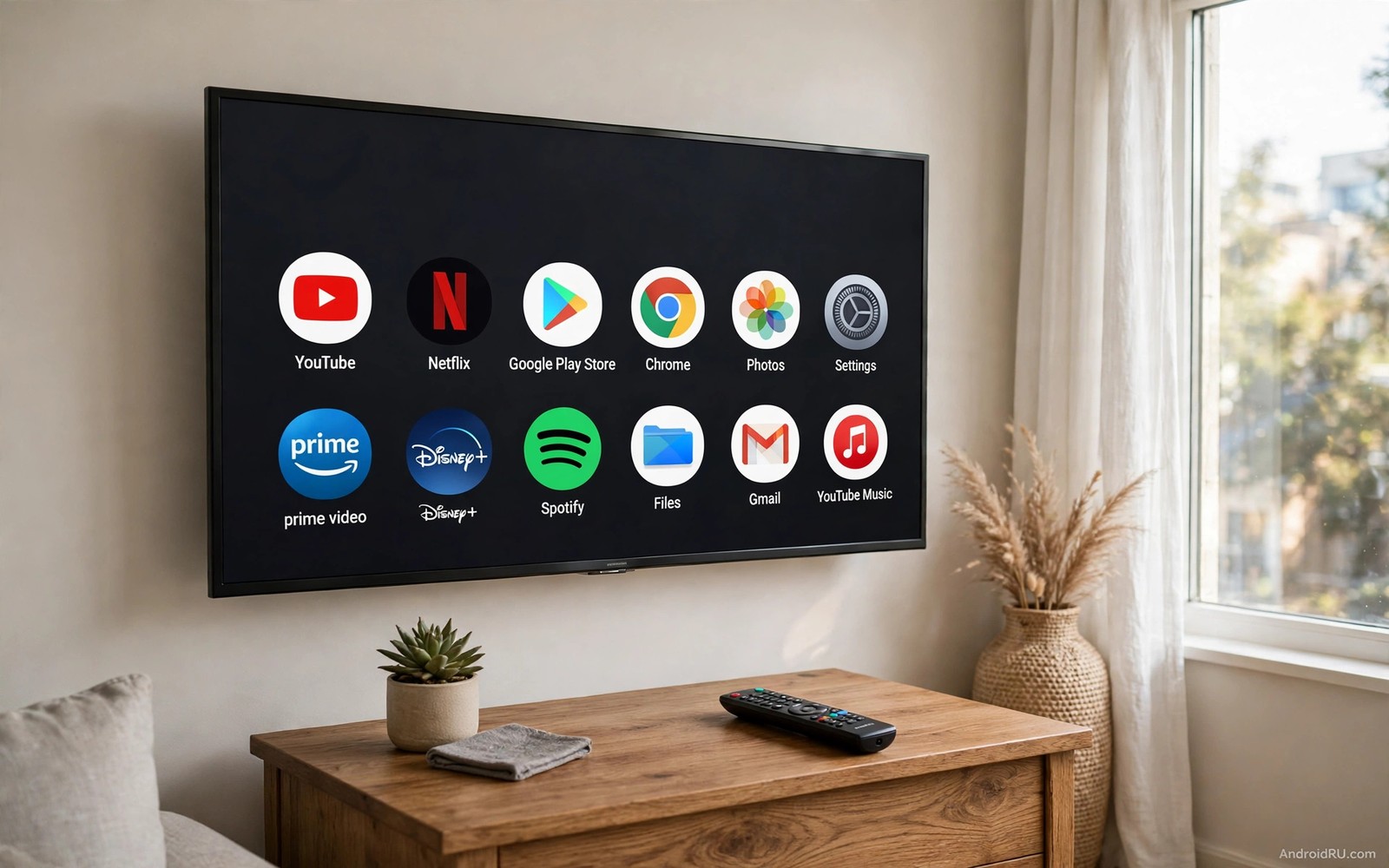
Google TV home screens start clean and then slowly fill up. New rows appear after updates and recommendations multiply and apps you never open take prime space. The screen that once showed your favourite shows now shows a wall of suggestions. Customizing the home screen is not about vanity. It is about getting to your show in three presses instead of fifteen. A tidy screen respects your time every single evening.
Begin by removing what you do not use. Open the app list and hide or uninstall apps that you have not opened in a month. Each removed app shortens the app row and reduces visual noise. Then reorder the remaining apps so the most used ones sit first. That single change improves the screen more than any wallpaper or theme. The launcher ideas in custom launchers that make Android TV look clean and ad free offer a stronger reset when Google TV settings alone cannot tame the clutter.
Reorder apps and hide the noise
Press and hold an app tile to move it on most Google TV devices. Drag your top three apps to the front of the row. Those three apps cover most evenings for most households. Everything else can sit further right where it stays available but not dominant. Reordering takes two minutes and it pays off every night.
Hide apps that you cannot uninstall but never use. Hiding differs from uninstalling because the app stays available in settings. Hidden apps simply leave the home row. That distinction matters for system apps that the television needs but you never open. A hidden app cannot clutter the screen and it cannot tempt an accidental open.
Check the app row after every major system update. Updates sometimes restore hidden apps or add new rows. A quick check after an update keeps the screen tidy without a full rebuild. Make that check part of your update routine and clutter will never accumulate again.
Control recommendations and rows
Google TV shows recommendation rows based on your watch history and installed apps. Those rows can help discovery but they can also dominate the screen. Open settings and look for home screen or recommendation options. Turn off rows that never lead to a show you actually watch. Keep only the rows that have helped you find something in the past month.
Turn off personalised recommendations entirely when discovery feels more like advertising. A home screen without recommendations shows only your apps and your library. That screen feels calmer and it loads faster. You can still search for new shows when you want them. The difference is that search happens on your terms rather than on every home press.
Use watchlists instead of recommendation rows for discovery. Add shows to a watchlist when friends mention them or when trailers catch your eye. A watchlist row shows only shows you chose. That row respects your taste far better than an algorithm guessing from one watched episode.
Use profiles and shortcuts wisely
Profiles separate viewing tastes in a shared household. Each profile gets its own recommendations and its own watchlist. A child profile can hide adult content and a guest profile can start fresh. Profiles prevent one person viewing habits from cluttering another person screen. Set up a profile for each regular viewer and the home screen stays personal.
Shortcuts help when Google TV supports them on your device. A shortcut can jump straight to a show or a live channel. Place shortcuts for daily viewing habits where they save the most presses. A news shortcut in the morning and a movie shortcut in the evening can cut navigation time sharply. Remove shortcuts that you stop using so they do not become clutter themselves.
Voice search can bypass the home screen entirely when you know what you want. Say the show name and Google TV jumps to it without scrolling. Voice works best for exact titles and it works poorly for browsing. Use voice for known shows and use the tidy home screen for browsing. Each tool suits a different moment.
Match the screen to the room
Brightness and screensaver settings shape how the home screen feels in a room. A bright screen in a dark room feels harsh and it makes clutter look worse. Lower brightness for evening viewing and set a calm screensaver for idle time. A dark screensaver with a clock looks elegant and it hides the home screen when nobody watches.
Wallpaper choice on Google TV is limited on some devices but still worth checking. A simple dark background keeps app tiles readable. A busy photo background competes with tile labels. Choose calm over clever for a screen you see every day. A calm background makes even a full app row feel less chaotic.
Consider a custom launcher only after Google TV settings feel exhausted. A launcher gives deeper control but it also adds a learning curve. Many households reach a tidy screen with built in settings alone. Try the built in path first for a week and then decide whether a launcher is truly needed.
adb shell settings put secure tv_home_recommendations_enabled 0
adb shell pm list packages | grep -i launcher
The snippet above was written for this article to show how advanced users inspect television home settings and launcher packages through a computer connection. It reads a recommendation setting value and it lists launcher related packages. Use it only for diagnosis on a device you own. The normal customization path stays inside Google TV settings on the television.
Use search instead of scrolling
Scrolling through endless rows wastes the most time on a cluttered home screen. Search bypasses rows entirely when you know what you want. Type or speak a show title and Google TV jumps straight to it. Search feels faster because it removes the browsing step. It also removes the temptation of recommendation rows that lead nowhere. Make search the default habit for known shows.
Voice search suits long titles that torture remote typing. A title with many words takes a minute to type with directional keys. Speaking the same title takes seconds. Voice search also handles spelling uncertainty better than typing. Say the title as you remember it and results often correct small errors automatically.
Recent searches can clutter the search screen over time. Clear search history occasionally when old queries no longer matter. A clean search history keeps suggestions relevant. It also protects privacy on a shared television. A quick clear each month keeps search fresh without losing useful history.
Combine search with watchlists for the best discovery balance. Search finds shows you already know. Watchlists hold shows you plan to try. Recommendation rows can then stay minimal because search and watchlists cover both needs. That balance gives a calm home screen without losing discovery entirely.
Keep kids profiles tidy and safe
Child profiles need regular review as children grow and tastes change. A profile set up for a young child may block shows an older child now enjoys. Review profile restrictions every few months. Update allowed content to match age and maturity. A profile that grows with the child stays useful rather than becoming a frustration.
Separate child watchlists from adult watchlists completely. Mixed watchlists confuse recommendations for everyone. A child show in an adult list pollutes adult suggestions for weeks. Clean separation keeps each profile personal. It also prevents children from opening adult content through a shared list.
Use PIN protection for profile switching when children share the television with adults. A PIN prevents accidental switches into adult profiles. It also prevents children from changing adult settings. A simple PIN gives parents peace of mind without blocking child viewing. That balance keeps the television safe and fun.
Reset the home screen yearly
A yearly home screen reset clears accumulated clutter that monthly tidying misses. Review every app and every row with fresh eyes once a year. Remove apps that survived monthly checks only through inertia. A yearly reset restores the calm feeling of a new television. It also reveals new features added by updates that you never explored.
Take a photo of the home screen before a yearly reset. A photo preserves a record of the old layout for reference. You can restore favourite placements from the photo if the new layout feels wrong. A photo turns a bold reset into a reversible experiment. Reversible experiments encourage bolder improvements.
Common mistakes
The biggest mistake is deleting apps instead of hiding them when you might need them later. Deleting a system app can break features that depend on it. Hide first and uninstall only apps you installed yourself and truly stopped using.
Another mistake is turning off every recommendation row and then complaining that discovery vanished. Keep one discovery row that actually helps you. A home screen needs both calm and a little inspiration. Balance beats extremes in this case.
A third mistake is customizing once and never checking again. Updates and new installs slowly restore clutter. A two minute check each month keeps the screen tidy forever. Treat the home screen like a room that needs light tidying rather than a yearly deep clean.
Frequently asked questions
Can I remove all recommendations from Google TV?
You can reduce recommendations sharply in settings on most devices. Some rows may remain depending on device software. A custom launcher removes more rows when built in settings cannot go far enough.
Will reordering apps affect my watch history?
No. Reordering changes only tile positions on the home screen. Watch history and subscriptions and progress stay exactly as they were. You can reorder freely without losing any viewing data.
Do profiles share app installations?
Yes. Apps install once for the whole device. Profiles separate recommendations and watchlists and viewing history. They do not duplicate app storage or require separate installs.
Conclusion
A clutter free Google TV home screen comes from removing unused apps and reordering favourites and controlling recommendation rows. Those three steps take less than half an hour and they improve every evening after. Your concrete next step is to open the app row tonight and move your top three apps to the front and hide three apps you never use. Live with that change for three evenings and then tackle recommendation rows. The speed ideas in how to speed up a laggy Android TV interface and the app guide in essential apps for Android TV box owners will help you finish the cleanup once the home screen feels calm.

