

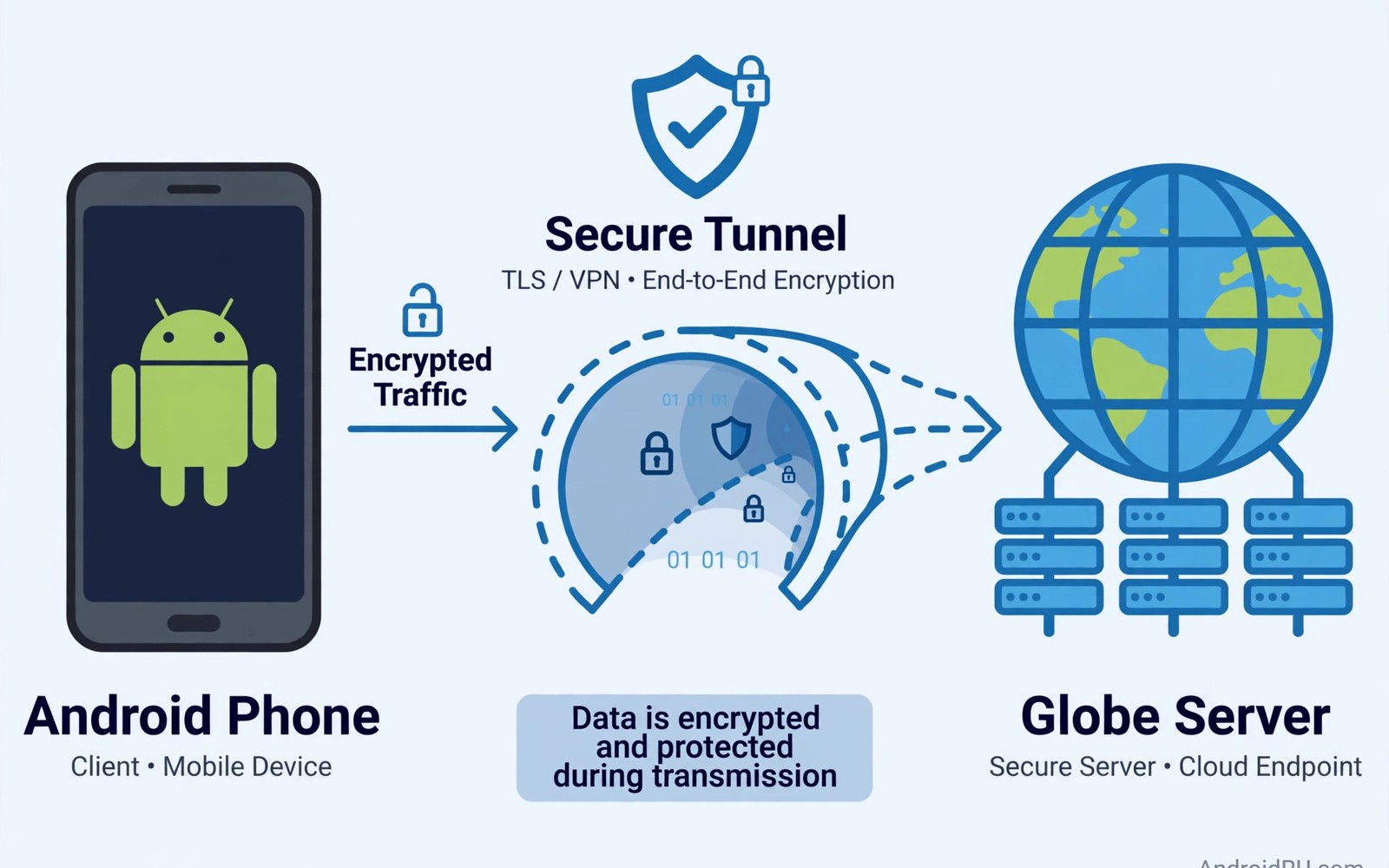
A mobile VPN is a tool that creates a private encrypted tunnel between your Android phone and a remote server operated by the VPN provider. All of your internet traffic travels through that tunnel instead of moving openly across the local network you happen to be using. Anyone watching the local network sees only scrambled data heading toward the VPN server. The destination website or app sees the VPN server address rather than your real home or mobile address.
That simple shift changes what strangers can learn about you while you browse and use apps on your phone. A coffee shop hotspot owner cannot read your messages or see which sites you visit when your traffic is encrypted inside the tunnel. A mobile carrier still carries your connection but cannot inspect the contents of the encrypted stream in the same direct way. Learning about the hidden cost of free VPN apps helps you judge whether a free service deserves that level of trust.
Android phones need this protection more than desktop computers because they move between networks all day long. Your phone joins home Wi-Fi in the morning and office Wi-Fi at work and public hotspots in between without asking you each time. Each new network brings a new set of strangers who could watch unprotected traffic. A VPN that connects automatically removes the need to remember this risk at every stop.
How a Mobile VPN Tunnel Works
When you open a VPN app and tap connect the app negotiates a secure session with a server in a location you choose. The two sides agree on encryption keys and a protocol that defines how packets are wrapped and checked. Your phone then routes its traffic into that session before it reaches the wider internet. The server unwraps the traffic and forwards it to its final destination on your behalf.
Responses follow the same path in reverse so the destination never talks directly to your phone. The server wraps the reply and sends it back through the tunnel to your device. Your phone decrypts the reply and hands it to the app or browser that requested it. This round trip adds a small delay but keeps the contents hidden from every network in between.
What a VPN Can and Cannot Hide
A VPN hides your real IP address from websites and hides your browsing activity from your local network and your carrier. It also hides your traffic contents from anyone running a fake hotspot designed to harvest data. That protection is valuable on public networks where you have no reason to trust the operator. It does not make you anonymous to services where you sign in with your real account.
A VPN cannot protect you from malware you install yourself or from phishing pages that trick you into typing a password. It cannot fix a weak password or stop an app from collecting data you agreed to share in its settings. It also cannot guarantee that the VPN provider itself handles your data honestly. Choosing a provider with a clear no-logs policy and independent audits matters as much as the encryption itself.
When to Use a VPN on Android
Public Wi-Fi is the clearest case for always-on VPN protection on an Android phone. Airports and hotels and cafes often run open networks with no encryption between your phone and the access point. A VPN adds that missing encryption layer even when the hotspot itself offers none. Reading about protection on unsecured airport Wi-Fi shows why travel days deserve extra care.
Work travel and banking on the move are other strong reasons to keep a VPN active on your phone. Sensitive accounts deserve protection even when the network looks friendly and familiar. A VPN also helps when a local network blocks certain services or throttles video traffic unfairly. Some users keep it on all day and only pause it for a banking app that refuses VPN connections.
- Turn on auto-connect for untrusted Wi-Fi networks in the VPN app settings
- Enable the kill switch so traffic stops if the tunnel drops unexpectedly
- Pick a nearby server for the best speed during normal daily browsing
- Test your visible IP address before and after connecting to confirm the change
- Review app permissions and disable background access you do not need
- Update the VPN app regularly so protocol fixes reach your phone quickly
Choosing a Trustworthy VPN Service
Start by checking the provider privacy policy and its record on logging and data requests. A trustworthy provider explains in plain language what it stores and for how long it stores it. Independent security audits and open source apps add confidence because outsiders can verify the claims. Avoid providers that promise total anonymity while hiding their ownership and jurisdiction.
Speed and server choice matter for daily use because a slow VPN quickly becomes a VPN you turn off. Test the service on your own phone during normal use rather than trusting marketing speed claims alone. Check whether the app offers a kill switch and automatic reconnection after network changes. Those features protect you during the brief moments when a tunnel drops and reconnects.
Setting Up a VPN on Android
Most users install a VPN from a reputable app store and sign in with an account created on the provider website. The app asks for permission to create a VPN connection and Android shows a system warning about traffic routing. Accepting that permission is normal because the app cannot build its tunnel without it. Once connected you should see a key icon in the status bar on most Android versions.
Android also lets you add VPN profiles manually in Settings under Network and internet and then VPN. Manual setup suits work or school profiles that give you server details and credentials directly. System profiles behave like app connections once they are active and they show the same key icon. Learning how system VPN profiles work inside Android settings helps you decide between an app and a manual profile for each situation.
Putting a Mobile VPN Into Practice
Start by installing the VPN app on your Android phone and signing in with the account you created on the provider website. Open the app and choose a server close to your real location for the fastest daily performance. Tap connect and wait for the key icon to appear in the status bar at the top of the screen. Open a test page in your browser to confirm that your visible address changed to the server location. If the address did not change then disconnect and reconnect once before checking your settings again.
Keep the VPN connected during ordinary browsing for the first week so you learn how it behaves in real use. Notice whether any app loads slowly or refuses to connect while the tunnel is active on the phone. Note the apps that struggle so you can adjust server choice or settings for those cases later. A week of normal use reveals far more than a single speed test run on one afternoon. After that week you can decide whether always-on protection suits your routine or whether selective use works better.
Troubleshooting When a Mobile VPN Fails
Connection failures on Android often come from an expired login or a server that is temporarily overloaded. Sign out and sign back in to refresh the session token stored inside the VPN app. Try a different server in the same country when one server refuses connections repeatedly. Restarting the phone clears stale network state that can block a new tunnel from forming correctly. If mobile data works but Wi-Fi fails then the local network may block VPN traffic outright.
Battery optimisation can also stop a VPN app in the background without any visible warning on the phone. Open battery settings and exempt the VPN app from aggressive optimisation so the tunnel stays alive. Check that the app has permission to run in the background during long idle periods overnight. A VPN that dies silently leaves the next morning browsing unprotected until you notice the missing key icon. Regular checks of the status bar icon prevent that silent failure from lasting all day.
Building a Habit That Lasts
Turn on auto-connect for untrusted networks so protection starts without you remembering it each time. Auto-connect removes the weakest link in mobile VPN use which is human forgetfulness during busy days. Pair auto-connect with a kill switch so a dropped tunnel pauses traffic instead of leaking it openly. Test both features together after every major app update because updates can reset settings unexpectedly.
Review your VPN subscription and privacy policy once a year to confirm that the provider still deserves trust. Ownership changes and policy changes can alter logging practices without changing the app icon. A yearly review takes less than an hour and keeps your choice aligned with current evidence. Replace a provider that weakens its policy rather than hoping the change does not matter.
Teach family members the same basic habit when they share a device or ask for help with their own phones. Show them the key icon and explain that its absence means traffic is unprotected on public networks. Simple habits spread more easily than technical lectures about encryption protocols and routing. A household that recognises the key icon stays safer on every network it joins together.
Advanced Tips and Next Steps
Consider a dedicated IP address from your provider when shared server addresses cause constant verification challenges on websites you trust. Dedicated addresses reduce captchas because fewer users share the same address for unrelated activity. The trade is weaker anonymity because a dedicated address links more activity to a single user over time. Most casual users should stay with shared addresses for stronger blending with other users. Dedicated addresses suit work accounts that block shared VPN addresses for security reasons.
Use a second VPN profile for work traffic when your employer provides its own gateway for internal systems. Keeping work and personal tunnels separate prevents personal browsing from entering a corporate network unnecessarily. Android allows multiple VPN profiles but only one active tunnel at a time on most phones. Switching between profiles takes seconds once both profiles are configured correctly. Separation also simplifies troubleshooting because each profile has its own server and credential set.
Check for WebRTC leaks in your browser because WebRTC can reveal a real IP address despite an active VPN tunnel. Browser settings or extensions can disable WebRTC when leak tests show a problem on your phone. Some privacy browsers block WebRTC by default while mainstream browsers need manual adjustment. Test WebRTC behaviour after every browser update because updates can restore default settings quietly. A leak test that includes WebRTC gives a more complete picture than an IP check alone.
Review data usage after a month of always-on VPN use to understand the overhead on limited mobile plans. VPN overhead adds roughly ten percent to data consumption for small packets and far less for large downloads. Users on tight data caps should account for that overhead when choosing a monthly plan size. Streaming through a VPN consumes nearly the same data as streaming without one in practice. Overhead matters most for messaging heavy users with many tiny packets each day.
Plan for VPN outages by keeping an offline copy of important travel documents on the phone itself. A tunnel failure should not block access to boarding passes or hotel confirmations during travel. Offline copies remove pressure to disable protection hastily when a server fails at a critical moment. Download documents before departure and verify they open without any network connection at all. Preparedness turns an outage into a minor inconvenience rather than a travel emergency.
vpn:
  enabled: true
  protocol: wireguard
  kill_switch: true
  auto_connect: untrusted_wifi
The steps above follow the approach described in the official developer documentation for Android networking and privacy controls. The guidance reflects standard system behaviour for VPN connections and network security on modern Android devices.

