

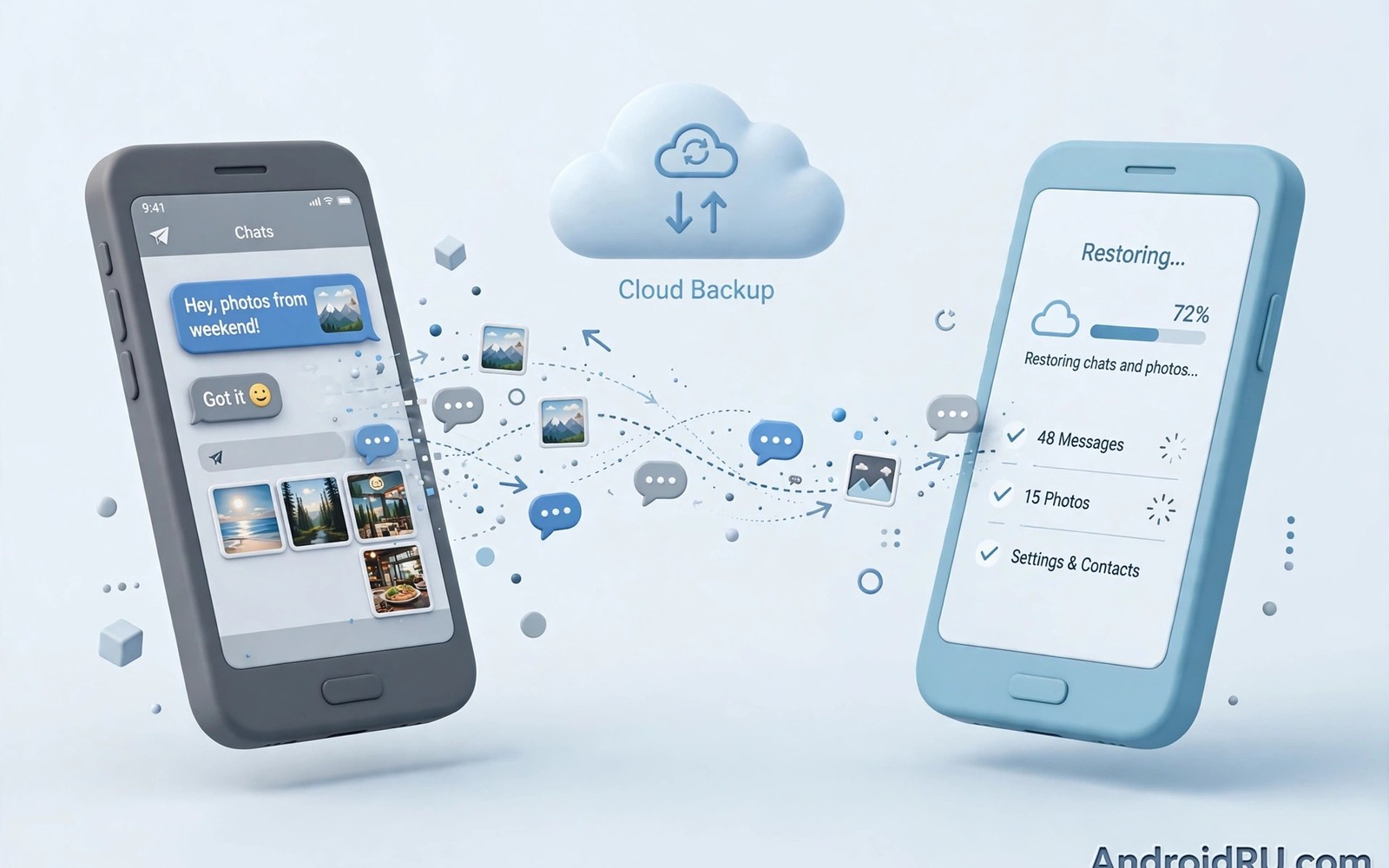
Switching phones should not mean losing years of chats. Yet many transfers lose photos or fail halfway through. This guide shows how to back up WhatsApp chats cross platform without losing media. You will learn cloud backup steps and transfer steps and verification checks. Follow the order carefully and never wipe the old phone early.
Start by freeing storage and updating WhatsApp on both phones. Old versions can fail transfers in confusing ways. Also check best tools for archiving important messaging chat histories for long term archive options. Make a full backup before you try any transfer method. That backup is your safety net if the transfer stalls.
Cloud backup on Android done right
Open WhatsApp settings and then chats and then chat backup. Choose a Google account with enough free storage. Turn on include videos if you want media preserved. Videos make backups much larger so check storage first. Tap back up now and wait for full completion on Wi-Fi.
Encrypted backup adds a password layer to cloud backups. Turn it on and store the password offline in a safe place. Without that password the backup cannot be restored. Test that you can recall the password before you wipe any phone. A backup you cannot unlock is no backup at all.
Moving Android to Android safely
Android to Android transfer is the simplest path. Restore from the same Google account during WhatsApp setup on the new phone. Use the same phone number as the old phone. Keep the old phone powered and on Wi-Fi until restore finishes. Do not skip restore and promise to do it later. Later restores often fail after new messages arrive.
Check media after restore before you celebrate. Open several old chats with photos and videos. Play one video per year of history as a sample. If media is missing then check whether include videos was on during backup. A second backup with videos on can fix many gaps.
Moving Android to iPhone and the reverse
Cross platform moves need the official transfer tool for your phones. Android to iPhone transfer uses a dedicated move app during iPhone setup. iPhone to Android transfer uses a cable or the move flow on supported phones. Both flows move chats and media together when done during initial setup. Doing the move after setup is much harder.
Plan the move for a quiet evening with both phones charged. Keep both phones on the same Wi-Fi network where required. Do not use either phone for messages during the transfer. Also read using multiple social accounts without logging out if you manage a second number. A second account complicates transfers so handle one number at a time.
Local backup and export as a safety net
Local backups live on Android storage and update daily by default. They help when cloud restore fails. Copy the backup folder to a computer before wiping the old phone. Keep that copy until the new phone is fully verified. Local backups do not transfer directly to iPhone in most cases. They still protect Android to Android recovery.
Chat export works for single important chats. Export a chat with media to a file you can store safely. Exported chats are readable outside WhatsApp but they lose interactive features. Use export for legal or sentimental records. Use full backup restore for daily use on a new phone.
Media storage and the missing photo trap
Missing photos usually come from media visibility settings. WhatsApp may save media to a hidden folder that gallery apps ignore. Check WhatsApp media folders in a file manager after restore. Turn on media visibility for chats where you want gallery copies. Note that visibility affects future media more than past media.
Storage limits cause silent backup failures. A backup that runs out of cloud space may look complete but miss videos. Check the backup size and the last backup date after every run. Free cloud space before a big backup. Delete large videos from chats you no longer need before you back up.
Verification checklist before wiping old phone
Verify chats on the new phone for at least three days before wiping the old one. Check recent chats and old media and group memberships. Send and receive test messages in key groups. Confirm starred messages survived the move. Only wipe the old phone after that full check passes.
Also confirm that encrypted backup passwords still work. Try a small restore logic check by noting backup dates. Keep the old phone offline but powered for a week if you can. Also check securing your messaging apps with biometric app locks to protect the new phone. A verified transfer plus a locked new phone is the safe finish.
adb shell ls -lh /sdcard/Android/media/com.whatsapp/WhatsApp/ 2>/dev/null | head
adb shell dumpsys package com.whatsapp | grep -i versionName
These commands follow the standard Android developer reference pattern for checking app storage and versions. They only read data and they change nothing on the phone.
Planning a phone switch without stress
Create a switch timeline starting two weeks before the new phone arrives. Week one focuses on backups and storage cleanup. Delete large videos you no longer need from chats. Run a full backup with videos included on Wi-Fi. Note the backup size and date in a private note. Week two focuses on verification and account lists. List every app that needs login on the new phone. Store passwords in a password manager before the switch day. That preparation turns switch day into a restore task rather than a rescue mission.
On switch day work through a strict order of operations. Set up the new phone on Wi-Fi with the same account and number. Restore WhatsApp during initial setup and not later. Wait for full restore including media before you open other apps. Test several old chats and play sample media from different years. Only then install remaining apps and sign into them one by one. Rushing the order causes half restored chats and confused troubleshooting. A calm sequence saves hours of later fixes. Keep the old phone powered nearby throughout the day.
After switch day keep the old phone for a full week as insurance. Use the new phone normally and watch for missing chats or media. Check group memberships and starred messages during that week. If anything is missing then the old phone still holds the original data. Export the missing chat directly from the old phone as a fallback. Wipe the old phone only after the week passes cleanly. That patience costs nothing and protects years of history. Many users wipe too early and regret it when a gap appears later.
Special cases for business and family chats
Business chats need extra care because they may hold contracts. Export vital business chats separately before any transfer. Store those exports in approved work storage with date notes. Do not rely solely on a consumer cloud backup for business records. Company policy may require specific retention methods. Check with your manager or IT team before a switch involving work chats. That check prevents policy violations that a smooth technical transfer cannot fix. Treat work chats as company records and personal chats as personal memories.
Family chats hold irreplaceable photos of children and events. Back up family media to a second location beyond WhatsApp backup. Copy important photos to a family photo service or an external drive. That second copy protects against a single backup failure. Teach family members to save key photos themselves rather than relying on one phone. Shared responsibility beats a single point of failure. Review family media yearly and print or archive the best moments. Digital archives need active care to survive device changes.
Group chats with many members need a different verification approach. Check membership lists after restore rather than just message content. A missing member list can hide a failed group restore. Send a test message in each vital group after transfer. Ask a member to confirm they see it. That confirmation proves both sending and group integrity. Note any group that fails the test for manual rejoining. Groups are easy to overlook because they look restored until someone tries to post.
Your phone switch backup checklist
Follow this checklist in order for a safe phone switch. First update WhatsApp on both phones to the latest version. Second free enough cloud storage for a full backup including videos. Third turn on end to end encrypted backup and store the password offline. Fourth run a full backup on Wi-Fi and note its size and date. Fifth export your three most important chats separately as an extra record. Sixth start the new phone setup and restore WhatsApp during initial setup. Seventh keep both phones charged and on Wi-Fi until restore completes fully. Eighth test old chats and sample media from different years on the new phone. Ninth send and receive test messages in key groups. Tenth wait a full week before wiping the old phone. A switch that follows this checklist preserves years of history safely. A rushed switch risks silent media loss that appears months later. Silent loss is worse than a visible failure because you discover it too late. Patience during switch week costs nothing. It protects memories and work records that cannot be recreated. Treat the old phone as insurance until the new phone proves itself fully. That mindset prevents the most common transfer regret.
Common mistakes
Wiping the old phone before verification is the worst mistake. A failed restore then leaves you with nothing. Skipping include videos causes silent media loss. Check that toggle before every major backup. Losing the encrypted backup password is equally fatal. Store it offline and test recall first.
Starting a transfer on low battery risks a halfway failure. Charge both phones fully first. Using mobile data for a huge backup wastes data and can stall. Use Wi-Fi for all backup and transfer steps. Trying to transfer after setup on iPhone makes cross platform moves far harder. Do it during initial setup.
Assuming gallery copies equal a chat backup is wrong. Gallery media lacks chat context and order. Keep full chat backups as the primary safety net. Export single chats only as an extra record.
Frequently asked questions
Can I restore an Android backup directly on iPhone?
No not through Google Drive alone. Use the official cross platform transfer flow during iPhone setup. That flow moves chats and media together. Google Drive backups restore to Android phones only in normal use.
Why are some photos missing after restore?
Include videos may have been off or cloud space may have run out. Media visibility settings can also hide restored media from gallery apps. Check backup size and date and media folders. Run a fresh backup with videos on if needed.
How long should I keep the old phone?
Keep it at least three days and ideally a full week after transfer. Verify chats and media and groups during that time. Wipe it only after every key chat checks out. Keep an exported copy of vital chats even longer.
Conclusion
Safe transfers follow one rule above all. Back up fully and verify fully before you wipe anything. Use cloud backup for Android moves. Use the official transfer flow during setup for cross platform moves. Check media with samples from several years.
Your concrete next step is to run a full WhatsApp backup with videos on Wi-Fi today. Note the backup size and date. Then check that your encrypted backup password is stored safely offline. That single backup protects every future phone move.

