

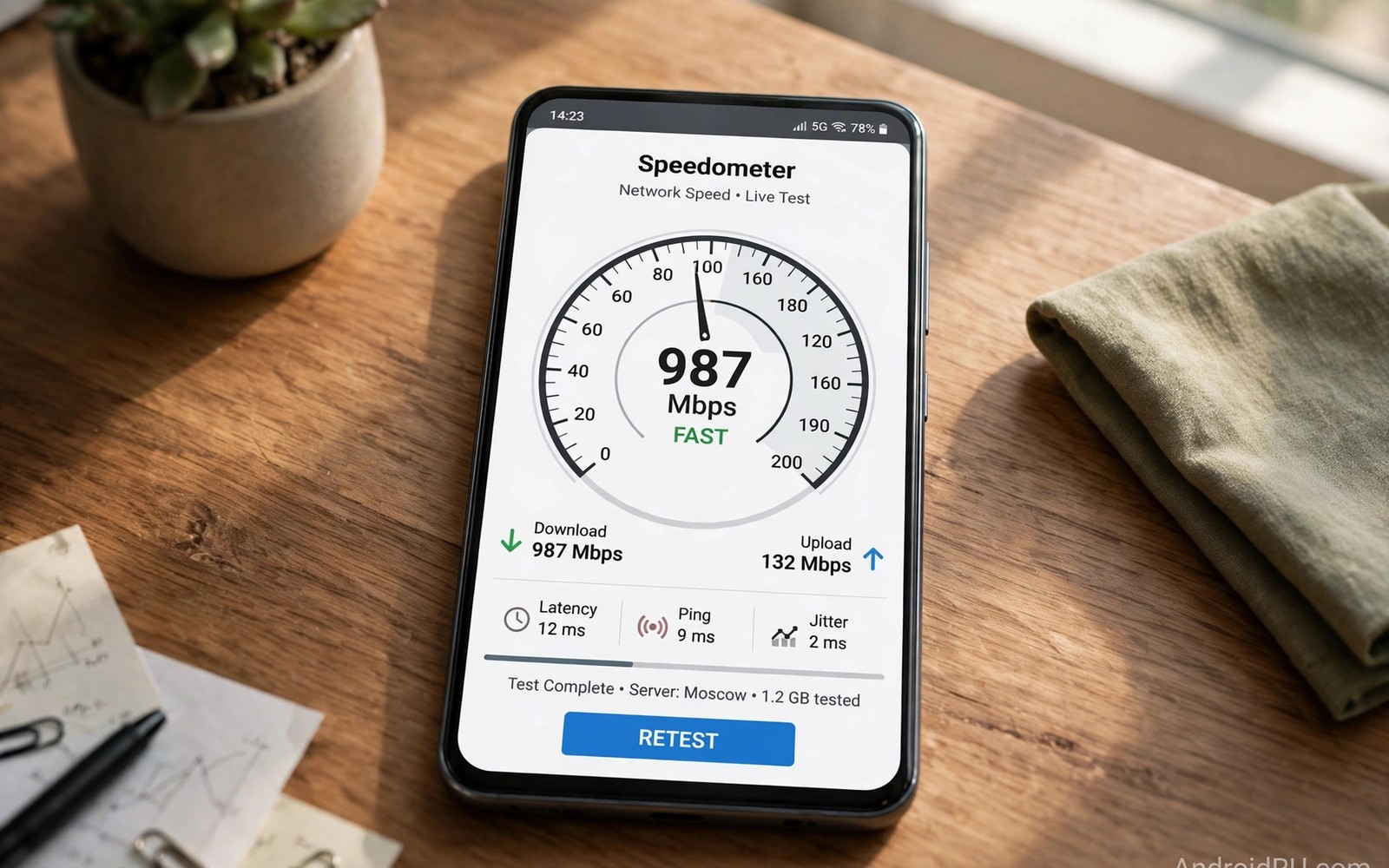
Mobile VPN speeds always drop compared with a direct connection because encryption and routing add work. The question is how large that drop should be on a healthy Android setup. Typical drops range from a small single digit percentage to roughly a third of baseline speed. Larger drops usually signal a server problem or a protocol mismatch rather than normal VPN cost.
Baseline speed matters because a percentage drop on a fast connection still leaves plenty of speed. A fifteen percent drop on a fast home connection may be invisible during browsing. The same percentage on a slow mobile connection can push video quality down noticeably. Learning what a mobile VPN is and why you need one explains the tunnel that creates this unavoidable overhead in the first place.
Testing method changes results more than most users expect when they compare VPN speeds. A single test at one moment reflects server load and network conditions at that moment. Repeated tests at different times give a fairer picture of typical performance. A careful test routine prevents chasing a server problem that disappears an hour later.
Typical Speed Drops by Use Case
Browsing and messaging tolerate large speed drops without any noticeable change for users. Pages load in similar time when the connection still delivers a few megabits per second. Video streaming in high definition needs more sustained speed but tolerates moderate drops well. Four K video and large downloads reveal speed drops most clearly during daily use.
Well configured WireGuard connections often lose under ten percent on nearby servers. OpenVPN connections may lose more depending on cipher choice and transport mode. Distant servers add latency that hurts interactive use even when raw download speed stays high. Latency matters for calls and gaming more than download figures suggest.
What Causes the Speed Drop
Encryption and decryption add processor work to every packet in both directions through the tunnel. Modern phones handle this work efficiently but older devices show larger drops. Routing through a VPN server adds network distance compared with a direct path. Each extra hop adds latency and a chance of congestion along the route.
Server load affects speed when many users share the same VPN server during peak hours. A crowded server queues packets and increases delay for everyone connected to it. Provider network capacity determines how often crowding becomes a real problem. Reading WireGuard versus OpenVPN performance on mobile connects protocol efficiency to the same overhead story.
Testing VPN Speed Correctly
Measure baseline speed first with the VPN disconnected on the same network. Run several tests and record the middle result rather than the fastest outlier. Connect the VPN to a nearby server and repeat the same tests immediately. Comparing matched pairs controls for network changes between test sessions.
Test at different times of day because peak hour congestion changes results significantly. Test both download and upload speed since VPN overhead affects both directions. Check latency separately because a fast download with high latency still feels sluggish. A complete test set beats a single download figure every time.
- Measure baseline speed before connecting the VPN
- Repeat tests at different times of day
- Choose the nearest low load server
- Prefer WireGuard for lower overhead
- Disable double hop for daily speed
- Investigate drops above half of baseline speed
Improving VPN Speed on Android
Choose the nearest server with low load according to your provider app indicators. Switch from OpenVPN to WireGuard when both options exist for your provider. Disable double hop routing for daily use because it doubles server hops and overhead. Split tunneling can help when only some apps need protection and others need full speed.
Update the VPN app and Android system because performance fixes arrive through updates. Restart the phone after a major update to clear stale network state that slows tunnels. Try a different server in the same country when one server performs poorly consistently. Server performance varies even within the same city at different times.
When a Speed Drop Signals a Problem
A drop above half of baseline speed deserves investigation rather than acceptance as normal. Check whether the VPN app uses an outdated protocol or a distant server by mistake. Test on Wi-Fi and mobile data separately to isolate network specific problems. A problem on one network only points to that network rather than the VPN itself.
Contact provider support with test results if poor speed persists across servers and protocols. Include baseline and VPN figures plus server locations and test times in your report. Clear data helps support identify server or routing problems quickly. If support cannot fix sustained poor speed then another provider may serve you better.
You can also explore the hidden cost of free VPN apps for more context on neighbouring topics in this series.
Putting Speed Testing Into Practice
Run baseline speed tests on your Android phone with the VPN disconnected on home Wi-Fi. Record download and upload figures plus latency from three separate test runs. Connect the VPN to the nearest server and repeat the same three tests immediately. Compare middle results from both sets rather than fastest outliers that mislead. Matched testing on the same network gives the fairest speed drop estimate for your setup.
Repeat the matched test on mobile data during a normal day outside the home. Mobile results often differ from Wi-Fi results because carrier routing adds its own variation. Test at different times because peak hour congestion changes both baseline and VPN speeds. A complete picture across networks and times prevents decisions based on one lucky test. Record results in a note for comparison when you later change providers or protocols.
Troubleshooting Speed Problems
Persistent slowness across all servers often points to a protocol or device problem rather than a server. Switch protocols to test whether WireGuard outperforms OpenVPN on your specific phone. Update the VPN app because performance fixes arrive through updates regularly. Restart the phone after updates to clear stale network state that slows tunnels. If slowness persists on a new phone then provider capacity may be the real bottleneck.
High latency with acceptable download speed hurts calls and gaming more than browsing. Latency problems often come from distant servers that add round trip time to every packet. Choosing a nearer server reduces latency even when download speed stays similar. Test latency specifically rather than judging a connection by download figures alone. Latency awareness improves interactive use far more than chasing download peaks.
Building a Habit That Lasts
Test VPN speed quarterly rather than obsessing over daily fluctuations on the phone. Quarterly tests catch provider degradation that develops slowly over months. Daily tests swing with network conditions that have little to do with provider quality. A quarterly routine balances awareness against wasted time spent testing constantly. Trends matter more than single measurements for provider decisions.
Keep a simple speed log with dates and server locations and protocol choices for reference. A log helps provider support diagnose problems with concrete evidence instead of vague complaints. Support teams resolve logged speed issues faster than unlogged impressions of slowness. Logs also support provider switching decisions with evidence when performance declines persistently.
Share speed testing methods with friends who compare VPNs using a single test result. Teach them matched baseline testing so their comparisons become fair and useful. Fair methods prevent friends from choosing a provider based on a lucky test run. Good testing habits spread better than any single provider recommendation over time.
Advanced Tips and Next Steps
Use wired testing for baseline speeds when possible to isolate Wi-Fi variation from VPN effects. Wired baselines remove wireless interference that can swamp VPN speed differences entirely. Phone testing cannot use wired connections easily so test close to the router instead. Close router testing minimises Wi-Fi variation for fairer phone VPN comparisons. Controlled conditions matter more than test tool choice for reliable speed results.
Consider server load indicators in VPN apps when choosing between servers in the same country. Load indicators show current utilisation that affects speed more than geographic distance alone. A distant low load server can outperform a nearby overloaded server in practice. Checking load before connecting takes seconds and improves speed consistently. Load awareness is an easy habit with immediate speed benefits for daily use.
Test upload speed separately because video calls and cloud backups depend heavily on upload performance. Download focused tests hide upload problems that affect calls and file sharing badly. VPN overhead affects upload and download differently depending on packet sizes involved. Complete testing includes both directions plus latency for a full performance picture. Incomplete testing leads to provider choices that fail for upload heavy users specifically.
Understand that speed test servers themselves affect results through their own capacity and location. A slow test server can make a fast VPN look slow through no fault of the provider. Testing against multiple test servers reveals whether results reflect VPN or test infrastructure. Multiple test servers improve confidence in speed comparisons between providers significantly. Test infrastructure awareness prevents unfair provider judgements based on one server.
Share speed test methods when discussing VPN performance online to help readers interpret your results. Method details let readers judge whether your network conditions resemble their own situations. Vague speed claims without methods mislead readers into provider choices that disappoint them. Transparent methods raise discussion quality for everyone comparing VPN performance publicly. Good methods are a public good for the VPN user community as a whole.
speed_test:
  baseline_mbps: 100
  vpn_mbps: 85
  drop_percent: 15
  server: nearest
  protocol: wireguard
The guidance above follows the approach described in the official developer documentation for Android networking and privacy controls. The advice reflects standard VPN performance behaviour and testing practice for Android devices.

