

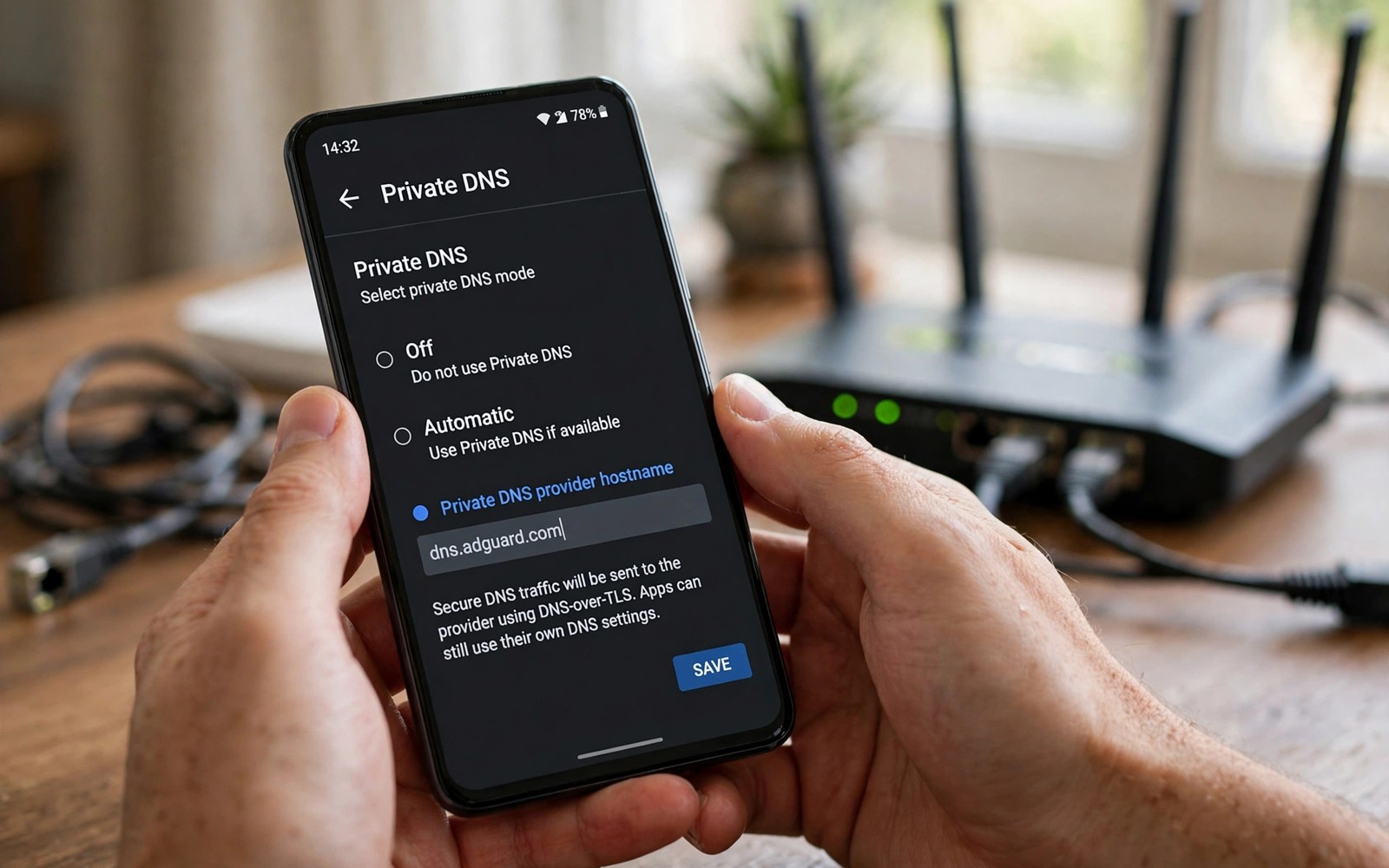
DNS over HTTPS encrypts the domain name lookups your Android phone makes before loading websites. Normal DNS requests travel in plain text that networks can read and record. Every site name you type becomes visible to your carrier and to local network operators. Encrypted DNS wraps those lookups inside a secure HTTPS connection instead.
Android offers two related options that people often confuse with each other. Private DNS on Android uses encrypted DNS over TLS by default in system settings. DNS over HTTPS is a similar idea delivered through HTTPS inside browsers and apps. Both hide lookup contents from local observers but they work at different layers of the phone. Learning testing your Android phone for DNS leaks shows why DNS leaks matter even when a VPN is active.
Setting up encrypted DNS takes only a few minutes and needs no special hardware on a modern phone. You choose a provider hostname in system settings or enable secure DNS inside your browser. The phone then sends lookups through the encrypted channel instead of plain DNS. Testing after setup confirms that the change actually took effect on your device.
How Plain DNS Exposes Browsing
Every website visit starts with a DNS lookup that converts a domain name into a server address. Plain DNS sends that question openly across the network without encryption. Anyone operating the hotspot or the carrier network can record every domain you request. That record reveals browsing habits even when page contents use HTTPS encryption.
DNS providers themselves can also log lookups and build profiles from query history over time. Choosing a provider with a clear privacy policy reduces that secondary exposure. Encrypted DNS hides lookups from the local network but still trusts the chosen provider. Provider choice therefore remains important after encryption is enabled.
Private DNS in Android Settings
Android system settings include a Private DNS option under Network and internet. Selecting Private DNS provider hostname lets you enter a hostname from a provider you trust. Android then encrypts system wide DNS lookups using that provider. Apps and browsers benefit without separate configuration in most cases.
Leaving Private DNS on automatic lets your carrier or network choose DNS behaviour for you. Automatic mode may fall back to plain DNS when the network offers no encrypted option. Entering a specific hostname forces encrypted mode and reveals failures more clearly. Test after changing the setting so a silent fallback does not fool you.
DNS over HTTPS Inside Browsers
Browsers can enable DNS over HTTPS independently of Android system settings on the phone. Secure DNS inside a browser encrypts lookups for web pages loaded in that browser. App traffic outside the browser still uses system DNS settings in that case. Combining browser secure DNS with system Private DNS gives broader coverage across the device.
Browser secure DNS settings usually offer a default provider plus a custom provider field. Custom providers let you use the same DNS service across browser and system settings. Keep both settings consistent to avoid confusion during troubleshooting later. Inconsistent providers can make leak tests harder to interpret on your phone.
- Open Network and internet then Private DNS in settings
- Enter a trusted provider hostname without extra spaces
- Enable secure DNS inside your main browser as well
- Test on Wi-Fi and mobile data separately
- Restart the phone if old resolver results persist
- Review provider logging policy before long term use
Choosing a DNS Provider
Look for a provider that publishes a clear logging policy and a data retention period. Providers that delete query logs quickly and avoid selling data deserve preference over vague alternatives. Independent audits and open source resolver software add confidence in provider claims. Speed matters too because slow DNS adds delay to every new site visit.
Test several providers from your location before settling on one for daily use. A provider with servers near you usually answers faster than a distant alternative. Check whether the provider filters malware domains or ads if that feature matters to you. Filtering changes results so understand what the provider blocks before enabling it.
Testing Encrypted DNS on Your Phone
After setup visit a DNS leak test page in your browser to see which resolver answers queries. The test should show your chosen provider rather than your carrier resolver. Repeat the test on Wi-Fi and on mobile data because settings can differ between networks. A VPN can change results too so test with the VPN off and on separately.
If tests still show your carrier resolver then check for typos in the hostname you entered. Restart the phone after changing Private DNS to clear cached resolver settings. Some work profiles and VPN apps override system DNS for managed apps on the device. Those overrides are normal in managed setups but they change what the test reveals.
You can also explore VPN battery consumption on mobile and protection on unsecured airport Wi-Fi for more context on neighbouring topics in this series.
Putting Encrypted DNS Into Practice
Open Android settings and navigate to Network and internet to find the Private DNS option. Select Private DNS provider hostname and type the provider hostname exactly without extra spaces. Save the setting and restart the phone to clear any cached resolver entries from before. Open a leak test page in your browser to confirm that the chosen provider answers queries now. If the test still shows the carrier resolver then check the hostname spelling carefully.
Enable secure DNS inside your main browser as a second layer for web browsing on the phone. Choose the same provider in the browser when the browser offers a custom provider field. Consistent providers make leak test results easier to interpret during troubleshooting later. Test again after enabling browser secure DNS to confirm that both layers agree. Agreement between layers means fewer surprises when networks change during travel.
Troubleshooting Encrypted DNS Problems
Some captive portals on hotel and airport Wi-Fi fail when encrypted DNS blocks their redirect pages. Temporarily disabling Private DNS can let the portal page load so you can accept terms. Re-enable Private DNS immediately after joining the network successfully. Forgetting to re-enable it leaves later browsing unprotected for the rest of the trip. A reminder note on the phone can help you remember this step during busy travel days.
App failures after enabling encrypted DNS often come from a provider that filters domains the app needs. Test the app with Private DNS disabled to confirm whether filtering causes the failure. Switching to a non-filtering provider from the same company may fix the app without losing encryption. Filtering and encryption are separate features that users sometimes confuse during troubleshooting. Keep encryption enabled while adjusting filtering choices separately.
Building a Habit That Lasts
Test encrypted DNS monthly alongside VPN leak tests as part of routine phone maintenance. Monthly testing catches silent fallbacks that occur after system updates change settings. Record the expected provider name so you recognise a wrong result instantly during a test. A known expected result turns testing into a quick glance rather than a research task.
Review provider logging policy yearly because DNS providers change ownership and policies over time. A provider that promised quick deletion last year may retain logs longer under new ownership. Yearly reviews keep trust aligned with current evidence rather than old marketing claims. Switching providers takes only minutes when a policy change disappoints you.
Explain encrypted DNS to family members in simple terms when helping them secure their phones. Tell them that encrypted DNS hides site names from the local network operator. Simple explanations encourage adoption better than technical detail about protocols and ports. Family adoption multiplies the benefit of your own setup across shared networks at home.
Advanced Tips and Next Steps
Consider a DNS provider that supports DNS over QUIC for faster encrypted lookups on mobile networks. QUIC based DNS reduces handshake overhead compared with older encrypted DNS transports. Faster lookups improve page load feel on networks with high latency such as rural mobile coverage. Provider support for newer transports varies so check current offerings before switching. Transport choice matters less than provider trust but speed gains are welcome on slow networks.
Test encrypted DNS behaviour inside individual apps because some apps ignore system DNS settings entirely. Apps with hard coded resolvers bypass Private DNS even when system settings look correct. Browser tests alone cannot reveal app specific DNS behaviour on the phone. Testing a few major apps gives a more complete picture of DNS privacy in daily use. App level awareness prevents false confidence from a single browser test result.
Use a secondary DNS provider as a fallback only when the primary provider suffers an outage. Fallback providers improve reliability but complicate leak test interpretation during normal use. A fallback that activates unexpectedly can change resolver results without any visible warning. Document fallback configuration so you recognise its effect during troubleshooting later. Reliability and simplicity pull in opposite directions for DNS fallback design.
Review DNS query logs if your provider offers a personal dashboard for your own queries. Personal dashboards reveal which domains your phone requests most frequently over time. That visibility can surprise users who discover chatty apps requesting domains constantly in the background. Blocking or restricting chatty apps reduces both DNS exposure and battery consumption together. Awareness of query patterns improves overall phone hygiene beyond DNS encryption alone.
Explain encrypted DNS to colleagues who manage work phones with a focus on phishing protection. Encrypted DNS providers that filter known malicious domains add a layer against phishing sites. Filtering complements user training by blocking some malicious domains before browsers load them. Work phone policies benefit from DNS filtering even when employees resist other security controls. Practical benefits persuade managers faster than abstract privacy arguments alone.
dns:
  mode: private_dns
  hostname: dns.example
  protocol: doh
  fallback: none
The steps above follow the approach described in the official developer documentation for Android networking and privacy controls. The guidance reflects standard system behaviour for Private DNS and secure DNS settings on Android devices.

