

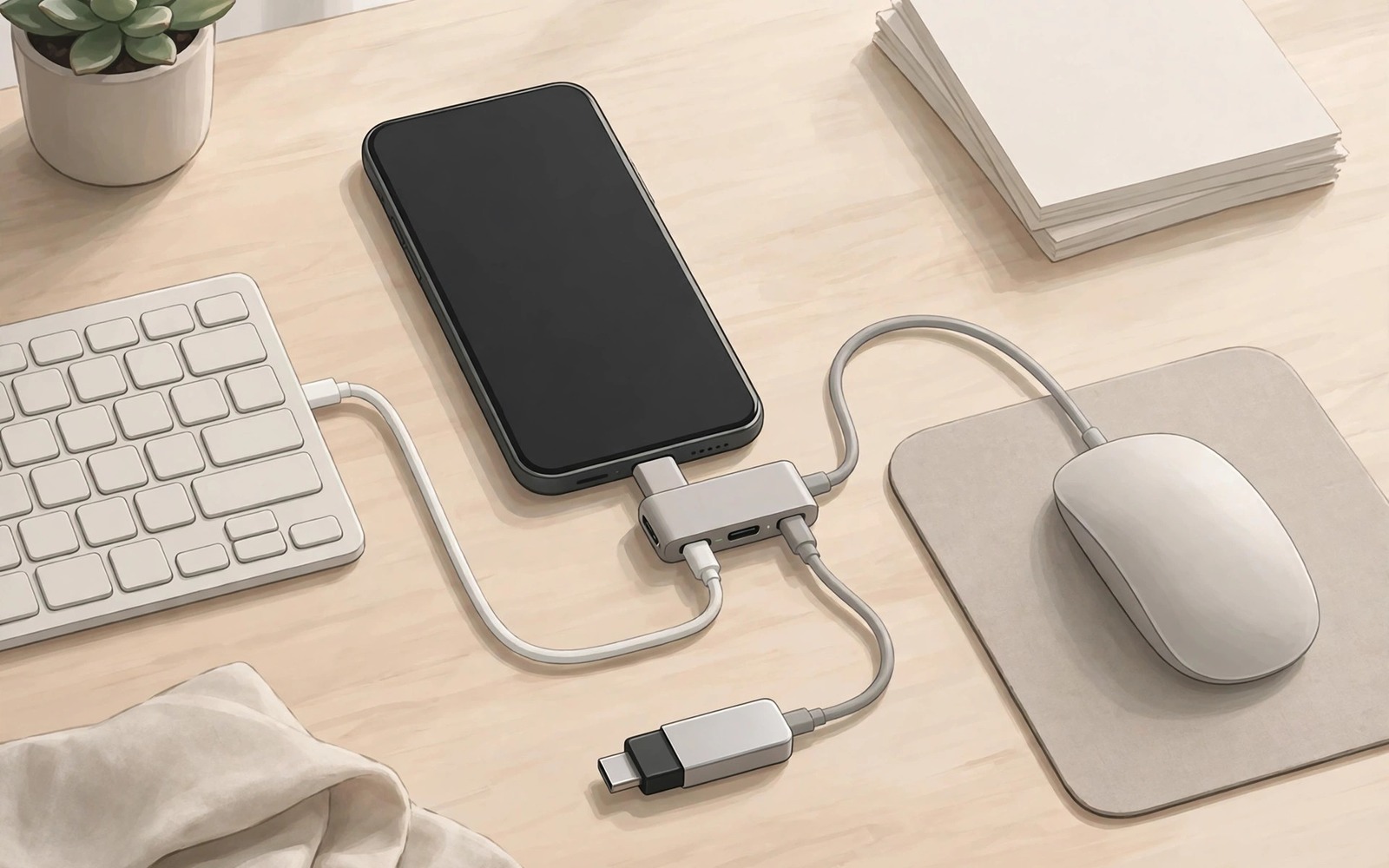
USB OTG turns a phone into a small computer hub for keyboards and mice and flash drives. The adapter is a small bridge that lets the phone act as a host for USB devices. That host role is powerful but it has limits on power and file support. Choosing the right adapter type avoids the frustration of a device that connects and then disconnects. This guide explains five practical adapter styles and how each one fits a different daily task.
Start with the connector on your phone because most modern Android phones use USB-C. An older phone may use micro USB and that needs a different adapter shape. Check the phone port before ordering because the wrong shape cannot be fixed with an adapter on top of an adapter. A direct USB-C to USB-A adapter is the simplest and most reliable choice for most users. A hub adapter adds multiple ports but it also adds power demands that a phone may not meet.
Power is the hidden limit for OTG use because a phone supplies only a small amount of current through its port. A keyboard and a mouse together usually work within that limit. A spinning hard drive often needs more power than a phone can give. A flash drive usually works well because it draws little power. Understanding that limit helps you choose between a simple adapter and a powered hub. For cable basics that affect OTG stability see cheap versus expensive USB-C cables before you buy.
Five adapter styles that cover most needs
A single USB-C to USB-A adapter is the best starting point for one device at a time. It is small and cheap and easy to carry in a pocket. Use it for a flash drive or a keyboard or a mouse when you need only one connection. Its simplicity also means fewer failure points and a stable connection. Keep one in your bag as a backup even if you own a larger hub.
A USB-C hub with several USB-A ports lets you connect a keyboard and a mouse at the same time. That setup turns a phone into a desktop station for typing and editing. A hub may need external power for stable use with multiple devices. Check whether the hub supports pass through charging so the phone charges while you work. A hub without pass through charging will drain the phone during a long session and that limits its usefulness.
A USB-C to USB-A adapter with a charging port gives you one device connection plus phone charging. That style suits long typing sessions where battery life matters. It is a good middle ground between a single adapter and a full hub. The charging port must support your phone charging speed to be useful. Test charging while a keyboard is connected to confirm the setup works for your phone.
A micro USB OTG adapter still matters for older phones and for some tablets. It uses the same host idea but with an older connector shape. Buy it only if your device actually uses micro USB. A USB-C phone cannot use a micro USB adapter without a risky chain of converters. Match the adapter to the device port exactly and avoid converter chains that add failure points.
A card reader adapter combines OTG with SD card access for photographers and students. It lets you move photos from a camera card to a phone without a computer. That workflow is useful for field work and for quick sharing. Check file format support before you buy because some cards use formats that a phone may not read. A good card reader adapter saves time on location shoots and it fits easily in a camera bag.
Connect a keyboard and a mouse correctly
Connect the adapter to the phone first and then connect the keyboard or mouse to the adapter. That order lets the phone detect the host device cleanly. Wait a few seconds for the phone to recognise the input device. A cursor should appear for a mouse and typing should work at once for a keyboard. If nothing happens then remove the adapter and reconnect it with the device already attached. That simple retry fixes many first connection issues.
Check keyboard layout settings if keys produce the wrong characters. Android lets you choose a physical keyboard layout in settings. A US layout keyboard on a different layout setting can swap symbols and punctuation. Set the layout to match your keyboard and test with a short sentence. Mouse speed and pointer settings are also adjustable for comfort. A few minutes of settings tuning makes a phone desktop setup feel natural.
Wireless keyboards and mice with a USB receiver also work through OTG. Plug the receiver into the adapter and the phone should treat it like a wired device. Bluetooth keyboards are a separate option that does not need OTG at all. Choose OTG for a receiver based set and Bluetooth for a direct wireless set. Both paths work but OTG is useful when Bluetooth pairing is unreliable or when you already own a receiver set. For turning a phone into a fuller workstation see accessories to turn a phone into a PC for desk ideas.
Use flash drives and file access safely
A flash drive connected through OTG appears in the file manager as external storage. Open the file manager and look for a USB storage entry. Copy files in small batches first to test speed and stability. Large video files can take time and a loose adapter can interrupt the copy. Hold the phone and adapter steady during a large transfer. A stable physical setup prevents corrupt files from an interrupted copy.
File format matters because Android reads common formats well but may struggle with some desktop formats. A drive formatted for Windows may work for reading but not for writing on some phones. A drive formatted for universal use works more smoothly across devices. Back up important files before reformatting a drive because formatting erases all data. Choose a format that fits both your phone and your computer for easy sharing.
Eject the drive properly through the file manager before removing the adapter. Proper ejection finishes pending writes and protects file integrity. Pulling a drive during a write can corrupt the file being copied. That risk is small but it is easy to avoid with one tap. Make ejection a habit for every OTG file session. A habit that takes two seconds can save hours of file recovery.
otg_quick_test.txt
Adapter: USB-C to USB-A single
Device 1: keyboard typing OK
Device 2: mouse cursor OK
Device 3: flash drive read OK
Eject drive before removal
The checklist above is an original example written for this guide. It gives you a quick test order for any new OTG adapter. Run the test with each device type you plan to use. A passed test means the adapter is ready for daily work.
Store adapters in a small pouch to protect the connectors from dust and bending. A bent USB-C plug can damage a phone port over time. Keep the pouch in a bag pocket that you can reach quickly. A protected adapter lasts longer and connects more reliably. Small care habits matter for small accessories that carry important work.
Common mistakes
The most common mistake is connecting a power hungry hard drive directly to a phone. The phone cannot supply enough current and the drive may click and disconnect. Use a powered hub or a flash drive instead for phone transfers. Another mistake is using a cheap adapter with a loose connector that drops during file copies. A stable adapter costs little more and saves file integrity. A third mistake is forgetting to eject a drive before removal.
People also buy the wrong connector shape for their phone port. A micro USB adapter does not fit a USB-C phone. Check the port shape and the adapter shape side by side before ordering. A photo of the phone port helps when shopping online. That simple check avoids a return and a delay. For hub shopping that avoids overpaying see overpriced USB hubs and what features matter for feature priorities.
A final mistake is assuming every app can access OTG storage. Some apps restrict external storage access for security. Use the system file manager for transfers when an app cannot see the drive. Copy files to internal storage first if an app needs local access. That workaround keeps your workflow moving without a new adapter purchase.
FAQ
Why does my OTG adapter work for a mouse but not a hard drive?
A mouse draws very little power and a hard drive draws much more. A phone OTG port supplies limited current. A hard drive that needs more current will fail to spin up or disconnect repeatedly. Use a flash drive or a powered hub for large storage. A powered hub supplies external power to the drive. That external power solves the current limit.
Check the drive type as well because a solid state drive draws less power than a spinning drive. A portable solid state drive may work where a spinning drive fails. Test with a small drive first to confirm OTG function. A successful small drive test proves the adapter works. The power limit then explains the hard drive failure.
Can I charge my phone while using OTG?
Some adapters and hubs support pass through charging while OTG is active. A simple single adapter usually does not support charging at the same time. A hub with a charging port can charge the phone while devices are connected. Check the product description for pass through charging support. Test charging with a keyboard connected to confirm real behaviour.
Charging speed through a hub may be slower than direct charging. Use a wall adapter that matches the hub rating for best results. A weak wall adapter may only slow battery drain rather than charge the phone. A strong adapter gives a useful charge during a long work session. Plan for slower charging when you use a hub for work.
Do all Android phones support OTG?
Most modern Android phones support OTG but some budget models may limit it. Check the phone specifications for USB OTG or USB host support. A simple test with a cheap adapter and a mouse is the fastest proof. If a cursor appears then OTG works on that phone. If nothing appears then check settings and try a different adapter.
Some phones need no setting change for OTG while others show a prompt on first connection. Accept the prompt and grant storage permission for file access. A denied permission can make a drive invisible to apps. Grant permission once and the drive should appear in the file manager. That permission step is often the missing piece for new users.
Conclusion
OTG adapters turn a phone into a flexible hub for typing and pointing and file transfer. A single adapter covers most single device needs. A hub with pass through charging covers desktop style work. A card reader adapter covers camera workflows. Matching the adapter to the port and to the power limit is the key to a stable setup.
Your concrete next step is to test OTG on your phone tonight with a mouse or a flash drive. Note which devices work and which devices fail. If a hard drive fails then switch to a flash drive or a powered hub. If a keyboard works then set the layout correctly and try a full typing session tomorrow.

