

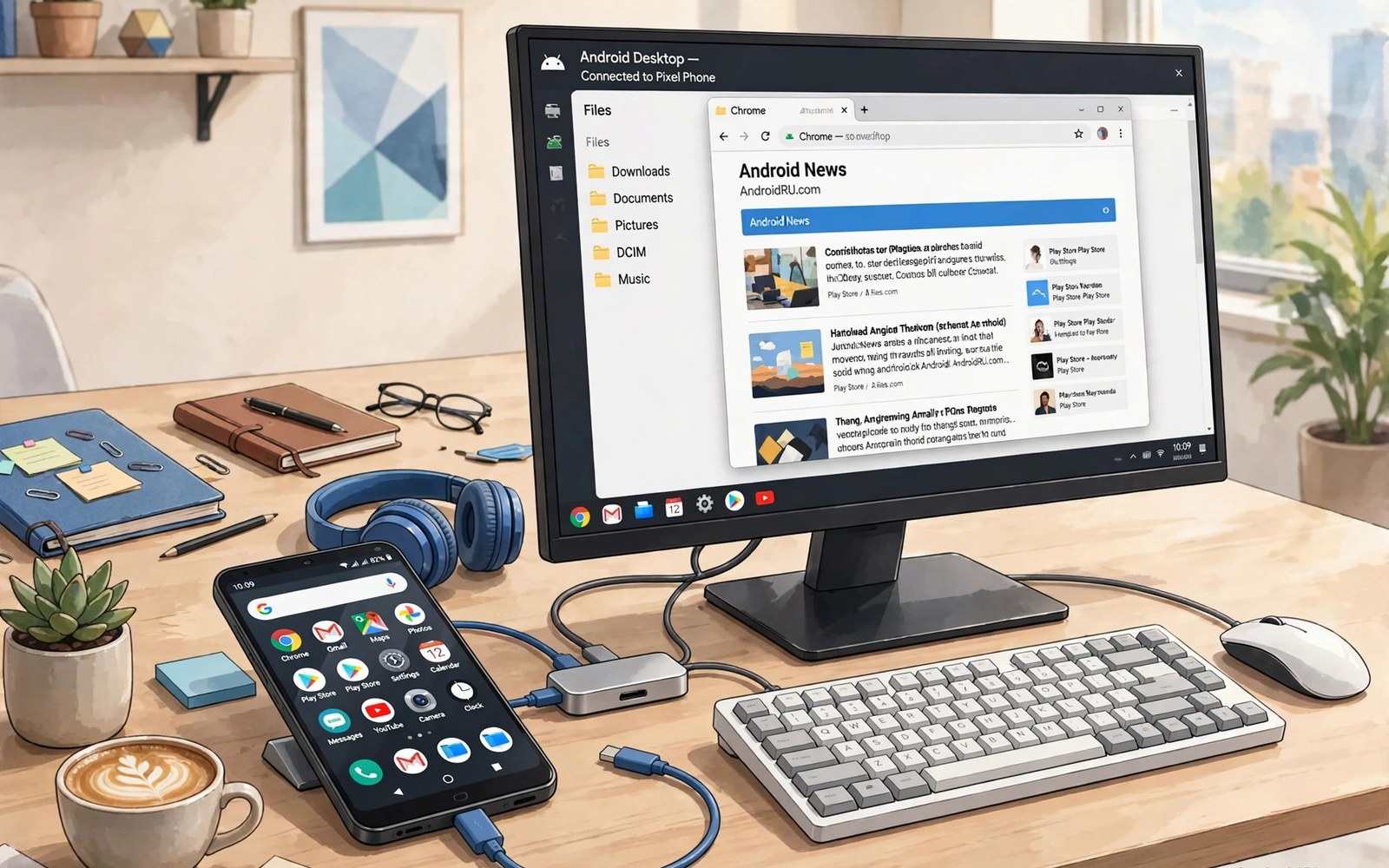
An Android phone already carries a fast processor and plenty of storage and a good internet connection. With the right accessories that phone can become a usable desktop for writing and browsing and light office work. A monitor and a keyboard and a mouse transform the small screen into a workspace that feels familiar. A hub connects those accessories and a charger keeps the phone powered during a long session. This guide covers seven must have accessories that make that transformation practical rather than a novelty. The goal is a desk setup that you can use daily without frustration.
The first accessory is a USB-C hub or dock that links the phone to a monitor and to USB devices. The hub must support video output from your phone model because not every phone supports desktop video over USB-C. Check whether your phone offers a desktop mode or a simple screen mirror mode. A desktop mode gives a windowed interface that feels like a computer. A mirror mode simply shows the phone screen larger and it can feel cramped for office work. A hub with power delivery lets you charge the phone while you work so a long session does not drain the battery.
A monitor is the second accessory and it changes the experience more than any other item. A full size monitor lets you open documents side by side and read text without squinting. A portable monitor suits travel because it folds into a bag with the phone. Check the monitor input type and match it to the hub output. A monitor with a USB-C input can sometimes take video and power in one cable. A monitor with only HDMI needs a hub that converts the phone signal to HDMI. Test the monitor at your usual brightness before a long work session.
Keyboard Mouse And Storage For Desktop Work
A full size keyboard makes writing far faster than a phone touchscreen. A Bluetooth keyboard pairs easily and it keeps the desk free of extra cables. A wired keyboard through a hub gives a more stable connection for long typing sessions. Choose a keyboard with a layout you already know well. A compact keyboard saves desk space but a full keyboard with a number pad helps spreadsheet work. Test key travel in a shop if you can because a keyboard that feels mushy will slow you down over a full day.
A mouse adds precise control for selecting text and dragging files. A Bluetooth mouse pairs with the phone and it works well for most office tasks. A wired mouse through a hub avoids Bluetooth lag during detailed work. A mouse with a scroll wheel and side buttons helps browsing and document navigation. Keep a mouse pad on the desk to improve tracking on a glossy surface. For storage a fast USB drive or a microSD card gives room for large files. For card choice then picking the right microSD card explains speed classes that matter for apps and files.
Charging Dock Stand And Audio
A charging dock or a stand holds the phone at a useful angle during desktop work. A stand keeps the phone screen visible for notifications while the monitor shows the main work. A dock with a built in hub reduces cable clutter on the desk. A stand that blocks the charging port is a poor choice for long sessions. Choose a stand that leaves the USB-C port free and that grips the phone firmly. A phone that slips off a stand during a call can disrupt a meeting and it can damage the phone.
Audio accessories complete the desk setup for calls and video meetings. A wired headset through the hub gives clear call audio without Bluetooth delay. A wireless headset with multipoint can switch between phone calls and laptop audio if you use both devices. For multipoint setup then Bluetooth multipoint for two devices explains pairing order and call priority. A small speaker can help for group listening but a headset is better for privacy in a shared room. Test microphone quality before an important meeting because a poor microphone makes you hard to understand.
Hub Choice And Cable Management
Hub choice decides whether the whole desk setup feels stable or flaky. A hub with power delivery and video output and several USB ports covers most needs in one box. A hub without power delivery may drain the phone during a long session. For hub details then USB hub features that matter most explain speed and power ratings to check. Cable management also matters because a tangle of cables can pull a hub off the desk. Route cables along the desk edge and use clips to keep slack under control. A tidy desk makes it easier to spot a loose connection quickly.
A second monitor or a large monitor can improve multitasking but it also raises hub requirements. Not every phone hub supports two monitors at full resolution. Check the hub description for dual monitor support before buying a second screen. A single large monitor often gives a better result than two low resolution monitors through a weak hub. Keep the monitor at eye level to avoid neck strain during long sessions. A monitor arm or a stack of books can raise a low monitor to a comfortable height.
Check Desktop Video Support With Commands
A computer check can confirm display and USB settings on the phone. Run these display mode checks on a trusted computer. They read display size without changing any setting. Use them to confirm that the phone reports a display mode that suits a monitor. That check helps you choose a hub that matches the phone output.
adb shell wm size
adb shell dumpsys display
Attribution: This code sample is an original example written for this article. It shows standard display diagnostic commands that help a reader check desktop video support. It does not modify the device and it does not come from any outside guide.
If the phone does not support video output then a hub will not create that support. In that case a wireless casting option can mirror the screen to a TV or a monitor with a receiver. Casting adds lag for typing and it may not suit fast mouse work. A phone without video output still works well as a media device on a large screen. For office work a phone with desktop video support gives a far better result. Check support before buying a hub or a monitor for this purpose.
A portable version of this setup fits in a small bag for travel. A folding keyboard and a portable monitor and a compact hub weigh less than a laptop in many cases. That travel kit suits hotel desks and co working spaces where you need a quick workspace. Pack a short USB-C cable and a charger that matches the hub power rating. A travel kit that needs many adapters will frustrate you at a new desk. Keep the kit in one pouch so setup takes minutes rather than a cable hunt.
Security also matters when a phone becomes a desktop. Lock the phone screen when you step away from the desk because the monitor may stay on. Use a strong lock method and keep sensitive files in a protected folder. A phone desktop in a shared office should not stay unlocked while you fetch coffee. Set a short screen timeout for the phone so the monitor blanks quickly. That habit protects documents and messages from a passerby.
A phone desktop setup for students should include a cheap backup charger in the bag. A hub that fails at a library desk can stop work for the day. A backup charger lets the phone keep working as a phone even if the desktop setup fails. That backup also helps when a monitor input is already in use by another student. A small backup plan keeps a study session productive despite a desk problem.
A phone desktop for presentations can connect to a projector through the same hub used for a monitor. Test the projector connection before the presentation day because projector inputs vary widely. A hub with both HDMI and USB-C output covers more projector types. Bring a short HDMI cable as a backup in case the venue cable is missing. That preparation avoids a last minute scramble before an audience.
A phone desktop in a small flat should use a portable monitor that folds away after work. A large fixed monitor can dominate a small room and it can make the space feel cramped. A portable monitor stored in a drawer after work keeps the room flexible for other uses. That flexibility matters when one room serves as office and living space during the day and evening.
Common Mistakes
One common mistake is buying a hub before checking phone video support. A hub cannot add video output to a phone that lacks it. Another mistake is choosing a monitor with the wrong input for the hub. Check hub output and monitor input together before ordering. A third mistake is using a weak charger that cannot keep up with desktop use. A phone in desktop mode draws more power and a weak charger will drain slowly during work.
Some users also forget ergonomics when they build a phone desktop. A monitor placed too low causes neck strain over a full day. A keyboard placed too high causes wrist strain. Set monitor height and keyboard height as you would for a normal computer. Another error is relying on Bluetooth for every accessory. Bluetooth can lag or drop in a crowded office. A wired keyboard and mouse through a hub give a steadier result for long work sessions.
Frequently Asked Questions
Can any Android phone work as a PC?
Not every Android phone supports video output over USB-C. Some phones offer a desktop mode and some offer only screen mirroring. Check your phone specifications for video output support before buying a hub. A phone without video output can still cast wirelessly but that option adds lag for office work.
Do I need a special monitor for a phone desktop?
A normal monitor works if the hub output matches the monitor input. A monitor with USB-C input can simplify cabling. A monitor with HDMI input needs a hub that converts the signal. Check resolution and refresh rate support on the hub before buying a monitor for this setup.
Will desktop mode drain my phone battery fast?
Desktop mode uses more power than normal phone use because it drives a large screen. A hub with power delivery should charge the phone while you work. Use a charger that meets the hub power rating. If the phone still drains then reduce monitor brightness and close unused apps during the session.
Conclusion
Seven accessories can turn a capable Android phone into a practical desktop for daily office work. A video capable hub and a monitor and a keyboard and a mouse form the core of the setup. Add storage and a stand and audio for calls to complete the desk. Check phone video support before buying anything. Your concrete next step is simple. Tonight check your phone for desktop video support and order a power delivery hub that matches your monitor input.

