

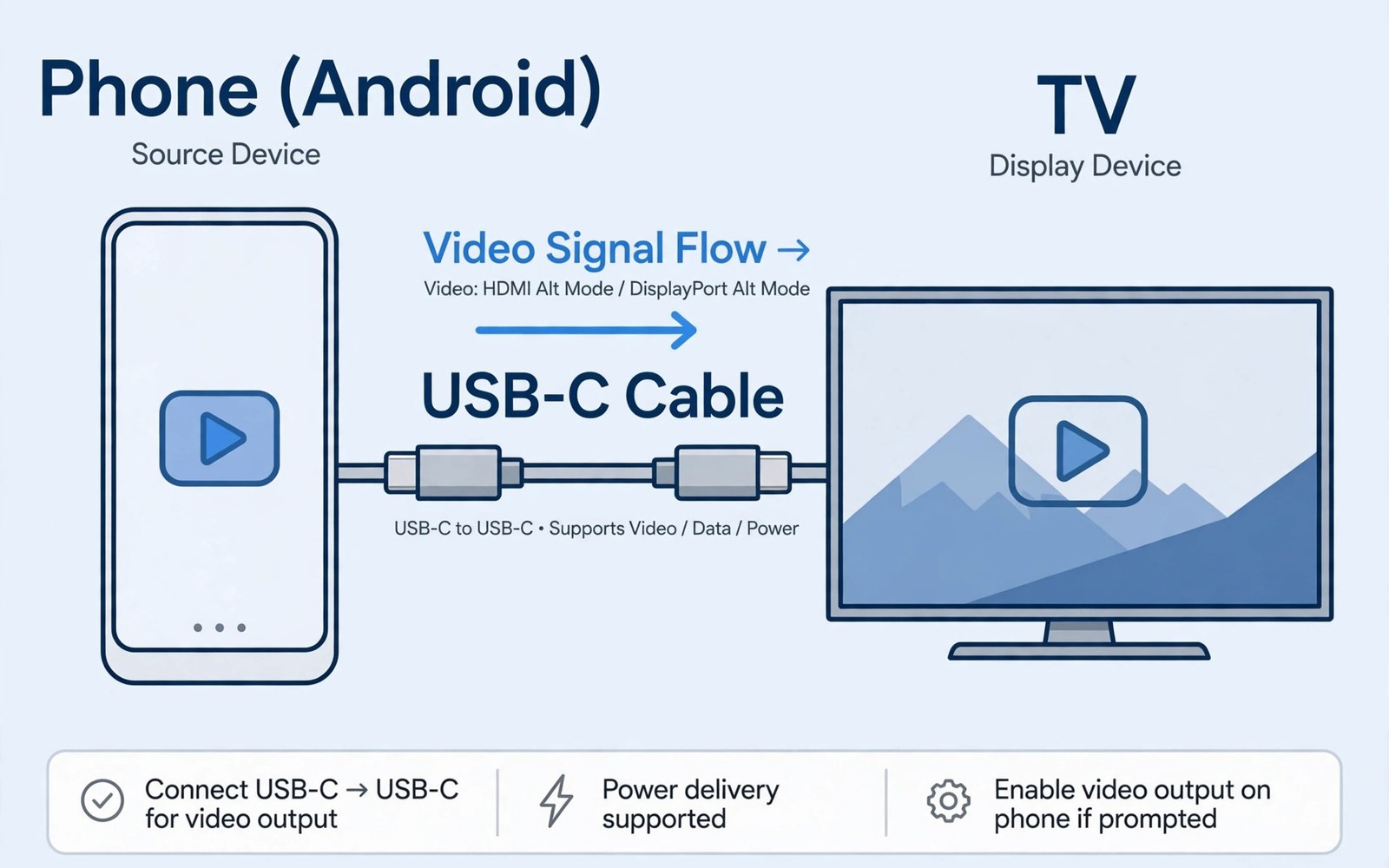
A USB-C cable can carry video to a television without a separate HDMI adapter in many cases. That ability comes from DisplayPort Alt Mode. Alt Mode lets a USB-C port send DisplayPort video signals through the same cable that charges the phone. A phone that supports Alt Mode can show its screen on a large TV for films and presentations. A phone without Alt Mode cannot do this trick no matter how good the cable is. This guide explains how Alt Mode works and how to test whether your phone and cable support it.
USB-C is a connector shape rather than a single capability. Different phones use the same USB-C shape for different functions. Some phones support only charging and data through USB-C. Others support video output through Alt Mode as well. The difference lies in the phone hardware and in the cable wiring. A cable must carry the video signals on specific wires inside the connector. A charging only cable may lack those wires even though it fits the same port. That is why a random USB-C cable often fails for video even when it charges well.
DisplayPort Alt Mode repurposes high speed lanes inside a USB-C cable for video. Those lanes normally carry fast data. In Alt Mode they carry video signals to a display instead. The phone and the display negotiate Alt Mode when connected. If both sides support it then video appears on the TV. If one side lacks support then the connection falls back to charging only. That negotiation happens automatically and it needs no app on the phone. A user only needs the right phone and the right cable and a compatible display input.
Check Phone And Cable Support
Check phone specifications for DisplayPort Alt Mode or video output over USB-C before buying a cable. A specification that only lists USB-C charging does not prove video support. Look for terms such as DisplayPort Alt Mode or video out in the official specification. Some phones support a desktop mode that implies video support. Others support only screen mirroring through wireless casting. Wireless casting is not Alt Mode and it will not work through a cable. A clear specification check saves money on a cable that cannot work with your phone.
Cable choice matters as much as phone support. A full featured USB-C cable supports video and fast data and power delivery together. A charging only cable may look identical yet lack video wires. Check the cable description for DisplayPort Alt Mode support or video support. A cable rated for high speed data is more likely to support video than a cheap charging cable. Test a new cable with a known compatible phone and TV before relying on it for a presentation. That test confirms the cable rather than assuming it from packaging claims.
Connect Phone To TV Step By Step
Connect the USB-C cable directly to the phone and to the TV or to a hub that links to the TV. Avoid long adapter chains because each adapter can break Alt Mode negotiation. Select the correct TV input for the USB-C or HDMI port in use. The phone screen should appear on the TV within a few seconds. If nothing appears then try a different TV input and check that the TV supports the signal type. Some TVs need a specific input mode for USB-C video. Check the TV manual for a USB-C video input setting.
For a desktop style setup on a monitor then accessories to turn a phone into a PC explain hub and monitor choices. For hub speed and power details then USB hub features that matter most help you choose a hub that preserves video. For magnetic charging while using video then magnetic cable protection for charging ports shows a wired charging option that reduces port wear.
Resolution Refresh Rate And Power
Alt Mode can support high resolution video but the actual result depends on phone and TV and cable together. A phone may output a lower resolution than the TV maximum. A cable with a lower speed rating may limit resolution or refresh rate. A hub in the chain can also limit video if its video port is weak. Test the actual resolution in TV settings after connecting. If the TV shows a lower resolution than expected then test a direct cable without a hub. That direct test isolates whether the hub or the cable limits the output.
Power delivery during video output matters for long films and presentations. A phone driving a TV drains battery faster than normal use. A hub with power delivery can charge the phone while it outputs video. A direct USB-C to TV cable without power delivery cannot charge the phone at the same time unless the TV supplies power. Check whether the TV USB-C port supplies power before a long session. If it does not then use a hub with a charger to keep the phone powered during the film.
Check Video Output With Commands
A computer check can show display information on the phone. Run these external display checks on a trusted computer. They read display state without changing any setting. Use them to confirm that the phone reports an external display when connected through Alt Mode. That confirmation helps you decide whether a blank TV comes from the phone or from the TV input.
adb shell dumpsys display
adb shell wm size
Attribution: This code sample is an original example written for this article. It shows standard display diagnostic commands that help a reader check video output. It does not modify the device and it does not come from any outside guide.
If the phone shows no external display then the cable or the phone may lack Alt Mode support. Try a different full featured cable before concluding that the phone lacks support. If a second cable also fails then check the phone specification again. A phone without Alt Mode will never show an external display through a cable. In that case wireless casting remains an option for films even though it adds lag for interactive work.
A presentation setup with Alt Mode should be tested in the actual venue before the audience arrives. Venue TVs vary in input support and some require a specific input mode. Arrive early and test the phone and cable on the venue TV. Bring a backup hub and a backup cable in case the venue TV needs a different input. That preparation prevents a blank screen in front of an audience and it gives time to switch to a casting backup if needed.
Gaming on a TV through Alt Mode can work well when latency stays low. A wired Alt Mode connection usually has lower latency than wireless casting. That lower latency helps fast games that need quick reactions. A wireless controller paired to the phone can complete a TV gaming setup without extra cables. Test game latency on a short session before a long gaming night. If latency feels high then check the TV game mode setting because a TV in a processing heavy mode can add delay.
A TV that supports a specific colour format may need a setting change for phone video. A TV set to a limited colour range can make phone video look washed out. Check the TV picture settings for a full colour range option and test it with phone video. A correct colour setting makes films look richer without changing the cable. That setting is easy to overlook when a blank screen problem takes all attention.
A phone that outputs video while charging through a hub can also run a presentation app in a windowed mode. A windowed presentation lets you see speaker notes on the phone while the audience sees slides on the TV. Test that windowed mode before a live talk because not every phone supports it. A phone that only mirrors will show notes to the audience as well. Knowing the mode before a talk prevents an embarrassing notes display.
A cable that works for video on one TV may fail on an older TV with a different input chip. Older TVs sometimes need a hub that converts the signal to a standard HDMI format. A hub with a built in converter can bridge that gap for older displays. Test the setup on the oldest TV you plan to use rather than only on a new TV at home. That test reveals converter needs early.
A TV remote that can switch inputs quickly helps during a presentation when video drops briefly. A quick input switch can restore video without unplugging the cable. Keep the remote within reach during a presentation rather than across the room. That small preparation saves a long pause in front of an audience when a signal hiccups.
Common Mistakes
One common mistake is assuming every USB-C cable supports video. A charging only cable will never show video no matter how many times you reconnect it. Another mistake is using a long adapter chain that breaks Alt Mode negotiation. A third mistake is blaming the phone when the TV input is wrong. Check TV input and cable type before buying new gear.
Some users also forget power delivery during long video sessions. A phone can drain during a long film if the TV does not supply power. Another error is expecting the highest TV resolution from a low speed cable. A full featured cable is needed for high resolution video. Test resolution after connecting and upgrade the cable if the result is low.
Frequently Asked Questions
Does every USB-C phone support DisplayPort Alt Mode?
Not every USB-C phone supports DisplayPort Alt Mode. Support depends on phone hardware and it must be listed in the phone specification. A phone with only charging and data over USB-C cannot output video through a cable. Check the specification for video output before buying a video cable.
Can I charge my phone while using Alt Mode video?
You can charge while using video if the hub or TV supplies power through the same connection. A hub with power delivery charges the phone during video output. A direct cable to a TV without power supply will drain the phone during a long session. Use a powered hub for long films and presentations.
Why is my TV blank with a USB-C cable connected?
A blank TV often means the cable lacks video support or the TV input is wrong or the phone lacks Alt Mode. Try a full featured cable and check the TV input setting. Test the cable on a known compatible phone if possible. If both cables fail then the phone may lack Alt Mode support.
Conclusion
DisplayPort Alt Mode lets a supported USB-C phone stream video to a TV through a single cable. Check phone specification and cable video support before buying. Connect directly where possible and test resolution and power delivery. Use a powered hub for long sessions. Your concrete next step is simple. Tonight check your phone specification for DisplayPort Alt Mode and test a full featured cable on your TV.

