

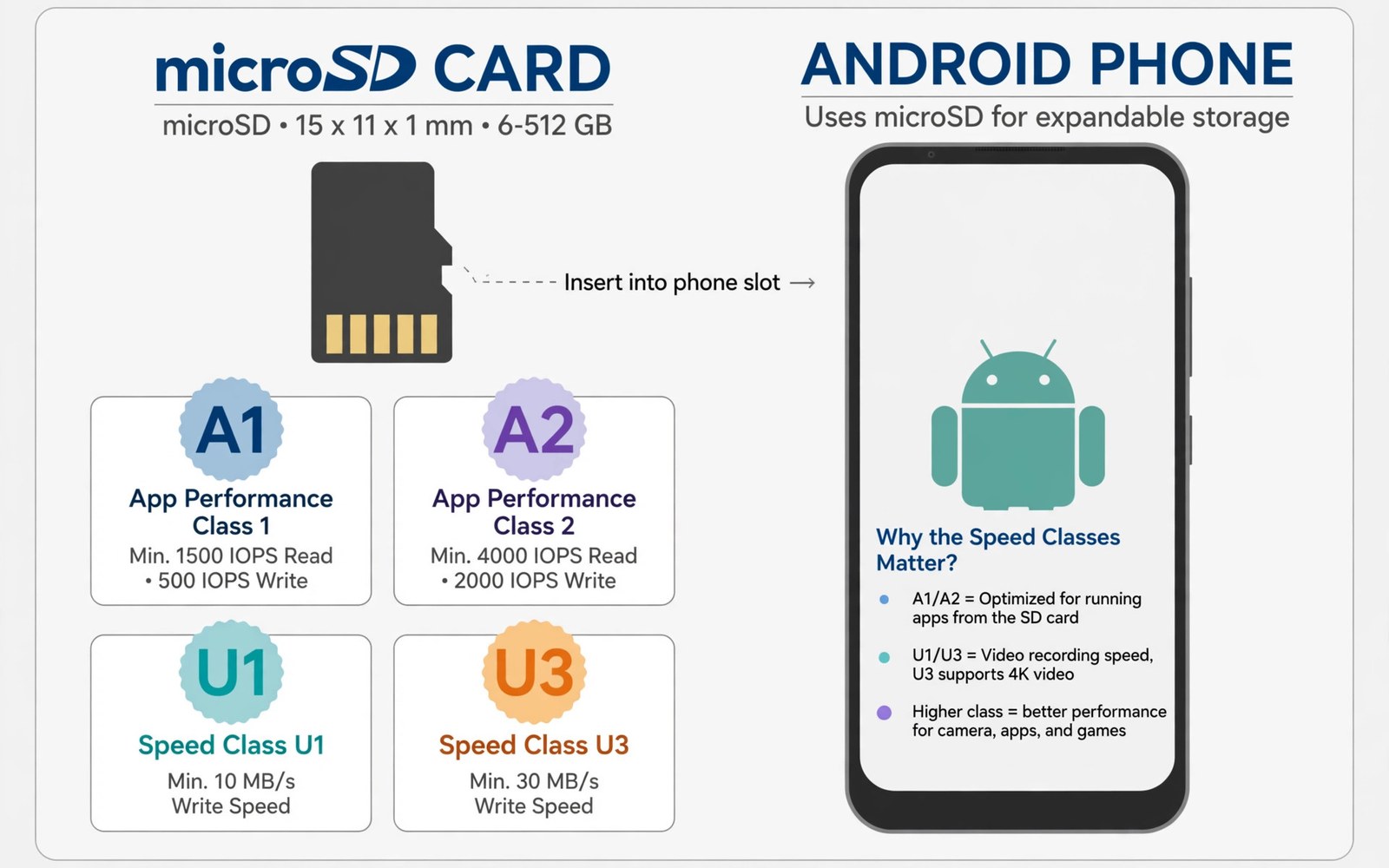
A microSD card looks like a tiny storage chip but its speed ratings decide whether apps run smoothly or stutter. Cards labelled A1 and A2 and U1 and U3 describe different performance traits. A card that is fast for large video files may still be slow for small app files. A card that is fast for apps may cost more than a card for simple photo storage. This guide explains each rating in plain terms and helps you pick the right card for your phone use. The right card saves money and it avoids the frustration of a laggy phone.
Capacity is the first choice but it is not the most important choice. A large card with slow random speed can make apps feel sluggish. A smaller card with strong random speed can feel faster for daily app use. Check your phone maximum supported capacity before buying a very large card. Some older phones limit capacity to a lower size. A card larger than the phone limit may not work at all or it may only show part of its capacity. Check the phone manual for the limit and stay within it.
Speed class markings on a card tell a story about minimum write speed for video. U1 means a minimum sustained write speed suitable for basic video. U3 means a higher minimum write speed suitable for high resolution video. V ratings add more detail for video recording. V30 and V60 describe minimum write speeds for video in a clearer way. For phone video recording a U3 or V30 card is a safer choice than a U1 card. A U1 card may drop frames during high resolution recording when the scene gets complex.
A1 Versus A2 For App Performance
Application performance class describes how a card handles small random reads and writes. Apps create many small files and they read those files in random order. A1 cards meet a baseline for random performance that suits many apps. A2 cards meet a higher baseline for random operations and they use a command queue to handle many requests efficiently. In theory A2 should feel faster for apps. In practice the phone must support the A2 queue feature to gain the full benefit. A phone without that support may show little difference between A1 and A2 in daily use.
For most users an A1 card offers good value for apps and photos together. An A2 card makes sense for a user who runs many apps from the card or who moves apps to external storage often. Check whether your phone allows apps on external storage because many modern phones limit that feature. If apps stay on internal storage then card app performance matters less. In that case a card for photos and video may be a better value choice than a premium A2 card.
U1 Versus U3 For Video And Photos
U speed class focuses on sustained write speed for large files. A U1 card guarantees a lower sustained write speed that can handle basic video and photos. A U3 card guarantees a higher sustained write speed that handles high resolution video more reliably. The difference shows during long video recording rather than during a single photo. A single photo writes quickly on either card. A long high resolution video stresses sustained speed and a slow card may stop recording or drop frames.
For a phone that records high resolution video regularly a U3 card is worth the extra cost. For a phone used mainly for photos and music a U1 card can be enough. Check the video settings you use most often before deciding. A phone set to a lower video resolution will not need U3 speed. A phone set to the highest video resolution will benefit from U3 or a V30 rating. For camera accessories that expand video use then camera lens accessories for mobile photography can pair with a fast card. For turning a phone into a work device then accessories to turn a phone into a PC show how storage fits a desk setup. For power bank storage of files on the go then testing real power bank capacity helps you plan mobile power for long shoots.
Test A Card Before You Trust It
A card test on the phone can reveal a slow or fake card before you store important files. Copy a large video file to the card and time the transfer. Compare that time with the card rating and with a known good card. A card that transfers far slower than its rating may be fake or worn. A card that stops during a large copy may have bad sectors. Test a new card fully before a holiday or an important shoot. A full test takes time but it protects photos that cannot be retaken.
Format the card in the phone rather than on a computer when possible. Phone formatting chooses a file system that the phone expects. A computer format with the wrong file system can cause the phone to reject the card or to show less capacity. Back up card contents before formatting because formatting erases all data. After formatting test a video recording at your usual resolution. A successful long recording confirms that the card handles sustained writes well.
Log Card Speed Tests With A Simple Script
A short log helps you compare cards across tests. Note the card rating and the file size and the transfer time for each test. This short script saves card speed notes into a plain text file. It keeps the comparison honest because memory alone favours the newest card. Review the log before buying a second card so you do not repeat a slow choice.
notes = []
notes.append('A2 U3 card large video copy stable')
with open('card_notes.txt', 'w') as f:
    for n in notes:
        f.write(n + chr(10))
Attribution: This code sample is an original example written for this article. It shows a simple way to store card test notes in a text file. It does not come from any outside guide and it does not change device settings.
A card that passes a single test may still fail under heat during a long recording session. Test a card in warm conditions if you record outdoors in summer. A card that throttles under heat may drop frames after twenty minutes of recording. If heat causes problems then choose a card from a maker with a stronger heat rating or record shorter clips with breaks. That break also gives the phone time to cool between takes.
Storage management also matters after you pick a card. Move photos and videos to the card regularly so internal storage stays free for apps. A phone with full internal storage can slow down even with a fast card. Set the camera app to save to the card if your phone offers that option. Check the save location after a phone update because updates can reset the location to internal storage without warning.
A card that is used in a dashcam or a security camera faces more write cycles than a card used in a phone. That heavy use can wear a phone card faster if you move it between devices. Keep a separate card for continuous recording devices and a separate card for phone photos. A card rated for high endurance suits continuous recording better than a standard card. That separation protects phone photos from a card worn by constant overwriting.
A card reader on a computer can also test a card faster than a phone alone. A reader with a fast interface shows the card true speed without phone limits. Test a new card in a reader first and then test it in the phone. If the card is fast in a reader but slow in the phone then the phone slot may limit speed. That knowledge stops you from returning a good card for a phone limit.
A card kept in a wallet without a case can suffer scratches on its contacts. A scratched contact can cause read errors that look like a phone fault. Keep spare cards in a small plastic case rather than loose in a pocket. A case costs little and it protects the tiny contacts from keys and coins. That protection keeps a spare card ready for a trip without a surprise failure.
A card that is removed without ejecting it in the phone settings can corrupt files that are still writing. Always eject a card through settings before removing it physically. That eject step flushes pending writes and it prevents a half written file. A corrupted photo from an unsafe removal cannot always be recovered. That simple habit protects every file on the card.
Common Mistakes
One common mistake is buying the largest card without checking speed ratings. A large slow card can make video recording fail and apps lag. Another mistake is buying a fake card from an unknown seller. A fake card may show a large capacity yet lose data after a small amount of storage. A third mistake is formatting a card on a computer with the wrong file system. Format in the phone to avoid compatibility problems.
Some users also ignore the phone capacity limit and buy a card that is too large. That card may not work or it may show only part of its capacity. Another error is using a U1 card for high resolution video and blaming the phone for dropped frames. A U3 card solves that problem in most cases. Check video settings and card rating together before blaming the phone camera.
Frequently Asked Questions
Is A2 always better than A1 for phones?
A2 offers higher random performance in theory but the phone must support its queue feature to gain the full benefit. Many phones show little difference between A1 and A2 in daily use. An A1 card offers good value for most users. Choose A2 if you run many apps from the card and your phone supports A2 features.
Do I need U3 for photos only?
Photos alone do not need U3 speed because a single photo writes quickly on a U1 card. U3 matters for sustained high resolution video recording. If you only take photos and listen to music then a U1 card is enough. If you record high resolution video regularly then choose U3 or V30 for reliability.
How can I spot a fake microSD card?
A fake card often shows a large capacity yet fails after storing a small amount of data. Test a new card by filling it fully and reading the files back. A card that loses files or shows errors during a full test is likely fake. Buy from a trusted seller and keep the receipt for a return if the test fails.
Conclusion
The right microSD card balances capacity and random speed and sustained write speed for your actual use. A1 suits most app and photo use while A2 suits heavy app use on a supporting phone. U3 suits high resolution video while U1 suits photos and music. Test a new card fully and format it in the phone. Your concrete next step is simple. Tonight check your phone capacity limit and your video resolution and order a card whose A and U ratings match those numbers.

