

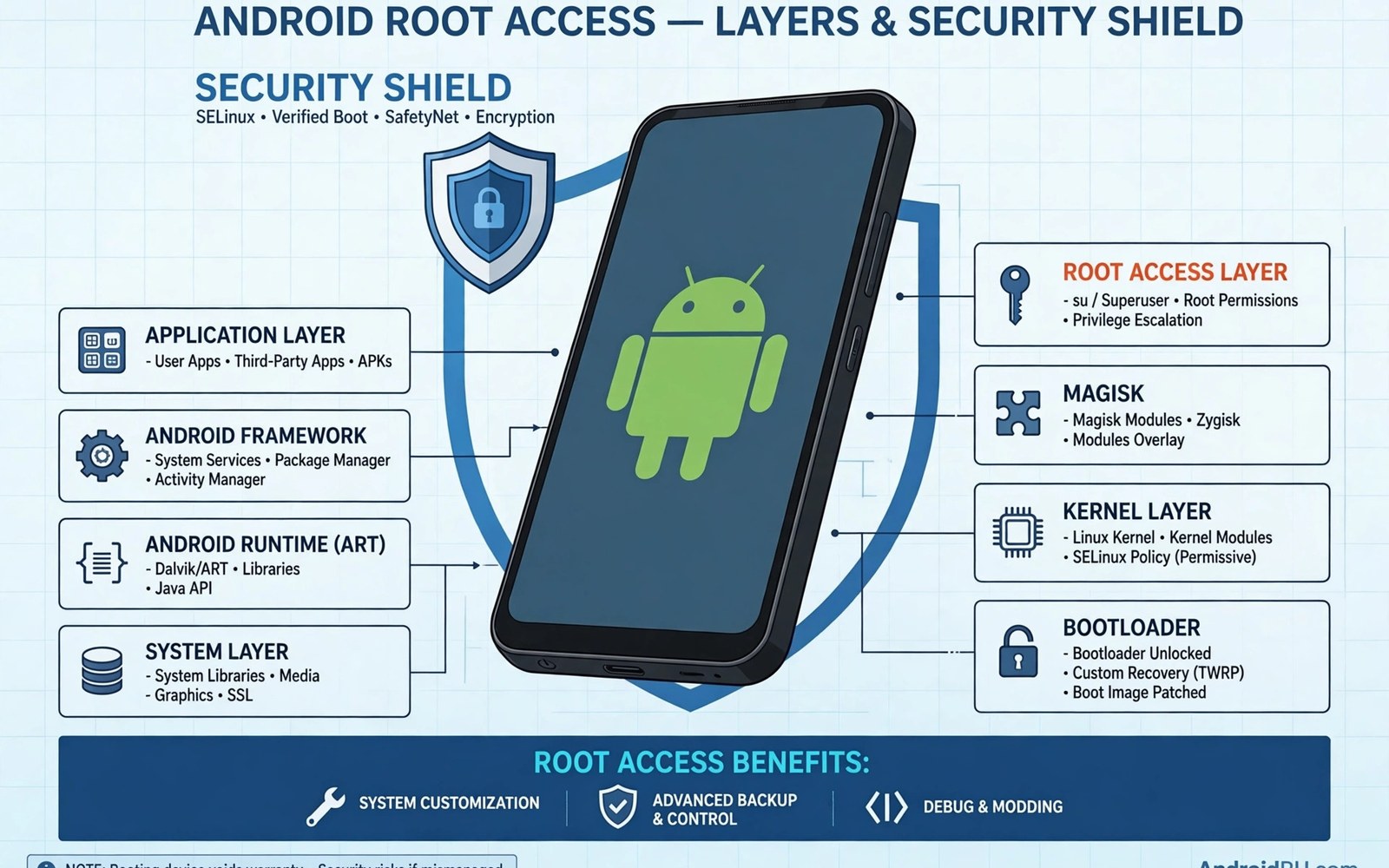
Android rooting gives the owner of a phone full control over the operating system. It unlocks the highest permission level on the device. That level is often called superuser access. With it you can change files that are normally locked. You can also remove apps that came preinstalled by the maker.
Most Android phones ship with a locked permission model. Each app runs in its own sandbox. Apps can only touch their own data. The system partition stays read only for normal users. Rooting breaks that barrier in a controlled way. It does not change the hardware of the phone. It changes who is allowed to give orders to the software.
People root for many different reasons. Some want to remove bloatware that wastes space. Others want deeper backup tools that copy every app and setting. Some want to tune battery use or processor speed. Others want to run tools that need system level access. A clear goal helps you judge whether rooting is worth the risk for you.
Before you start it helps to understand the main root methods. You can read about how a systemless method keeps the system partition untouched and compare it with older approaches. You should also learn how to check whether your bootloader can be unlocked safely before you touch any setting. Preparation reduces the chance of a costly mistake later.
What Root Access Actually Means
On Linux based systems the root user can read and write almost any file. Android builds on that same idea. The root account sits above normal app permissions. A rooted phone lets approved apps act with that power. Unapproved apps still run under normal limits. The key is control over which apps get approval.
A superuser manager acts as a gatekeeper. It asks you before an app gains elevated rights. You can grant access once or for a single session. You can also revoke access at any time. This gatekeeper role is vital for safety. Without it any malicious app could abuse full access in silence.
Root is not the same as unlocking the bootloader. Unlocking opens the door to custom software. Rooting gives elevated rights inside the running system. Many methods need an unlocked bootloader first. Some older methods worked without it. Modern phones usually need both steps in sequence.
Benefits That Attract Power Users
Full backups are a major benefit. A rooted backup tool can copy app data that normal backup skips. It can save game progress and chat history in full. It can restore that data after a reset without extra steps. This matters for people who test many apps or switch phones often.
System cleanup is another benefit. Makers and carriers preload apps that you may never open. Some of those apps run in the background and use battery. Root lets you remove or freeze them safely when you know what they do. You should keep a list of what you removed. That list helps you undo a change if something breaks.
Customisation goes far beyond themes and wallpapers. Root tools can change fonts and system sounds. They can adjust animation speed and display density. They can add features that the maker did not include. Each change should be tested one at a time. Testing one change at a time makes faults easy to trace.
Risks You Must Weigh Honestly
Security risk rises when root is active. A malicious app with root rights can read private data. It can change system files or install hidden software. The superuser prompt is your main defence. You must never grant root to an app you do not trust fully. You should also avoid random modules from unknown sources.
Warranty and support can be affected. Some makers refuse warranty service for rooted phones. Others still honour hardware faults that are unrelated to software. The policy depends on the brand and the region. You should read the warranty terms for your exact model. Keep that fact in mind before you proceed.
Some apps refuse to run on rooted phones. Banking apps and payment apps often check device integrity. Games with anti cheat systems may block rooted devices. Work apps may also refuse access for security reasons. Hiding tools exist but they do not always work. You should test your essential apps before you rely on root daily.
Fundamentals Before You Begin
Back up everything before you start. Copy photos and documents to a computer or cloud storage. Save contacts and messages separately. Note down your accounts and passwords in a safe place. A full backup turns a failure into an inconvenience. Without a backup the same failure can mean permanent data loss.
Charge the battery to a high level before flashing anything. A phone that dies during a write can end up unbootable. Use the original cable when you can. Keep the phone connected to a stable power source. Avoid starting the process when you are in a rush. Calm and patience prevent many errors.
Use files made for your exact model and variant. A boot image for a similar model can still brick your phone. Check the model number in settings. Check the region code when it matters. Download files only from sources you trust. Verify file hashes when the source provides them.
How To Decide If Rooting Fits You
Ask what problem rooting will solve for you. If you only want a new launcher then root is overkill. If you need full backups or system tools then root may help. Write down the top three things you want to change. If none of them need root then skip the risk. A stock phone with good apps covers most daily needs.
Consider your comfort with troubleshooting. Rooted phones sometimes need manual fixes after updates. You may need to use a computer command line. You may need to read logs to find a fault. If that sounds stressful then root may not suit you. There is no shame in keeping a stable stock phone.
Plan your exit route before you start. Learn how to unroot fully and restore a factory setup so you can return to stock if needed. Knowing the way back makes the forward step safer. It also helps if you need warranty service later. A tested exit plan is part of a smart root plan.
Common Terms Explained In Plain Language
Bootloader is the first program that runs when you switch the phone on. It checks the next stage before loading it. A locked bootloader only loads signed software from the maker. An unlocked bootloader accepts custom images that you flash yourself. That freedom is powerful and it also removes a safety check.
Recovery is a small separate system used for maintenance tasks. It can wipe data and apply update files. Custom recovery adds backup and flash tools beyond stock recovery. Stock recovery is safer for normal users. Custom recovery suits users who flash often and keep backups.
Kernel is the core layer that talks to hardware directly. It manages memory and processor and battery. A custom kernel can add features or tune performance. It can also break hardware support if built badly. Kernel changes deserve the same caution as any system change.
Firmware is the full software package for a phone model. It includes the system and modem and bootloader parts. Flashing wrong firmware can break network or boot functions. Always match firmware to model and region. Keep a copy of working firmware before you experiment.
A Safe Learning Path For Beginners
Start by reading guides without touching your main phone. Learn the terms and the steps in order. Watch how experienced users recover from errors. Note the tools they use and the backups they keep. Theory first prevents panic when a real step goes wrong.
Practise basic computer commands on a safe device if you can. Learn how to list connected devices and reboot into fastboot. Learn how to read command output carefully. Small skills build confidence for larger steps. Confidence without care still causes errors so stay methodical.
Join a community for your exact phone model. Model communities share tested files and known faults. They warn about bad updates and broken modules. Ask questions with your model and build number included. Clear questions receive clear answers and vague questions receive guesses.
Test each change with a rollback plan ready. Change one setting and reboot to confirm stability. Use the phone normally for a day before the next change. If a fault appears then you know the last change caused it. Slow progress beats fast progress that ends in a wipe.
Myths That Mislead New Users
Root does not make a phone faster by itself. Speed comes from removing waste and tuning settings well. A badly tuned rooted phone can run slower than stock. Root only gives you the tools to tune. Skill decides whether tuning helps or harms performance.
Root does not unlock every paid feature for free. Paid apps still check licences through their own servers. Root cannot create a valid licence for a paid service. Claims that promise free paid apps often hide malware. Avoid any tool that promises that outcome.
Root does not protect you from malware by itself. It can help security tools work deeper. It can also help malware work deeper when misused. The user remains the main security layer. Careful grants and trusted sources matter more than the root tool itself.
Root does not void every warranty in every country. Consumer law varies by region and by fault type. A hardware fault unrelated to software may still be covered. The maker policy still matters for practical service. Read local rules before you assume the outcome either way.
Final Checks Before You Act
Revisit your goal list one last time before you start. Confirm that root truly solves a problem you have today. Confirm that no stock feature covers the same need. A clear yes here justifies the risk that follows. A vague yes suggests waiting and learning more first.
Check your backup by restoring a small file from it. A backup test takes minutes and proves the copy works. Test a photo and a document and a contact entry. If any test fails then fix the backup before proceeding. Never start a risky step on an untested backup.
Tell a trusted person about your plan when the phone matters for work. A work phone outage affects more than just you. Plan the timing around work needs and travel needs. Avoid unlocking the night before an important trip. Good timing reduces stress when a step takes longer than expected.
Keep all files and notes in one folder on your computer. Label each file with model and build number. Note the date you downloaded each file. That folder becomes your recovery kit for future faults. A tidy kit turns a crisis into a routine restore.
Keep learning after your first successful root setup. Read about module safety and permission audits regularly. New Android versions change root behaviour often. Staying current protects the setup you worked hard to build. A rooted phone rewards ongoing learning more than a stock phone does.
adb devices
adb reboot bootloader
fastboot flashing unlock
# Confirm the unlock prompt on the phone screen
The steps above follow the approach described in the official developer documentation and reflect common practice for this topic. They focus on backups and careful checks rather than shortcuts. Readers should adapt each step to their own phone model. When a step is unclear it is safer to pause and research further.

