

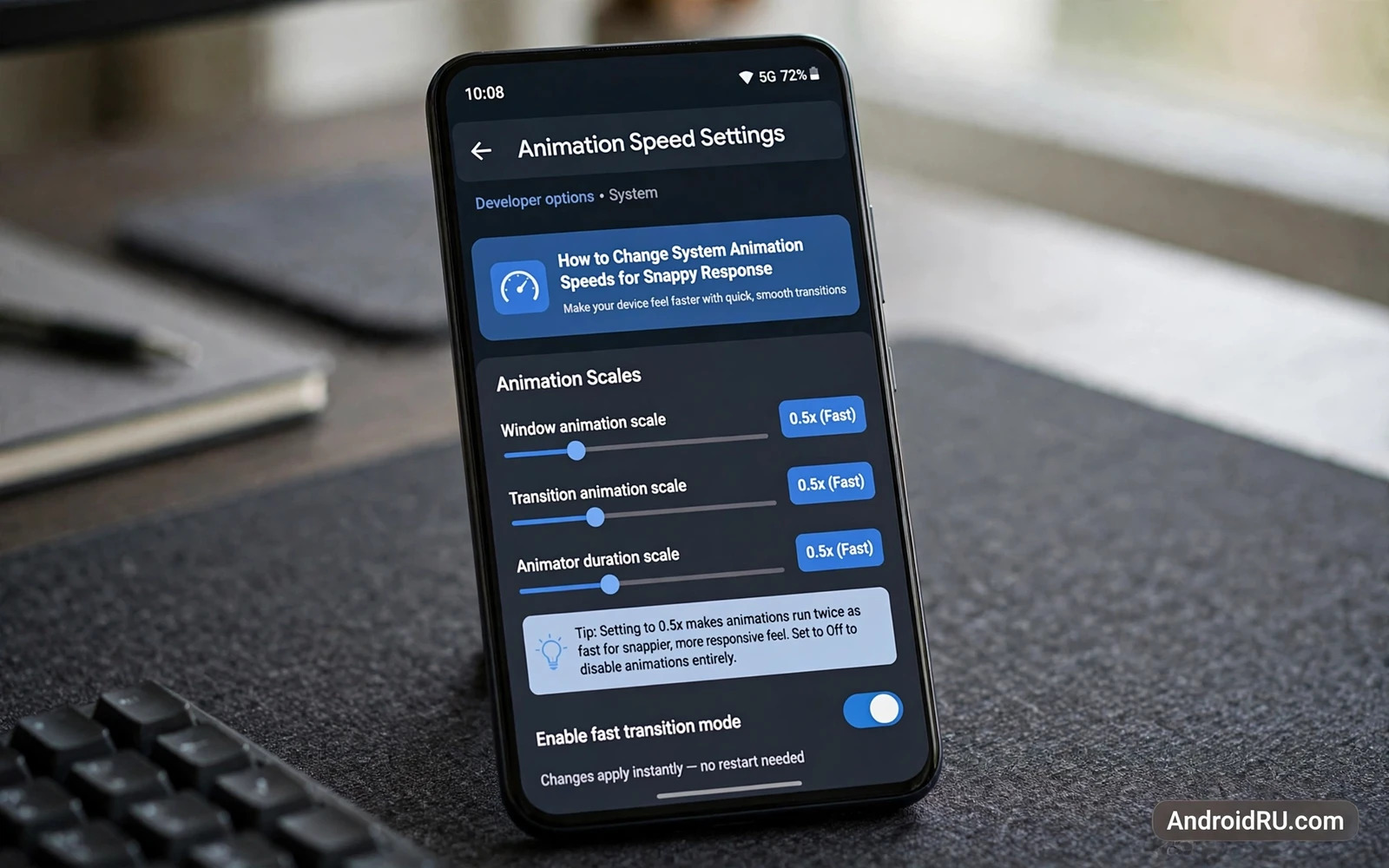
How to Change System Animation Speeds for Snappy Response
Some phones feel slow even when the chip inside is fast. You tap an app and wait for the window to glide open. You press back and watch the screen slide away. Nothing is broken, and no app is misbehaving — the phone is simply spending a noticeable slice of every second showing you movement. Those movements are animations, and Android lets you change how long they last. Shorten them and the whole phone feels quicker, often within a minute of changing a setting.
The trick is three small settings buried in Developer Options: window animation scale, transition animation scale and animator duration scale. Each one controls a different family of motion, and each one accepts values from off to ten times normal speed. Set them to half speed and most phones feel distinctly snappier without looking strange. Set them to off and the phone feels instant but slightly abrupt, because screens appear with no motion cue at all. This guide shows you how to turn on Developer Options, change all three scales step by step, pick the values that fit your phone, test the result properly, and put everything back to normal if you change your mind.
You do not need a computer, a cable or any special app for this. The settings are built into Android, they do not modify system files, and a wrong value can be reset in seconds. That makes animation tuning an ideal first tweak for anyone new to system settings — and a useful one for experienced owners who want their daily driver to feel as fast as its spec sheet promises.
What Window, Transition and Animator Scales Actually Control
Android draws three kinds of motion, and each scale governs one of them. The window setting controls windows opening and closing: the app window gliding in, a dialog popping up, the keyboard sliding up. The transition setting controls movement between screens: the slide from one settings page to the next, the crossfade when you open a conversation, the shared-element glide when you tap a photo. The animator setting controls property animations inside apps: menus fading in, panels sliding out, icons bouncing, progress indicators pulsing. Together they decide how long the phone spends showing movement between states.
Reducing a scale makes its animations finish sooner. Setting a scale to off removes that motion entirely, so elements appear and disappear at once. The phone does not process tasks faster in a technical sense — the processor does the same work — it simply spends less time showing you the journey between two screens. That perception of speed is real for daily use, because waiting for an animation is waiting, regardless of how fast the chip is. Increasing a scale makes animations slower and more visible, which helps owners who want to follow interface movement or who find fast motion uncomfortable.
Window Animation Scale
Window animation scale is the one to change first, because opening and closing windows is the most frequent animation on any phone. Every app launch, every dialog, every popup menu runs through it. At the stock value of 1x, a window takes roughly a third of a second to open. At 0.5x it takes about half that, and the difference is obvious the first time you tap an icon. This scale is also the safest to experiment with, because a window that opens too fast is merely abrupt, never broken.
Transition Animation Scale
Transition animation scale governs the movement between screens inside the system and inside apps. Open a settings page, go back, open a conversation, switch tabs — each of those moves is a transition. A slow transition makes the phone feel laggy even on fast hardware, because the screen is busy sliding while you are already ready to read. Test this scale by moving between screens inside a messaging app or the settings app, where transitions happen constantly and the difference shows up fast.
Animator Duration Scale
Animator duration scale controls the small property animations inside apps: a menu fading in, a panel sliding out, a button shrinking when pressed, a list item settling into place. These are the subtlest of the three, and also the easiest to overdo. At half speed, menus feel crisp. At off, menus appear instantly, which is fast but can feel like the interface is jumping. Test this one in apps with fading menus and sliding panels, and judge it by feel rather than by stopwatch.
Why Animation Time Feels Like Waiting Time
Perceived performance depends on animation duration more than most owners expect, because the brain treats animation time as waiting time. A task that completes instantly but shows a long animation feels slow. A task that takes slightly longer but shows a short animation feels fast. Task switching shows this best, because switching involves two animations in sequence: the outgoing app animates away while the incoming app animates in. Shorten both and the whole switch feels shorter, even though the apps themselves load at the same speed.
How to Turn On Developer Options on Android
Developer Options is a hidden settings menu, and turning it on takes less than a minute. The three animation scales live there, under the Drawing section, along with other system tweaks. Nothing here modifies system files, and turning the menu off again returns the animation scales to their stock values on most phones.
- Open Settings, then tap About phone. On Samsung phones this is near the bottom of the Settings list; on Pixel phones it sits under System in some versions, so check both places.
- Find Build number and tap it seven times in a row. After a few taps the phone shows a countdown, such as “You are 3 steps away from being a developer.”
- Enter your PIN, pattern or password when asked. This confirms it is really you enabling the menu.
- Go back to the main Settings screen. Developer Options now appears near the bottom, usually just above About phone, or under Settings, then System, then Developer options on Pixel phones.
- Open Developer Options and scroll to the Drawing section, where the three animation scale entries wait. Note the stock values before changing them — they are usually 1x — so you can return in seconds if a new value feels wrong.
That is the whole process, and it takes about thirty seconds. The menu stays enabled until you switch it off, so you can come back and adjust the scales any time without repeating the tap sequence.
Where to Find Developer Options on Samsung, Pixel and Xiaomi
The menu location varies by maker, which confuses more people than the tap sequence itself. On Pixel phones, go to Settings, then System, then Developer options. On Samsung phones, Developer options appears at the bottom of the main Settings list once enabled. On Xiaomi phones, the path is Settings, then Additional settings, then Developer options, and the build number lives under About phone, then MIUI version — tap that seven times instead. On OnePlus and most other brands, the Pixel layout is the closest match. If you cannot find the menu after tapping, search Settings for “Developer options” using the search bar at the top.
A Note Before You Change Anything
Write down the stock values before you touch them. The three scales are usually set to 1x, which is the standard speed, but some makers ship a different default, and knowing the original value is the only way back without guessing. Change one scale at a time and test the interface between changes. Changing all three at once hides which scale caused a dislike, and separate testing gives you precise control over the result.
How to Change Window Animation Scale Step by Step
Start with the window scale, because window opening is the most frequent animation your phone shows. The steps are the same on almost every Android phone, with only the menu wording varying slightly by maker.
- Open Developer Options from Settings, using the steps above if this is your first visit.
- Scroll down to the Drawing section. It sits below the debugging entries and above the hardware-accelerated rendering entries on most phones.
- Tap Window animation scale. A small menu appears with values from Animation off to Animation scale 10x.
- Pick Animation scale .5x. This halves the time every window takes to open or close.
- Press the Home button, then open and close several apps. Watch whether windows feel natural or abrupt, and whether dialogs still give you enough of a cue to follow them.
- If 0.5x feels good, leave it and move on to the next scale. If it feels abrupt, try 1x again for a day, then test 0.5x once more before deciding — first impressions favour novelty, and a day of normal use is the honest test.
What 0.5x Feels Like Compared with 1x
At 1x, opening an app feels like a short glide: the window grows from the icon, settles, and then you read. At half speed, the same opening feels like a quick snap: the window is simply there, with just enough motion to show where it came from. The difference is roughly a sixth of a second per opening, which sounds tiny until you multiply it by the hundred or so times a day you open something. Owners who switch apps constantly notice it most; owners who stay in one app for hours notice it least.
How to Change Transition Animation Scale and Animator Duration Scale
With the window scale set, the other two follow the same pattern. They live in the same Drawing section, directly below the window entry, so you never leave the menu.
- In Developer Options, under Drawing, tap Transition animation scale and pick Animation scale .5x.
- Move between screens inside an app to test it: open a conversation, go back to the list, open Settings and move between two setting pages. The slide should feel quicker without losing track of where you are.
- Tap Animator duration scale and pick Animation scale .5x as well.
- Test it in an app with fading menus and sliding panels — open a menu, dismiss it, open a side panel — and check that the motion still gives you a cue about what changed.
- Live with all three at 0.5x for several days before judging them. Initial impressions favour novelty, and several days of normal use reveal whether the speed stays comfortable or becomes tiring.
Test Each Scale Separately
Each scale affects a different motion family, so test them one at a time even though you change them in one visit. If a menu feels jumpy, the animator scale is the suspect. If moving between screens feels rushed, the transition scale is the suspect. If windows snap too hard, the window scale is the suspect. Separate testing turns a vague “something feels off” into a precise fix, and it takes only a few minutes of opening and closing things you already use daily.
Recommended Animation Scale Values for a Snappy Phone
There is no single correct value, because comfort differs from person to person, but a clear pattern emerges from testing across many phones. Half speed is the sweet spot for most owners: noticeably quicker, still smooth, and still giving the brain the motion cues it needs to track where screens come from. The table below lists the combinations that work in practice, with who each one suits.
| Setting | Recommended value | What changes | Best for |
|---|---|---|---|
| Window animation scale | 0.5x | Apps and dialogs open in about half the time | Everyday use on any phone |
| Transition animation scale | 0.5x | Moving between screens feels quicker and lighter | Owners who switch apps and screens often |
| Animator duration scale | 0.5x | Menus and panels fade and slide in faster | Most owners; keeps motion cues intact |
| All three scales | Off | No motion at all; screens appear instantly | Owners who value raw speed over motion cues |
| All three scales | 1x (stock) | Standard animation speed as the maker shipped it | Anyone who shares the phone or prefers gentle motion |
My own recommendation after testing these values on several phones is 0.5x on all three scales. It is the setting I keep coming back to: the phone feels responsive without feeling abrupt, and I never catch myself wondering where a screen went. Owners with a slower or older phone sometimes prefer turning the animator scale off while keeping the other two at 0.5x, because menus are where an older phone stutters most visibly. Try the 0.5x set first, live with it for three days, and only then experiment with off.
Why 0.5x Beats Turning Animations Off
Turning animations off sounds faster, and in raw time it is, yet most owners who try it switch back within a week. Motion cues help the brain track where a new screen came from: a window that grows from an icon tells you which app just opened, and a panel that slides in from the right tells you it belongs to the screen you just left. Remove those cues entirely and the interface can feel disorienting, especially when you switch apps quickly. Half speed keeps the cue and halves the wait, which is why it survives the three-day test while off often does not.
How to Check the Result and Test Your New Animation Speed
A scale change is easy to feel and hard to measure honestly, because novelty makes everything feel faster on day one. Test it properly instead: pick three repeatable actions, time them with a stopwatch before and after, and compare numbers rather than feelings.
- Pick your test actions: opening your most-used messaging app from the home screen, switching between two apps with the recent-apps button, and opening a settings page from the main Settings list.
- With the scales still at 1x, time each action three times and write down the average. Count from tap to readable screen, not from tap to first pixel.
- Change the three scales to 0.5x and repeat the same three actions the same way.
- Compare the averages. You should see each action finish a fraction of a second sooner, and the switch between two apps should show the biggest gain, because it runs two animations in sequence.
- Repeat the test after three days of normal use. If the phone still feels quick and nothing confuses you, the setting is right. If something feels abrupt, nudge one scale back to 1x and test again.
A Quick Before-and-After Test You Can Repeat
The simplest honest test needs no tools at all: open and close the same app ten times at 1x, counting silently, then ten times at 0.5x. The second set should feel plainly quicker without feeling broken. If you cannot tell the difference, your phone was already fast enough that animations were never the bottleneck, and the scales were not your problem. That is useful information too — it points you toward background management and storage health instead of more interface tweaks.
Test the Apps That Matter Most
Not every app responds to scale changes the same way, so test the ones you actually depend on. Messaging apps benefit most, because conversation navigation involves frequent transitions between list and chat. Browser tab switching improves too, though a browser with many tabs open may still feel slow for its own reasons. Camera mode switching and settings navigation both feel quicker at half speed. Game launch animations, on the other hand, are often controlled by the game itself, and a long splash screen will not shorten through system scales. Test banking and navigation apps explicitly as well, because their confirmation feedback matters most — a confirmation animation that plays too quickly can be missed, and a missed confirmation in a banking app is serious.
When Faster Animations Hurt: Usability Trade-Offs
Faster is not always better, and the trade-offs are worth naming before you commit. Very fast animations can hide important interface feedback: a confirmation that flashes by too quickly, a loading transition that vanishes before you register it, a toggle that changes state with no visible cue. Usability depends on feedback as much as on speed, and a snappy phone that confuses its owner is not an improvement.
Some apps chain their own actions to animation timing, and those apps can behave oddly when the system scale is off. A game that waits for an animation to finish before loading the next screen may stutter, and a launcher that adds its own transition effects on top of system scales may feel different from the stock launcher at the same values. Test important apps after changing scales, and revert to stock values if any app behaves strangely — reverting is a diagnostic step as well as a fix, because if the strange behaviour disappears after reverting, the scale was the cause.
Motion Sensitivity and Shared Phones
Motion sensitivity is another consideration, and it matters more than speed for some households. Owners who share a phone with family members should consider whether faster motion affects other users: children and older users often prefer gentler motion, and a shared device setting should balance the preferences of all regular users rather than optimising for one person alone. Android also offers a Reduce motion option in accessibility settings, which limits certain animations for comfort and for vestibular sensitivity. Owners who experience discomfort from motion should prefer that accessibility setting over aggressive scale tuning, because it is designed for comfort rather than speed and handles edge cases more carefully.
Apps That Chain Actions to Animations
A small number of apps tie their internal timing to animation duration, and those are the ones to watch. If an app freezes briefly, skips a transition, or shows a blank screen after you change the scales, set the animator setting back to 1x first — it is the usual suspect — and test again. If the problem persists at stock values, another factor is responsible, and the scales are cleared. Keep a note of which apps you tested, so a problem that appears a week later can be traced back to the change instead of blamed on an update.
How to Reset Animation Scales Back to Default
Reverting takes less time than setting up, and there are two ways to do it. The precise way is to set each scale back by hand. The fast way is to switch Developer Options off, which returns the animation scales to their stock values on most phones.
- Open Settings, then Developer Options.
- Scroll to the Drawing section.
- Tap Window animation scale and pick Animation scale 1x.
- Repeat for Transition animation scale and Animator duration scale, picking 1x for each.
- Alternatively, switch the Developer Options toggle off at the top of the menu. On most phones this resets all three scales to 1x at once and hides the menu again.
- Restart the phone if any animation still looks odd after reverting. A restart clears any cached animation state and confirms the stock behaviour is back.
Reverting is also the right first step whenever an app starts behaving strangely after a scale change. If the strange behaviour disappears at 1x, the scale was the cause, and you can then re-apply the scales one at a time to find which one the app dislikes. Clean diagnosis beats repeated guessing.
Animation Speed FAQ
Will changing animation scales make my phone actually faster?
No, not in the sense of processing power. The processor does the same work at the same speed; the phone simply spends less time showing movement between screens. The benefit is perceived performance: the wait you feel shrinks, even though benchmark scores stay identical. Owners seeking real performance gains should look at background management, storage health and battery health rather than animation scales alone.
What animation scale should I use for the snappiest feel?
Start with 0.5x on all three scales — window, transition and animator. It is the value most owners keep after testing, because it halves the waiting time while keeping the motion cues that help you follow the interface. If 0.5x still feels slow, try turning the animator scale off while keeping the other two at 0.5x. If anything feels abrupt, go back to 1x for a day and test again with fresh eyes.
Can animation scales damage my phone or void my warranty?
No. The scales change only how long animations play; they do not modify system files, and they can be reset in seconds from the same menu. Turning Developer Options off returns the scales to stock on most phones. The settings are part of Android itself, and using them is not rooting, not flashing and not a warranty issue.
Why do animations still feel slow after I changed the scales?
Four causes cover most cases. First, the launcher may add its own transition effects on top of system scales — check the launcher settings. Second, a heavy app may be slow to load, and no scale can hide load time once the opening animation is gone. Third, the scales may have been reset by a system update, so check that they are still at 0.5x. Fourth, foldable and large-screen devices show transitions across larger areas, so the same value can feel slower on a tablet than on a phone.
Final Check: A Faster Phone Without Losing Your Bearings
Animation tuning is a small change with a daily payoff. Three scales, one minute of tapping, and a phone that stops making you wait for its own choreography. The honest version of the promise is narrower than the hype: your phone is not faster, it simply wastes less of your time showing you movement, and that is enough to notice every time you open an app.
Do it today: turn on Developer Options, set all three scales to 0.5x, and live with them for three days before judging. If the speed sticks, keep it. If something feels abrupt, nudge one scale back. And if you want to keep tuning the interface, the guide that explains how to change device screen resolution and DPI via ADB covers layout density, the guide that explains how to customize status bar and quick settings beyond stock limits covers the top of the screen, and the roundup of top Android modding utilities every tweaker needs covers tools for deeper tuning. Together they build an interface that feels fast without sacrificing clarity.

