

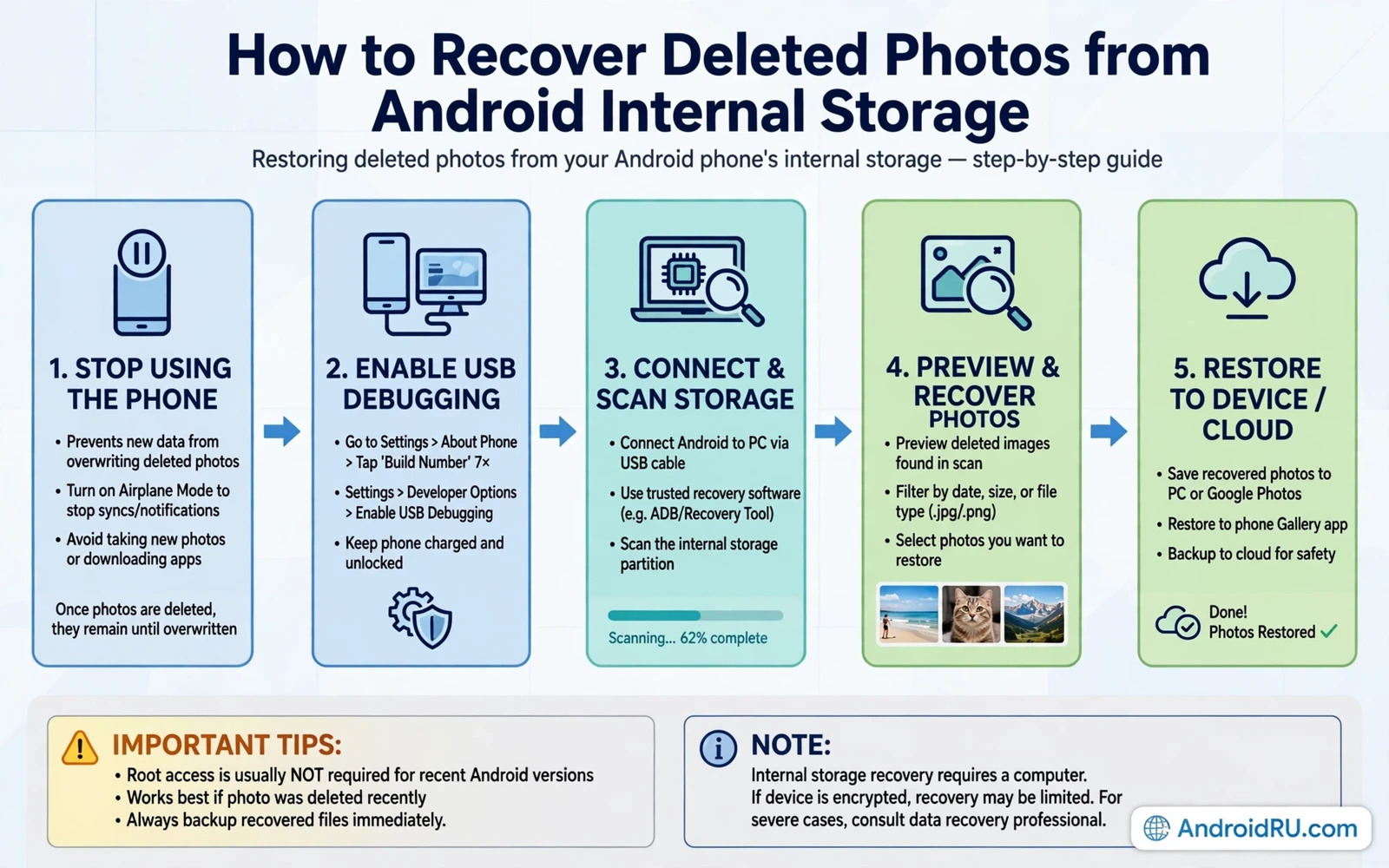
How to Recover Deleted Photos from Android Internal Storage
You open the gallery to show a friend a photo from last weekend, and it is gone. Maybe you deleted it by accident during a late-night cleanup, or a child tapped through your albums, or a cleaning app wiped a folder you meant to keep. The panic is real, because those pictures are often the only copy of a birthday, a holiday, or a first step. Before you install the first recovery program you find, take a breath. There is a real chance the picture is still there, and the next few minutes matter more than any app you could buy.
Deleting a picture on Android rarely erases the image data right away. What usually disappears first is the directory entry, the small record that tells the gallery where the file lives. The image data itself sits in place until something else writes over it. That gap is your recovery window. It can last minutes or days, and it closes the moment new photos, videos, app updates, or downloads claim the same space. Doing nothing for ten minutes has saved pictures; recording one video while searching for a fix has lost them.
This guide follows the order that gives you the best odds: stop writing to the phone, check every trash folder and backup copy, then try recovery tools only when the easy copies are gone. You will learn how to get lost pictures back from Android internal storage without root, when a thumbnail is the best you will get, and when it is time to stop and call a professional. No step here asks you to pay before you see a result.
Stop Writing to Your Phone After You Delete Photos from Android Internal Storage
The single most important step in photo recovery has nothing to do with software. It is stopping the phone from writing new data. Every new photo, app update, downloaded file, and cached video can land on top of the blocks that still hold your missing pictures. Once a block is overwritten, no consumer tool can bring the original back. Put the phone into airplane mode, close the camera app, and stop using it for anything that writes data.
Video recording is the worst offender. A single minute of 4K video can overwrite hundreds of megabytes, which may include dozens of freed photo blocks. Large app updates and game downloads come next, followed by the steady drip of messaging apps saving incoming media. If the pictures matter a great deal, power the phone off completely until you have a plan, rather than browsing for solutions on the same phone and letting the browser cache overwrite the very files you want back. Read this guide on another device while the phone rests.
Check the Gallery Trash and Recently Deleted Folder on Android
Before any recovery tool earns a place on your phone, check the trash. Almost every gallery app on Android keeps deleted pictures in a trash or recycle bin for a limited window, and restoring from there takes one tap and loses nothing. The exact name changes by brand: the Google app calls it Trash, Samsung Gallery calls it Recycle bin, and Xiaomi Gallery calls it Trash as well. The idea is the same everywhere, and it is the fastest way to recover deleted photos from Android gallery trash without touching a third-party tool.
Open your gallery app, tap the menu or Library tab, and look for Trash, Recycle bin, or Recently deleted. If the pictures are there, select them and tap Restore. Check the trash in your cloud photos app separately, because a picture deleted from the gallery may sit in a different cloud trash with its own clock. Check the Files app trash too, if your phone offers one. Restore anything you find right away, because trash retention expires, and an expired trash copy disappears for good.
Google Photos Trash and the 30-Day Recovery Window
The Google Photos app keeps deleted pictures in Trash for 30 days when backup is turned on, and for 60 days in some account setups, so check the exact date shown under each thumbnail. Open the app, tap Library, then Trash, and you will see every deleted item with the days left before it is removed for good. Select the pictures you want and tap Restore, and they return to the library and to any album they belonged to. If a picture is missing from Trash entirely, it was either deleted more than a month ago or it was never backed up, which changes the plan.
Samsung Gallery Recycle Bin and Other Brand Trash Folders
Samsung phones keep deleted pictures in the Gallery Recycle bin for 30 days, and the setting can be switched off, so a missing bin usually means someone turned it off during setup. Open Samsung Gallery, tap the menu, then Recycle bin, and restore from there. Xiaomi, Oppo, Vivo, and OnePlus phones all have a similar trash folder in their own gallery apps, usually under Albums or a menu in the gallery, with retention of around 30 days. Check every gallery app on the phone, not just the one you normally open, because a picture can be deleted from one app and trashed by another.
Recover Deleted Photos from Google Photos Backup and Cloud Copies
If the trash is empty, the backup is your next best friend. A picture that was backed up to the cloud survives the loss of the local file completely, and restoring it is just a download. Open your cloud photos account on another device or in a browser on a computer and search by date, place, or album name.
Search broadly. A picture from a trip may sit in an album you made months ago, or in a shared album a family member created. Download any copy you find to a computer first, not back to the phone, so the download does not overwrite other deleted files that are still waiting for recovery. You can sort out quality and duplicates later, once nothing else is at risk.
Shared Albums and Partner Sharing Copies That Survive Deletion
Partner sharing and shared albums are quiet lifesavers. When you share a library with a partner, the pictures they can see may remain available in their account even after you delete your own copy, depending on how sharing was set up. The same is true of a shared album: removing a picture from your own library does not always remove it from the album if another person added or saved it. Ask the other person to check, and ask them to save a copy to their own device before anything else changes.
Photo Recovery Apps for Android: What They Can and Cannot Do
When trash and backup both come up empty, the Play Store offers dozens of recovery tools. Their honest ability is narrower than their listings suggest. On a modern phone without root access, a recovery tool cannot read raw storage blocks that belong to freed space, because encryption and scoped storage block that path. What these tools can do is scan the media database for entries that still point at files, dig through cached thumbnails, and find images that still exist in folders the tool is allowed to read.
How DiskDigger and Similar Recovery Tools Scan for Deleted Pictures
DiskDigger is one of the best-known names in this space, and it shows the split clearly. Without root, its basic scan searches the media store and caches for recoverable images and thumbnails, and it can work well for pictures deleted recently from accessible folders. With root access, its deep scan can search freed space far more thoroughly, which is why rooted phones see better results. Other long-running tools in the same category work the same way: a shallow scan for everyone, a deep scan only for rooted devices. Any tool that promises guaranteed full recovery from encrypted internal storage without root is overselling what Android allows.
When a Deep Scan Needs Root Access
A deep scan reads freed space directly, and Android only grants that level of access to a rooted phone. If you already have root, a deep scan is worth trying before anything else. If you do not, think twice before rooting just for recovery: the rooting process itself writes data, wipes the phone on many models, and can void support. For most people, the copies in trash and backup are a far safer bet than a fresh root.
How to Tell a Real Recovery App from a Scam
- A real tool shows previews of files it actually found before asking for payment.
- A scam tool shows generic placeholders or demands payment before any preview appears.
- A real tool asks only for media and storage permissions related to scanning.
- A scam tool asks for broad access or tells you to switch off security protections.
- Stop at once if a tool asks you to install an unknown profile or sideload a helper app.
Recover Deleted Photos from a MicroSD Card with a Computer
Pictures stored on a removable memory card offer better recovery chances than pictures stored on internal memory, and the method is refreshingly direct. Power off the phone, remove the card, and insert it into a computer card reader. A reputable recovery program on the computer can then scan the card directly, reading freed blocks without Android standing in the way.
When Deleted Photos from Android Internal Storage Cannot Be Recovered
Honest recovery means knowing when to stop. Pictures that were overwritten by new files cannot be reconstructed by consumer tools, no matter how expensive the tool claims to be. A factory reset wipes the encryption keys that protect internal storage, which makes the old data unreadable even if the bytes are still physically present.
Build a Photo Backup Safety Net So the Next Deletion Does Not Hurt
A photo safety net starts with automatic backup switched on for every photo source on the phone. Switch on cloud backup for the main gallery and check whether it runs on Wi-Fi only or on mobile data as well, based on your data plan.
Add a second copy for pictures that matter most. Copy irreplaceable photos to a computer or to an external drive during a monthly routine. A second copy protects against cloud account loss and against accidental deletion inside the cloud trash itself. Keep the second copy organised by date so that finding a specific picture later does not require searching through an unstructured folder. Two independent copies turn a future deletion from an emergency into a simple restore.
Good habits around storage and cleaning help too. A solid grounding in backing up and restoring Android data safely and fully covers the full restore path, not just photos, while hiding photos and videos behind encrypted lockers protects sensitive images from casual deletion by other people using your phone. And clearing cache and junk files without breaking apps shows how routine cleaning can accidentally remove files worth keeping, which is one of the most common ways pictures disappear in the first place.
Frequently Asked Questions About Recovering Deleted Photos from Android
Can I recover deleted photos from Android internal storage without root?
Yes, in many cases, but only through copies that still exist. Check the gallery trash, the cloud trash, and any backup first, because those need no root access at all. Recovery tools without root can find thumbnails, cached previews, and files that still sit in accessible folders, but they cannot read raw freed blocks on encrypted internal storage. If those easy copies are gone and the pictures were overwritten, root access improves the odds, but rooting a phone after deletion writes data and risks the very files you want back.
How long do deleted photos stay in Google Photos trash?
Deleted pictures stay in Trash for 30 days when backup is turned on, and for 60 days in some account setups, with the exact expiry shown under each thumbnail. Samsung Gallery keeps deleted pictures in its Recycle bin for 30 days, and most other brands use a similar window of around 30 days. After that window closes, the trash copy is wiped for good, so check trash within days of a deletion rather than weeks.
Why do some recovery apps only find thumbnails instead of full photos?
Thumbnails are small preview images the system keeps for fast gallery scrolling, and they often survive after the full picture is deleted or overwritten. On modern Android, tools without root cannot read the raw storage blocks where the full file lived, so the thumbnail cache is often the only thing left within reach. A thumbnail proves the photo existed and shows the moment clearly, but it is a small image, usually a few hundred pixels wide, and enlarging it will not restore the original detail.
Can pictures be recovered from Android after a factory reset?
Almost never, and you should treat it as impossible for planning purposes. A factory reset wipes the encryption keys that protect internal storage, which makes the old data unreadable even if the underlying bytes are still there. The only realistic path after a reset is a cloud backup, a shared album, a message attachment, or a computer copy made before the reset. That is why backing up before any reset, or before handing a phone to a repair shop, matters so much.
Photo recovery rewards fast action and honest expectations. Stop writing to the phone, check trash, check backups, and preview any tool result before paying. Even when full recovery fails, a thumbnail, a shared copy, or a backup copy may save the memory. After recovery, switch on automatic backup so that a future deletion becomes a minor restore rather than a stressful rescue. Open your gallery settings today, confirm backup is running, and check the last backup date. That two-minute check is the whole lesson, and it is worth more than every recovery tool on the store.

