

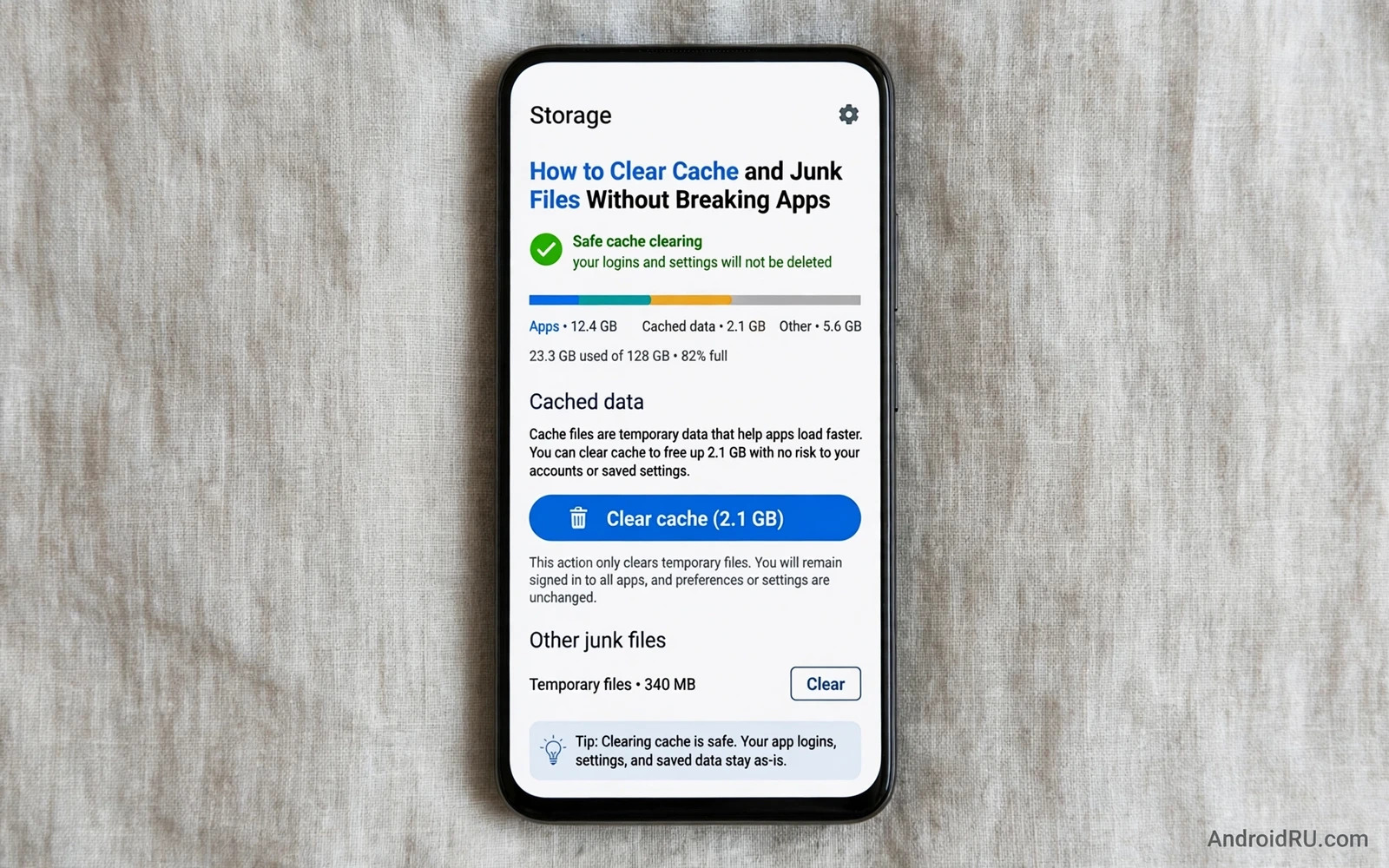
Cache exists to make apps faster because it stores copies of images and pages and data that an app may need again soon. A browser keeps page pieces so that a return visit loads quickly and a social app keeps thumbnails so that a feed scrolls smoothly. That stored data is meant to be temporary and the system can rebuild it whenever it is removed. Problems begin only when cache grows unchecked for months or when a corrupted cache file makes an app crash or freeze. Clearing cache then becomes a safe repair step rather than a risky deletion.
Junk files differ from cache because they include leftovers that no app actively needs any more. Temporary downloads and failed update pieces and old installer files can sit in storage long after their purpose has ended. Some cleaner apps label almost everything as junk in order to look effective and that broad labelling creates the real danger for users. A safe cleanup targets files that are clearly temporary and leaves user data and app settings and login tokens untouched. Knowing the difference between temporary data and user data is the core skill for any safe cleanup.
Why Cache Grows And When Clearing Helps
App cache clearing through settings is the safest route because it removes only temporary data for one app at a time. Open app info for the troubled app and use the storage section to clear cache while leaving the clear data button untouched. Clear data is a different action because it removes accounts and settings and saved progress and it returns the app to a fresh state. Many app breakages blamed on cache clearing actually come from clearing data by mistake. Read button labels slowly and tap only the cache option when your goal is a gentle repair.
System cache and storage tools on modern Android work differently from older recovery cache partitions that many guides still mention. A storage manager can suggest large temporary files and unused apps and duplicate media for review. Review each suggestion before you accept it because an automated suggestion may include a file that you still need for offline use. A manual review takes a little longer but it prevents the most common cleanup regret which is losing an offline map or an offline playlist. Treat any tool that promises a single tap fix for all storage problems with healthy suspicion.
Start cleanup with the app that shows the actual symptom rather than clearing every app on the phone at once. A crashing social app or a freezing browser gives you a clear target and a clear test after cleanup. Clear cache for that one app and restart it and check whether the symptom disappears. If the symptom stays then the cause may sit in app data or in a system conflict rather than in cache. A targeted approach also makes it easy to judge cause and effect because only one variable changed at a time.
Protect Logins Downloads And Offline Content
Login loss after cleanup usually signals that data was cleared instead of cache or that an app stores session tokens in a fragile way. Most well built apps keep login state separate from cache and they survive a cache clear without asking for a password again. Some apps rebuild login state from a secure account store and they may ask for a quick confirmation after a cache clear. That confirmation is normal and it does not mean that cleanup broke the app. If an app demands a full setup again then check whether a cleaner tool cleared data or removed a needed folder in the background.
Downloads and documents need protection during any junk cleanup because storage tools sometimes group them with temporary files. Check the downloads folder by hand before you accept a bulk delete suggestion. Move important documents and installers and media files to a clearly named folder that a cleaner will not treat as temporary. Keep a backup of anything that cannot be downloaded again before you run any broad cleanup. A few minutes of sorting prevents hours of recovery work later.
Photos and videos deserve a separate check because thumbnails and preview caches can look like junk while the originals live elsewhere. Clearing a gallery cache removes previews but it should not remove original photos that live in the main media folders. A cleaner that offers to delete duplicate photos or blurry photos needs a manual review because its judgement may differ from yours. Back up photos through a trusted route before you let any tool delete media files in bulk. That backup habit turns a risky delete into a reversible experiment.
Third party cleaner apps promise speed but they often create new risks while solving a small storage problem. A cleaner may request broad storage access and accessibility access and then run constantly in the background while draining battery. Some cleaners show alarming warnings in order to push a paid upgrade or another install. Built in storage tools already handle most cache tasks without those extra permissions. Prefer the built in tool for routine cleanup and reserve a third party tool only for a specific task that the built in tool cannot do.
Cleaner Apps And Storage Pressure
Offline content needs a deliberate decision because clearing cache can remove downloaded maps and music and videos that you planned to use without a network. Check offline sections inside each app before you clear its cache and note which downloads would need to be fetched again. A music app may rebuild its cache quickly on Wi-Fi while a large offline map may take far longer to download again. Clear cache for online heavy apps first and leave offline heavy apps alone unless they show a clear fault. That priority order keeps travel and work tools ready when you need them most.
A safe cleanup routine follows a simple order that you can repeat every month without fear. Review storage in settings and note which apps hold the largest cache. Clear cache for one troubled or bloated app and test it right away. Check downloads and offline content before any bulk suggestion. Back up anything irreplaceable before any delete that goes beyond cache. That order keeps risk low because each step is small and reversible and testable on its own.
When an app breaks after cleanup the fix often starts with a restart and a second cache clear rather than a reinstall. Restart the phone to clear any stale process that still holds a bad cache reference. Open the app again and watch whether it rebuilds its cache cleanly on first launch. If the app still fails then check permissions because some cleaners revoke a permission while removing files. Restore the needed permission and test again before you consider clearing data or reinstalling the app.
Fix An App That Breaks After Cleanup
Reinstalling an app should be a later step rather than a first response to a cache problem. A reinstall removes data and settings and it forces a fresh login and a fresh download of offline content. Try cache clear and restart and permission check first and keep reinstall for cases where those gentle steps fail repeatedly. When you do reinstall then back up app data through the app own export or cloud sync before removal. That preparation makes reinstall a controlled reset rather than a data loss event.
Storage pressure itself can cause app faults that look like cache corruption because a nearly full phone cannot write new temporary files reliably. Keep a reasonable amount of free space by removing unused apps and large videos that you no longer need. Move large media to external storage or to a trusted cloud copy when the phone supports that option. A phone with breathing room handles cache rebuilding far better than a phone that fills its last storage block during an update. Free space is a safety margin for every other cleanup step.
Security and cleanup connect because a bloated cache can hide stale trackers and old preview files that linger long after you stopped using an app. Clearing cache for apps that you no longer trust reduces their leftover footprint on the device. Removing unused apps entirely is even stronger because it deletes both cache and data for that app in one step. You can place cleanup inside a wider safety habit by studying how essential Android security settings create a safer baseline so that storage hygiene and permission hygiene reinforce each other. A clean phone is easier to audit and easier to trust.
Cleanup As Part Of Wider Phone Safety
Malware cleanup sometimes begins with cache symptoms because a harmful app can fill storage with junk or force constant reloads. Unusual cache growth for a single unknown app deserves a malware check rather than a simple clear and forget response. Pair a cache review with a scan and a permission review when growth looks suspicious. You can follow that pairing by reading how malware removal works from safe mode through a final restart so that a storage symptom does not hide a deeper threat. Clear cache after removal as well to remove any corrupted leftovers from the harmful app.
Backup before broad cleanup remains the simplest insurance against any mistake during a storage project. A backup of photos and documents and contacts lets you recover quickly if a cleaner deletes more than intended. You can review that insurance by studying how backing up and restoring Android data safely and fully works in practice so that cleanup never becomes a gamble with irreplaceable files. Test a restore of a single file occasionally so that you know the backup works before you actually need it. A tested backup changes cleanup from a risk into a routine.
A monthly cleanup habit beats a yearly panic cleanup because small cache growth is easy to manage and large junk piles invite risky bulk deletes. Set a reminder to review storage and clear cache for the largest apps and remove apps that you have not opened in months. Keep notes about which apps need offline content protection so that future cleanups stay fast. Over time you will learn which apps bloat quickly and which apps stay lean and that knowledge makes each cleanup shorter. Safe cleanup is ultimately a habit of small and careful steps rather than a single dramatic purge.
App specific cache behaviour varies because a map app and a music app and a browser all use cache for different purposes. A map cache holds offline tiles that take time to download again while a browser cache holds page pieces that rebuild in seconds. Learn which apps on your phone depend on offline cache before you clear them in bulk. That knowledge lets you clear aggressively where rebuilding is cheap and cautiously where rebuilding is slow. Cache wisdom comes from knowing each app rather than from following a generic cleaner rule.
Storage recommendations from the system deserve a manual read because they sometimes suggest removing an app that you use rarely but still need. A rarely used authenticator or banking app may look expendable in a storage list while its loss would cause real trouble. Keep rarely used security apps even when storage feels tight and remove entertainment apps first. Storage pressure should never push you to delete a security tool that protects accounts. Prioritise safety apps over space savings in every cleanup.

