

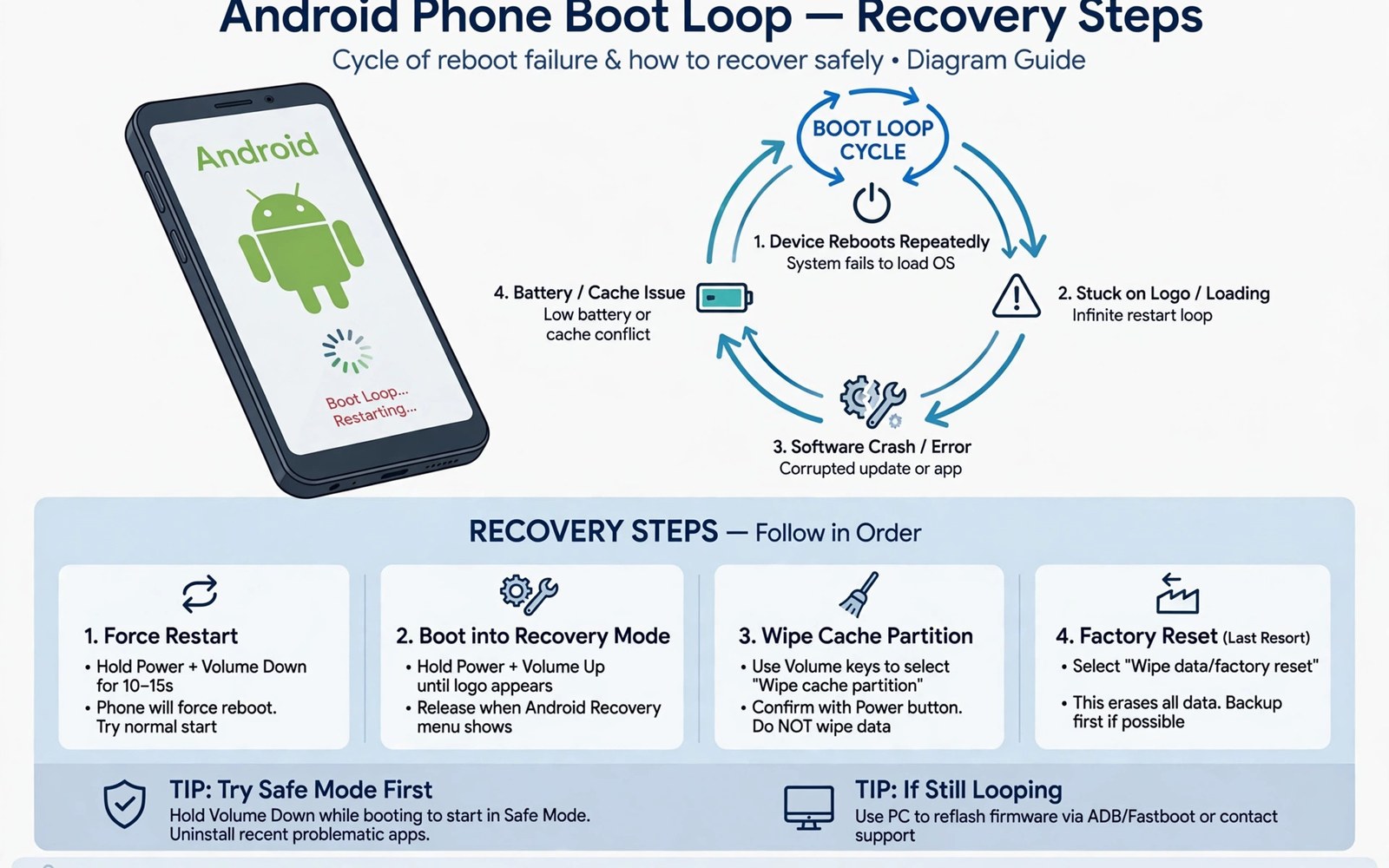
A bootloop means the phone restarts repeatedly before reaching the home screen. It usually follows a recent system change. A new module or tweak or update often triggers it. The phone is not necessarily damaged permanently. Recovery depends on undoing the last change cleanly.
Reverting system changes requires a methodical approach. Random flashing can worsen a bootloop or wipe data needlessly. Start with the least destructive reversal available. Disable modules first and restore stock images next. Full firmware restore remains the last resort for most cases.
Bootloops differ in cause and in recovery path. A module bootloop often clears through recovery disable tools. A boot image fault needs stock image flashing. A system file fault may need full firmware restore. Identifying the last change guides the correct first step.
Bootloop recovery follows soft brick basics closely. Review the risks of soft-bricking during rooting attempts for the wider picture. Also review how to unroot fully and restore a factory setup for the clean return path. Those topics support the steps below.
First Steps When Bootloop Starts
Stop and note the last change made before the loop began. That change is the prime suspect for the fault. Note whether the change was a module or a tweak or an update. Note the exact time of the change if possible. A clear suspect saves hours of random troubleshooting.
Let the phone loop a few times while you observe the pattern. Note whether it reaches the logo or a later stage each time. Note whether it vibrates or shows any error text. Pattern details help community helpers diagnose the fault. Vague reports lead to vague recovery advice.
Charge the phone before attempting recovery steps. A low battery during recovery can cause a second fault. Connect a reliable charger and wait for a stable charge level. Recovery flashing needs stable power throughout. Do not rush recovery on a nearly dead battery.
Disabling Modules From Recovery
Many root tools offer a recovery based module disable method. A custom recovery can rename module folders to disable them. Some tools disable modules after several failed boots automatically. Learn the disable method for your tool before testing modules. A known method turns panic into a routine fix.
Disable the most recent module first when several modules exist. Reboot after disabling that single module. If boot succeeds then that module caused the loop. If boot still loops then disable the next most recent module. One by one disabling identifies the faulty module precisely.
When all modules are disabled and boot still loops then the cause lies elsewhere. The boot image or a system tweak may be responsible. Move to boot image restoration as the next step. Do not keep disabling already disabled modules repeatedly. Methodical progression beats repetition during recovery.
Restoring Stock Boot Images
Flash the stock boot image for your current build through fastboot. That step removes patched boot code and module overlay handling. It usually restores boot when the patch caused the loop. Confirm the active slot before flashing on slot phones. Wrong slot flashing leaves the faulty image in place.
Keep stock boot images labelled by build on your computer. A labelled stock image speeds up recovery greatly. An unlabelled image risks flashing the wrong build. Wrong build flashing can create a new boot fault. Organisation before trouble prevents trouble during trouble.
After stock boot restore test basic boot stability fully. Use the phone normally for a day without modules. Confirm calls and data and camera work normally. Stability without modules proves the base system is sound. Add modules back slowly only after that proof.
Reverting System Tweaks
System tweaks through root apps can also cause bootloops. Processor or memory tweaks may destabilise early boot. Display or thermal tweaks can cause shutdowns that mimic loops. Revert tweaks through recovery or safe mode when possible. Some tweaks store settings in data files that recovery can delete.
App based tweaks often leave config files in data storage. Deleting the config file for the tweaking app can reset it. Identify the config folder for the suspect app carefully. Delete only that app config rather than all data. Targeted deletion preserves other app data during recovery.
When tweak settings live in system files then stock restore may be needed. A full firmware flash rewrites system files cleanly. That step may wipe user data depending on method. Back up data through recovery when possible before full flash. Data preservation should precede destructive restore steps.
When Full Restore Becomes Necessary
Full firmware restore is necessary when partial steps fail repeatedly. It rewrites boot and system and vendor partitions cleanly. Maker tools guide the full restore process for each model. Follow the maker tool steps exactly without shortcuts. A complete restore usually fixes even stubborn bootloops.
Full restore often wipes user data so check backup status first. Recover data through recovery tools when the phone allows it. Copy photos and documents before wiping when possible. A wiped phone without backup loses data permanently. Data checks belong before every destructive step.
After full restore set up the phone as a stock device first. Test stability for a day before re-rooting or adding modules. A stable stock base proves hardware and firmware health. Re-root only after that proof exists. Rushing back to the old setup can recreate the same loop.
Preventing Future Bootloops
Change one thing at a time during all root experiments. Install one module and test it for a day. Apply one tweak and test it for a day. Single changes make fault identification trivial. Multi change experiments hide faults until recovery becomes complex.
Keep a change log with dates and module versions. Note each install and each tweak in the log. When a loop starts the log names the suspect at once. A log turns troubleshooting from guessing into reading. It costs minutes and saves hours during faults.
Boot patch knowledge helps prevent image related loops. Study how boot image patching installs root access before flashing patched images again. Correct images and slow changes prevent most loops. Prevention plus recovery skill makes root use far calmer.
Using Safe Mode And Recovery Tools
Safe mode on rooted setups may disable modules for diagnosis. Boot into safe mode through the maker button sequence. Safe mode loads only core system components initially. If safe boot succeeds then a module likely caused the loop. Use safe boot as a diagnostic step rather than a fix alone.
Custom recovery offers file tools for deeper diagnosis. Recovery can browse data folders and delete faulty configs. It can also flash stock images directly. Learn recovery navigation before a bootloop occurs. Recovery skill under stress is harder to learn than in calm practice.
ADB tools can help when recovery access is limited. ADB from a computer may connect during early boot stages. Log output through ADB can reveal the failing component. Logs help helpers diagnose loops precisely. Save log output when you capture it for help requests.
Fastboot tools offer the most reliable recovery path. Fastboot works before Android loads at all. It can flash stock boot and system images cleanly. Keep fastboot drivers installed on your computer always. Driver readiness shortens recovery time greatly.
Data Recovery During Bootloops
Data recovery should precede destructive restore when possible. Recovery file tools can copy photos to external storage. ADB pull commands can copy data folders when ADB works. Copy the most valuable data first under time pressure. Valuable data deserves priority over complete data during a loop.
Encrypted data limits recovery options during bootloops. Recovery may need the lock credential to decrypt storage. Keep that credential safe and separate from the phone. A forgotten credential can block data rescue entirely. Credential safety is part of bootloop readiness.
Cloud synced data survives bootloop wipes more easily. Photos and contacts sync automatically for many users. App data without sync remains vulnerable during wipes. Check sync status for critical apps before root experiments. Sync gaps need manual backups to close.
After data recovery proceed to destructive restore calmly. A saved data copy removes fear from full restore steps. Full restore then becomes a routine fix rather than a loss. Data safety transforms bootloop recovery emotionally. Calm recovery succeeds more often than panicked recovery.
Documenting Bootloop Incidents
Write down the loop start time and last change made. Note the boot stage reached before each restart. Note recovery steps tried and their outcomes. That incident log helps helpers diagnose quickly. It also prevents repeating failed steps in panic.
Share incident lessons with your model community after recovery. Report the faulty module or tweak honestly. Report the recovery step that fixed the loop. Shared lessons prevent the same loop for other users. Community learning grows from honest incident reports.
Update your change log after every incident. Mark faulty modules as unsafe for your setup. Note tweaks that caused instability clearly. Future changes can avoid those known faults. A living change log is a prevention tool.
Review incident patterns over months for deeper causes. Repeated loops may signal hardware or firmware instability. A pattern deserves investigation beyond single module blame. Hardware faults can mimic software loops sometimes. Pattern review catches hardware issues earlier.
Keep a bootloop recovery kit ready on your computer at all times. Include stock boot files and fastboot tools and recovery notes. A ready kit turns a stressful loop into a calm routine. Preparation is the difference between panic and recovery. Build the kit before you need it.
adb reboot recovery
# Disable last module in recovery
fastboot flash boot stock_boot.img
The steps above follow the approach described in the official developer documentation and reflect common practice for this topic. They explain bootloop reversal in order from least to most destructive. Readers should back up before destructive restore steps. When recovery fails it is safer to seek model community help with details.

