

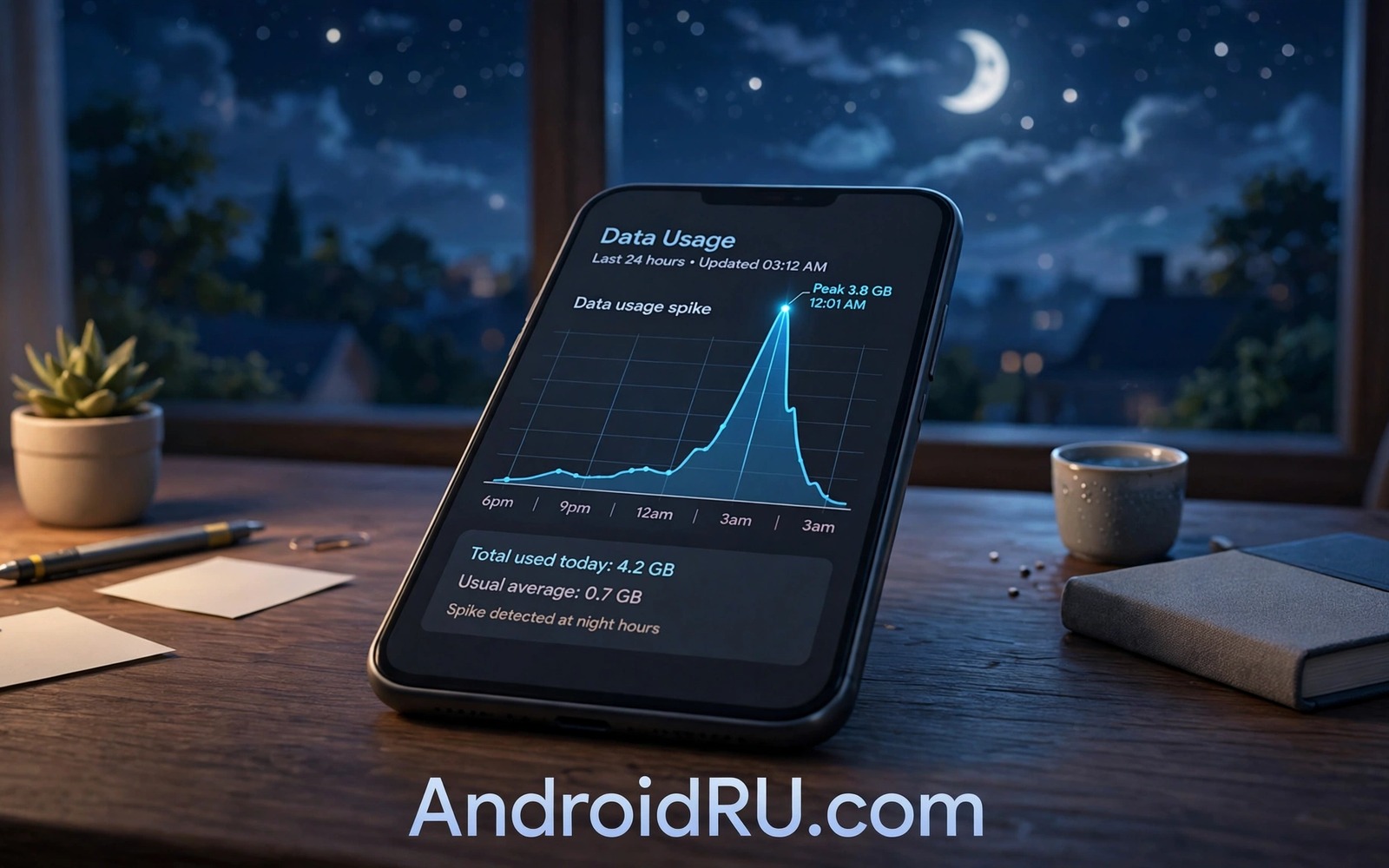
Waking up to a data warning feels unfair. You slept and the phone sat still yet gigabytes disappeared. The phone was not idle in the way you imagine. Night hours are when backups run and updates queue and cloud photos sync. A single misconfigured app can use more data overnight than you use all day.
Overnight spikes also hide real problems that deserve fast action. A rogue app may upload video in the background. A hotspot may stay on after a guest leaves. A cloud backup may switch from Wi-Fi to mobile data when the home network drops at night. Each cause has a different fix and guessing wastes time.
This guide gives you an ordered hunt for the culprit. You start with the built in data usage screen. You narrow the window to the night hours. You then apply the fix that matches the app and the behaviour you found. Most spikes resolve with one settings change.
Open the data usage screen first
Open Settings and then open Network or Connections and then open Data usage. The mobile data usage screen lists apps by total use for the current billing cycle. Tap an app to see its foreground use and its background use split apart. Background use is the key number for overnight spikes because you were not touching the phone.
Change the cycle view to cover the night of the spike when your phone allows a custom range. Some phones show daily use in a chart that you can tap for detail. Look for a sharp bar during sleeping hours rather than a steady climb across the day. A sharp bar points to one event rather than general heavy use.
Note the top three apps by background use before you change anything. A cloud app at the top suggests a backup problem. A video app at the top suggests autoplay or preloading. A system service at the top suggests updates or sync. That short list guides every later step.
Check backups and cloud sync settings
Cloud backups often run at night when the phone charges and the screen stays dark. That timing is smart on Wi-Fi and costly on mobile data. Open each cloud app and confirm that backup runs on Wi-Fi only. Look for a setting named backup over Wi-Fi only or upload on Wi-Fi only and switch it on.
Photo sync deserves special attention because photos and videos are large. A single evening of video recording can queue gigabytes for upload. If Wi-Fi dropped overnight then the queue may jump to mobile data when the Wi-Fi only switch is off. Pause the queue and reconnect to stable Wi-Fi before you let it resume.
Check system backup settings in the same way. Android system backup can upload app data and settings at night. Confirm that it waits for Wi-Fi in its own settings area. A system backup that runs on mobile data rarely warns you before it starts.
Look for updates and downloads that ran at night
App stores can update apps overnight when auto update is enabled. One large game update can exceed a gigabyte on its own. Several updates together can drain a monthly allowance in a single night. Open the store update history and match update times to the spike window.
Set store updates to Wi-Fi only if you have not done so already. That setting stops the store from using mobile data for routine updates. Keep a manual exception for urgent security updates when you travel. Manual control beats silent overnight downloads on a capped plan.
Check download managers and podcast apps and offline video apps too. Those apps preload content for later use and they often schedule downloads at night. A podcast app set to download every new episode can pull hours of audio while you sleep. Limit auto downloads to Wi-Fi and to a small number of recent episodes.
Rule out hotspot and tethering leaks
A hotspot left on overnight can serve data to any device that remembers the password. A laptop may update itself through your phone while you sleep. A tablet may sync a full photo library through the same link. The phone data screen may blame the hotspot service rather than the device that actually used the data.
Open hotspot settings and check connected devices after a spike night. Turn the hotspot off when you finish sharing and set an automatic timeout for future sessions. A timeout of ten minutes after the last device disconnects prevents a forgotten hotspot from running all night.
Change the hotspot password when you suspect an unknown device joined. A password shared once at a cafe can live on in a stranger device for months. A fresh password cuts that link at once. Treat hotspot passwords like house keys and change them after lending them out.
Restrict background data for the culprit app
Once you name the app you can restrict its background data without deleting it. Open the app info screen and turn off background data or set data use to unrestricted off depending on your Android version. The app then works when you open it yet it cannot sync silently at night. Notifications from that app may arrive late and that trade is worth the saving.
For system apps use data saver mode as a broader net. Data saver blocks background data for most apps while letting chosen apps through. Add only messaging and email to the allowed list when you need timely alerts. Every other app waits until you open it or until Wi-Fi returns.
Test the restriction for two nights before you declare victory. Data use should fall to a small baseline from system services alone. If the spike continues then the culprit is another app or a service you have not restricted yet. Repeat the usage check and narrow the list again.
A quick way to log nightly use
A simple daily note turns vague spikes into clear evidence. Record the data total each night before bed and each morning after waking. The difference is your overnight use and the trend shows whether a fix worked. This habit needs no app and it beats guessing from a monthly total.
Night log: 2026-06-01 bed 4120 MB wake 4155 MB
Night log: 2026-06-02 bed 4155 MB wake 4980 MB
The log sample above was written for this guide and it follows standard manual tracking practice. The first line shows a quiet night with small system use and the second line shows a spike that needs investigation. Compare the spike night with app updates and backup times to name the cause.
Keep the log for a week after any fix. A single quiet night can mislead you when a weekly backup runs on a different day. A full week of notes proves the fix across backup cycles and update cycles alike.
Use carrier tools to confirm the spike source
Carrier apps and web portals show data use with daily detail that phone settings may lack. Open the carrier portal and compare its daily totals with your phone totals. Agreement between the two sources confirms the phone measurement. Disagreement suggests a counting difference worth a support question.
Carrier portals often break use down by line on a family plan. A spike on one line may belong to a different family member device. Checking per line prevents blaming the wrong phone. Family data pools hide individual behaviour until you look line by line.
Set carrier alerts at seventy percent and at ninety percent of your allowance. Alerts arrive before a spike becomes a bill shock. A seventy percent alert gives time to restrict apps and to buy a top up calmly. A ninety percent alert is a final warning rather than a first notice.
Ask the carrier about zero rated services that do not count toward your allowance. Some carriers exempt their own apps or music services from data counting. Knowing the exemptions changes which app you blame for a spike. An exempt app at the top of phone usage may cost nothing on the bill.
Watch for data use after app updates
An app update can reset a Wi-Fi only setting without notice. Check backup and sync settings after major app updates. A reset setting can restart overnight uploads on mobile data. A quick post update check prevents a repeat spike the next night.
Common mistakes
The biggest mistake is blaming the carrier before checking the phone. Carriers count data correctly in most cases and disputes take weeks. The phone usage screen usually names the app within minutes. Start with the device evidence and contact the carrier only when the phone totals disagree with the bill.
Another mistake is deleting the top app without understanding its setting. Deletion removes a useful app yet the next cloud app may repeat the same sync behaviour. Fix the Wi-Fi only setting first and keep the app. Deletion belongs after a setting fix fails.
Users also forget that a Wi-Fi drop changes everything at night. A router restart at 3am can push queued uploads onto mobile data. Check router logs or set the phone to pause sync when Wi-Fi disconnects. A stable night network matters as much as any app setting.
Finally do not trust a data saving app that promises to compress everything. Many such apps route traffic through their own servers and add privacy risk. Built in data saver and per app restrictions do the same job without a middleman. Use system tools first.
Frequently asked questions
How much overnight data use is normal
A quiet night usually uses only a few tens of megabytes for system checks and messages. Anything above a few hundred megabytes deserves a look. A gigabyte overnight almost always means a backup or an update or a preload ran on mobile data.
Can malware cause overnight data spikes
Yes. Malware can upload data or download payloads at night when the phone is idle. Scan the phone when the usage screen shows an unknown app or a system process with huge background use. Remove suspicious apps and change key passwords after a confirmed infection.
Does data saver block emergency messages
No. Data saver limits background sync yet calls and SMS still work normally. Messaging apps you allow through data saver keep timely delivery. Other apps simply wait until you open them or until Wi-Fi returns.
Conclusion
Overnight spikes look mysterious until you read the usage screen with night hours in mind. Backups and updates and preloads explain most cases and each one has a Wi-Fi only switch. Hotspot leaks and rogue background use cover the rest. An ordered check finds the cause faster than blame or deletion.
Your concrete next step is to open mobile data usage tonight and note the top background app before bed. Compare the total in the morning and restrict background data for the winner if the spike repeats. Readers who want related control can explore a guide to why always on radios waste resources and a guide to cleaner apps to avoid plus a guide to charging habits that shorten battery life for a leaner phone.

