

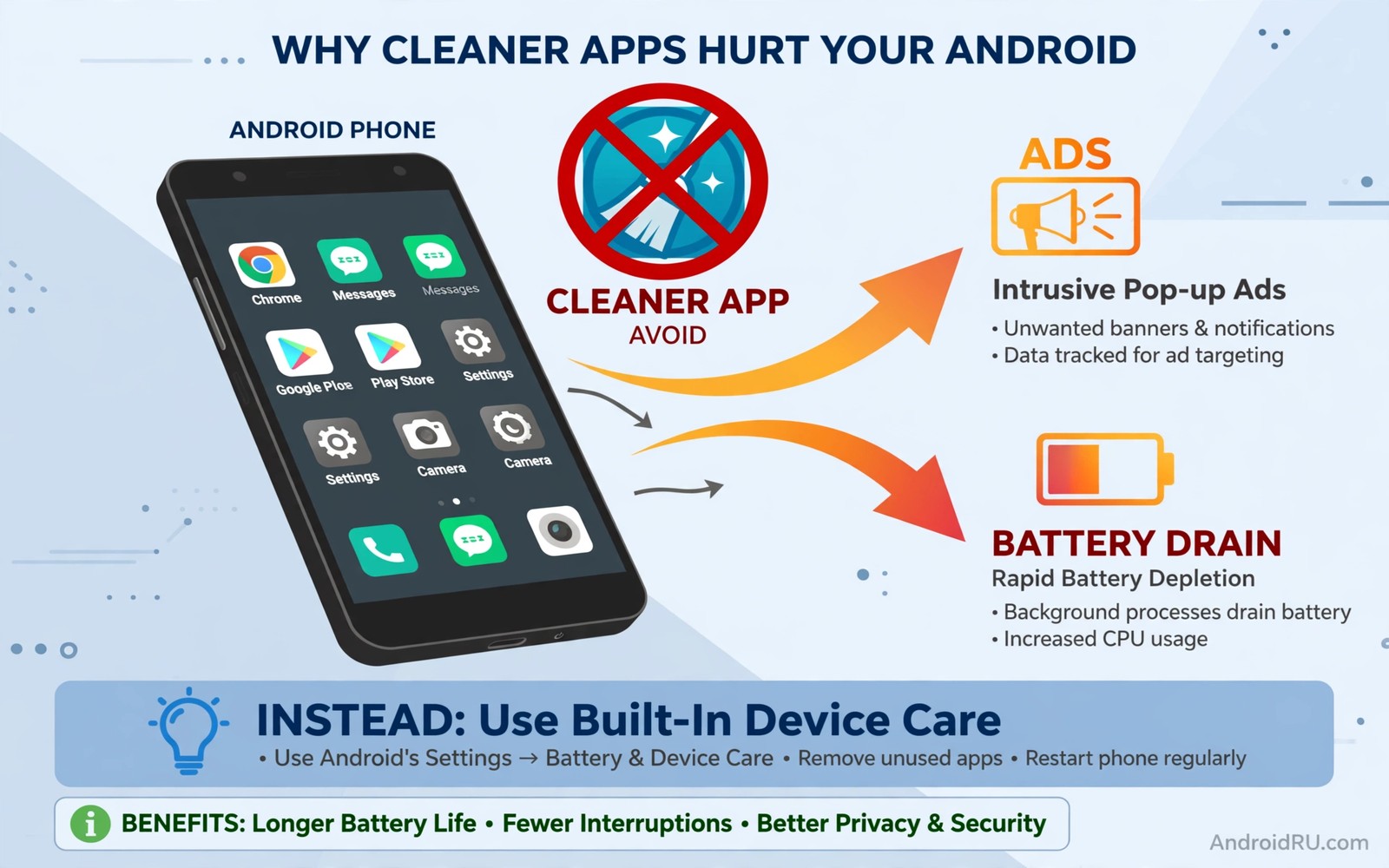
Cleaner apps top the download charts with bold promises. One tap frees gigabytes and doubles speed and cools the phone. Those promises sound wonderful because every owner has felt a slow phone and a full storage warning. The truth is less wonderful. Most cleaner apps cannot deliver what they promise because Android already manages memory and cache better than any third-party tool can.
Cleaners make money from attention and access rather than from cleaning. They show ads and push notifications and request broad permissions. Some harvest data or install partner apps. A few cross into outright malware that locks features behind payments. The cleaning animation is theatre designed to justify the access and the ads.
Android needs no cleaner for routine health. The system clears stale cache automatically when storage runs low. It freezes unused apps and reclaims memory without your help. Built-in storage tools show exactly what uses space and let you remove it safely. That built-in path is the only cleaning most phones ever need. The same caution applies to apps you should uninstall at once because apps that promise a quick fix often create the problem they claim to solve.
Why cache cleaning does not speed up a phone
Cache exists to make apps faster. It stores images and data so apps need not download them again. Deleting cache forces apps to rebuild it on next launch. That rebuild uses processor time and network data and battery. A cleaner that clears cache daily makes apps slower rather than faster while claiming the opposite.
Owners mistake the cleaning animation for real improvement. The animation shows files disappearing and a speed meter rising. Neither display measures actual performance. Real speed comes from processor power and free storage and a healthy battery. Cache deletion affects none of those in a helpful direction.
Repeated cache clearing can also break app behaviour temporarily. An app that loses its cache may forget preferences or require fresh logins. That inconvenience is sold as freshness. In reality it is wasted work that the system would have managed quietly on its own.
RAM boosting is a myth that wastes battery
RAM boosters kill background apps to free memory. That sounds helpful until you remember that Android manages memory itself. Killed apps relaunch when you need them and relaunching costs more battery than leaving them paused. A booster that kills apps hourly creates a cycle of killing and relaunching all day. Battery life falls while the booster claims to save it.
Boosters also fight the system. Android may restart services the booster killed because those services are needed. The booster then kills them again. That tug of war runs constantly in the background. A phone with a booster often uses more power than the same phone without one.
Free RAM is not a goal on Android. The system keeps useful apps ready in memory precisely so they open instantly. Empty RAM is wasted RAM. Judge performance by app launch speed and smoothness rather than by a free memory number. A booster optimises the wrong number while harming the right ones. That waste mirrors risky app types to avoid installing because risky installers promise speed while delivering burden.
The permissions and ads behind the cleaning
Cleaner apps request permissions far beyond cleaning. They ask for accessibility and usage access and overlay and notifications. Usage access reveals which apps you open and when. Overlay lets them draw over other apps. Accessibility can read screen content. A cleaning tool needs none of those powers for deleting cache.
Ads fund most free cleaners and those ads are aggressive. Full-screen ads and lock-screen ads and notification spam are common. Some cleaners push scare notifications claiming your phone is infected or slow. Tapping those notifications leads to more apps or paid subscriptions. The scare is manufactured to sell the cure.
Paid cleaner subscriptions add insult to the waste. Owners pay monthly for a tool that harms performance and harvests usage data. Cancelling can be deliberately confusing with buried settings and repeated confirmations. A subscription for cleaning is a subscription for theatre. Cancel it and use the built-in tools for free.
What actually frees storage and speed
Open built-in storage settings and review the breakdown by category. Photos and videos usually dominate. Back up photos to the cloud and remove local copies of backed-up media. That single action frees more space than years of cache cleaning. Delete downloaded files you no longer need and uninstall apps you have not opened in months.
For speed check battery usage for a misbehaving app and restrict that one app. Restart the phone weekly to clear stale processes cleanly. Keep the system updated because makers fix performance bugs in updates. Those three habits outperform any cleaner without ads or broad permissions.
If storage stays tight after cleanup then consider a phone with more storage at your next upgrade. No app creates storage that does not exist. Cleaners that claim to find hidden gigabytes are counting cache that apps will rebuild. Real space comes from removing real files you chose to delete.
Uninstall the cleaner safely
Uninstall cleaner apps from Settings rather than from their own interface. Open app info and revoke permissions first then uninstall. Check for a device admin grant before uninstalling because some cleaners use admin power to resist removal. Deactivate admin rights in security settings if needed then uninstall normally. The same protection habit supports disabling built-in app protection because built-in protection should stay on.
Settings > Apps > Cleaner app > Permissions
Settings > Security > Device admin apps
Settings > Apps > Cleaner app > Uninstall
Settings > Storage > Review by category
The steps above were written for this article to remove a cleaner completely rather than merely hiding its icon. They revoke the broad access first so the app cannot resist or linger. After uninstalling run the built-in storage review once. You will see the same space picture without ads or scare warnings.
Reclaim a phone already full of cleaners
A phone with several cleaners installed needs a careful cleanup rather than one more tool. List every cleaner and booster and battery saver on the phone. Uninstall them one by one from Settings and restart after the last removal. Restarting clears the background tug of war that multiple cleaners created together.
After removal watch battery usage for three days. Battery life usually improves as the kill-and-relaunch cycle stops. App launches feel smoother because paused apps stay ready instead of rebuilding constantly. If one app still misbehaves then restrict that single app rather than reinstalling a cleaner. Targeted restriction solves real problems while blanket cleaning creates new ones.
Clean up notifications left behind by cleaners as well. Open notification settings and revoke access from any leftover service that still posts scare alerts. A cleaner that is uninstalled cannot post alerts. A companion app from the same maker might still try. Remove companions too when they share the same scare tactics.
Finally reset any paid cleaner subscription through account settings and keep the cancellation confirmation. A subscription can keep charging after the app is gone. Cancellation first and uninstall second is the only order that stops billing reliably. Check the next statement to confirm the charge has stopped.
Common mistakes
The biggest mistake is trusting a speed score shown by the cleaner itself. That score is marketing rather than measurement. It rises after cleaning regardless of real performance. Judge your phone by how apps actually feel after a week without the cleaner.
Another mistake is installing several cleaners at once. Multiple cleaners fight each other and the system simultaneously. Battery drain worsens with each added tool. One uninstall is good. Uninstalling all of them is better.
People also grant usage access without reading what it reveals. Usage access exposes your app habits in detail. A cleaner has no legitimate need for that diary. Revoke usage access from any app that does not clearly need it for a feature you chose.
Finally avoid paying to remove ads from a cleaner. A paid cleaner is still a harmful tool with fewer ads. The correct price for cache theatre is zero and the correct action is uninstall. Spend nothing on tools that fight your phone system.
Frequently asked questions
Are all cleaner apps harmful?
Almost all third-party cleaners offer no benefit beyond built-in tools. A few reputable file managers include safe cleanup features without aggressive ads. Prefer the built-in storage tools first. If you use a file manager then check its permissions and its ad behaviour carefully.
Why does my phone feel faster after cleaning?
The feeling often comes from a restart or from placebo rather than from cache deletion. Closing apps and restarting refreshes the system temporarily. You can get the same refresh from a weekly restart without a cleaner. Test a week without the cleaner to compare honestly.
What about antivirus features in cleaners?
Built-in protection already scans apps on your phone. A cleaner that bundles antivirus usually duplicates that protection while adding ads and permissions. Keep built-in protection enabled and skip the bundle. Extra scanners from unknown makers add risk rather than safety.
Conclusion
Third-party cleaner apps sell theatre rather than performance. Cache clearing slows apps and RAM boosting wastes battery and broad permissions expose your habits. Android already manages memory and storage better than any cleaner can. Built-in tools and a weekly restart beat every cleaner on the market.
Your concrete next step is to uninstall every cleaner app on your phone today starting with the one you use most. Then open built-in storage settings and remove one real category of files you no longer need. That pair of actions frees real space without a single ad. Check the battery again after three days without cleaners to confirm the improvement for yourself. A cleaner-free week is the fairest test any phone can take.

