

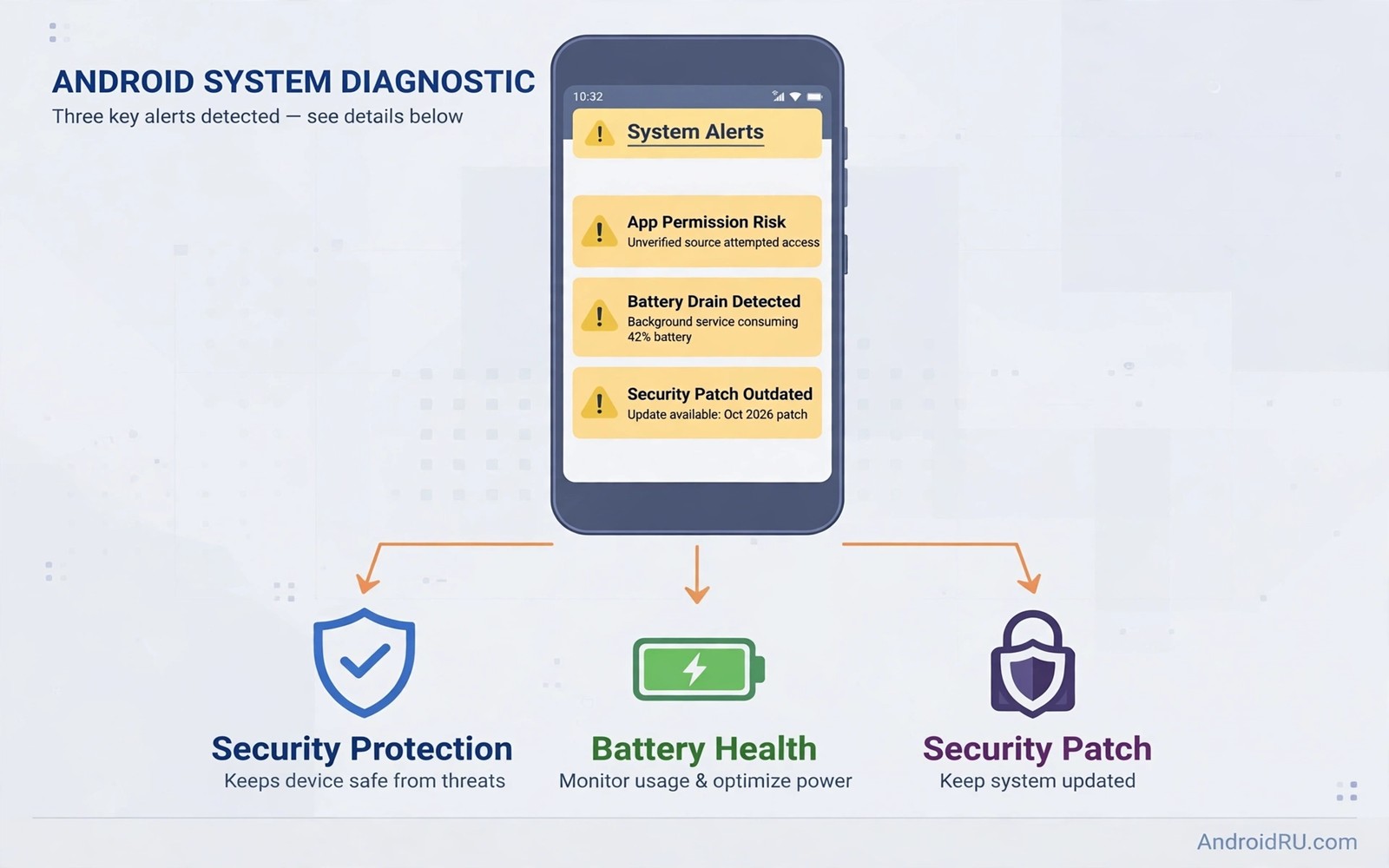
Phones warn their owners more often than owners realise. Most alerts are harmless such as a low storage notice or a missed update reminder. Three alerts are different because they can mean malware or a compromised account or a permission abuse in progress. Ignoring those three is like ignoring a smoke alarm because you are busy. The alarm may be false but you must check before you dismiss it.
Attackers count on alert fatigue. They flood phones with popups and fake warnings so that real warnings blend into the noise. That strategy works when every alert gets the same quick swipe. Learning three genuine alerts by sight breaks that strategy. You will still dismiss noise quickly. You will stop and act when a real warning appears.
This guide teaches you to recognise each alert and to tell it apart from a fake. It also gives you the exact first actions for each case. Read it now while your phone is healthy. Trying to learn alert shapes during an infection is stressful and mistakes become likely. Preparation here is worth more than any cleanup tool bought after the fact. The same discipline helps when you meet suspicious text messages because fake warnings often arrive disguised as urgent messages.
Alert one: a security app disabled itself or was removed
Modern Android phones include built-in protection that scans apps and warns about harmful behaviour. If that protection turns off without your action then something changed a system setting. Malware often disables protection as its first move so later steps go unnoticed. A message that protection is off deserves instant attention even if the phone otherwise feels fine.
Open Settings and check the security status yourself rather than trusting a popup. Re-enable protection at once if it is off. Then review recently installed apps and remove anything you do not recognise. Look especially for apps installed on the same day the protection changed. That timing link is often the clue that identifies the culprit.
Never accept a popup that offers to re-enable protection through a download. Real protection lives in Settings and it needs no extra app. A popup that demands a download to fix security is itself the threat. Close it and work from Settings only. That rule alone blocks a large family of scareware tricks.
Alert two: an app gained admin or accessibility power
Device admin access and accessibility access are the two most powerful grants on Android. An app with admin power can resist uninstallation and can lock the screen. An app with accessibility power can read screen content and tap for you. A genuine alert about either grant means an app just gained the keys to your phone. Treat it as urgent even if the app name looks familiar.
Open the accessibility services list and the device admin list and inspect every entry. If you did not deliberately grant that power then revoke it immediately. Then uninstall the app behind the grant. Do not accept the app explanation that it needs the power for cleaning or boosting or battery saving. No cleaner needs to read your screen or to resist removal.
Watch for grants that appear after installing a sideloaded app or after tapping a link in a message. Those are the two most common paths to a surprise grant. This is why caution about permission checks for sideloaded apps matters so much. A permission granted in haste can persist for months while the app quietly observes everything you do.
Alert three: your account signed in from an unknown place
A sign-in alert from your main account provider is a direct warning that someone may hold your password. The alert may name an unfamiliar device or city or time. Do not dismiss it as a glitch because account takeovers often start with one quiet test sign-in. Attackers test stolen passwords gently before they lock you out or spend money.
Change your password at once from a device you trust and choose a long unique password you use nowhere else. Turn on two-factor authentication if it is not already on. Then review the signed-in devices list and remove every device you do not recognise. Check recent account activity for password changes or recovery changes you did not make.
Also review payment methods and recovery options after a suspicious sign-in. An attacker may add a recovery address to regain access after you change the password. Remove unknown recovery options and confirm that your own recovery address and phone number are correct. Finish by signing out all other sessions so any stolen session token stops working.
How to tell a real alert from a fake popup
Real system alerts appear in Settings or in the notification shade from the system itself. They never appear only inside a browser page or inside a game. Fake alerts use alarming language and countdown timers and big red text. They demand an immediate download or a phone call. Real alerts explain the issue calmly and point you to a Settings screen.
Test a suspicious alert by leaving the app that shows it. Open Settings directly and look for the same warning there. If the warning exists only inside one app or one web page then it is fake. Close that app or tab and clear its data if popups persist. Never call a number shown in a popup and never install the tool it recommends.
Browser popups that claim infection are almost always fake. A web page cannot scan your phone for malware. It can only guess and frighten. Close the tab and do not tap anything inside it. If the popup returns then clear the browser cache and check recently installed apps for an adware source.
What to do in the first hour after a real alert
Disconnect from networks if you suspect active data theft and work through checks offline where possible. Revoke the suspicious grant and remove the suspicious app and change the affected password. Back up photos and documents you cannot replace before deeper cleanup. A backup protects you if the final fix requires a reset.
Settings > Security > Device admin apps
Settings > Accessibility > Installed services
Settings > Security > App permissions
Account > Security > Signed-in devices
The checklist above was written for this article to organise the first hour after a genuine alert. It lists only the screens where real warnings can be verified and revoked. Work through it in order and write down each change you make. That note helps you explain the incident later if you need support from your account provider or a repairer.
Protect the accounts behind the alerts
Phone alerts often point to account trouble rather than phone trouble. A sign-in warning may mean your password leaked in a breach far from your phone. Treat every account alert as a prompt to review the account itself. Change the password and check recovery options and review connected apps. Those three steps close most account attacks before they spread.
Connected apps deserve special attention. An old app you authorised years ago may still read your mail or your contacts. Open the account permissions screen and revoke access for services you no longer use. Each revoked connection removes a path an attacker could exploit. Keep only the connections that serve a current purpose.
Use a password manager to give every important account a unique long password. Reused passwords turn one leak into many compromised accounts. A manager removes the memory burden that pushes people toward reuse. Pair unique passwords with two-factor authentication wherever the account offers it.
Stay calm when a genuine alert appears and work from Settings rather than from the popup itself. Panic taps are how fake warnings win because they rush you toward a download. A real warning stays visible in Settings after you close the app that showed it. That persistence test also helps when you face a warning that tells you to switch the phone off at once since a real system warning can be verified in the same way.
Common mistakes
The biggest mistake is dismissing every alert because most alerts are harmless. Alert fatigue is real and attackers exploit it. Learn the three alerts in this guide by sight so you can dismiss noise fast while still catching the warnings that matter.
Another mistake is trusting a popup that offers a quick scan. Scareware popups imitate system warnings with impressive detail. They exist to install the very malware they claim to remove. Verify every warning in Settings before you install anything in response to it.
People also change a password on the same phone that may be compromised. A keylogging app could capture the new password as you type it. Change critical passwords from a trusted device when you suspect infection. Then clean the phone before signing in again on it.
Finally avoid assuming that a factory reset alone fixes an account compromise. A reset cleans the phone but it does not revoke stolen session tokens or remove an attacker recovery address. Clean the account and the phone together. Either half alone leaves a door open.
Frequently asked questions
Can a web page really detect malware on my phone?
No. A web page cannot scan your device or count infections on it. Any page that claims a specific number of threats is guessing to frighten you. Close the page and verify your phone status in Settings instead.
Should I install an antivirus app after an alert?
Built-in protection handles most cases when it is enabled and up to date. An extra scanner can help after a confirmed incident but it must come from a trusted maker. Never install a scanner recommended by a popup. Choose it yourself and check its reputation first.
When is a factory reset the right answer?
Reset when a suspicious app resists removal or when alerts return after cleanup or when you cannot trust the phone for banking. Back up irreplaceable files first and change account passwords from a trusted device. A reset is strong medicine and it works best paired with account cleanup.
Conclusion
Three alerts deserve your full attention every time. Protection turning off and a powerful grant appearing and an unknown sign-in each signal a real risk. Verify each alert in Settings and revoke the grant or remove the app or secure the account at once. Speed matters because malware and account thieves use delay to deepen their hold.
Your concrete next step is to open Settings today and confirm that protection is on and that no unknown app holds admin or accessibility power. That two-minute check turns this guide from reading into real protection before any alert ever appears.

