

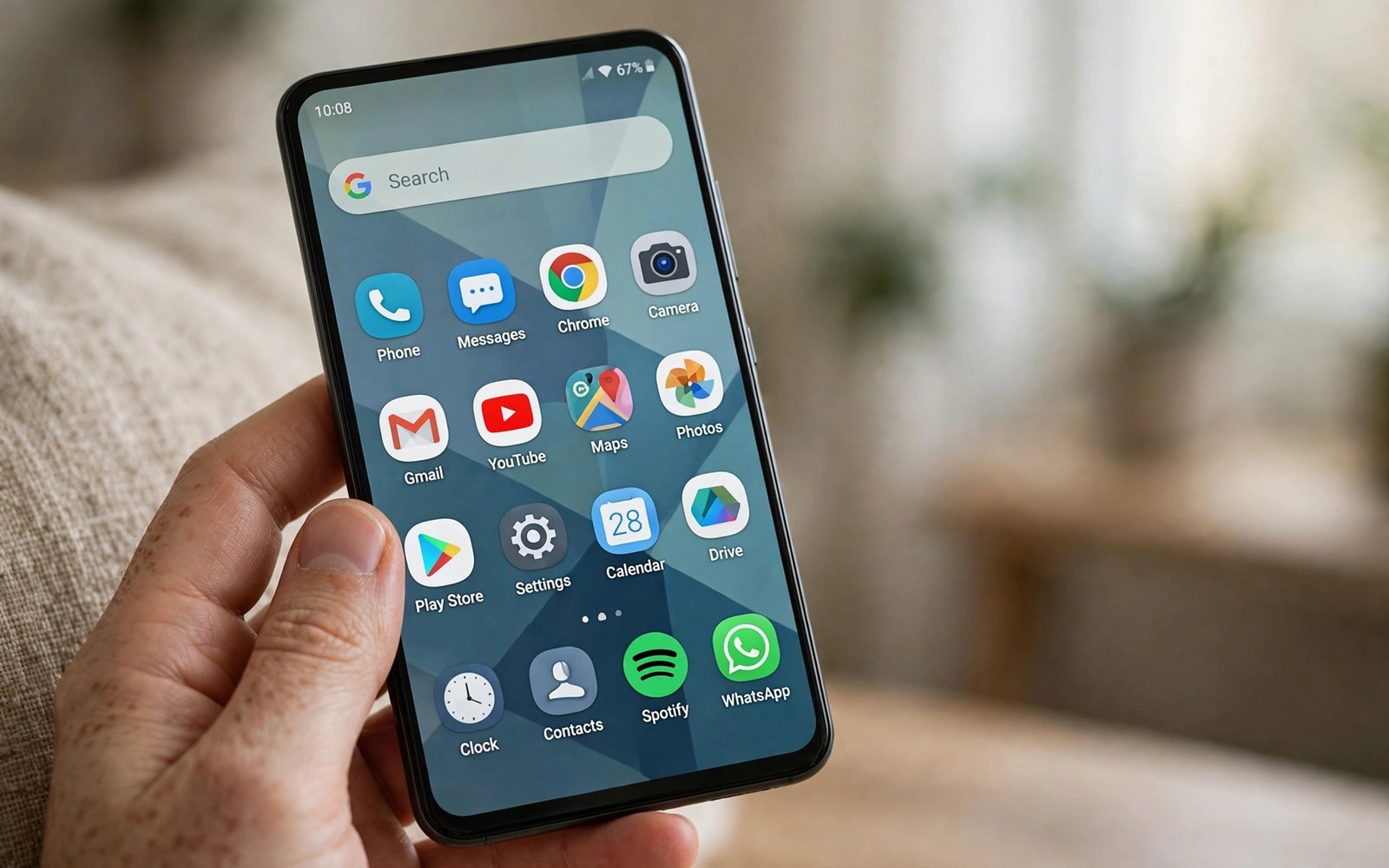
Stop Installing These Types of Apps Immediately: Security Alert
Most harmful apps do not look harmful. They promise a cleaner phone, a faster phone, and features that normally cost money, all for free. They use bright icons, polished screenshots, and thousands of five-star reviews. Behind that friendly listing, some of them read your messages, log what you type, show ads on your lock screen, or quietly sign you up for charges you never agreed to. The damage often happens in the first days after install, and deleting the app later does not take back the data it already sent out. That is why prevention matters far more than cleanup.
I have spent years testing Android apps, and the pattern never changes: the apps that shout the loudest about speed and free rewards are the ones worth the closest look. A legitimate tool explains what it does in plain words and asks for only the access it needs. A risky app hides behind vague promises, demands broad access, and makes it hard to find the developer behind it. This guide names the app types to avoid outright, shows you how to vet any new app in about five minutes, and gives you a clear plan for cleaning up if a bad app already sits on your phone.
None of this requires technical skill. You only need a short checklist and the habit of pausing for a minute before you tap install. If you follow the steps below, you can keep the useful apps and cut out the ones that treat your phone as a source of data to sell.
Why fake cleaner and booster apps are the first apps to delete
Cleaner and booster apps sit near the top of the charts in many countries, and that popularity is exactly what makes them dangerous. They promise to remove junk, free memory, cool the processor, and double battery life with one tap. Modern Android already manages memory, cache, and background work on its own, and it does that job better than any third-party app can. A cleaner cannot rewrite how the operating system works. It can only delete files, force apps to close, and show you a progress bar that looks like work. The phone feels faster for an hour because closed apps stop running, then it feels slower as those apps reload from scratch.
The real cost of these apps shows up in the permission screen and in the ad behaviour. Many cleaners ask for access to your files, your notifications, and your accessibility settings. They run constantly in the background, which drains the battery they claim to save. They show full-screen ads, push ads into the notification shade, and in some cases place ads on the lock screen. A tool that exists to make your phone calmer should never be the loudest app on it. If an app promises a miracle for free, the miracle is usually paid for with your attention and your data.
What a cleaner actually does on modern Android
A cleaner scans for cached files and temporary data, then deletes some of it and reports a large number of megabytes saved. That number looks impressive, but cached files exist for a reason: they let apps open faster and work offline. Deleting them forces apps to download the same images and data again, which uses more mobile data and more battery. Some cleaners also delete files that other apps still need, which causes crashes and lost settings. The built-in storage tool in Settings already shows you which apps use the most space and lets you clear a single app cache when it actually helps. That tool runs no ads, sends no data anywhere, and never asks for access to your screen.
There is one narrow case where a cleaner helps: a phone with almost no free space that needs a quick sweep before a system update. Even then, the built-in Files tool does the job. It finds large videos, duplicate downloads, and apps you have not opened in months. A third-party cleaner adds nothing except ads and trackers. When I tested three popular cleaners on a mid-range phone, all three showed a scary red warning within seconds of opening, all three asked for accessibility access, and all three kept a permanent notification running after I closed them. None of them found a problem that the built-in storage screen had not already shown me.
How booster apps fake a speed gain
A booster app claims to free RAM by closing background apps. Closing apps does free memory for a moment, but Android is designed to keep apps in memory so they reopen instantly. When a booster kills them, the system spends extra processor time and battery loading them again. The result is a phone that feels busy rather than fast. CPU booster claims are even weaker. No app can raise the thermal limit of a processor or add cooling. At best, a booster closes apps and shows an animation. At worst, it keeps a background service running around the clock, which is the opposite of saving resources.
Real speed comes from boring maintenance: removing apps you never open, keeping 10 to 15 percent of storage free, updating the system, and restarting the phone once a week. Those steps cost nothing and they work on every phone. A booster promises the same result with one tap, and that promise is the trap. If your phone feels slow, open Settings, check battery usage per app, and look for one app that burns power in the background. Fixing that one app usually helps more than any booster ever will.
The accessibility permission trap
The single most dangerous thing a cleaner or booster can ask for is accessibility access. Accessibility services were built for screen readers and switch controls, so they can read text on screen, watch what you tap, and in some cases act on your behalf. A cleaner has no honest reason to need that level of access. Once granted, a dishonest app can read one-time codes, watch you type a password, and tap through screens while you look away. Android now warns you clearly when an app requests this access, and that warning deserves respect. If a cleaner, booster, or battery app asks for accessibility access, treat that request as a reason to delete it, not as a setup step to complete.
Free VPN apps: why the price is your traffic
A VPN routes all of your internet traffic through its servers. That design makes the provider you choose more important than the app itself. A trustworthy VPN protects your traffic from the network you sit on. A dishonest one simply moves the watching from the Wi-Fi owner to itself, and it can see far more: every site you visit, every app that connects, and the timing of it all. Running servers in many countries costs real money, so a VPN that charges nothing has to earn money another way. The most common ways are logging traffic and selling the logs, injecting ads into pages, limiting speed until you pay, or turning your device into an exit node for other users.
Some free VPNs have been caught doing worse. Security researchers have found free VPN apps that contained tracking libraries, requested far more access than a network tool needs, and sent device identifiers to advertising firms. Others quietly signed users up for recurring charges through confusing trial screens. A free VPN is often worse than no VPN at all, because without one your traffic is spread across many networks and providers, while with a dishonest one it is gathered in a single place by a company you know nothing about. If privacy is the reason you want a VPN, a free one built on data sales defeats the purpose.
How a free VPN pays its bills
Start with the business model, not the feature list. A VPN service pays for servers, bandwidth, staff, and support. A paid plan covers those costs directly. A free plan must cover them indirectly, and the indirect routes are limited: show ads, sell data, limit the free tier so heavily that it pushes you to pay, or use your device as part of the network. The last route is the one most users never hear about. Some free VPNs route other customers through your connection, which means strangers can appear to browse from your device. That behaviour can link your device to activity you never did, and it drains battery and data while it runs.
None of this means every free tier is a scam. A few reputable paid VPNs offer a small free tier with clear limits, such as a few hundred megabytes a month or a handful of server locations, and they state plainly that paying customers fund it. The difference is transparency. A honest free tier tells you the limit, names the company behind it, and links to a real privacy policy written in plain language. A risky one promises unlimited speed, unlimited data, and total privacy for free, with no company address and no clear policy. Unlimited everything for free is not a business model. It is a warning sign.
Five warning signs on a VPN listing
- No company behind it: the listing names no company, no website, and no support address, so there is nobody to hold responsible when something goes wrong.
- Unlimited everything for free: unlimited speed and unlimited data with no paid plan in sight means the product is almost certainly your traffic, not the VPN.
- Permissions beyond networking: a VPN needs network access, not your contacts, call logs, or location history, so extra requests reveal a second business.
- Reviews that read like adverts: dozens of five-star reviews posted on the same day, all using the same short phrases, usually means bought reviews.
- A privacy policy that says nothing: a policy of two short paragraphs, or one that never says what is logged, is a policy written to hide the logging.
What to use instead of a free VPN
If you need a VPN for public Wi-Fi or for work, pick a paid provider with a public audit, a clear no-logs policy, and a company you can look up. A month usually costs less than a coffee, and many providers offer a money-back window so you can test the speed first. If you do not want to pay, skip the VPN and use the protections already on your phone: keep your system updated, use private DNS in Settings, avoid entering passwords on open Wi-Fi, and use your mobile data for banking. Those habits protect you without handing all of your traffic to a stranger.
Fake brand copies and lookalike apps that steal logins
Clone apps copy the name, icon, and colours of a popular app, then add a word such as pro, plus, free, or 2026. They appear in search results right beside the real app, and on a small screen the difference is easy to miss. Some clones are harmless ad farms that show a video ad every few seconds. Others are built to steal: they open a fake login page that looks identical to the real one, collect the username and password you type, and send them to a server you will never see. Banking apps, social apps, and messaging apps are the most copied, because a stolen login for those services is worth money.
The people behind clones count on speed. They know you search, tap the first result that looks right, and grant permissions without reading. They also count on the gap between the time a clone appears and the time it gets removed, which can be weeks or months. During that window, a clone can gather thousands of installs. The defence is a ten-second check before you tap install, and it starts with the developer name. The real WhatsApp is published by WhatsApp LLC. The real Telegram is published by Telegram FZ-LLC. A clone developer name is usually generic, misspelled, or completely unrelated to the brand.
How to spot a copycat in ten seconds
Read the developer name first, then the install count, then the review dates. A real popular app has millions of installs spread over years, with reviews from many dates. A clone often has a few thousand installs and a burst of reviews from a single week. Next, read the one-star reviews before the five-star ones. Unhappy users describe the actual behaviour: fake login screens, ads after every tap, crashes, or requests for a card number. Five-star reviews on a clone tend to be short and generic, such as great app or very good, repeated many times. Finally, check the app size and the update history. A real app from a large company is updated regularly and has a long version history. A clone is often a single upload with no updates at all.
If you ever tap a link and land on a login page inside an app you do not recognise, stop. Close the app and open the real service from its official app or its website instead. Never type a password into a page that an unknown app opened for you. A genuine app never needs you to log in through a stranger’s copy of its screen.
Fake system update apps and driver updaters
Fake system update apps are among the most dangerous clones, because they ask for the broadest access. They claim to update Android, update drivers, or install a new version of the system. No app from an app catalogue can do any of that. Android updates arrive only through Settings, under System update, and they are signed by the phone maker. An app that claims to update your system wants the kind of access that lets it install other apps, read your files, and change settings. Delete it at once, and check Settings for any device admin access it may have requested.
The same trick appears as a full-screen warning that claims your phone is infected, your battery is damaged, or the police have locked your device. Those screens are ads, not diagnoses, and the only safe response is to close the app or the browser tab without tapping anything inside the warning. If you want a calm walkthrough of that moment, the guide to turning off your phone when you see a warning explains what to press and what to ignore. Real security alerts come from your system settings or from a security app you chose and installed yourself, never from a random pop-up that demands an immediate tap.
Apps that ask for permissions they do not need
Permission requests are the fastest way to read an app’s intentions. A photo editor needs your photos and your camera. It does not need your call logs or your text messages. A game does not need your contacts. A wallpaper app does not need your location. A flashlight app needs the camera flash and nothing else. When an app asks for access that has nothing to do with its job, that request tells you more about the app than its description ever will. The description is marketing. The permission list is the business plan.
Android now lets you grant most permissions only while the app is open, and that setting is worth using for anything sensitive. Location, camera, and microphone should almost always be set that way, unless the app genuinely needs background access, such as a navigation app during a trip. An app that refuses to work unless you grant permanent access to unrelated data is not an app with a strict requirement. It is an app that wants your data more than it wants to serve you, and the correct response is to delete it and find an alternative that respects the boundary.
| Permission | A legitimate use | A red flag |
|---|---|---|
| Contacts | A messaging app finding friends who already use it | A flashlight, wallpaper, or cleaner app asking for your address book |
| SMS and call logs | A spam filter or a backup tool you chose deliberately | A game, photo editor, or VPN asking to read your messages |
| Location | Maps, weather, or a delivery app while you use it | A calculator, cleaner, or scanner asking for precise location |
| Microphone | A recorder, a voice chat app, or a voice assistant | A wallpaper or battery app that wants to listen in the background |
| Accessibility | A screen reader or a switch control tool | A cleaner, booster, or free rewards app asking to read your screen |
| Draw over other apps | A chat bubble or a screen dimmer you installed on purpose | An unknown app that draws ads over other apps and blocks the close button |
| Device admin | A work profile or a find-my-phone tool from a trusted maker | A system updater clone or a cleaner asking for admin rights |
The permission test you can run in thirty seconds
Before you install, open the permission list on the app page and read each item out loud with the app’s job in front of it. Ask one question per permission: does this access help the app do the thing I want it to do? If the answer is no, note it. One unrelated permission can be sloppy design. Three unrelated permissions is a pattern, and a pattern is a decision. After install, open Settings, then Apps, then the app, then Permissions, and revoke anything that fails the test. Check again after an update, because updates sometimes add new requests that were not there before.
Set sensitive permissions to only while using the app
The setting called allow only while using the app is the best balance between convenience and safety for location, camera, and microphone. It gives the app what it needs during the few minutes you use it and takes it away the moment you leave. A navigation app may need background location during a drive, and a fitness app may need it during a run, but a photo editor never does. Open the permission screen for each new app during its first week and set every sensitive permission to while using the app. If the app asks again later, you can decide then, with real experience of how you use it.
The five-minute vetting routine before you install anything
Vetting sounds like work, but the whole routine takes about five minutes, and most of it is reading a screen you already look at. The goal is not to become a security researcher. It is to catch the obvious fakes before they reach your phone, because the obvious fakes cause most of the damage. Run this routine for every app you have not installed before, and run it again for apps you install for someone else, such as a parent or a child, where a mistake costs more.
- Check the developer name and website. A legitimate developer has a real website, a support email, and a history of apps. Search the developer name outside the catalogue. A developer with one app, no website, and no support replies deserves extra caution, because that profile fits many scam operations.
- Read the permission list before you install. Compare each permission with the job of the app. Note anything unrelated, and decide in advance that you will revoke it after install or refuse the app entirely.
- Read the one-star reviews first. Negative reviews reveal crashes, ad abuse, permission problems, and fake features. Look for specific detail rather than anger alone, because a detailed complaint is usually a true one.
- Check the install count, the update history, and the release date. A popular real app has years of updates. A clone is often a single upload from a few weeks ago with a sudden burst of reviews.
- Search the app name plus the word scam or fake. Other users and security researchers often report bad apps within days of their release, and a quick search surfaces those reports before you install.
What to check after the first week
Installing is only half the test. Watch the app for a week before you trust it. Open Settings, then Battery, and look for an app that drains power while you sleep. Open data usage and look for an app that uploads data while idle. Watch for new ads on the lock screen, in the notification shade, or over other apps. Those ads almost always come from the most recently installed app, so remove the newest app first when they appear. A clean first week, with no strange battery use, no surprise data, and no new ads, is a good sign. A bad first week is a verdict, not a warning to ignore.
Keep a short list of apps you actually trust
Most people need far fewer apps than they carry. Once a month, open Settings, then Apps, sort by last used, and look at the apps you have not opened in thirty days. Many of them were installed for one task and forgotten. Each forgotten app is a small risk: it can be updated with new permissions, sold to a new owner, or simply sit there with access you granted long ago. Removing it costs nothing and closes the risk. Keep the apps you use weekly, remove the rest, and your phone gets faster, quieter, and safer in a single pass.
Risk comparison: which app types are dangerous and why
Not every risky app is equally risky. A flashlight app with ads is annoying. A fake system updater with device admin access can lock you out of your own phone. Sorting app types by risk helps you decide where to spend your attention first. Start with the types at the top of this table, because those are the ones that cause real harm, then work down to the merely annoying ones when you have time.
| App type | What it promises | The real risk | Safer option |
|---|---|---|---|
| Fake system updaters | A newer Android version or new drivers | Device admin access, forced installs, lock-screen ransom screens | Settings, then System update, only |
| Free VPNs | Free privacy and free streaming | Traffic logging, data sales, your device used as an exit node | A paid audited VPN, or no VPN and private DNS |
| Clone and copycat apps | The real app, free or pro | Stolen logins through fake login pages, ad fraud | Check the developer name before every install |
| Cleaners and boosters | Speed, junk removal, longer battery | Accessibility access, constant background drain, lock-screen ads | Built-in storage and battery tools in Settings |
| Battery savers | Double battery life with one tap | Background monitoring that drains battery, location and contacts access | Built-in battery settings and per-app usage screen |
| Flashlight apps with ads | A bright light | Contacts and location access for a one-button tool, aggressive ads | The flashlight in quick settings, already on your phone |
| Free rewards and money apps | Cash for watching ads or tapping | Harvested contacts, SMS access, payments that never arrive | No replacement needed; the reward is the trap |
The pattern across the table is the same: the app promises something valuable for free, and the payment is access to your phone. Once you see that pattern, you can spot a risky app from its description alone, before you ever reach the permission screen. Small habits protect you here as well, and the guide to stopping ten harmful phone habits immediately covers the everyday behaviours, such as ignoring updates and reusing passwords, that make a bad app far more dangerous than it needs to be.
What to do if you already installed a risky app
Finding a risky app on your phone is not a disaster. Most of the harm comes from leaving it installed for months, not from a few days of use. Act in the right order: remove the app first, then check what it touched, then change the passwords that matter. Do not open the app again to look for a delete-account button, and do not tap any link inside it. Uninstall it from Settings, restart the phone, and then work through the checks below.
Remove it the right way
Open Settings, then Apps, find the app, and tap Uninstall. If the uninstall button is greyed out, the app may have device admin access. Go to Settings, then Security, then Device admin apps, turn off the app there, and try again. After the uninstall, restart the phone, then check that lock-screen ads and strange notifications have stopped. If they continue, the culprit is a second app, so remove the next most recent install and test again. For a step-by-step walkthrough of the removal itself, the guide to uninstalling a dangerous app right now covers the exact screens to open and the order to open them in.
Check what it touched while it was installed
After removal, open your Google account security checkup and review signed-in devices, third-party access, and recent security events. Remove any access you do not recognise. Check your bank and card statements for small charges you did not make, because some bad apps sign users up for weekly subscriptions of a few dollars that are easy to miss. Check your subscriptions in the app catalogue and cancel anything you do not recognise. Finally, look at your messaging apps for messages you did not send. A few bad apps send premium texts or spam your contacts, and catching that early limits the damage.
Change passwords after a suspicious app
If the app asked for accessibility access, showed a fake login page, or requested SMS access, change your most important passwords, starting with your Google account, then your email, then your banking apps. Turn on two-factor authentication where it is offered, and prefer an authenticator app over text codes, since a dishonest app with SMS access can read those codes. This step feels like a chore, but it closes the most valuable door a bad app can open. A changed password costs ten minutes. A stolen account costs far more.
Frequently asked questions about dangerous Android apps
Can a cleaner app really speed up my phone?
No, not in any lasting way. A cleaner can free a little storage and close background apps, which feels faster for an hour, but Android already manages memory and cache efficiently. The reload cost of reopened apps usually cancels the gain, and the cleaner’s own background service adds a new drain. The built-in storage tool in Settings does the useful part of the job without ads, trackers, or accessibility requests.
Is every free VPN unsafe?
No, but the safe ones are rare and easy to recognise. A safe free tier comes from a known paid provider, states a clear data limit, names the company, and publishes a plain-language privacy policy. An unsafe free VPN promises unlimited speed and unlimited data for free, names no company, and hides its logging policy. If you cannot find who runs the VPN, do not give it all of your traffic.
How do I know if an app already stole my data?
Look for the signs: ads on the lock screen, new apps you did not install, battery drain while the phone idles, mobile data use that jumps without a reason, and messages sent from your accounts that you did not write. None of these signs proves theft on its own, but two or three together point at a recent install. Remove the newest apps first, run the Google account security checkup, and change the passwords for your email and banking apps if anything looks wrong.
Should I factory reset my phone after removing a bad app?
Usually not. A normal uninstall removes the app and its data, and a restart clears anything it left running. A factory reset is worth considering only if the app had device admin access, if ads continue after you removed every suspicious app, or if you entered a banking password into a fake login page. Before a reset, back up your photos and files, write down your accounts, and then reset through Settings, then System, then Reset options. For most people, uninstall plus password changes is enough.
A safer phone starts with one cleanup today
You do not need to become a security expert to keep your phone safe. You need one habit: pause before you install, read the developer name and the permission list, and delete anything that fails the test. That habit, repeated a few times a month, blocks most bad apps before they ever run. The five-minute vetting routine in this guide is the whole system. Print it in your head, use it for every new app, and teach it to the people in your family who ask you for help with their phones.
Start today with a single pass through your apps. Open Settings, then Apps, sort by last used, and remove one cleaner, one booster, or one app you do not recognise. Then set your sensitive permissions to allow only while using the app. That small cleanup takes ten minutes, and it is the most useful ten minutes you will spend on your phone this week.

